
The Saved views tool lets you create analytical templates that you or others in your account can load again without resetting parameters each time.
You can save a view as private, share it with specific people, or make it available to everyone in the account. Saved views are available from the Unified Analytics home page.
Emplifi accounts use either Teams (Team management) or the legacy Roles & permissions model (including user groups). What you see when you share a saved view depends on your account:
-
Teams: share with users and teams
-
Legacy: share with users and user groups
For how those models work, see User Roles and Permissions and Govern Access to Account Resources Using Teams. For how role permissions combine with View / Edit share modes on boards and saved views, see Share boards and saved views in Unified Analytics.
Save a view
To create and save a view:
-
Set up your board with the required parameters.
-
Data sources (profiles, etc.)
-
Filters
-
Aggregations
-
Time frame
-
-
In the top-right corner, click Save as view.
-
In the dialog that opens, configure the parameters according to your preferences. To learn more, see Share a Saved view below.
-
Click Save.
Manage your Saved views
Views are saved per board.
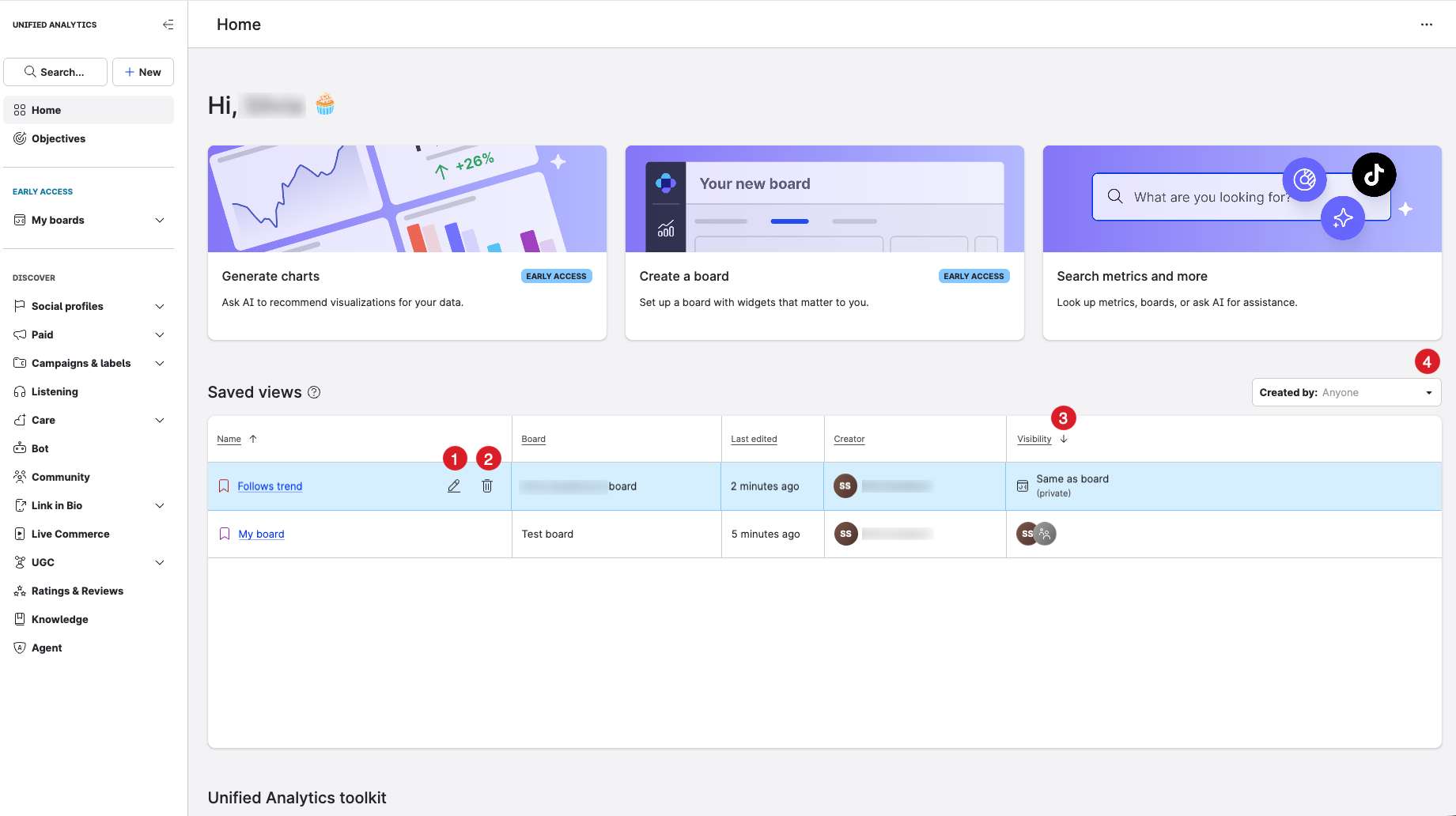
On the Home page of Unified Analytics, under Saved views, you can configure and filter for the following options:
-
Edit your Saved view: Hover over the relevant view and click the edit icon. In the configuration window that appears, edit the fields you want, then click Save.
-
Remove your Saved view: Hover over the relevant view and click the delete icon.
-
Browse by Visibility: Click the arrow beside Visibility to filter Saved views that are private and those shared with other users, teams, or user groups (depending on your account).
-
Browse by creator: In the Created by box, use the drop-down to select a creator. Alternatively, click the arrow beside Creator to sort Saved views by creator.
Edit widgets in a Saved view
You can modify the widgets in your Saved view at any point.
-
Open the board the saved view is part of and load the saved view.
-
Make the required changes.
-
Click Update view or, alternatively, click Save as new view.
Share a Saved view
Saved views on boards have three choices for Visibility:
Sharing a view determines only whether the selected users, teams, or user groups can see the view. Only people with permission to manage global saved views can change the view. Who you can add to a share depends on your account model (Teams or legacy user groups).
-
Private: Only the original creator can see the saved view. If the original creator is no longer in the account, whoever changes this setting to private can take ownership of the view. Only users with a role that lets them manage global saved views can change the visibility of a view from private.
-
Global: Everyone in the account can see the view.
-
Specific users/teams (Teams accounts) or Specific users/user groups (legacy accounts): Only the owner of the view, Account Admins, and the users and teams or user groups added to the list can see the view.
For saved views on dynamic boards, see Share a Saved View for a Dynamic Board in Unified Analytics.
To set the visibility of a Saved view:
-
There are three ways to set the visibility of a saved view:
-
Open a board and create a new saved view
-
From Unified Analytics → Home → Saved views, hover over the name of the view you want to change and click Edit (pencil icon).
-
From the board that contains the saved view, click Saved views, hover over the name of the view you want to change, and click Edit (pencil icon).
-
-
Select one of the following options for Visibility:
-
Private (Only you have access)
-
Global (Everyone within the account)
-
Specific users/teams or Specific users/user groups (label depends on your account)
-
-
Click Save.