
Control who can view and who can edit your boards and saved views in Unified Analytics by combining role permissions with share modes.
View mode / Edit mode apply when you share a dynamic board, or a saved view on a dynamic or preset board, with a team or an individual user. Preset boards themselves are not shared with View or Edit mode; access to a preset board follows Unified Analytics product access.
On legacy accounts that still use user groups, a group share does not offer View mode or Edit mode. User group shares are always view-only. To give someone Edit mode on a legacy account, add them as an individual user on the share.
This article covers what is specific to Unified Analytics. Emplifi accounts use either Teams (Team management) or the legacy Roles & permissions model. The same Unified Analytics product access options apply in both. For how those models work, see User Roles and Permissions and Govern Access to Account Resources Using Teams.
Overview
Two settings work together to decide whether someone can edit a shared board or saved view:
-
Role permissions: Set for the role under Unified Analytics product access (path depends on your governance model; see below). They define the most a person can do with boards and saved views.
-
Share mode: Set for each team or individual user when you share a dynamic board or a saved view. View mode means people can open and use it but can never edit it. Edit mode means people can edit it, as far as their role allows. User group shares (legacy) do not have a share mode; they are always view-only.
Neither setting grants editing on its own. A person can edit only when their role allows it and the share is in Edit mode.
Everyone with Unified Analytics access can create and manage their own private boards and saved views. To share with others, or to edit a board or saved view someone shared with you, you also need the matching manage permission and a share in Edit mode.
Account Admins can always edit boards and saved views they can reach, including those shared in View mode. In the Share panel, an individual share to an Account Admin is locked to Edit mode.
Role permissions in Unified Analytics
Unified Analytics options appear for both governance models. Where you open them depends on your account:
-
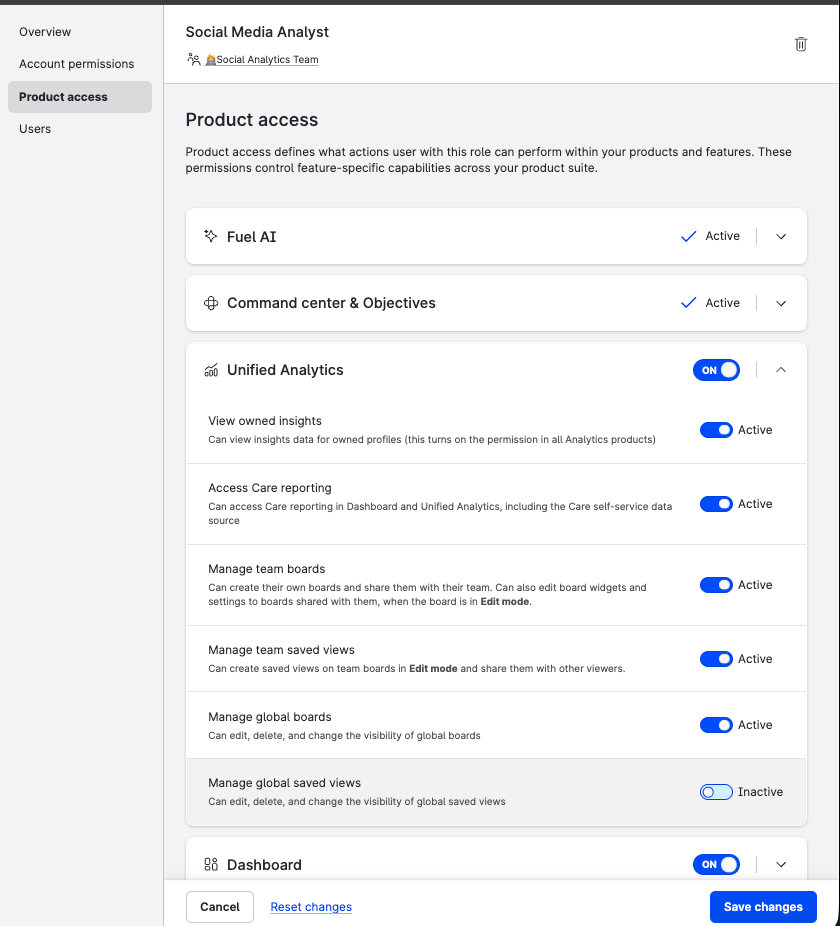
Teams: Settings > Team management > Team roles > select a role > Product access > Unified Analytics
-
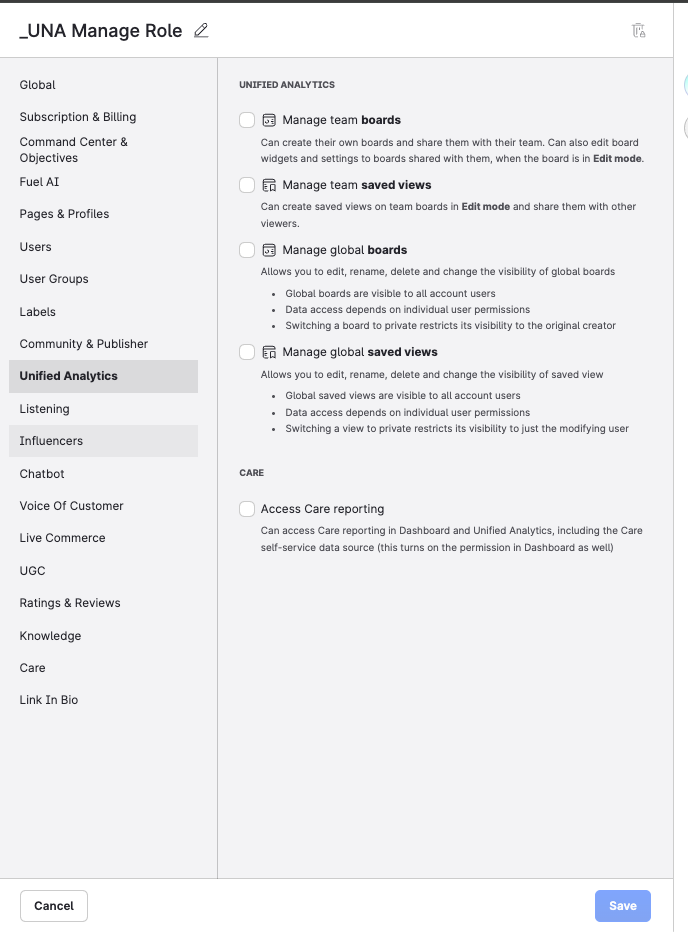
Legacy: Settings > Roles & permissions > Account roles > select a role > Unified Analytics
The descriptions below match the Product access copy on Teams accounts. On legacy Roles & permissions, the same permission names appear under Unified Analytics (and Access Care reporting also appears under Care).
|
Permission |
What it allows |
|---|---|
|
View owned insights |
Can view insights data for owned profiles (this turns on the permission in all Analytics products). |
|
Access Care reporting |
Can access Care reporting in Dashboard and Unified Analytics, including the Care self-service data source. |
|
Manage team boards |
Can create their own boards and share them with their team. Can also edit board widgets and settings to boards shared with them, when the board is in Edit mode. |
|
Manage team saved views |
Can create saved views on team boards in Edit mode and share them with other viewers. |
|
Manage global boards |
Can edit, delete, and change the visibility of global boards. |
|
Manage global saved views |
Can edit, delete, and change the visibility of global saved views. |
View owned insights is required for Unified Analytics access. Manage team boards, Manage team saved views, Manage global boards, and Manage global saved views are separate toggles. Turn on each one that the role needs.
Global boards and global saved views are visible to all account users. Data access still depends on individual user permissions. Switching a global board to private restricts its visibility to the original creator. Switching a global saved view to private restricts its visibility to the user who made the change.
Global boards and saved views do not use View mode or Edit mode.
Teams Product access:
Legacy Roles & permissions:
How the permissions combine with share mode
This table covers sharing with teams or individual users (View mode / Edit mode). It does not apply to global boards or global saved views, or to user group shares (always view-only).
|
Manage team boards |
Manage team saved views |
With a share in Edit mode |
With a share in View mode |
|---|---|---|---|
|
On |
On |
Can edit boards and create/share saved views |
View only |
|
Off |
On |
Can create and share saved views on boards shared with them in Edit mode; cannot edit the board |
View only |
|
On |
Off |
Can create boards, share them, and edit boards shared in Edit mode; cannot manage saved views as above |
View only |
|
Off |
Off |
View only (needs View owned insights) |
View only |
Set permissions for a role
These steps can only be performed by Admins.
Teams accounts
-
Go to Settings > Team management > Team roles.
-
Select the role you want to change, or create a new one.
-
Under Product access, open Unified Analytics.
-
Turn on View owned insights.
-
Turn on Manage team boards, Manage team saved views, Manage global boards, Manage global saved views, and Access Care reporting as needed for that role.
-
Click Save changes.
Legacy accounts (Roles & permissions)
-
Go to Settings > Roles & permissions > Account roles.
-
Select the role you want to change, or create a new one.
-
Open Unified Analytics.
-
Turn on Manage team boards, Manage team saved views, Manage global boards, and Manage global saved views as needed for that role.
-
Under Care, turn on Access Care reporting if needed.
-
Click Save.
The permissions apply to everyone with that role.
Share modes
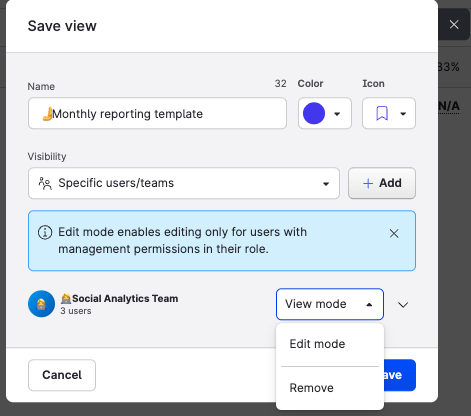
When you share a dynamic board or a saved view with a team or an individual user, you set View mode or Edit mode for each one you add.
|
Mode |
What it means |
|---|---|
|
View mode |
The team or user can open and use the board or saved view, but can never edit it, even if their role includes Manage team boards or Manage team saved views. |
|
Edit mode |
The share allows editing. What each person can actually edit still depends on their role. |
Edit mode does not grant editing by itself. A person without manage permissions cannot edit a board shared in Edit mode, and a person who can manage boards cannot edit one shared with them in View mode. Account Admins are an exception: they can always edit boards and saved views they can reach.
You choose the mode each time you add a team or user. For example, the same board can be shared with Marketing UK in View mode and with HQ Team in Edit mode.
User groups (legacy): Accounts that still share with user groups do not get a View mode / Edit mode control on those group rows. A user group share is always view-only. To give someone Edit mode on a legacy account, add them as an individual user on the share.
Global sharing
You can also share a dynamic board or a saved view with everyone in the account. In the share UI this appears as Global (or an equivalent everyone-in-the-account option, depending on your account). Global sharing requires Manage global boards or Manage global saved views. It does not use View mode or Edit mode.
On some Teams accounts, account-wide Global sharing is unavailable. In that case, share with specific teams or users instead.
Share a dynamic board
-
Open the dynamic board you want to share.
-
Click Share in the board header.
-
Choose who can access the board: teams or individual users, everyone in the account (Global), private access only, or, on legacy accounts, user groups.
-
If you share with teams or individual users, set View mode or Edit mode for each one. If you share with a user group (legacy), there is no mode control; the group share is view-only.
-
Optionally expand a team in the Share panel to see its members and their management permissions for this board (for example Manages boards & saved views, Manages boards, Manages saved views, or Viewer). Users in several teams show their combined permissions. You can also remove a team or user from the share.
-
Click Save.
Share a saved view
-
Open the board that contains the saved view (dynamic or preset).
-
Create or edit the saved view. In the Save view dialog, set Visibility.
-
To share with specific people, choose Specific users/teams (or the equivalent users/user groups option on legacy accounts), then click + Add.
-
For each team or individual user, set View mode or Edit mode. User group shares do not offer a mode control; they are view-only.
-
Optionally expand a team to see its members and their management permissions for this saved view. You can also remove a team or user from the share.
-
Click Save.
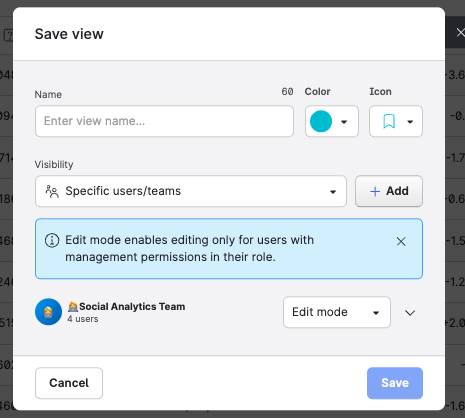
When visibility is Specific users/teams, the dialog shows: Edit mode enables editing only for users with management permissions in their role.
People who receive a saved view still need access to the board that hosts it. If you share a saved view more widely than the board, Unified Analytics can prompt you to share the board with those teams or users as well. That board share is available for dynamic boards only.
How role permissions and share mode work together
One share: the more restrictive setting applies
For a single share with a team or an individual user, both your role and the share mode must allow editing.
|
Your role permissions |
Share mode |
Result |
|---|---|---|
|
Manage team boards and Manage team saved views |
Edit mode |
You can edit the board and work with saved views as your role allows. |
|
Manage team saved views only |
Edit mode |
You can create and share saved views on boards shared with you in Edit mode, but not edit the board. |
|
Manage team boards only |
Edit mode |
You can create boards, share them, and edit boards shared in Edit mode. |
|
Neither manage permission |
Edit mode |
You cannot edit. |
|
Any role |
View mode |
You cannot edit. |
Several shares
If you have access to the same board through more than one share, an individual user share overrides any team share. Without an individual share, Edit mode from any team wins over View mode from another team.
Example: Monica has access through Marketing UK in View mode and through an individual share in Edit mode. The individual share applies, so Monica can edit the board if her role also allows editing. An individual share is the usual way to give someone Edit mode when their team is in View mode, and it is the way to grant Edit mode on a legacy account that only has user group shares.
When shares overlap like this, a warning icon appears in the Share panel. It does not block anything.
What sharing does not change
-
Export and scheduled reports: Sharing a board or saved view does not change who can export or who receives a scheduled report. Those flows use their own recipients and settings.
-
Profile and data access: Sharing a board or saved view does not grant access to social profiles or other resources. If someone opens a shared board or view that includes profiles they cannot access, they do not see that data.
View-only access
If your share is in View mode, you received access only through a user group, or your role has View owned insights but neither manage permission:
-
You can open and use the board or saved view (when it is shared with you).
-
You cannot edit the board layout or widgets, and you typically cannot open Share on a dynamic board.
-
For saved views, you may be locked to view mode (for example no pencil to edit a view). If you change filters or other controls, save your changes as a new saved view instead of updating the shared one.
Tips
-
Give Manage team boards only to people who need to create dynamic boards or change layouts and widgets.
-
Give Manage team saved views to people who should create and share views on boards shared with them in Edit mode without editing the board itself.
-
Give Manage global boards or Manage global saved views only to people who should manage boards or saved views shared with everyone in the account.
-
Share with broad audiences in View mode, and add individual Edit mode shares only where needed.
-
On legacy accounts, if someone needs Edit mode, share with them as an individual user, not only through a user group.
-
If someone can edit more than you expected, check for an overlapping individual share; it takes precedence over a team share in View mode. Also check whether they are an Account Admin.
Troubleshooting
|
Issue |
Solution |
|---|---|
|
A user cannot edit a board shared in Edit mode. |
Check their role under Unified Analytics product access (Team roles or Account roles, depending on your account). They need Manage team boards to edit boards, or Manage team saved views to create and share saved views. |
|
A user can edit a board shared with their team in View mode. |
They probably have an individual share in Edit mode, another team share in Edit mode, or Account Admin access. An individual share takes precedence over the team. Check the Share panel for the warning icon. |
|
There is no View mode / Edit mode control on a legacy share. |
Expected for user group shares. User group shares are always view-only. Add the person as an individual user to set View mode or Edit mode. |
|
A user can open a board but cannot share or edit it. |
They are in View mode for that board, they only have a user group share, or their role has neither manage permission. Someone with Edit access needs to change the share or their role. |
|
A user opens a board but some data is missing. |
Sharing does not grant profile access. Check that they have access to the profiles and other resources the board uses. |
|
A user cannot see a dynamic board at all. |
Make sure the board is shared with them, with one of their teams or user groups, or globally if your account uses Global, and that View owned insights is on for their role. |
|
There is no Share button on a preset board. |
Expected. Preset boards are not shared with View or Edit mode. Share saved views on the preset board instead. |
FAQ
Can I share a board or saved view with my team?
Yes. For a dynamic board, open it, click Share, add the team or users, and set View mode or Edit mode. For a saved view, open its sharing or visibility options when you create or edit it. To create and share your own dynamic boards, your role also needs Manage team boards.
Where do I set Unified Analytics permissions?
On Teams accounts: Settings > Team management > Team roles > select a role > Product access > Unified Analytics.
On legacy accounts: Settings > Roles & permissions > Account roles > select a role > Unified Analytics. The same permission names are available in both models. On legacy accounts, Access Care reporting also appears under Care.
What can I share?
You can share dynamic boards and saved views (on dynamic or preset boards) with teams, individual users, and, on legacy accounts, user groups. Where your account allows it, you can also share a dynamic board or saved view with everyone in the account (Global). View mode and Edit mode are available for teams and individual users only.
Does this work on preset boards?
You can share saved views on preset boards with View mode / Edit mode for teams and individual users (and with Global, where available). You cannot share a preset board itself with View or Edit mode; there is no board Share control on preset boards.
What is View mode?
View mode lets people open and use the board or saved view. They cannot edit it, even if their role includes manage permissions. They also cannot share it. Account Admins can still edit boards and saved views they can reach. View mode is set per team or individual user share. User group shares are always view-only and do not show this control.
What is Edit mode?
Edit mode allows editing on that share for a team or an individual user. Each person can still edit only as far as their role allows (Manage team boards, Manage team saved views, or neither), unless they are an Account Admin. User group shares do not support Edit mode.
Why don’t I see View mode or Edit mode on a legacy account?
If you shared with a user group, that is expected. Legacy user group shares are always view-only and have no mode dropdown. Add the person as an individual user on the share to set View mode or Edit mode.
Why can someone see a board but not edit it?
Either the share is in View mode, they only have a user group share, or their role does not include the matching manage permission. Both the role and an Edit mode share are required to edit (Account Admins excepted).
Why can someone edit a board that was shared with their team in View mode?
They likely have an individual share in Edit mode, or they are an Account Admin. An individual user share takes precedence over a team share. Check the Share panel for the warning icon.
Does sharing affect exports or scheduled reports?
No. Export and scheduled reports use their own settings. Sharing only controls who can open and edit the board or saved view in Unified Analytics.
If someone shares a board with me, do I get access to its profiles?
No. You only see data for profiles and resources you already have access to.
Does Manage team boards include Manage team saved views?
No. They are separate toggles under Unified Analytics on the role.
What do Manage global boards and Manage global saved views do?
They let the role edit, delete, and change the visibility of boards or saved views shared with everyone in the account. On legacy Roles & permissions, the copy also notes that you can rename them. These permissions do not replace Manage team boards or Manage team saved views for View mode / Edit mode sharing with teams or individual users, and they do not grant editing on those shared resources by themselves.
What does View owned insights do?
It lets the role view insights data for owned profiles and turns on that permission across Analytics products. It is the base Unified Analytics access. Everyone with Unified Analytics access can create and manage private boards and saved views. Without the manage permissions, you can still open boards and saved views shared with you, but you cannot share them or edit them.
What is Access Care reporting for?
It lets the role access Care reporting in Dashboard and Unified Analytics, including the Care self-service data source. It does not replace Manage team boards or Manage team saved views for sharing and editing boards.
Scope and limitations
-
Unified Analytics product access options are available for accounts that use Teams and for accounts that use the legacy Roles & permissions model.
-
Board-level View mode / Edit mode apply to dynamic boards shared with teams or individual users. Saved-view sharing with those modes applies on dynamic and preset boards. User group shares (legacy) are always view-only.
-
Sharing does not grant profile or resource access.
-
Sharing does not change export or scheduled-report behavior.