
Fuel AI is the AI layer that sits across the whole Emplifi platform. It understands your account, works with the data and features you already have in Emplifi, and carries out work on your behalf. You describe what you need in plain language, and Fuel AI finds the information, analyzes your data, or does the task, across Social Marketing, Listening, Unified Analytics, Care, Community, and Settings.
This is what makes Fuel AI different from a chatbot. A chatbot answers questions. Fuel AI reads your account, works out what needs to happen, and then does it, with your approval. It can build a report, tag a quarter's worth of posts, set up a Listening topic, or create an automation, in the same way a member of your team would.
You don't need to learn commands or menus. Ask the same way you would ask a colleague, for example "Why did our Instagram engagement drop last month?" or "Create a board showing reach and engagement for our Facebook and Instagram profiles."
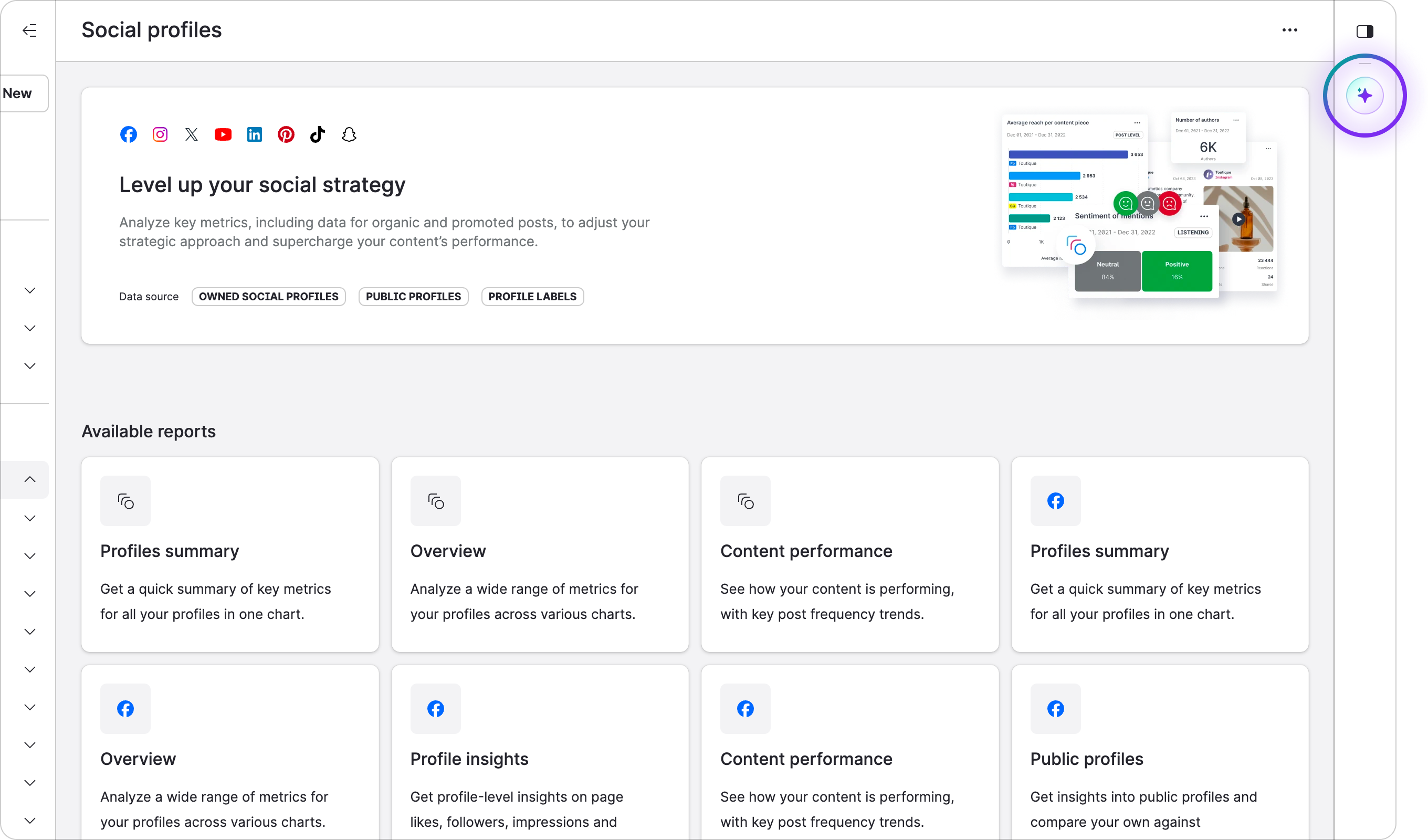
Two ways to use Fuel AI
Fuel AI is one agent, and you can reach it from two places:
|
Where |
How it works |
Best for |
|
In Emplifi |
A chat panel on the right side of the screen that stays with you as you move between Emplifi products. Type a request, approve what Fuel AI proposes, and see the result. |
Everyone who works in Emplifi day to day. No setup needed. |
|
In your own AI tools (via MCP) |
Connect an AI tool your team already uses, such as Claude, ChatGPT, Cursor, or Codex, to your Emplifi account. The tool then uses Fuel AI to work with your Emplifi data and carry out Emplifi actions, with your permissions. |
Teams that already work in an AI tool and want Emplifi inside it, for example data, insights, or operations teams. |
Both routes use the same Fuel AI, the same actions, the same permissions, and the same safety checks. The only difference is where you type. Connecting your own AI tool is available to selected customers while it is being rolled out. See Connect your AI tool to Fuel AI.
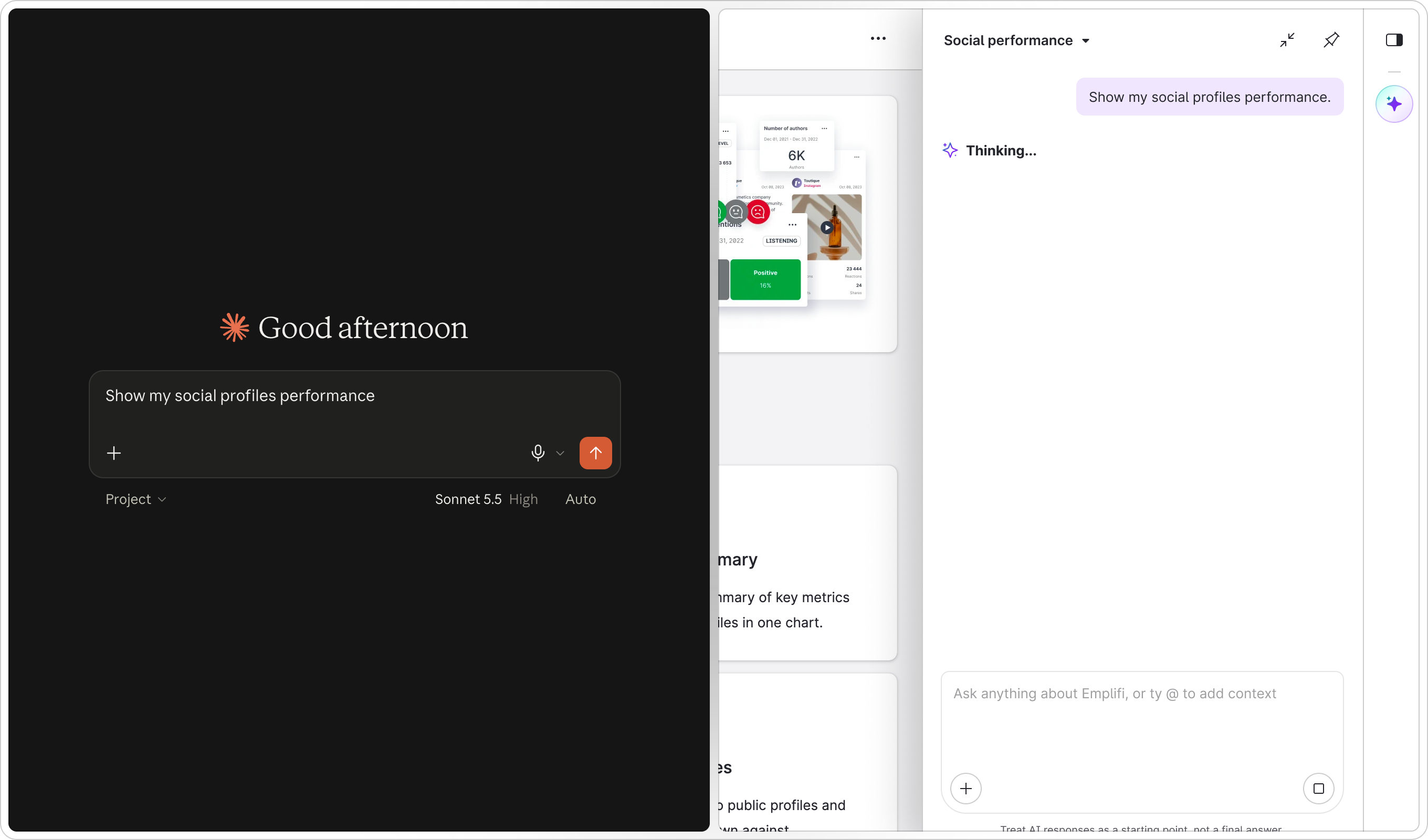
Fuel AI overview
With Fuel AI, you can:
-
Ask questions about your data and get an answer that explains what changed, why, and what to do next
-
Build Unified Analytics boards and widgets by describing them
-
Find, label, and organize content across your profiles
-
Set up Listening topics, queries, and spike alerts
-
Draft social content and manage your publishing workflow
-
Summarize Care cases and manage Care and Community settings
-
Create Flow Automations from a single sentence
-
Get help with using Emplifi, with answers taken from the official Emplifi documentation
Because Fuel AI works across every Emplifi product, it can join the dots between them. One request can take a spike in Listening, find the posts behind it in Unified Analytics, and draft a response in Publisher. New capabilities are added regularly, so if something isn't possible today, it may be soon.
Not sure what Fuel AI can do? Ask it. Type "What can you help me with?" or "Give me a list of everything I can ask you to do" and Fuel AI shows you the current list for your account.
How Fuel AI works
Fuel AI works inside your Emplifi account, using the same features and data you already have access to. It doesn't rely on general knowledge from the internet. Every answer and every action comes from your own account.
When you send a request, Fuel AI:
-
Works out what you're asking for and which part of Emplifi it relates to.
-
Reads the data it needs from your account, or prepares the action you asked for.
-
Asks you to confirm before it creates, changes, or deletes anything.
-
Carries out the task and shows you the result, with a link to what it created where that applies.
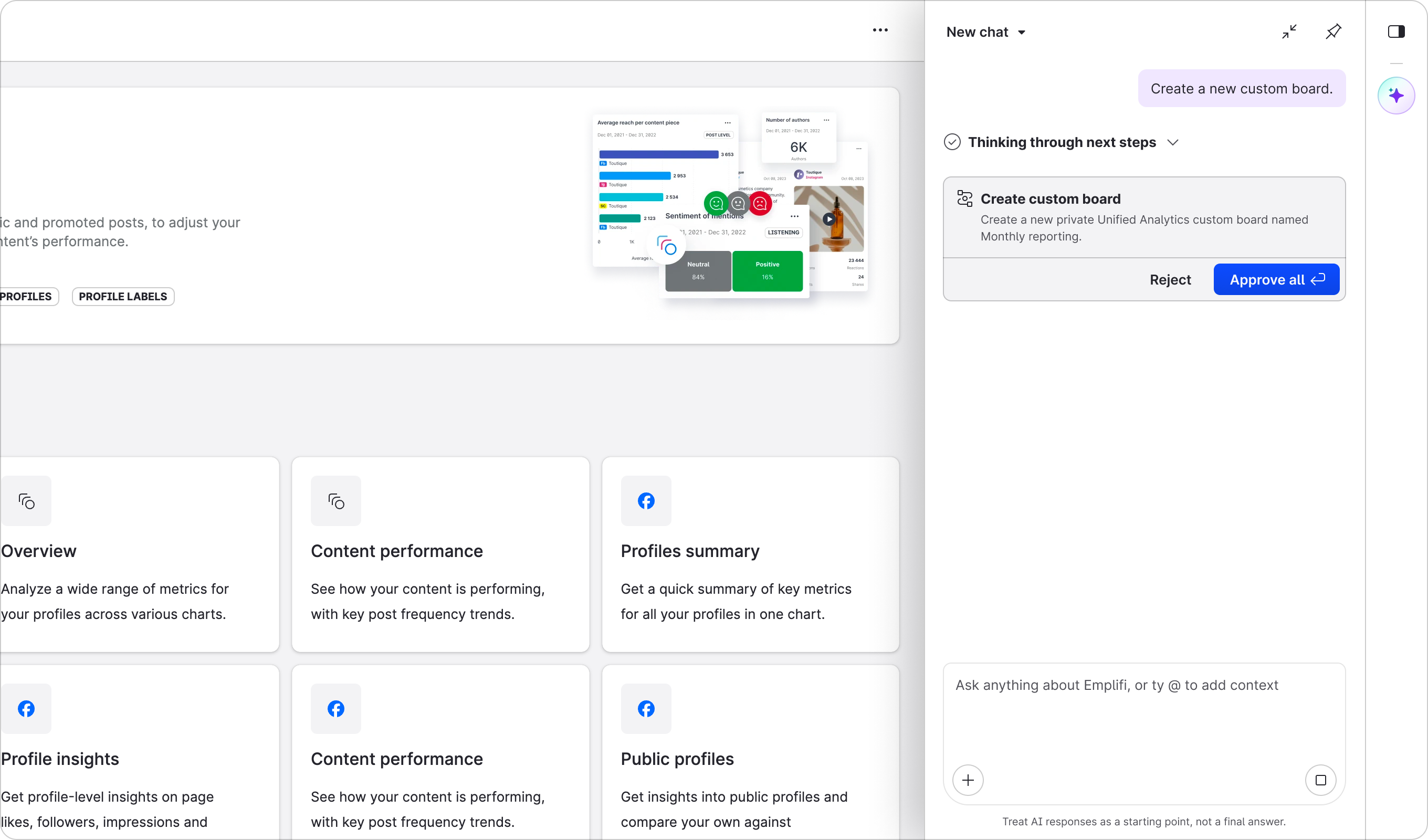
Fuel AI conversation showing a request
Fuel AI only ever does what you're allowed to do. It uses your own permissions, so it can't see data you can't see, and it can't carry out actions your role doesn't allow. If something isn't available for your account, role, or network, Fuel AI tells you exactly what the blocker is rather than guessing.
Fuel AI Lite and Fuel AI
There are two versions of Fuel AI, and both use the same chat panel. Every Emplifi customer starts with Fuel AI Lite. The full version of Fuel AI is an add-on.
|
Version |
What it does |
Who has it |
|
Fuel AI Lite |
Limited to three things: how-to answers from the Emplifi documentation, summaries of Unified Analytics widgets, and summaries of Unified Analytics boards. Nothing else on this page applies to Fuel AI Lite. |
Every Emplifi customer. It’s switched on by default, at no extra cost, with nothing to set up. |
|
Fuel AI |
The full agent. It reads and analyzes your data and carries out actions across Emplifi, in the chat panel and through your own AI tools, as described on this page. |
Customers who have added Fuel AI to their Emplifi package, or who are trying it. |
If you have Fuel AI Lite and ask for something that only the full version of Fuel AI can do, it lets you know and points you to your account manager. To learn more, see Fuel AI Lite.
How the full version of Fuel AI is packaged
The full version of Fuel AI is available as an add-on to your Emplifi package. The add-on comes with a yearly allowance of credits, sized to your package.
Credits are how Fuel AI usage is measured. Every request you make uses some credits, and the amount depends on how much work the request involves. A quick question or a short summary uses a few credits. A detailed report across many profiles, or labelling a quarter's worth of posts, uses more. Fuel AI Lite doesn't use credits.
If your organization uses its allowance, you can add more credits. Your account manager can tell you your current allowance and how much of it you've used.
Want to try Fuel AI before adding it? Your account manager can arrange a trial so your team can use the full version with a one-off set of credits.
Where to find Fuel AI
Fuel AI is available from anywhere in Emplifi. Click the Fuel AI icon in the toolbar on the right side of the screen to open the chat panel, at the top. The panel stays open as you move between products, and your conversation is kept when you collapse and reopen it.
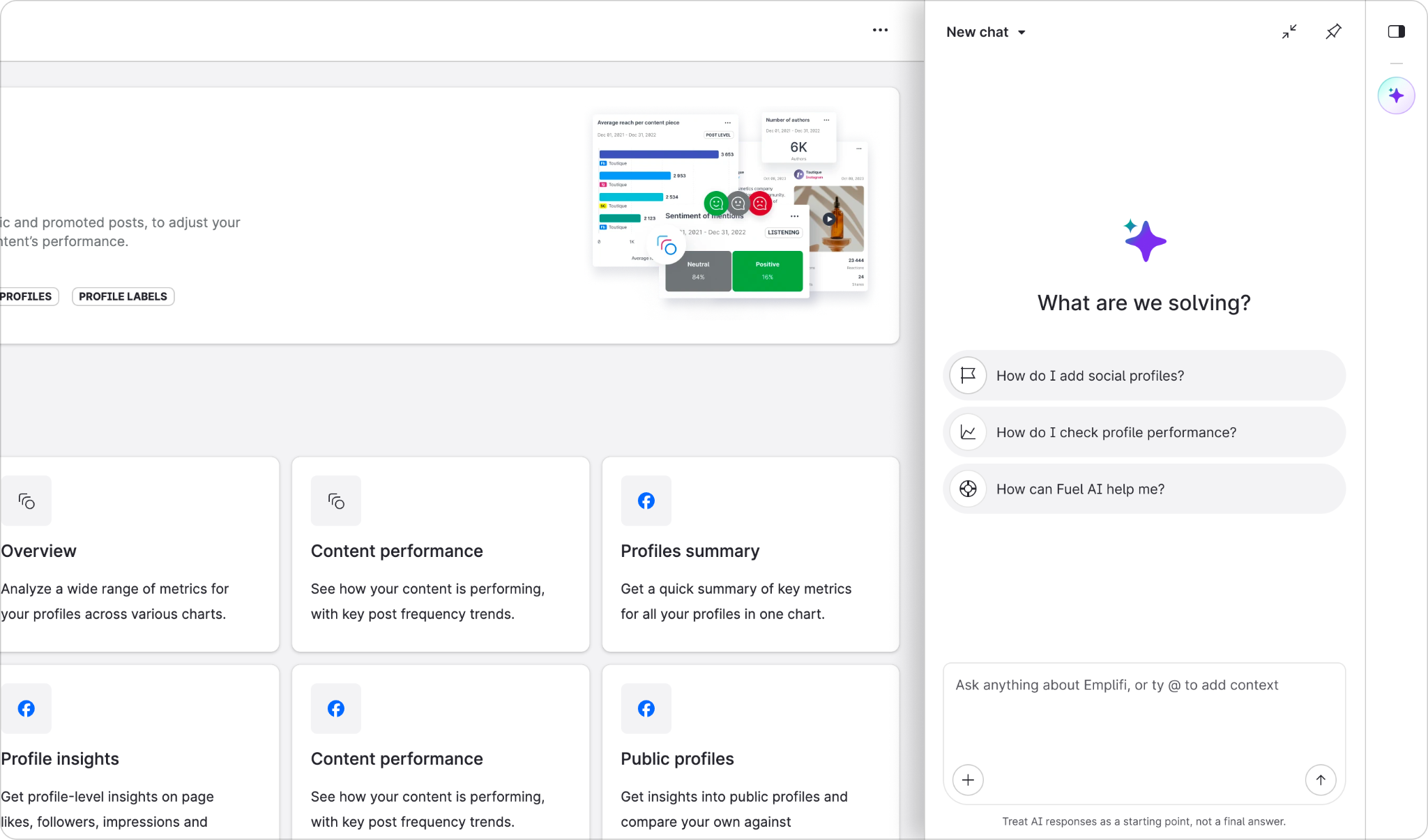
Don't see the Fuel AI icon? Either Fuel AI hasn't been switched on for your account yet, or your administrator hasn't given you access. See Manage who can use Fuel AI, or contact your account manager.
For a walkthrough of the chat panel and how to write a good request, see Getting started with Fuel AI.
Getting Fuel AI for your account
Fuel AI Lite needs nothing from you. It's already on.
To add the full version of Fuel AI, or to arrange a trial, contact your account manager. Once Emplifi has switched on Fuel AI for your account, it will be switched on for all users by default, but your administrator is able to revoke users that can use it. See Manage who can use Fuel AI.
What Fuel AI won't do
Fuel AI is designed to be reliable, so some limits are deliberate:
-
It won't invent data. Profile names, metrics, permissions, and settings all come from your account.
-
It won't tell you something worked unless it has a confirmed result.
-
It won't get around your permissions, approval steps, publishing limits, or security settings.
-
It won't guess which profile, team, or post you mean. If a name could match more than one thing, it asks you to choose.
-
It won't publish content or reply to customers on its own. It drafts content for you, and it publishes or submits an existing draft only when you ask it to.
-
It won't undo a change unless Emplifi has a way to reverse it. Permanent deletions can't be reversed, which is why Fuel AI asks you to confirm first.
Fuel AI is an AI tool. It can make mistakes, so treat its answers as a starting point rather than a final answer, and review anything it creates before you rely on it.
Your data and Fuel AI
Fuel AI only uses the data that's already in your Emplifi account, from the profiles and data sources you have connected. It doesn't add any new data sources. For each request, only the information needed for that request is used.
Before a request is sent, Fuel AI checks it for personal information such as names, locations, or card numbers. If it finds any, it warns you and lets you decide whether to continue.
Every request is recorded against your user and account, so your organization can review what Fuel AI has done.
For detailed information about security, privacy, and the AI models used by Fuel AI, contact your account manager and ask for the Fuel AI security and privacy FAQ.
Learn more
-
Fuel AI Command Center
Video: Getting started with Fuel AI
|
[ SCREENSHOT TO INSERT ] Embedded video placeholder for the Fuel AI introduction and walkthrough |