
Note: This page describes the full version of Fuel AI, which is an add-on to your Emplifi package. If you have Fuel AI Lite, which every customer has by default, you can ask how-to questions and summarize Unified Analytics widgets and boards, but not carry out the tasks on this page. To find out about adding Fuel AI, contact your account manager. See Fuel AI Lite.
This page is for Emplifi administrators. It explains how Fuel AI is switched on for your account and how to decide which of your users can use it.
How access to Fuel AI works
Access to Fuel AI is granted at two levels:
|
Level |
Who controls it |
What it does |
|
Your account |
Emplifi, once Fuel AI has been agreed for your organization |
Switches Fuel AI on for your Emplifi account. Until this happens, your users see Fuel AI Lite only. |
|
Individual users |
Your Emplifi administrators |
Decides which users in your account can use Fuel AI, and separately, which users can connect their own AI tools to Emplifi. |
Fuel AI Lite is switched on for every account by default and doesn't need any setup or permissions.
Switch on Fuel AI for your account
The full version of Fuel AI is available as an add-on to your Emplifi package and comes with a yearly allowance of credits. To add it, or to arrange a trial, contact your account manager. See Fuel AI for how credits work.
Once the agreement is in place, via your account manager, Emplifi switches Fuel AI on for your account. The first time an administrator opens Fuel AI, they are asked to read and accept the Fuel AI terms on behalf of the organization. After that, Fuel AI is available to the users you choose.
Note: If you have Fuel AI switched on but can't see the Fuel AI icon, refresh your browser. Access is immediate but the page may need to reload.
Give a user access to Fuel AI
Once Fuel AI is switched on for your account, every user gets access by default. An admin will have the ability to remove access accordingly. To grant or remove user Fuel AI access or to give access, follow the instructions below:
-
Go to Settings.
-
Open the user you want to update. If your account uses teams, you can also set the permission at team level.
-
Under Fuel AI, turn on/off Access Fuel AI.
-
Save your changes. The user can start/stop using Fuel AI straight away, after refreshing their browser if the panel is already open.
-
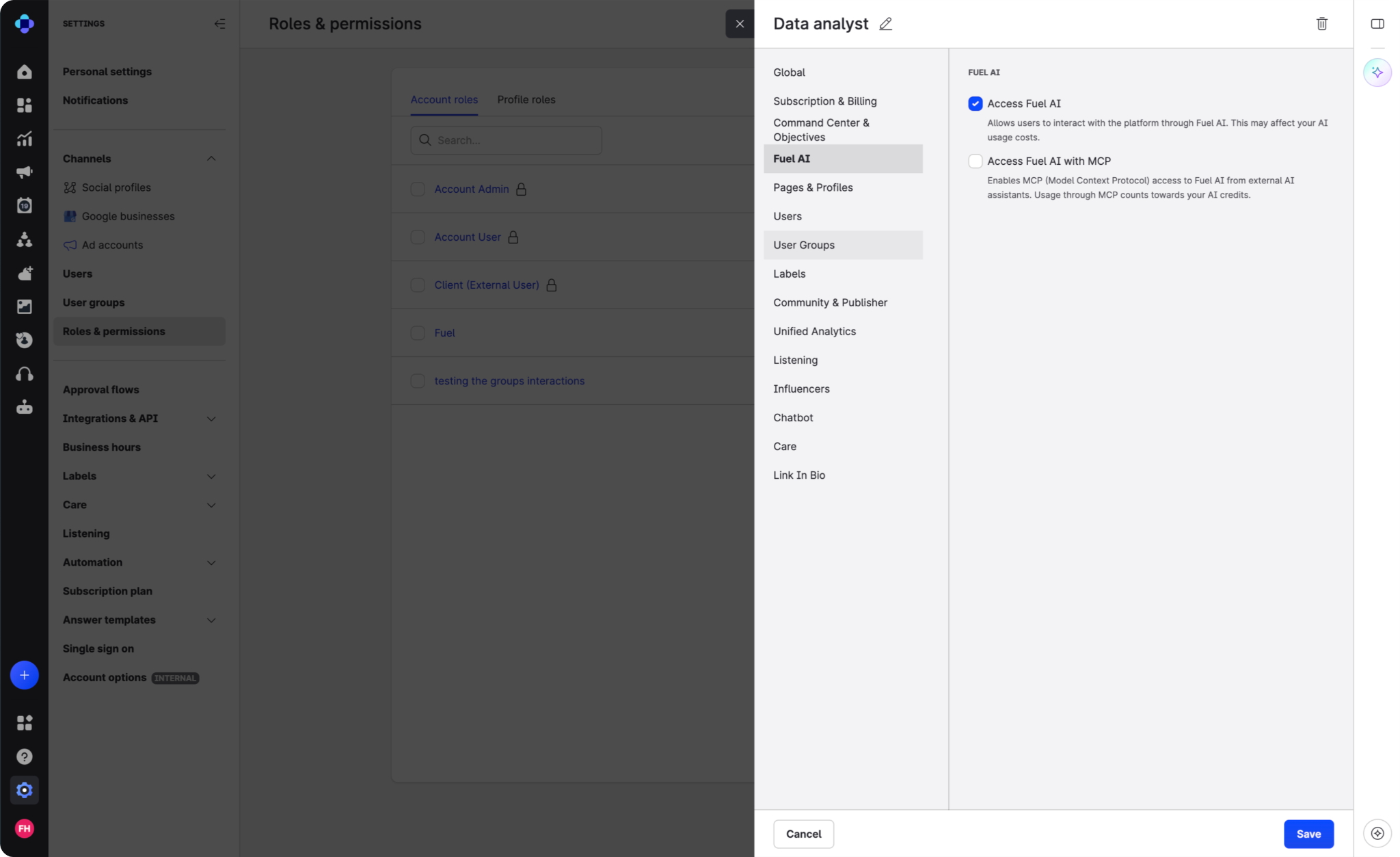
Fuel AI - user permission settings
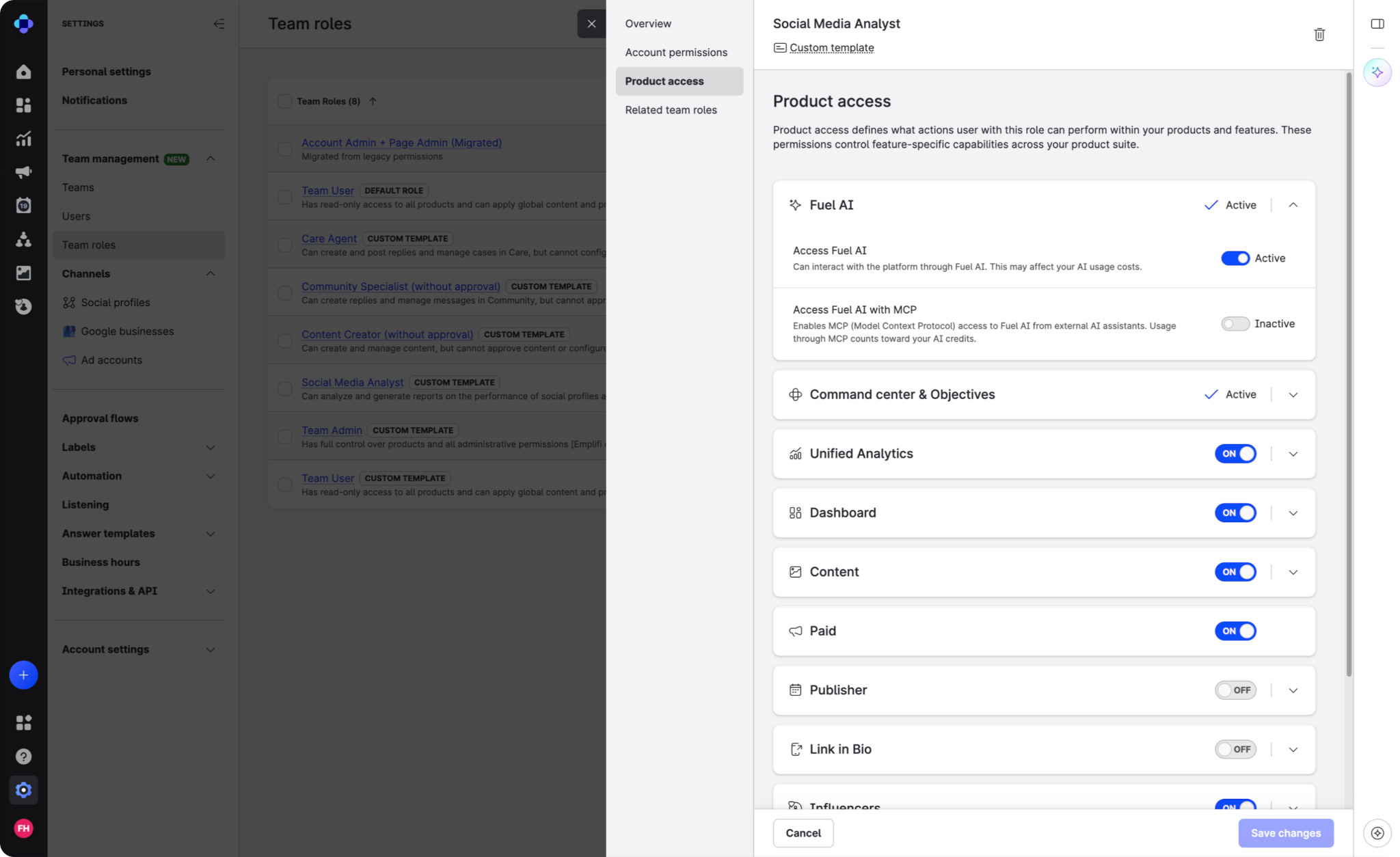
Note: Fuel AI always works within the user's existing Emplifi permissions. Giving a user access to Fuel AI doesn't give them access to any data or action they couldn't already reach in Emplifi.
Give a user access to connect their own AI tool (via MCP)
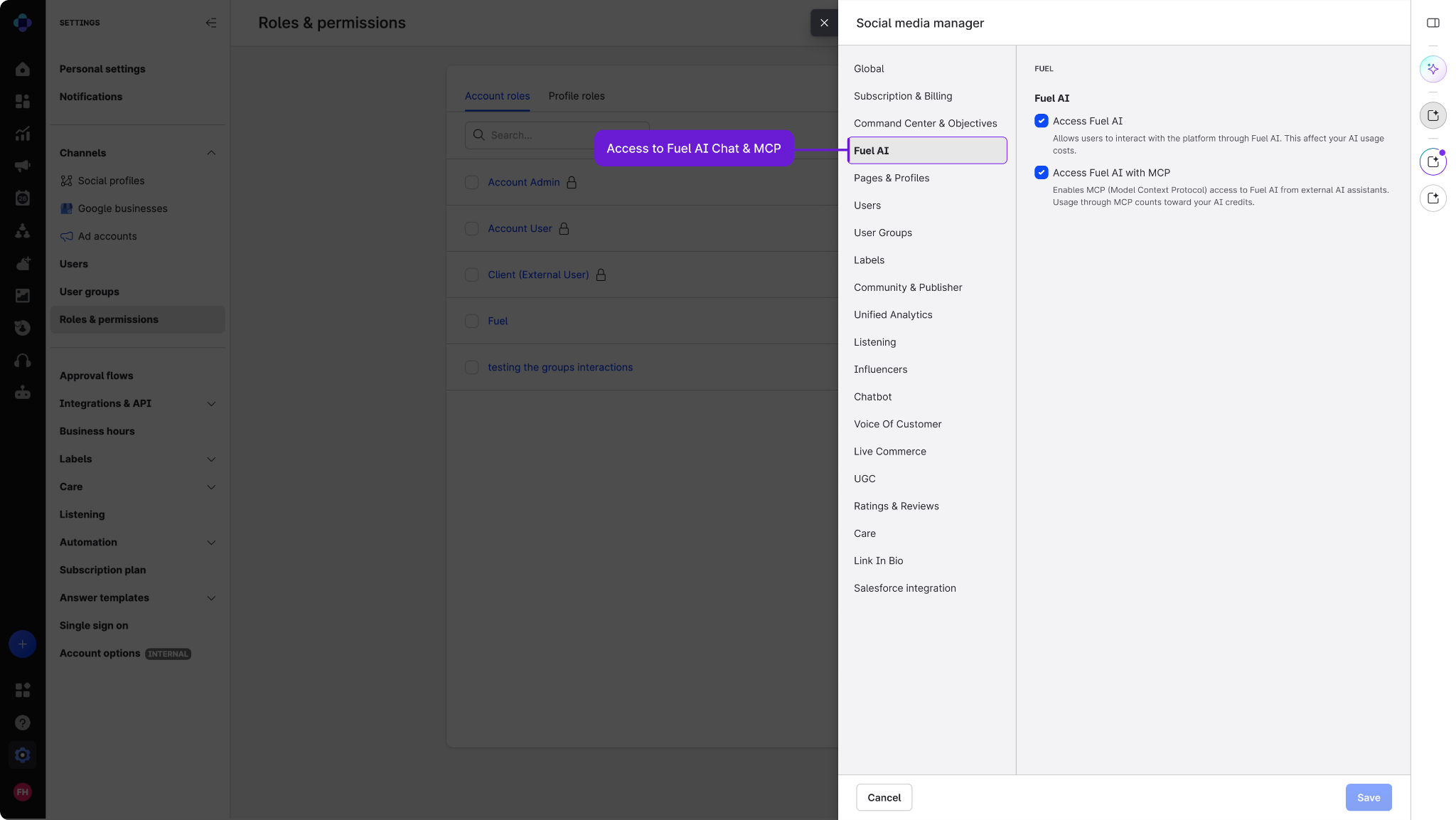
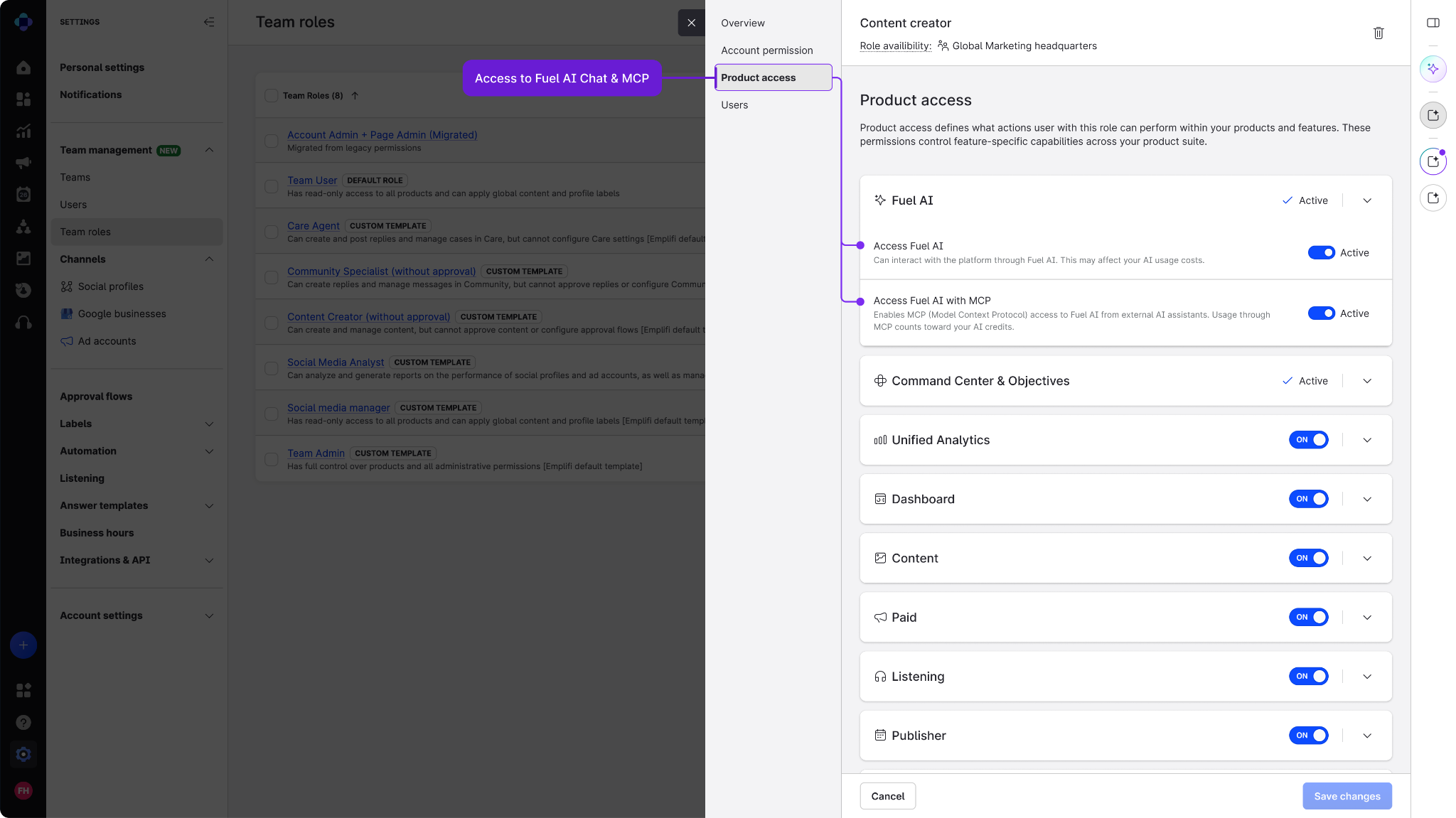
Your organization may have access to connect external AI tools such as Claude, ChatGPT, Cursor, or Codex to Emplifi. You control that access separately from access to Fuel AI in the chat panel.
-
Go to Settings and open the user you want to update.
-
Under Fuel, turn on access to the AI tool connection (MCP).
-
Save your changes.
The user can then follow the steps in Connect your AI tool to Fuel AI. Their AI tool acts with their own Emplifi permissions and nothing more.
Review what Fuel AI has done
Every Fuel AI request is recorded against the user and account that made it, including actions carried out through a connected AI tool. If you need a record of your organization's Fuel AI activity, contact your account manager or Emplifi Support.
Turn Fuel AI off for your organization
If your organization decides not to use AI features, contact your account manager. Fuel AI can be switched off for your account, and your users keep the standard Help & support experience.