
Note: This page describes the full version of Fuel AI, which is an add-on to your Emplifi package. If you have Fuel AI Lite, which every customer has by default, you can ask how-to questions and summarize Unified Analytics widgets and boards, but not carry out the tasks on this page. To find out about adding Fuel AI, contact your account manager. See Fuel AI Lite.
The Fuel AI Command Center is a home page that brings together your key performance numbers, your organization's objectives, and the tactics recommended to achieve them, all based on the data sources you've selected.
When the Command Center is switched on for your account, it becomes the default page you see when you open Emplifi. The Fuel AI chat panel is available from the Command Center, as it is from everywhere else in Emplifi, so you can ask about anything you see on the page.
Don’t see the Command Center in your navigation bar? Contact your Customer Success Manager to learn more about activating Fuel for your account.
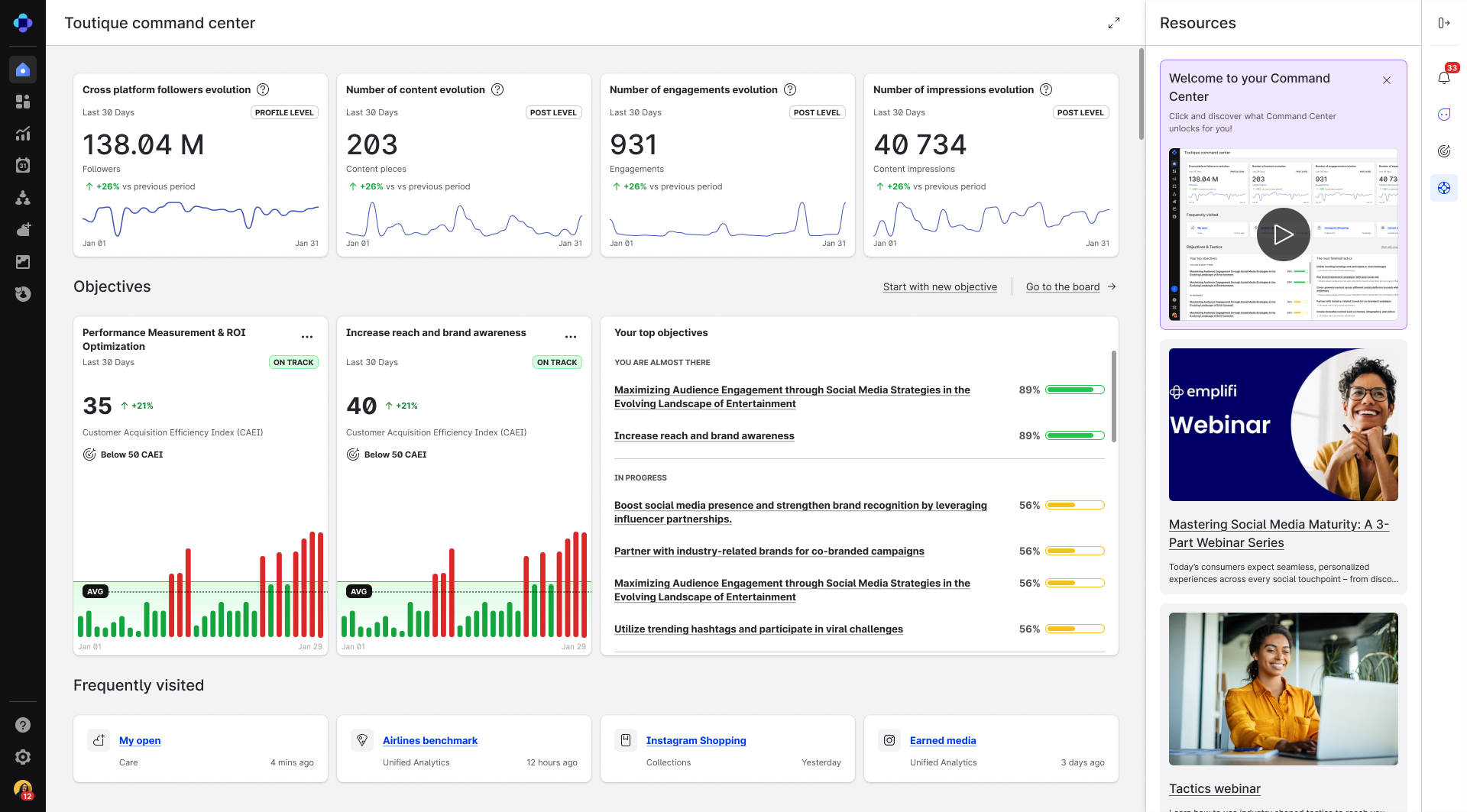
Command Center layout
The following table describes the layout of the Command Center:
|
Section |
Description |
|---|---|
|
KPI Summaries |
Uses the following four widgets to display summary KPIs from the last 30 days for all connected owned data sources assigned to the user:
Each widget indicates the data level (Profile-level or Post-level), the trend vs. previous period. |
|
Objectives & Tactics |
Highlights your top strategic objectives and the most frequently completed tactics. These are the same objectives and tactics defined for your organization in Unified Analytics → Objectives. Clicking an objective opens a detailed view for that objective. The system automatically connects these objectives with live Platform data (posts, impressions, engagements, etc.), and depending on the configuration of each objective, turns strategic goals into daily workflows. |
|
Frequently Visited |
Shortcuts to the most commonly opened parts of the Platform (e.g., Objectives, Feed, Inbox). |
|
Side Panel |
Opens a right-hand panel with a list of unread or historical Platform Notifications. You can configure your notifications in Settings → Notifications. |
Ask Fuel AI about what you see
With the Command Center open, you can use the Fuel AI chat panel to go deeper into any of the numbers or objectives on the page. For example:
-
"Why did engagements fall compared with the previous period?"
-
"Recommend what to focus on next."
-
"Show the tactics for my engagement objective."
If you have Fuel AI Lite, you can ask how-to questions about the Command Center. Analysis and recommendations need the full version of Fuel AI. See Fuel AI.