
Note: This page describes the full version of Fuel AI, which is an add-on to your Emplifi package. If you have Fuel AI Lite, which every customer has by default, you can ask how-to questions and summarize Unified Analytics widgets and boards, but not carry out the tasks on this page. To find out about adding Fuel AI, contact your account manager. See Fuel AI Lite.
This page walks you through the Fuel AI chat panel, how to write a request that gets a good result, and what happens when Fuel AI needs your approval.
If you haven't read it yet, start with Fuel AI for an overview of what Fuel AI is and who can use it.
Open the Fuel AI chat panel
-
In Emplifi, click the Fuel AI icon in the toolbar on the right side of the screen.
-
The chat panel opens on the right. If you've used Fuel AI before, your most recent conversation is shown.
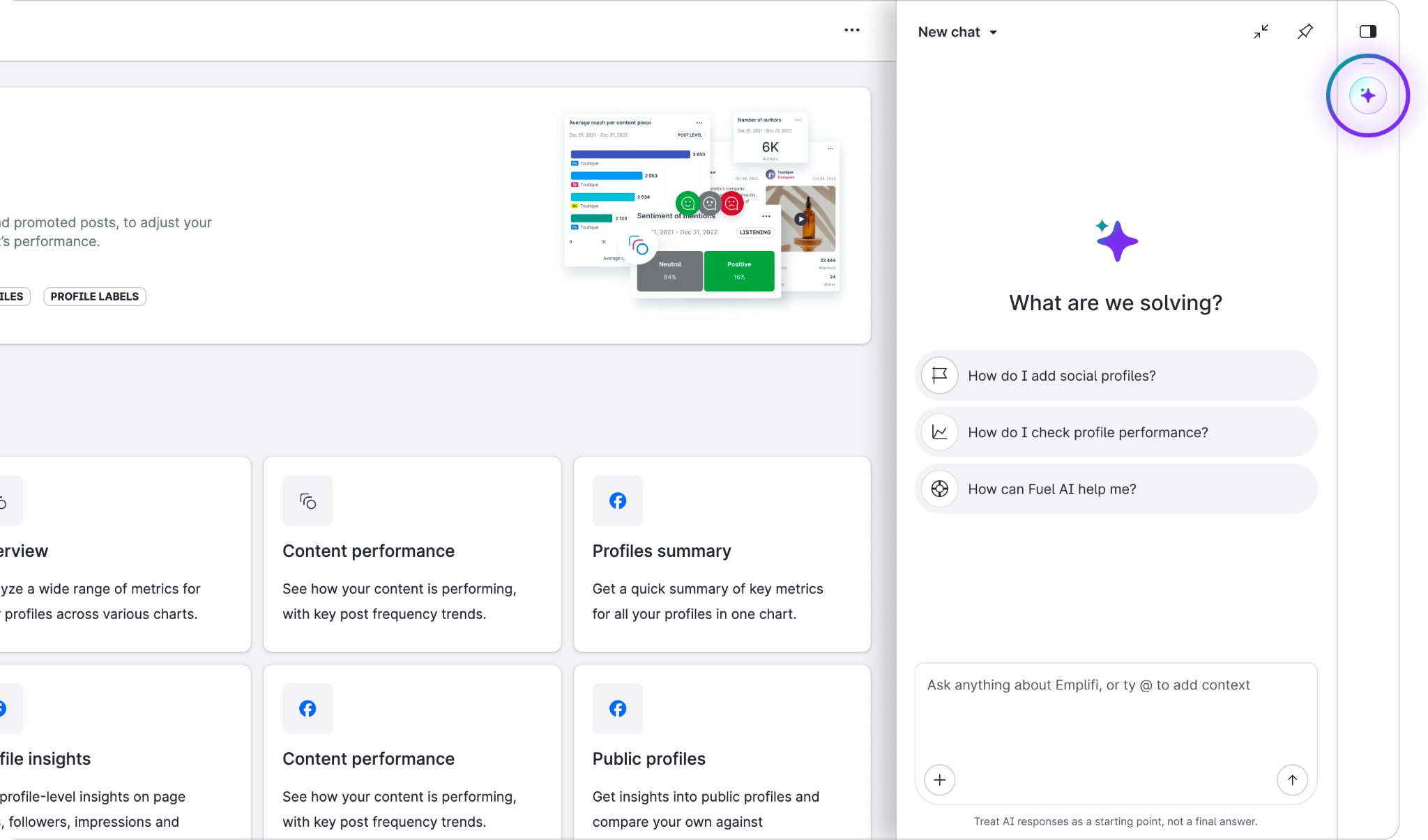
Fuel AI - chat panel open
The panel stays open as you move between Emplifi products, so you can ask Fuel AI about a Listening topic, then move to Publisher and keep the same conversation going.
To make the panel wider, click the expand icon at the top of the panel. Click it again to return the panel to its normal size. To close the panel, click the Fuel AI icon again.
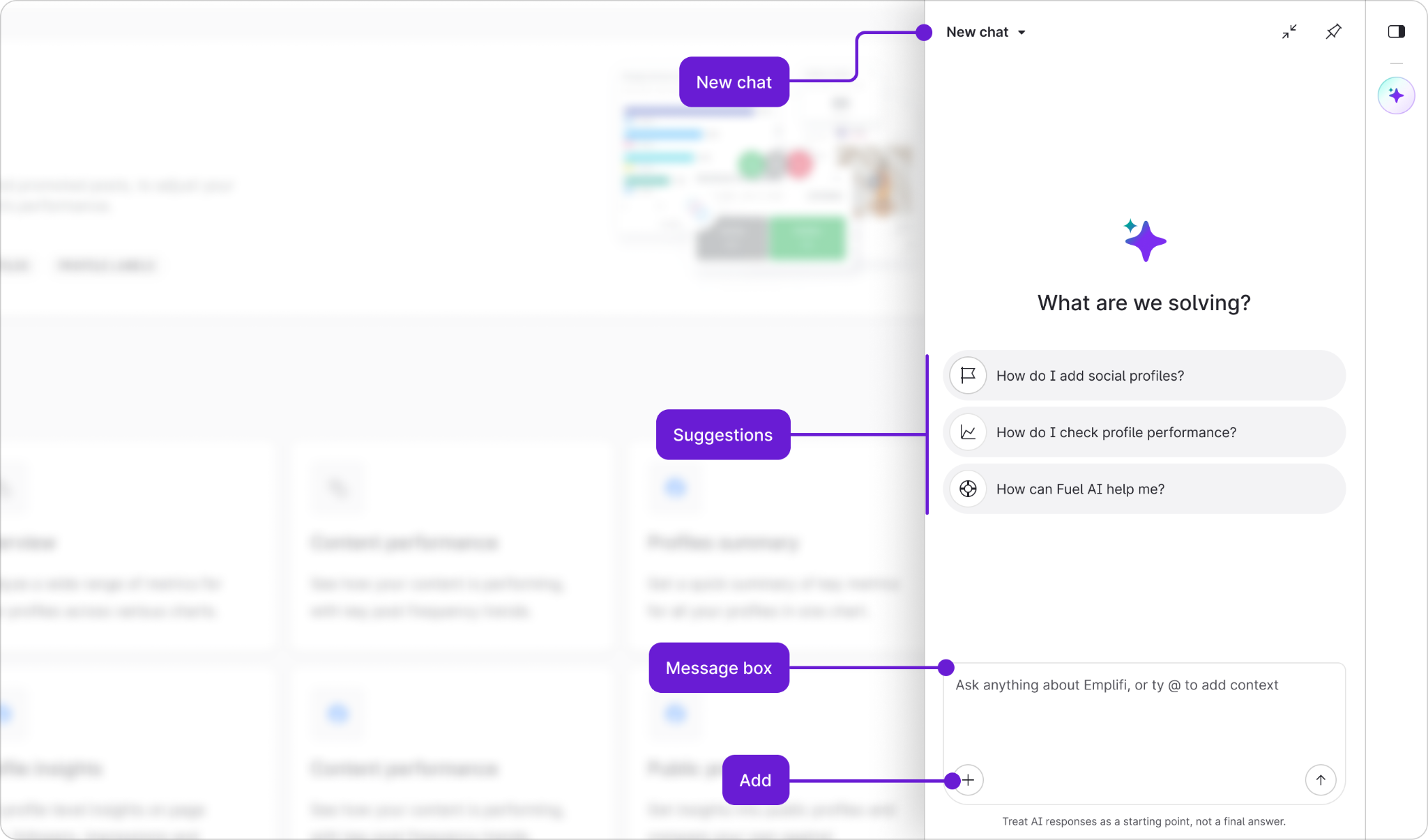
The chat panel layout
The following table describes the parts of the chat panel:
|
Section |
Description |
|
New chat |
Starts a fresh conversation. Click the arrow next to New chat to see and reopen your previous conversations. |
|
Suggestions |
When a conversation is empty, Fuel AI shows a few suggested requests to help you get started, for example Recommend what to focus on next or Show my social profile performance. Click one to send it. |
|
Message box |
Type your request here and press Enter, or click the send arrow. Type @ to add context, such as a specific profile, to your request. |
|
Add (+) |
Attaches a file or image to your request, for example a brand image you want Fuel AI to check for logos. You can also use |
|
Feedback |
Each answer has a thumbs up and thumbs down. Use them to tell us whether the answer was useful. Your feedback helps improve Fuel AI. |
Write your first request
Type what you want in plain language and send it. You don't need special wording. Here are some requests to try:
-
"Show me my Listening topics."
-
"Why did our Instagram engagement drop last month, and what should we do?"
-
"Create a private board showing profile growth and engagement for our Facebook and Instagram profiles."
-
"Draft an Instagram post announcing our summer sale."
-
"Summarise this Care case for me."
-
"How do I submit a draft for approval?"
Fuel AI replies in the language you write in. If you ask in Spanish, it answers in Spanish, and anything it creates, such as a label or a topic, can be named in any language.
Tips for a better result
Fuel AI works best when your request includes enough detail for it to act on. Try to include:
|
Include |
Example |
|
The product area |
Listening, Publisher, Care, Unified Analytics |
|
The thing |
A topic, post, board, SLA, or label |
|
The action |
List, search, create, update, publish, analyze |
|
The scope |
Which profile, date range, or country |
|
Any conditions |
Approval status, network, or a metric threshold |
For example, "Create a private Unified Analytics board for Instagram engagement over the last 30 days" gives Fuel AI everything it needs. "Make a board" would lead to follow-up questions.
Tip: You don't have to get it right first time. Fuel AI remembers the conversation, so you can refine your request, for example "Now add a bar chart by media type" or "Change that to the last 90 days."
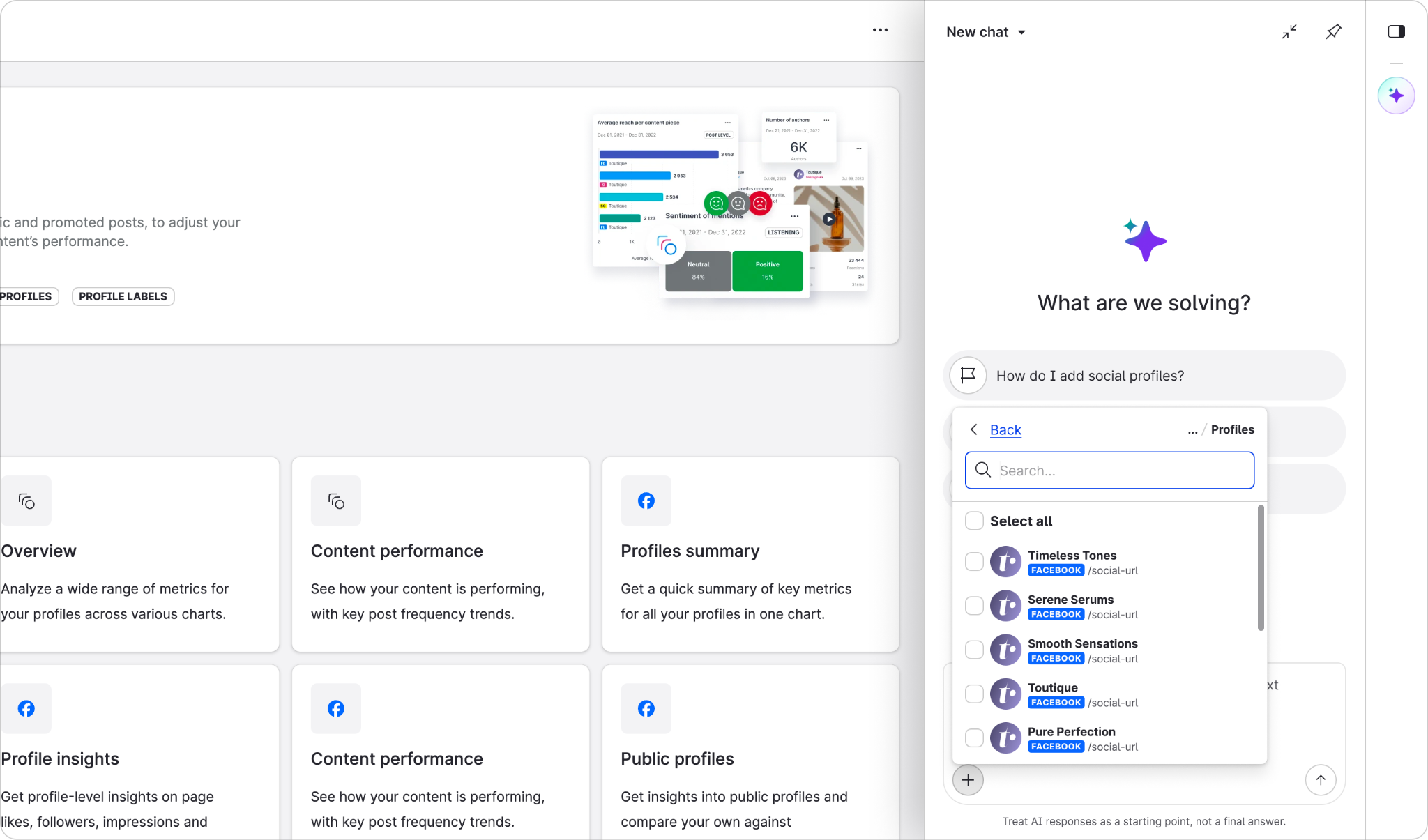
Add context with @
Type @ in the message box to point Fuel AI at something specific, such as a profile. This saves you spelling out the full name and makes sure Fuel AI uses the right one.
Approve actions before they happen
Reading and analyzing data doesn't need your approval. Any request that creates, changes, or deletes something does.
When Fuel AI is ready to act, it shows you a summary of exactly what it's about to do and asks you to confirm.
-
Read the summary carefully. It shows what will be created, changed, or deleted.
-
Click Approve to go ahead, or Reject to cancel.
-
Fuel AI carries out the action and shows you the result. Where it has created something, such as a board or a Listening topic, it gives you a link so you can open it.
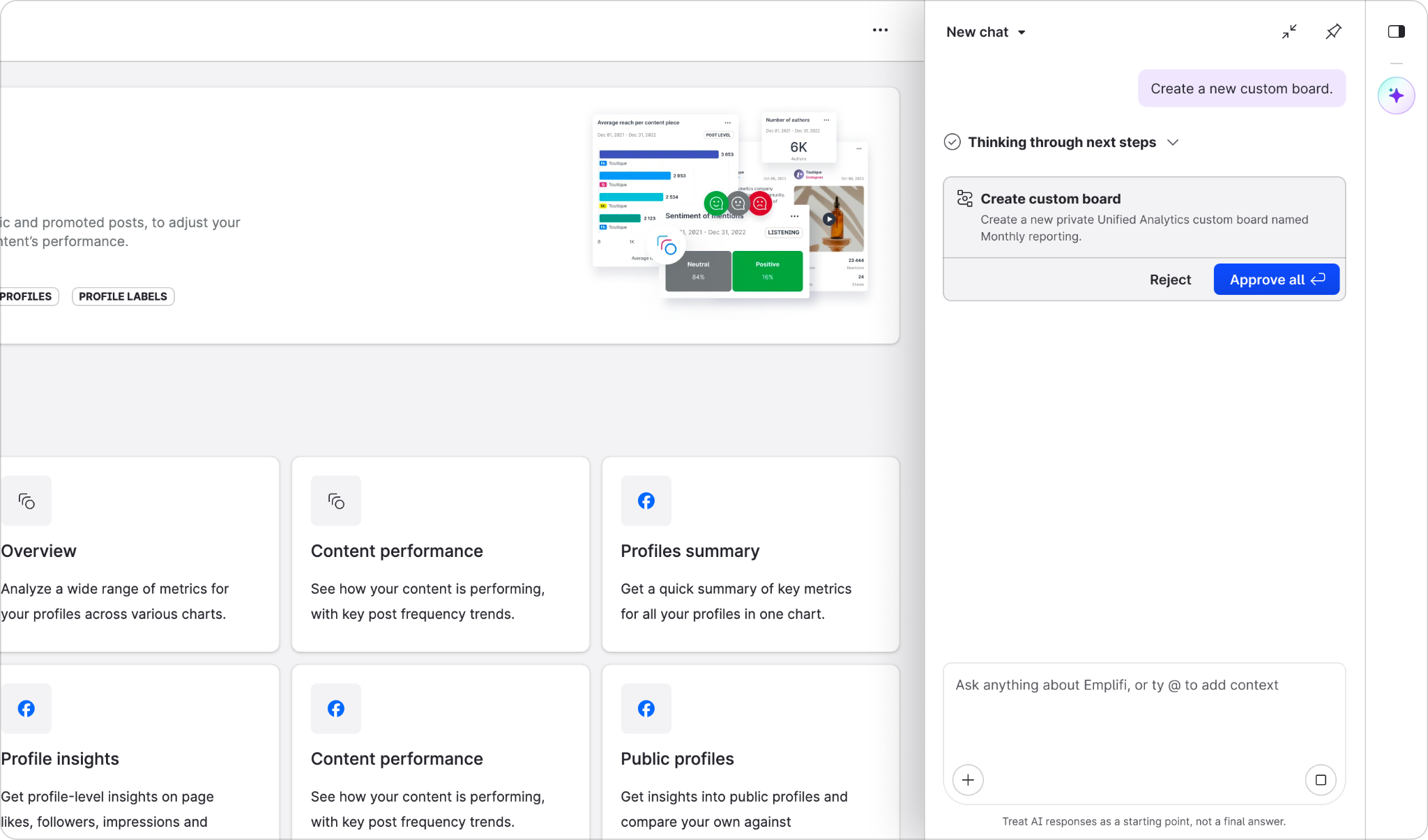
Fuel AI - approve actions
Permanent deletions can't be undone. Before you approve a deletion, check the summary to make sure Fuel AI has picked the right item.
When Fuel AI can't do something
Sometimes Fuel AI tells you it can't carry out a request. This is expected behavior rather than an error. The most common reasons are:
-
Your user role doesn't allow the action. Fuel AI can only do what you're able to do yourself in Emplifi.
-
The feature isn't available for your account or for that social network.
-
Your request contains personal information. Fuel AI checks every request for details such as names, locations, or card numbers. If it finds any, it warns you and lets you choose whether to send the request anyway.
-
You have Fuel AI Lite and the request needs the full version of Fuel AI. Fuel AI lets you know and suggests speaking to your account manager.
In each case, Fuel AI tells you the specific reason so you know what to do next.
Manage your conversations
-
To start a new conversation, click New chat. Starting fresh is a good idea when you move to an unrelated task, because Fuel AI uses the conversation so far as context.
-
To return to an earlier conversation, click the arrow next to New chat and select it from the list.
-
Fuel AI doesn't yet carry context from one conversation into another. If you want it to use something from an earlier chat, reopen that chat or include the details in your new request.
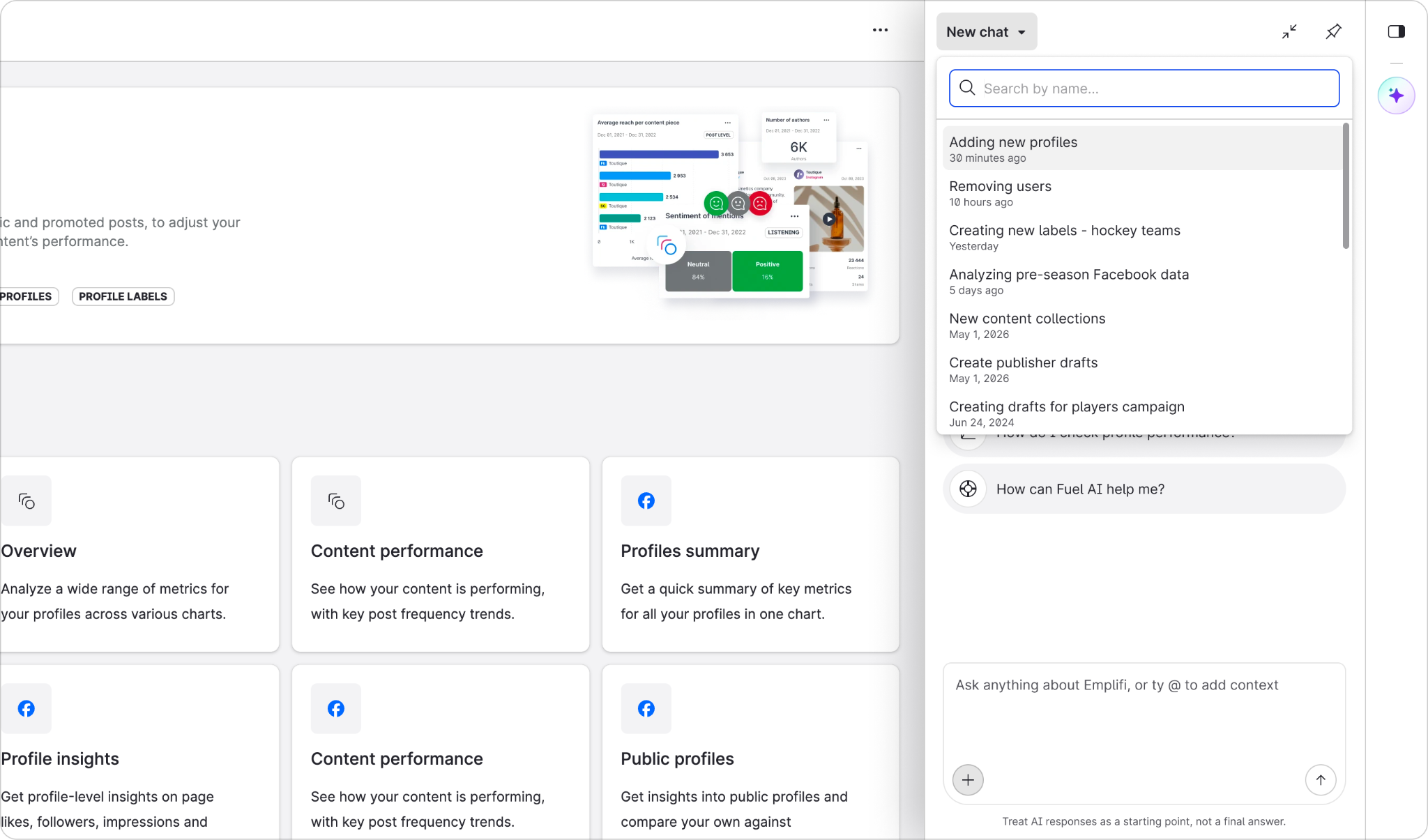
Fuel AI - manage conversations
Next steps
-
See everything you can ask for, by product area, in What you can ask Fuel AI to do.
-
If you're an administrator, learn how to give users access in Manage who can use Fuel AI.
-
Find answers to common questions in Fuel AI frequently asked questions.