
Fuel AI Lite is the version of Fuel AI that every Emplifi customer has by default, at no extra cost and with nothing to set up. It gives you help and support inside the Fuel AI chat panel, with answers taken from the official Emplifi documentation. It also includes a small set of AI features that help you understand your data.
Fuel AI Lite uses the same chat panel as the full version of Fuel AI. If your organization adds Fuel AI later, nothing changes about where you go or how you ask.
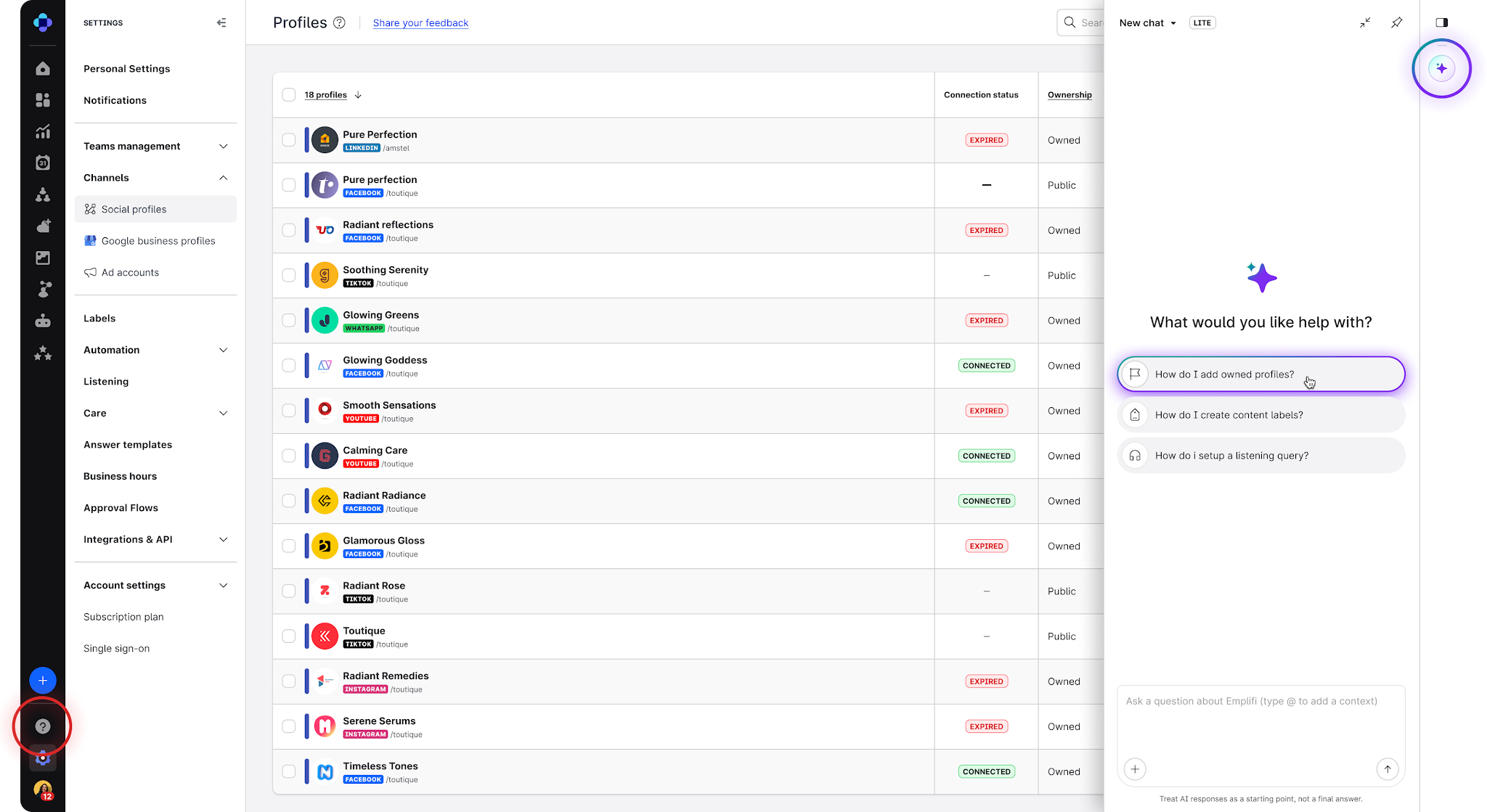
.png?cb=c977077be9bf7d06295a1ad5d685369b)
What Fuel AI Lite can and can’t do
Fuel AI Lite is limited to three things:
-
Answering how-to questions about Emplifi, with answers taken from the official documentation
-
Summarizing a Unified Analytics widget, using the AI icon on the widget
-
Summarizing a Unified Analytics board, by asking “Summarize this board” in the chat panel
Everything else that Fuel AI can do, such as analyzing your data, building boards, labeling content, setting up Listening, drafting posts, or creating automations, needs the full version of Fuel AI. If you ask Fuel AI Lite for any of these, it lets you know and suggests you speak to your account manager.
|
Capability |
Fuel AI Lite |
Fuel AI |
|---|---|---|
|
How-to help from the Emplifi documentation |
Yes |
Yes |
|
Summarize a Unified Analytics widget or board |
Yes |
Yes |
|
Analyze your data and explain what changed and why |
No |
Yes |
|
Build boards and widgets by asking |
No |
Yes |
|
Label and tag content, including in bulk |
No |
Yes |
|
Set up Listening topics, queries, and spike alerts |
No |
Yes |
|
Draft social content and manage publishing |
No |
Yes |
|
Summarize Care cases and manage Care and Community settings |
No |
Yes |
|
Create Flow Automations |
No |
Yes |
|
Connect your own AI tool to Emplifi |
No |
Yes |
|
Included with every Emplifi package? |
Yes |
Add-on |
Fuel AI Lite overview
With Fuel AI Lite, you can:
-
Ask how to do something in Emplifi and get an answer taken from the Emplifi documentation, with links to the relevant articles
-
Get a plain-language summary of what a Unified Analytics board or widget is showing
-
Open a support ticket if the answer doesn't solve your problem
-
Reach product updates, documentation, webinars, and learning resources from one place
New Fuel AI Lite features are added over time. When something new becomes available, it appears in the chat panel automatically.
Fuel AI Lite replaces Help & Support
Librarian used to answer help and support questions in the Help & Support panel. Fuel AI Lite now answers those questions inside the Fuel AI chat panel. This gives you one place to go, whether you want help with Emplifi or help with your data.
The Help & support icon in the left navigation bar stays where it is. Clicking it opens the same help experience, so you can carry on using it the way you always have.
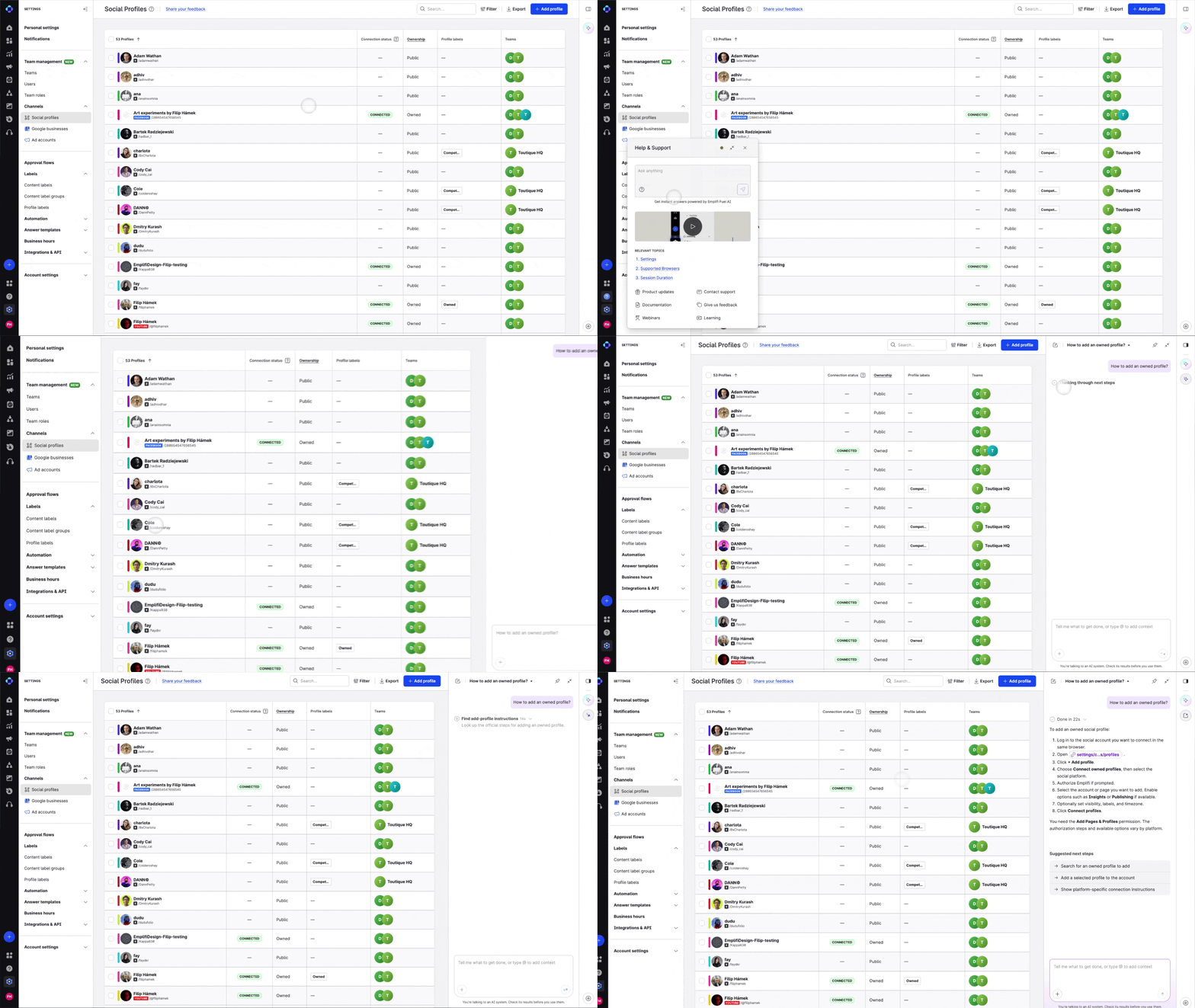
Ask a how-to question
-
Click the Fuel AI icon in the toolbar on the right side of the screen, or click the Help & support icon in the left navigation bar.
-
Type your question in plain language and press Enter. For example, "How do I schedule a post to more than one profile?"
-
Fuel AI Lite reads the Emplifi documentation and gives you an answer, with links to the articles it used so you can read more.
Tips for a better answer
-
Ask a specific question about what you're trying to achieve. "How do I set up a link in bio page?" gets a better answer than "link in bio."
-
Avoid single words. Like any AI tool, Fuel AI Lite needs context to understand what you mean.
-
Give it a chance. Fuel AI Lite often answers immediately, which is quicker than waiting for a support ticket.
Warning: Fuel AI Lite is an AI tool. It can make mistakes, so check its answer against the linked documentation before you act on it.
Summarize a Unified Analytics widget and board
Fuel AI Lite can explain what a widget or a whole board in Unified Analytics is showing, in plain language.
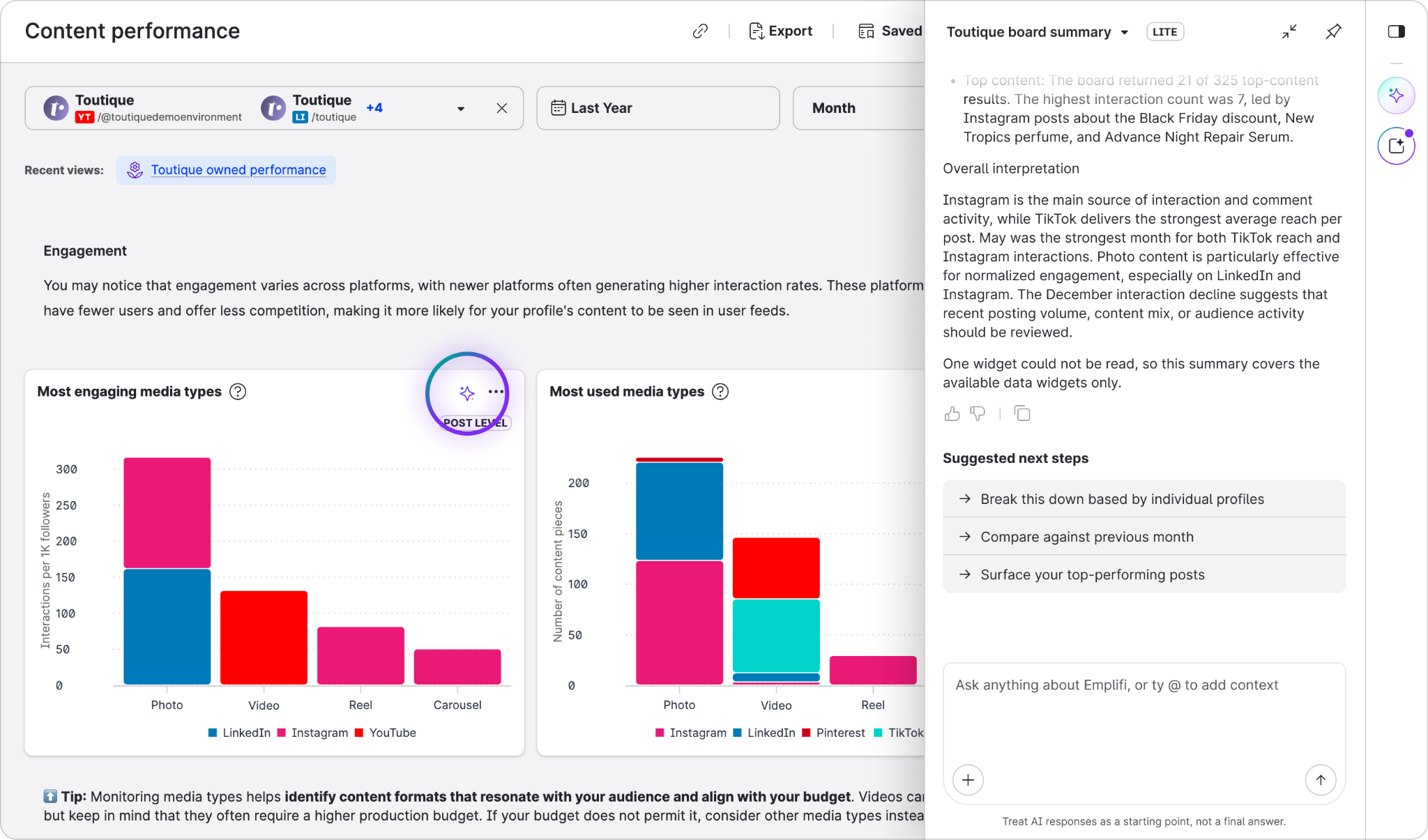
To summarize a widget:
-
Open the board in Unified Analytics.
-
Click the AI icon at the top right of the widget, next to the three dots. The summary appears in the
-
Fuel AI chat panel. (It used to open in a pop-up window.
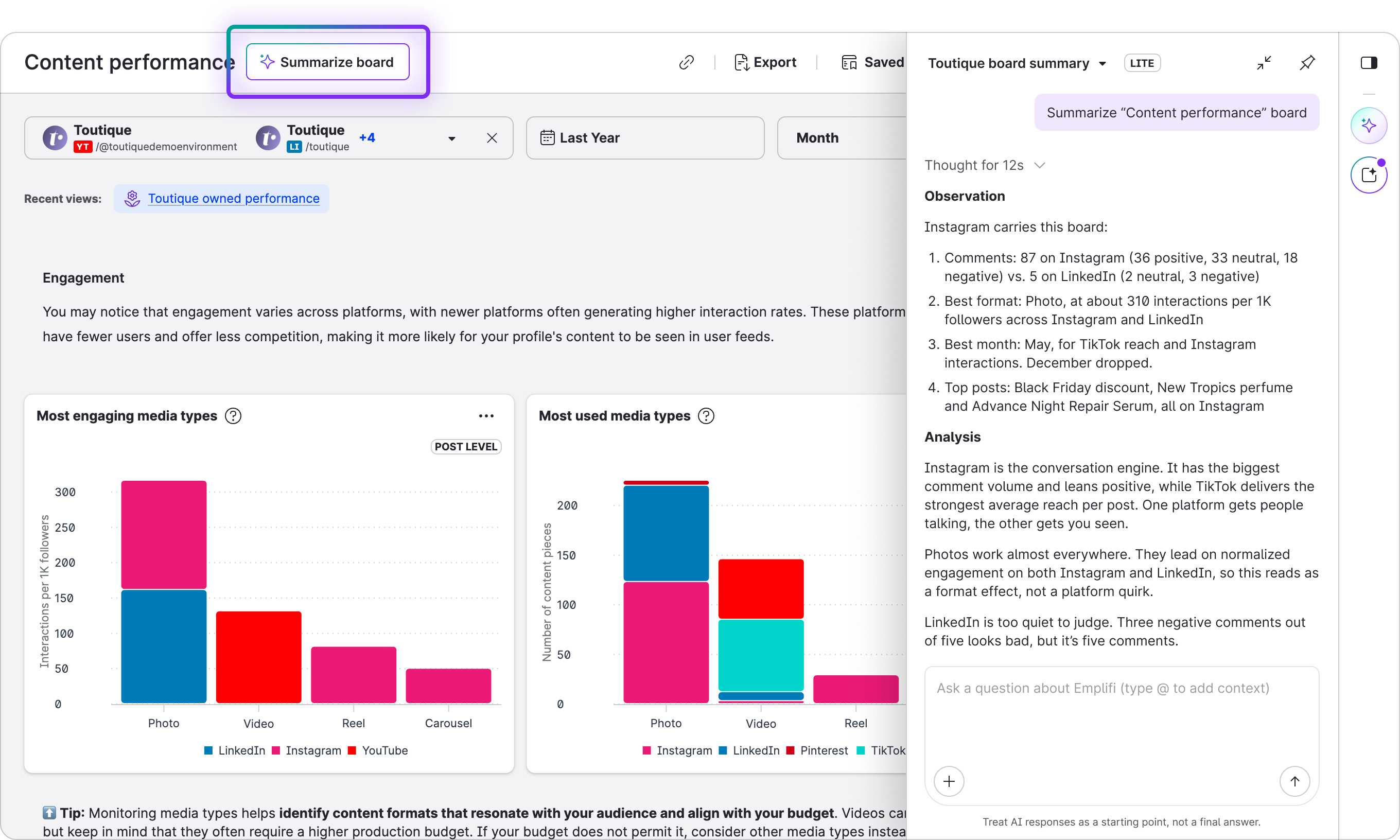
To summarize a board:
-
Open the board in Unified Analytics.
-
Open the Fuel AI chat panel and type “Summarize this board.”
-
Fuel AI Lite reads the widgets on the board and gives you a short summary of the main points.
Note: Fuel AI Lite summarizes what’s already on the board. To build new boards and widgets by asking, analyze data across products, or get recommendations on what to do next, you need the full version of Fuel AI. See Fuel AI.
Contact support
Continue using the Help & Support button and click on the current Contact Support link to raise a support ticket. We will be updating everything currently in Help & Support and moving it all to Fuel AI Lite and will update you when this is done.
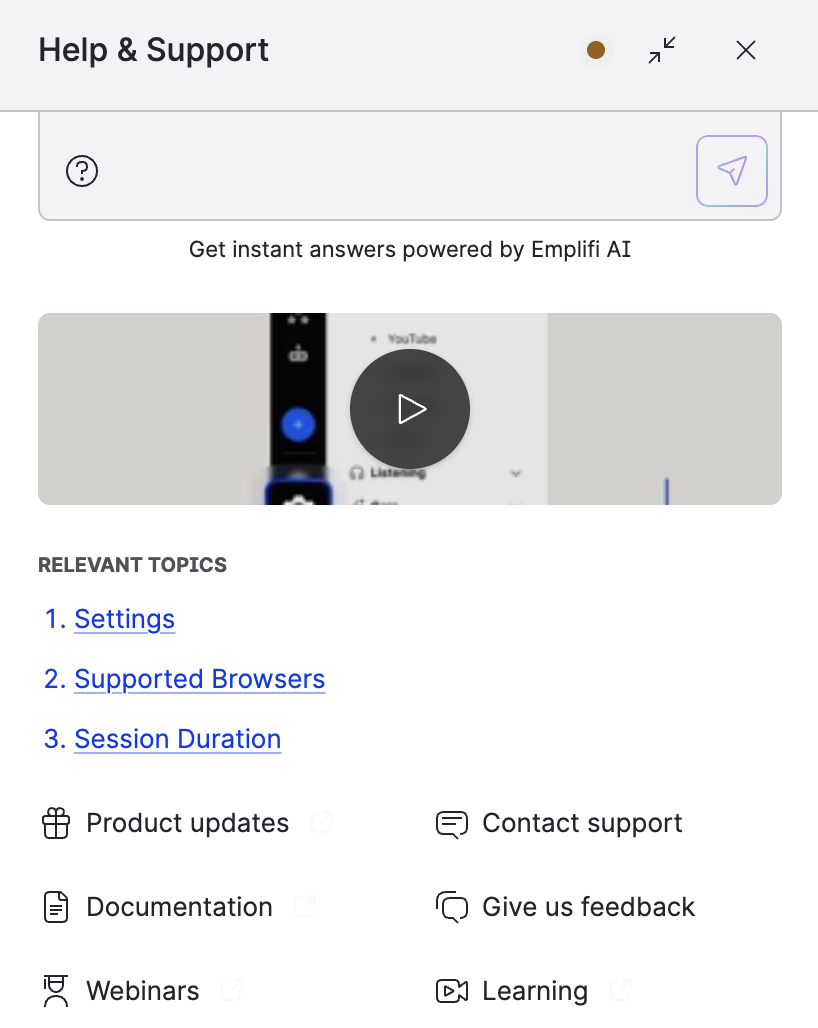
Other resources in the chat panel
From the chat panel you can also open:
-
Product updates, for what's new in Emplifi
-
Documentation, for the full Emplifi Documentation Center
-
Webinars, for upcoming and recorded sessions
-
Learning, for courses on the Emplifi Learning site
-
Give us feedback, to tell us what's working and what isn't
Asking for more than Fuel AI Lite can do
Some requests need the full version of Fuel AI, for example "Create a board for Instagram engagement" or "Label last quarter's posts." If you ask Fuel AI Lite for one of these, it lets you know and suggests you speak to your account manager.
The full version of Fuel AI is an add-on to your Emplifi package. It comes with a yearly allowance of credits, which is how Fuel AI usage is measured. Fuel AI Lite doesn't use credits. To find out about adding Fuel AI, or to arrange a trial, contact your account manager. For more on how it's packaged, see Fuel AI.