
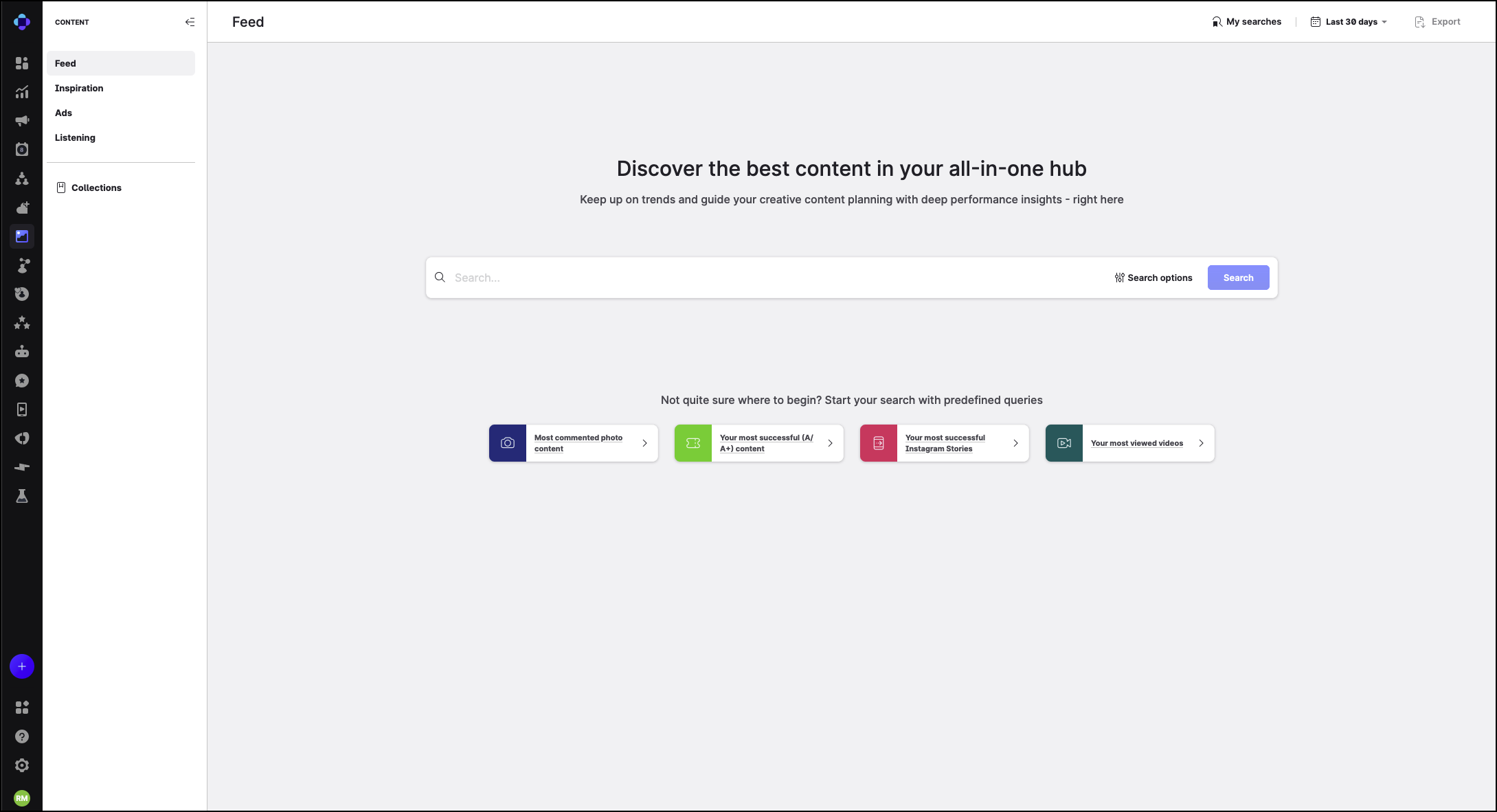
The Feed in Content Hub is where you search, browse, and analyze organic and promoted content from profiles connected to your Emplifi account. Use Feed to find top-performing posts, compare metrics across platforms, label content, and save assets to Collections.
Before you begin
You need the following to use Feed:
|
Requirement |
What it enables |
|---|---|
|
Content Hub module |
Access to Feed in the Content navigation |
|
Analytics Social Organic |
Organic content data and metrics in Feed |
|
Connected profiles |
Content and platform-specific metrics in search results |
|
Connected ad accounts (optional) |
Paid and organic metric split and promoted post detection on owned Instagram profiles |
If Analytics Social Organic is not enabled on your account, Feed shows: You do not have access to Content feed. Contact your CSM or email support@emplifi.io.
How Feed fits in Content Hub
Content Hub is divided into the following sections:
|
Section |
Use when you want to… |
|---|---|
|
Feed |
Search and analyze your own organic and promoted posts |
|
Inspiration |
Research competitor and public content |
|
Ads |
Analyze paid campaigns and ad accounts |
|
Listening |
Find content associated with listening mentions |
|
Collections |
Save and reuse content assets across Content Hub and Publisher |
Key concepts
Content Overview and Performance View
Feed offers two ways to view search results:
|
View |
Best for |
|---|---|
|
Content Overview |
Browsing posts as visual cards with key metrics |
|
Performance View |
Comparing metrics across posts in a sortable table |
Switch views using the icons in the results header. Content Overview is the default.
Default search filters
Every Feed search applies these filters by default:
-
Origin of content: Brand’s content
-
Content visibility: Published/Listed
To include user-generated content or unpublished/unlisted posts, change these filters in the filter settings panel.
Organic, promoted, and unpublished posts
Feed lets you analyze organic posts, promoted posts, and unpublished or unlisted content in one search. Emplifi tags posts as Organic or Promoted and lets you filter by Content visibility to include unpublished Facebook posts or unlisted YouTube videos. See Analyze all Organic, Promoted and Unpublished Posts.
Content cards vs post detail
Content cards in Content Overview show a predefined set of metrics for each platform and media type. Open a post to see the full metric set in post detail. See Understanding Metrics on Content Cards in Content Hub.
Quick start: find content in Feed
-
Go to Content → Feed.
-
Select a date range in the header. The latest selectable date is yesterday.
-
In the search bar, type a profile name, label, or filter keyword and select matching suggestions. Or open the filter settings panel to configure filters.
-
Click Search.
-
Switch to Performance View to compare metrics in a table.
-
Open a post for full metrics, comments, or to save content to a collection.
On your first visit, Feed shows a welcome page with predefined search suggestions and any searches you have saved.
Next steps
In the following articles, you will learn how to build queries, work with results, and analyze individual posts: