
You can easily export and share Content hub reports in multiple formats. You can do it manually at any given moment or you can automate your boards distribution with the scheduling feature.
This article describes available sharing options:
-
create a one-off PDF report
-
export an XLSX file for additional analysis
-
email the report (in a PDF format)
-
create a schedule to automatically generate a PDF reports and send it to the interested parties
-
share a URL link
Create a one-off PDF or XLSX file
To quickly share a board at any given moment, you can simply export it in the PDF format or export data as an XLSX file.
A PDF file is great for general sharing your board with a wider audience while you can use data from XLSX exports for further analysis.
Schedule the report
-
When scheduling a report, you have the following options:
-
The format of the file to email
-
The recipient addresses
-
Frequency
-
Daily
-
Weekly (select the day of the week)
-
Monthly (select the day of the month - first, last, or anything in between)
-
Quarterly (the first day of a calendar quarter at 7 am; for example, Jan 01, 2023, at 07:00)
-
-
Time (defaults to 8 am)
-
Time zone
-
The name of the report
-
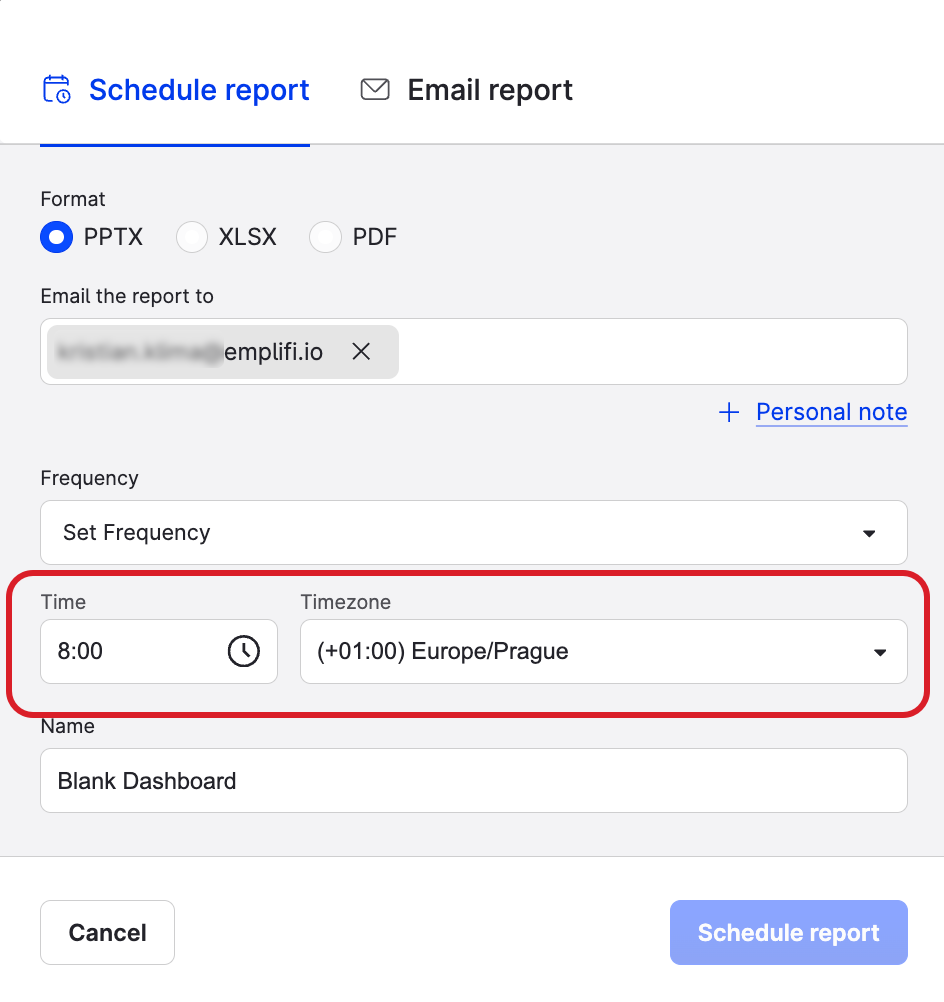
If you schedule a time comparison version of your board, a brand new time comparison report will be generated based on the scheduled frequency.
Modify or delete a scheduled report
To modify or delete a scheduled report:
-
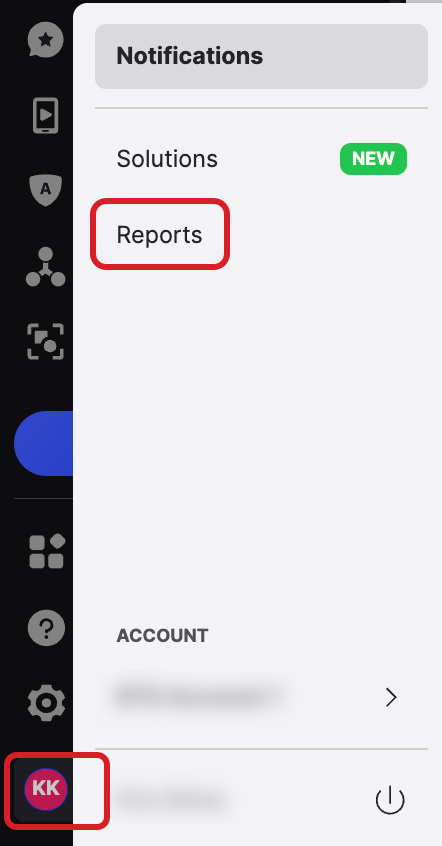
Click your initials in the bottom left corner of the Emplifi platform.
-
Click Reports.
-
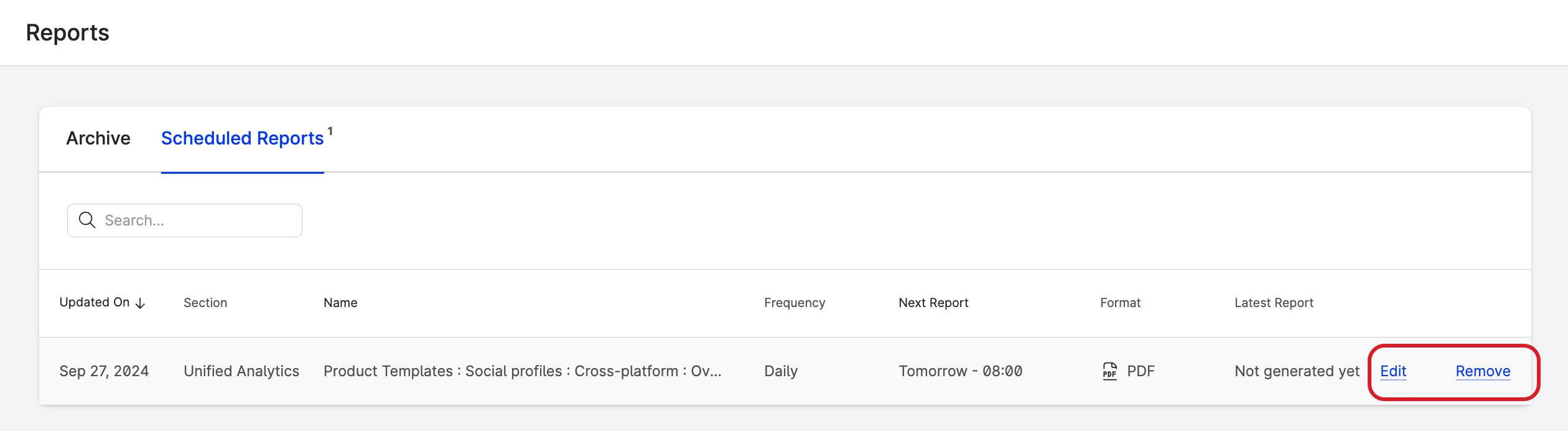
Find the report that you want to modify or delete and click Edit or Remove.
-
On the screen that opens, you can modify the following parameters:
-
format
-
addressee
-
personal note
-
frequency
-
name
-
-
Click Save.
You cannot change the scope (boards) of the scheduled report. If you want to modify the board that you scheduled, delete the scheduled report, modify the board and create a new schedule.
Known issues
Recipients removed from scheduled reports without unsubscribing
Some email clients and security tools automatically open links in incoming email, including the Unsubscribe link in scheduled Content Hub report messages. When that happens, a recipient can be removed from the report’s recipient list even though they did not click Unsubscribe themselves.
If a recipient stops receiving a scheduled report and no one removed them in Emplifi, check whether they still appear on the report’s recipient list. Re-add their email address to restore delivery.
This behavior is not caused by the recipient choosing to unsubscribe in Emplifi.