
Summary: This article explains what changes for you as a user when your Emplifi account moves to the Teams governance solution: what stays the same, what looks different, and what to do if something you need is missing. If you set up and maintain teams for your account, see Govern Access to Account Resources Using Teams instead.
In short
-
Your account uses teams to control who can access what.
-
Your access comes from the teams you belong to.
-
You don't need to prepare anything. If something you need is missing, ask your Platform admin.
-
If your account hasn't migrated yet, these changes take effect on your migration date. Nothing changes before then.
What stays the same
Before anything else, here's what doesn't change:
-
How you sign in. Your login, password, and single sign-on work exactly as before.
-
Your data. All posts, messages, cases, or historical data are preserved.
-
Your saved work. Your dashboards, boards, saved views, collections, and feeds still exist.
-
How the products work. Publisher, Community, Care, Unified Analytics, and the rest work the same way.
What changes is what you can see and do, and where a few settings live. A small number of areas behave differently — see Things that work differently right now later in this article.
How your access works now
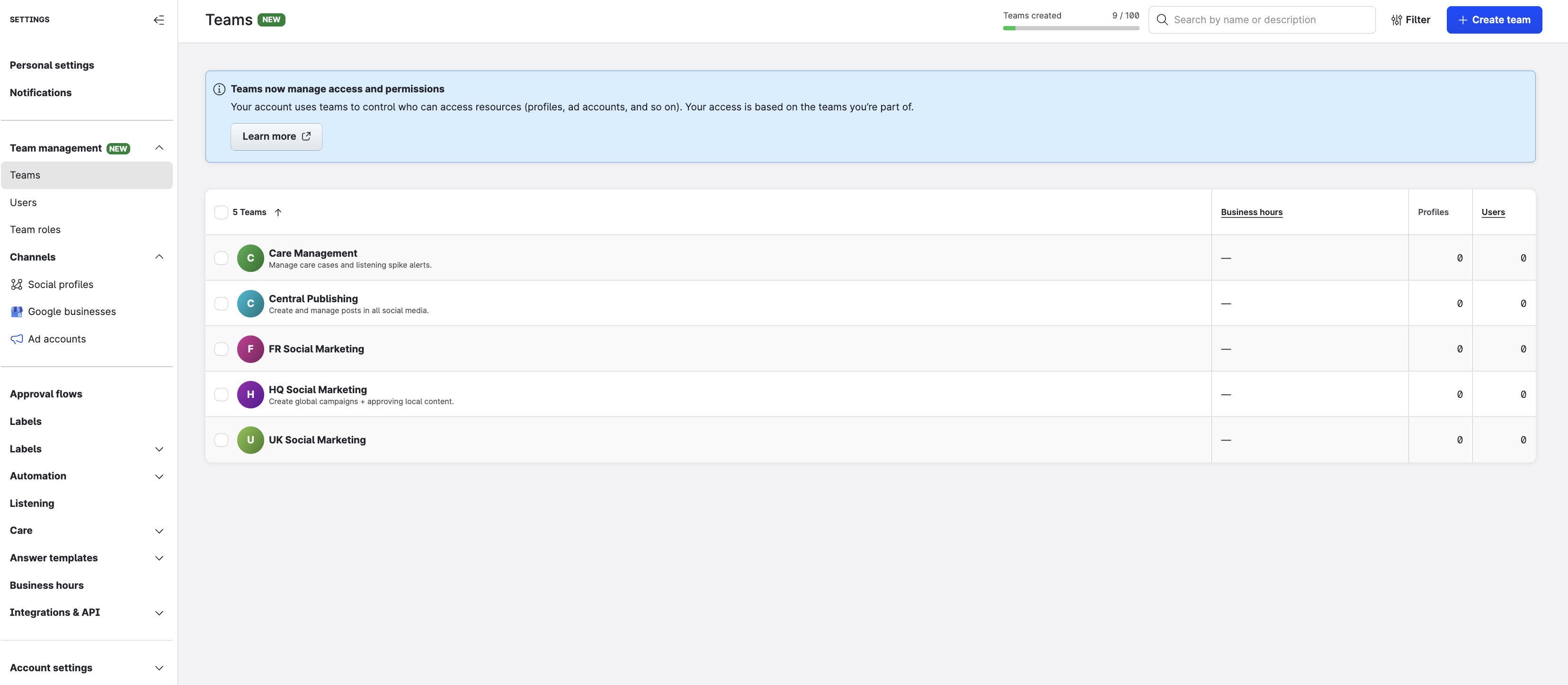
Here's the one rule everything else follows: your access comes from the teams you're in.
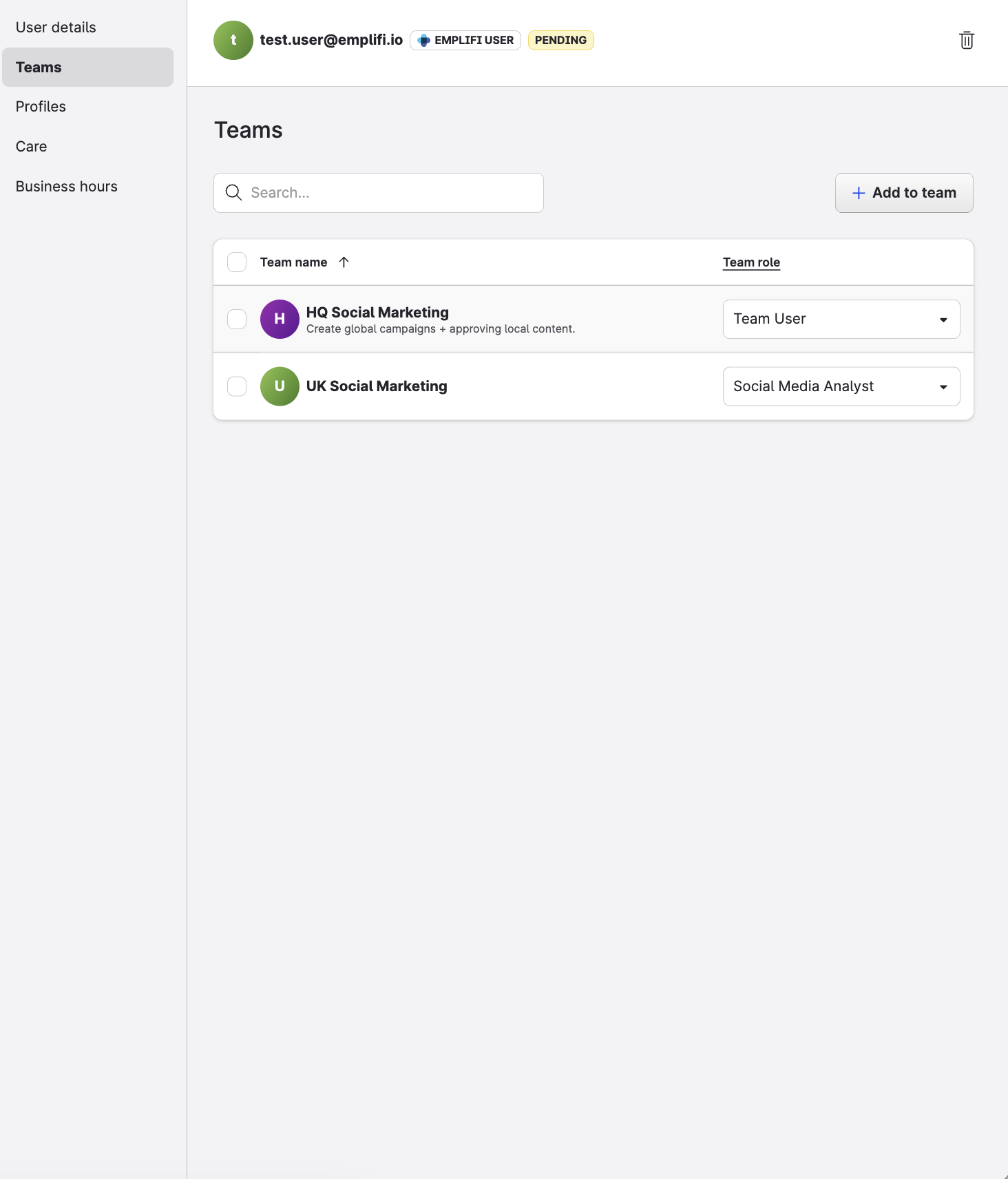
A team groups resources — social profiles and ad accounts — together with people. When you're added to a team, you get access to that team's resources. Your team role in that team decides what you can do with them: view, publish, reply, and so on.
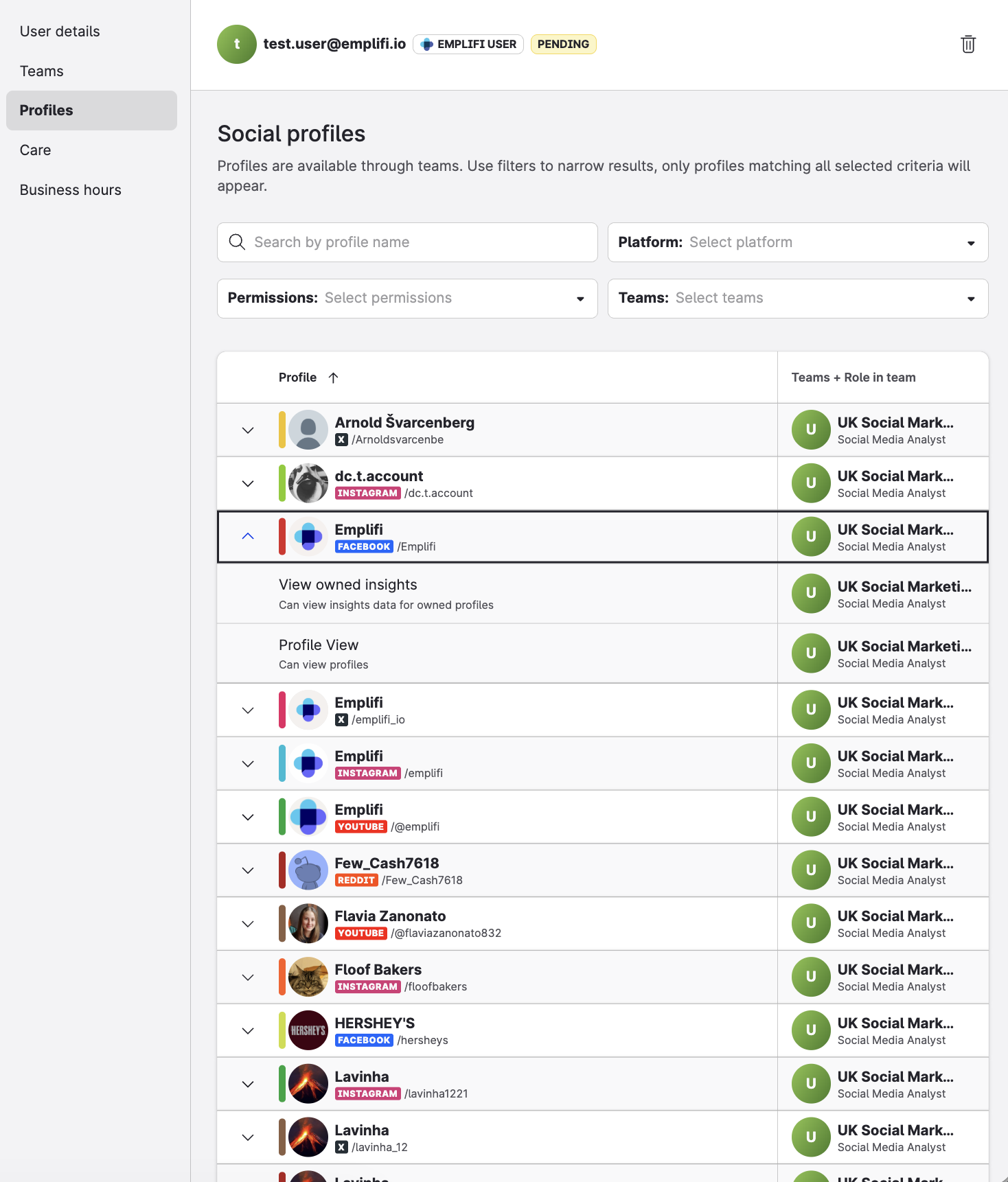
You can be in several teams and have a different team role in each. Your permissions are the combination of all of them.
Previously, access was given to you personally. Profiles were assigned to you one at a time, and a profile role set what you could do with each. That's no longer how it works — profiles can't be assigned to individual people anymore, only to teams.
What you'll notice
Fewer products in the left menu
You'll see only the products your teams give you access to. A product appears when both your team allows it and your team role allows it.
If a product you used to open is no longer in the menu, that's this setting — not a fault.
Shorter lists of profiles, ad accounts, and people
Throughout Emplifi, lists now show only what belongs to your teams:
|
Where |
What you'll see |
|---|---|
|
Settings → Team management → Users |
Only your teammates — the people who share at least one team with you |
|
Settings → Channels |
Only your teams' social profiles, Google Business profiles, and ad accounts |
|
Command Center |
Only your teams' profiles. You can filter the view by any team you belong to |
|
Unified Analytics |
Only your teams' profiles and teams when you create a board or a saved view. Teams also filter who you can share one with |
|
Content |
Only your teams' profiles when you search |
|
Dashboard |
Only your teams' profiles and teams when you create a board. Teams also filter who you can share one with |
|
Paid |
Only your teams' ad accounts when you search |
|
Listening |
Only your teams' profiles when you create a rule, and only your teams in Spike alerts |
|
Publisher |
Only your teams' profiles when you create a post or filter the calendar, and teammates and users you collaborate with. Approval flows belong to a team, so only that team's roles and profiles can be selected |
|
Collections |
Only your teammates and users you collaborate with when you share a new or an existing collection |
|
Care |
Only cases from profiles assigned to your teams, and only your teammates and users you collaborate with |
|
Community |
Only your teams' profiles in your feeds, and only the feeds you created or that were assigned to you |
|
Care and Community widgets |
Only your teams and teammates when you filter data by agent |
Across Settings generally, you'll see only your teams' users and profiles.
Most accounts are set up so that you can still work with colleagues from other teams — mention them, assign work to them, and share content with them. You just won't see them in management screens such as Settings.
Some accounts are set up to keep teams fully separate. If yours is, you'll only see and interact with people from your own teams. Your platform admin can tell you which applies.
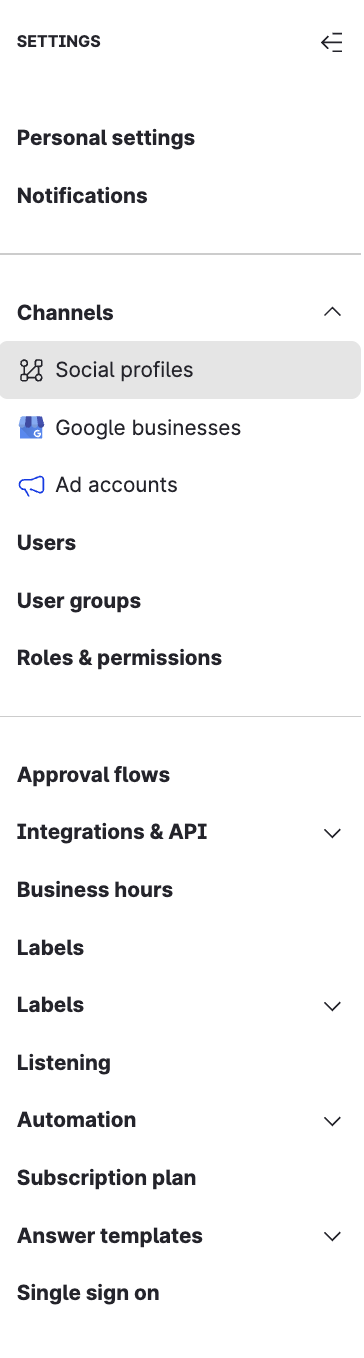
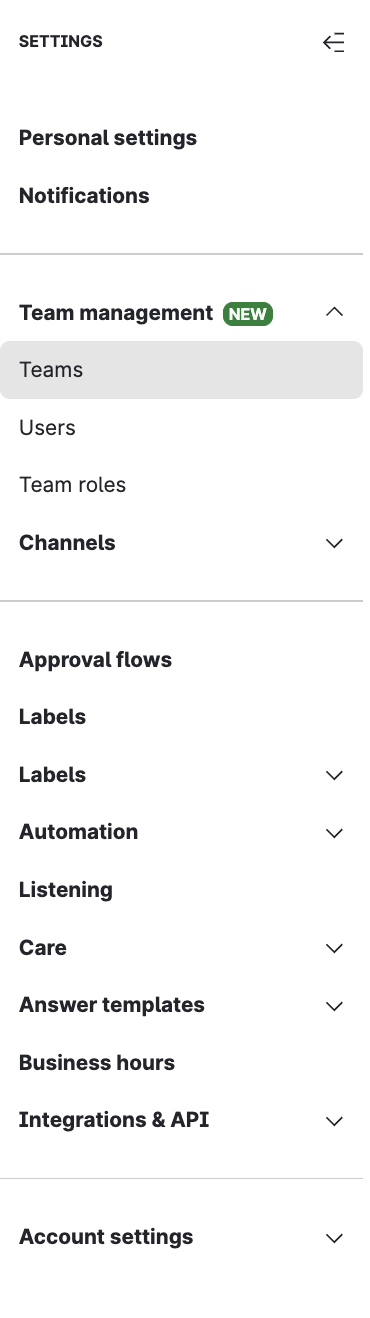
A few things moved in Settings
|
Was |
Now |
|---|---|
|
Users |
Team management → Users |
|
Roles & permissions |
Team management → Team roles |
|
User groups |
Replaced by Teams |
BEFORE
AFTER
Your role name may have changed
Go to Settings → Team management → Users and click your own name. Your record shows a Platform access value, and for almost everyone it reads Platform User.
This isn't a downgrade, and it says nothing about your data or product access. Nearly everyone is a Platform User, including team leads and managers.
Platform access controls a small set of account-wide tasks — things like billing, single sign-on, creating teams, and managing profiles in the account. Everything you do day to day comes from your team roles instead.
The other value is Platform Admin, which was previously called Account Admin. It's the same idea under a new name, and it's the person to contact when you need access changed. For more information, see Access to the Emplifi Platform.
Your team role names may also look different from before, because account roles and profile roles were combined to create them.
Dashboards, saved views, and shared work
Nothing was deleted. But a number of things used to be filtered or assigned by user group, and now use teams instead. If the team assignment hasn't been added yet, they can return fewer results than you expect — or none at all.
This can affect:
-
Unified Analytics boards and saved views
-
Dashboard and Unified Analytics Care and Community widgets
-
Care skills, Care views, and case queues
-
Answer template groups and business hours
-
Keyword lists
-
Labels and label groups
-
Collections
-
Approval flows
If one of these looks empty or incomplete, your content is still there. Ask your platform admin to update the team assignment.
If something's missing
Run this check before you ask anyone. It takes a minute, and it means your request can be acted on straight away.
Go to Settings → Team management → Users, click your own name, and open the Profiles tab. You'll see every profile you can reach, and the Teams + Role in team column shows which team gives you that access.
Then match your situation:
-
A whole product is missing from the left menu. This is product access, set on your team or your team role.
Ask your admin: "Which team should give me access to [product]?"
-
The product is there, but a profile isn't in the list. That profile isn't in any of your teams.
Ask your admin: "Please add [profile] to a team I'm in, or add me to a team that has it."
-
The profile is listed, but you can't do what you need — publish, reply, or view insights. Your team role in that team doesn't include the permission, or the profile was added to the team without that access.
Ask your admin: "Please adjust my team role in [team name] so I can [action]." Use the team name from the Teams + Role in team column.
You can't make any of these changes yourself. They need either a platform admin or the admin of the team involved.
Who to contact
Two people can help, and it's worth knowing which one to approach first.
Start with your team admin. Team admins manage the teams they're responsible for. They can add users, add profiles and ad accounts, and adjust team roles within those teams — which covers most access requests. They're usually the quickest route, and you're more likely to work with them directly.
To find yours, go to Settings → Team management → Teams, open the team you need, and check the Users tab. Look for someone with a team admin role. Your organization chooses its own role names, so the wording may not be exactly "Team admin."
Go to your platform admin if your team doesn't have a team admin, if your request involves a team you're not in, or if it affects account-wide settings such as single sign-on.
If neither is sure how to make the change, contact Emplifi Support at support@emplifi.io and copy your admin on the request so they can approve it.
Things that work differently right now
Some parts of Emplifi aren't fully connected to teams yet. Here's what to expect:
|
Area |
What to expect |
|---|---|
|
Ratings & Reviews, VoC, Bot, and UGC |
You'll see all the teams in the account, not only yours. Your team role controls whether you can open these modules, but the permissions inside them are managed within each application. |
|
Automated labeling and Listening queries |
You'll see every rule and query in the account. You can manage only the ones you created. |
|
Care configurations |
If you're a team admin, you can assign your own teams to Care skills, Care views, case queues, business hours, and answer template groups — but you'll still see the configurations created by other teams. |
|
Flow Automations |
Only platform admins can view and manage them. |
If you manage a team
If you're a team admin, two everyday tasks work differently now.
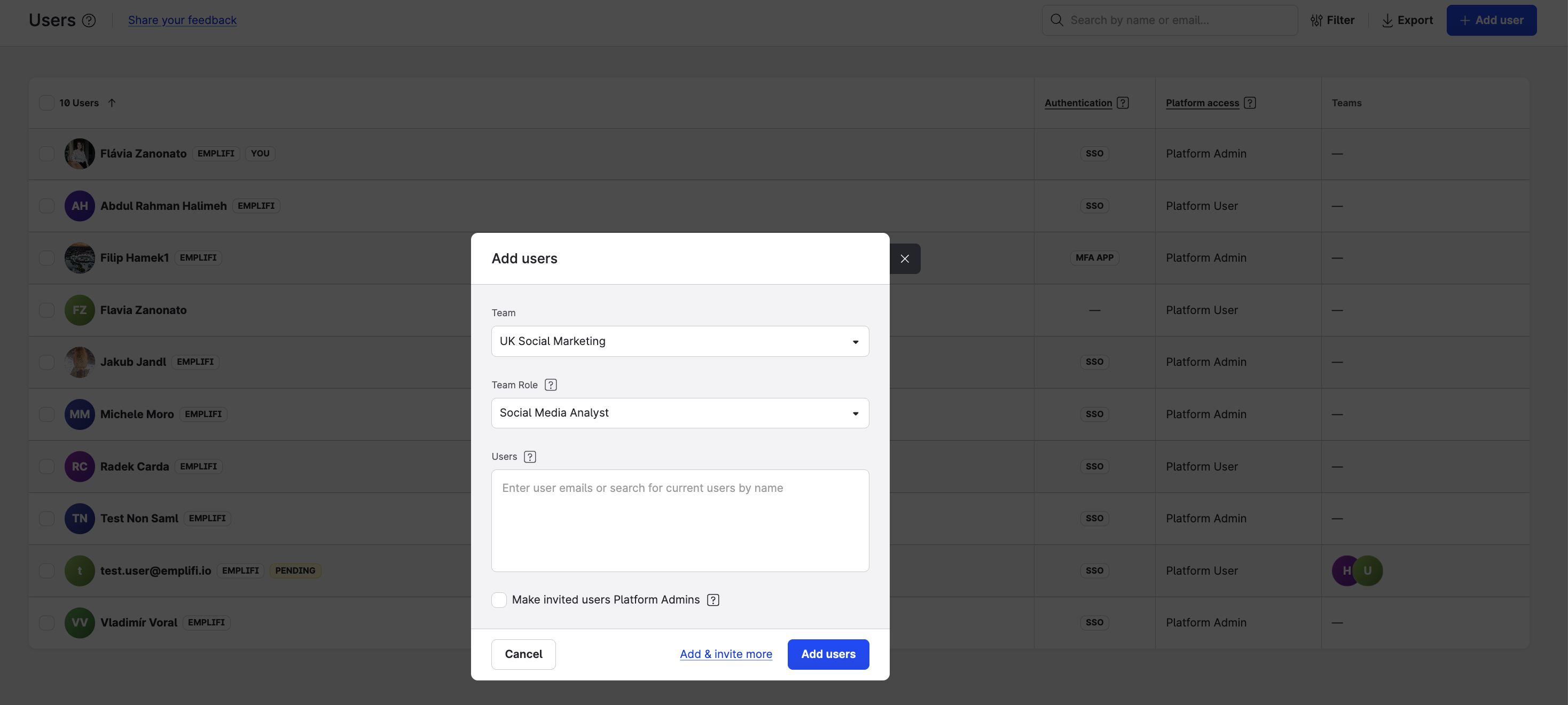
Inviting a user. You choose a Team and a Team Role as part of the invitation. You can't invite someone without them.
Adding a profile. At the end of the flow, you assign the profile to one or more teams. You can grant Publishing and Owned insights access to those teams right there.
Community management and Care management take an extra step. First enable Community management on the profile, then go to Settings → Team management → Teams, open the team, select the Profiles tab, and use Edit access to grant it.
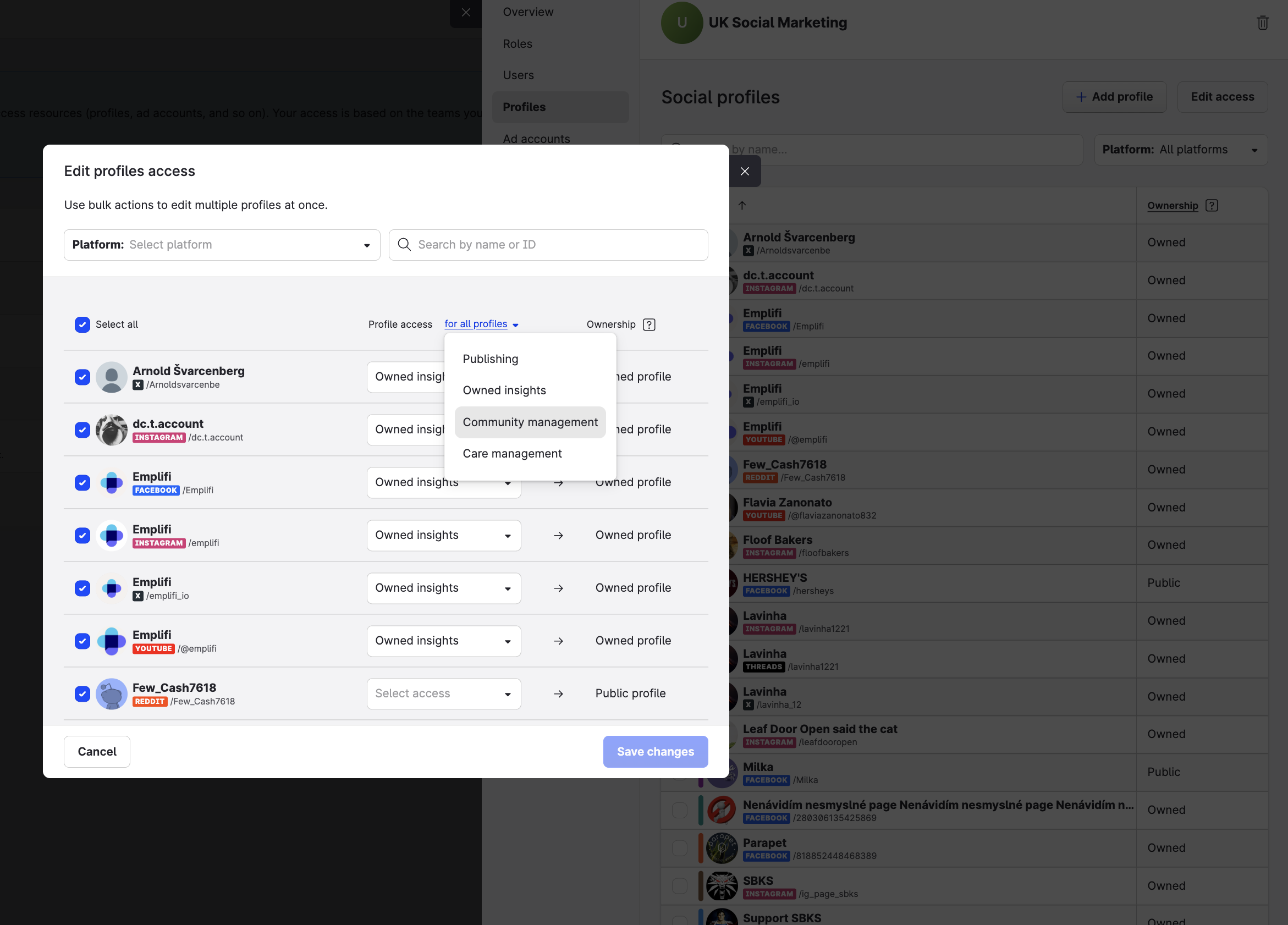
The same profile can belong to several teams with different access in each. If you added a profile as public and connected it later, remember to assign the team access afterwards.
Adding an ad account. You assign it to a team, and that's it — there's no access step.
For the full set of team maintenance tasks, see Update and Maintain Teams.