
Summary: This article explains the Teams migration process — what Emplifi prepares for you, what you'll see during the preview state, what your options are, and how to complete the migration.
This article applies only to customers who are migrating to Teams. If your account has been selected for migration, you will have already received an email from Emplifi with your timeline and next steps. This article provides a complete reference for everything covered in that email and what to expect throughout the process.
If you have any questions, contact your Customer Success Manager or Emplifi Support at support@emplifi.io.
Teams is the new governance model for all Emplifi customers
Teams is Emplifi's new governance solution, replacing the legacy system of account roles, profile roles, and user groups. It gives your organization a clearer, more scalable way to manage access — structured around teams, team roles, and scoped resources (see Govern Access to Account Resources Using Teams).
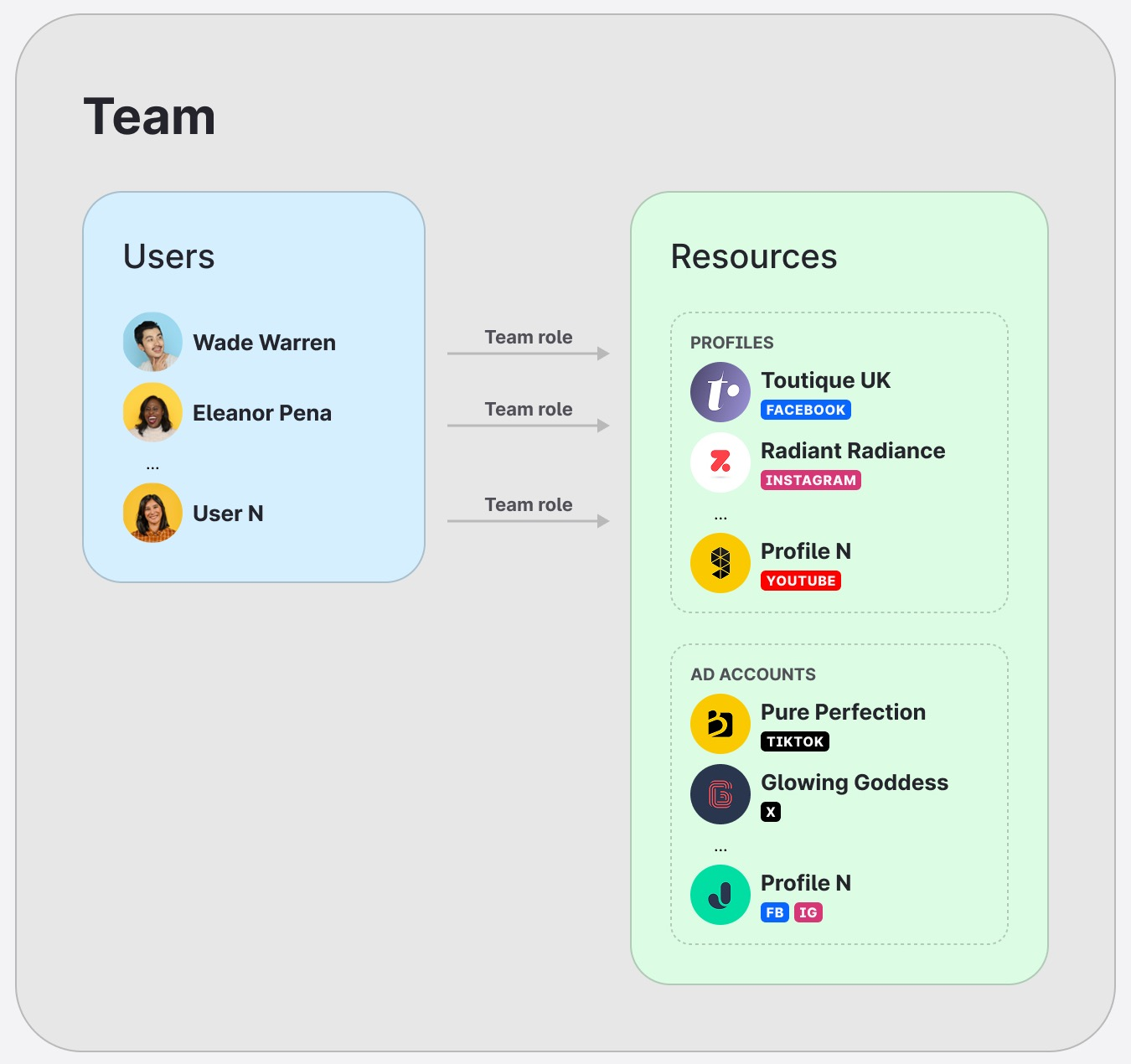
Migration is mandatory for all eligible customers. If you've adopted the new Pricing & Packaging, you're in scope. That said, migration timelines are flexible — if the proposed timing doesn't work for your organization, contact your Customer Success Manager to discuss alternatives.
Emplifi manages the migration on your behalf. You don't need to build your Teams setup from scratch. Before your preview is activated, Emplifi runs an automation that generates a complete Teams structure based on your existing account setup. Your role is to review the proposal, make any adjustments needed, and migrate when you're ready.
The migration is designed to be seamless. Your content, configurations, historical data, and existing workflows are fully preserved throughout the process — nothing is removed or reset. During the preview state, your team continues to work as usual under the existing governance setup. The switch to Teams only takes effect once migration is complete, and even then, day-to-day work in the platform is uninterrupted.
How the migration process works
-
Emplifi selects your account for a migration batch
-
You receive an outreach email explaining what's coming and your timeline
-
Emplifi runs the automation — your Teams setup is built based on your current users, profiles, and permissions
-
Teams Preview is activated — you can now review the proposed setup
-
You review the proposal and optionally adjust it
-
You trigger migration yourself, or Emplifi migrates your account at the end of the review window
How you'll be contacted
You'll receive an email from Emplifi between one and two weeks before your Teams Preview is activated. This email will explain:
-
What Teams is and why your account is being migrated
-
What the automation will prepare for you
-
Your review window and migration deadline
-
Where to find documentation and who to contact with questions
What is the preview state
The preview state gives you time to review and adjust your Teams configuration before it becomes active. During this period:
-
Your current governance system (account roles, profile roles, user groups) remains active — nothing changes for your users yet
-
You can view and edit the Teams setup that will take effect after migration
-
No changes made in Team management during the preview state affect your live account until migration is completed
|
Governance system |
Status during the preview state |
|---|---|
|
Legacy governance system |
Active. Account roles, profile roles, and user groups continue to control access in the account. |
|
Team management |
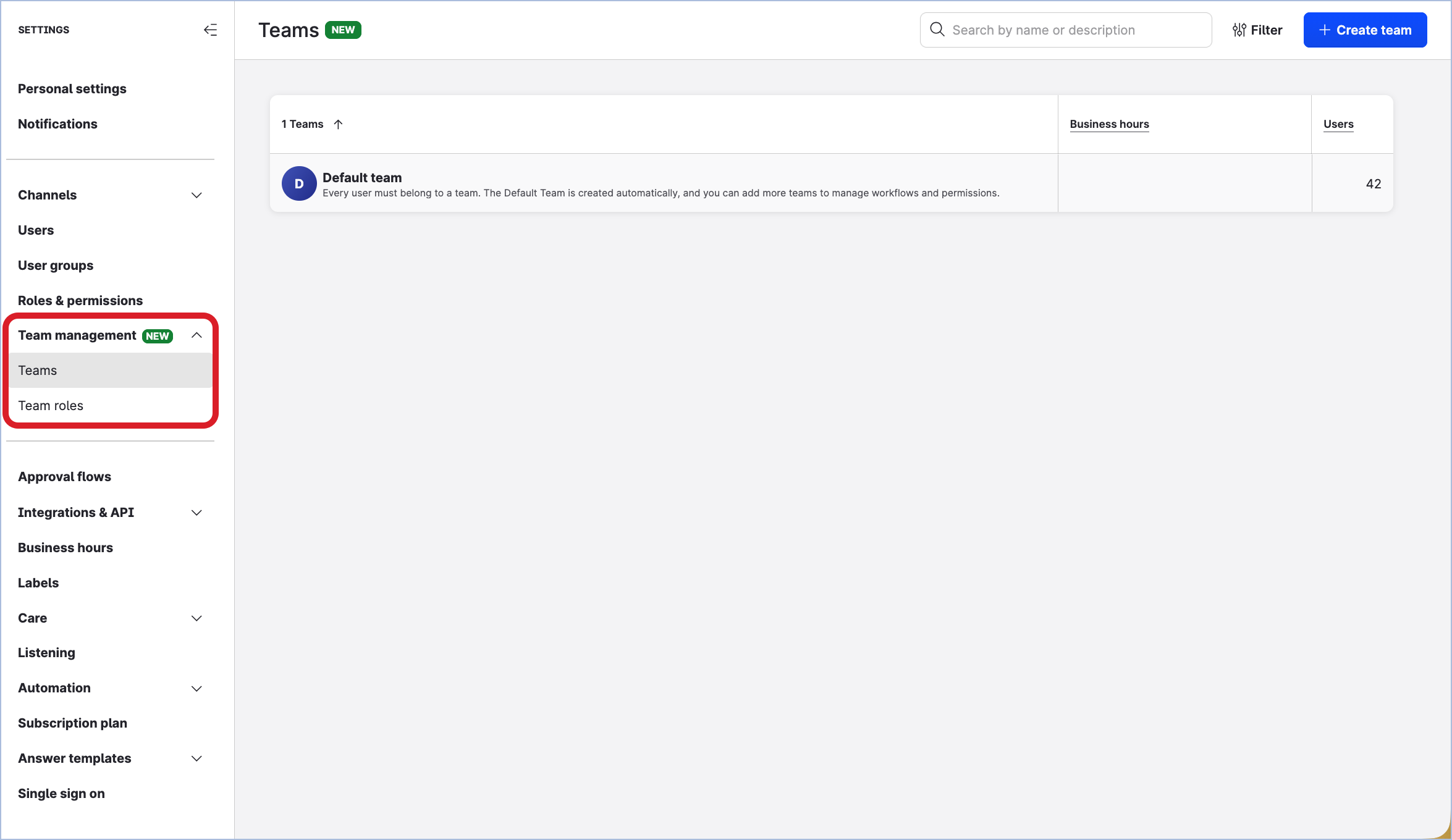
Available for preparation. Admins can configure the future Teams setup, but it does not affect the active account setup yet. |
What Emplifi builds for you
When your preview is activated, your Teams structure is already built. The automation reads your existing account setup — users, profiles, and profile role assignments — and derives a Teams structure from it:
-
Teams are created based on unique combinations of profile sets and groupings of users
-
Team roles are derived from existing profile roles, preserving your users' current permission scopes
-
Users are assigned to teams with their corresponding team roles
-
Profiles and ad accounts are assigned to the relevant teams
When you open your account, a notification will inform you that your Teams setup is ready to review, with a "Review setup proposal" prompt to get started. A migration banner will also be visible throughout the preview state with the same call to action.
Your options during the preview state
Review the proposal and migrate
For most accounts, the automation-generated setup is ready to use. Review the proposal to confirm it accurately reflects how you want access structured, then migrate when you're ready.
Adjust the proposal
If the proposed setup doesn't fully match your needs, you can edit it directly in Team management — rename teams, adjust team roles, change user assignments, or update resource access. The automation gives you a starting point; you can refine it before migrating.
Reset and start from scratch
If you prefer to configure Teams manually from the beginning, you can discard the automation proposal from the migration banner. Select Discard proposal and start from scratch and confirm — this will delete all auto-generated teams and team roles and return your account to an empty draft.
Once reset, re-running the automation requires contacting Emplifi. You cannot trigger it again yourself.
Assign feature-specific configurations (if applicable)
If your account uses feature-specific configurations, such as Approval Flows or Unified Analytics boards and views, these need to be assigned to teams before migration — they are not covered by the automation. The Migrate button will remain disabled until these assignments are complete.
See Update feature-specific configurations for step-by-step instructions.
Timelines
Fully automated accounts (no feature-specific configurations): You have 1 week from preview activation to review your setup. If the week passes and migration hasn't been triggered, Emplifi will complete it on your behalf.
Partially automated accounts (with feature-specific configurations): You have 4 weeks from preview activation to review your setup and complete any feature-specific configuration assignments. Emplifi will check in at week 2. If the setup isn't complete by week 4, your Customer Success Manager will reach out to discuss next steps and find the best path forward.
Need more time? That's okay — contact your Customer Success Manager. Extensions of one additional migration cycle are available by default; longer extensions are reviewed case by case.
If you don't respond: Your migration will proceed as planned. You don't need to take any action to confirm — Emplifi will enable the preview by the date specified in the email you received.
Triggering migration yourself
You can initiate migration at any point during the preview state — you don't need to wait for Emplifi to push it.
When all entities in your account are mapped (including any feature-specific configurations), the Migrate button becomes active. Click it to complete migration immediately.
If the button is disabled, hover over it to see a tooltip explaining what still needs to be completed: "There are still items left to assign before you can migrate. Complete your setup and try again."
You can also export a list of unassigned items at any time from the migration banner to identify and address gaps.
Once migration is complete, Teams becomes your active governance solution, and the Migrate button disappears. Your data, content, and existing workflows remain fully intact — only the way access is managed changes (See https://docs.emplifi.io/platform/latest/home/team-access).
Adjusting your Teams setup
The automation handles the initial setup for you. If you'd like to make changes before migrating — such as renaming teams, updating team roles, or adjusting user and resource assignments — you can do so at any time in Settings → Team management.
Changes made during the preview state do not affect your live account until migration is completed.
Decide what teams you need
If you'd like to restructure the automation's proposal, start by reviewing your business requirements. Your existing access structure — user groups, profile roles, and account roles — is a useful reference point.
Consider organizing teams by region (EMEA, APAC, LATAM), department (Marketing, Care, Support), brand, or agency — or any combination that fits your organization (See https://docs.emplifi.io/platform/latest/home/plan-your-teams-structure-by-industry).
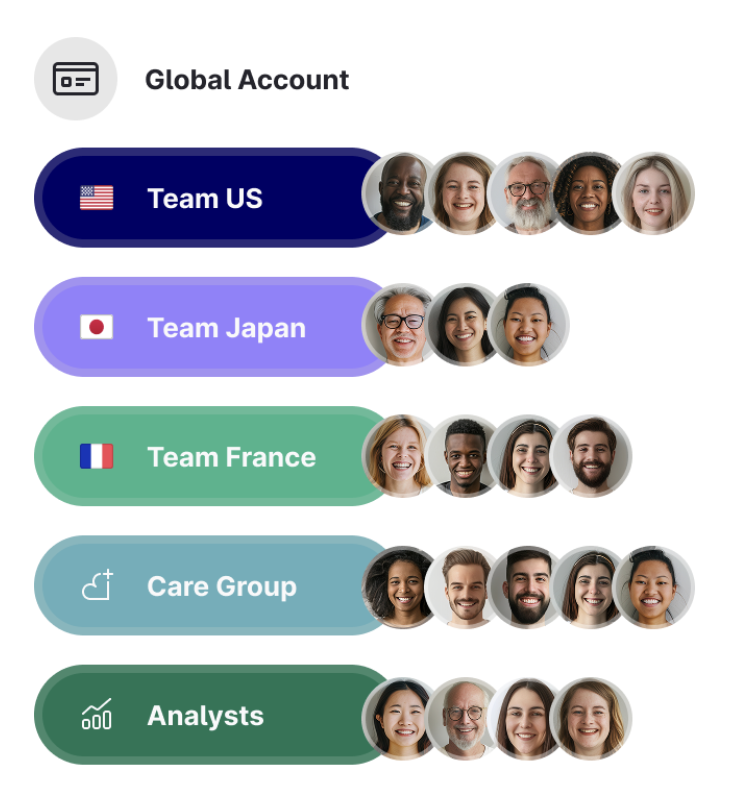
For each team, consider:
-
Product access — which modules should users in this team be able to access?
-
Resources — which profiles and ad accounts should the team work with?
-
Users — who should be in the team, and with what role?
Collaboration mode
Collaborative account (Default mode) — Users can see and interact with members of other teams in shared contexts. Ideal for organizations that require cross-team visibility and coordination. (See https://docs.emplifi.io/platform/latest/home/team-access#Collaborative-and-restrictive-accounts).
Restrictive account — Users can only see and interact with members of their own team. Suitable for organizations that require stronger separation between teams, such as those working with external agencies or managing multiple independent brands.
Regardless of the selected mode, access to resources (such as profiles or configurations) is always controlled by team assignment. Visibility of people does not imply access to their resources.
Accounts operate in Collaborative mode by default. If you need Restrictive mode, contact your Customer Success Manager or Emplifi Support at support@emplifi.io before migration.
Create teams
Each team defines a scope of access: which Emplifi modules its members can use, and which resources they can work with. As you create your teams, consider how your team structure maps to product access — teams with different workflows or responsibilities will likely need different combinations of modules enabled.
Steps:
-
Go to Settings → Team management → Teams.
-
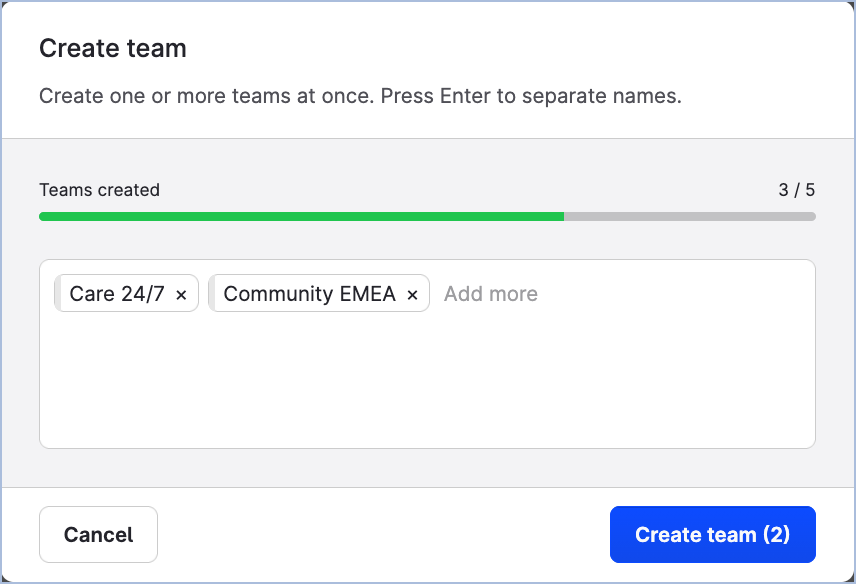
Click +Create team.
-
Enter the names of the teams. You can also paste names from a CSV, Excel, or Google Sheets file.
-
Click Create team.
-
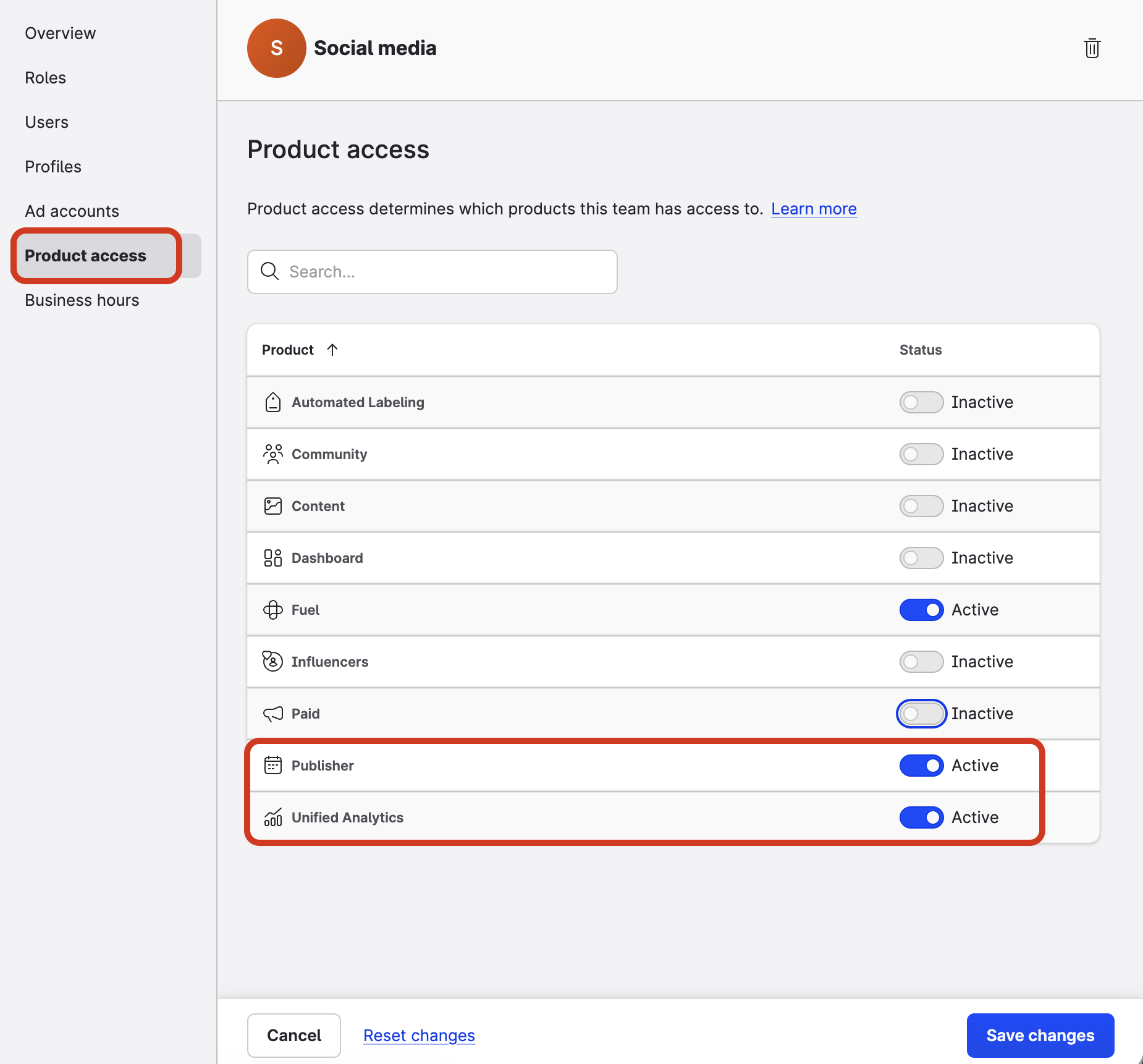
Click one of the created teams, then click Product access.
-
Disable the modules the team should not access.
-
Click Save changes. Repeat for each team.
If you want to apply the same product access settings to multiple teams at once, you can use the bulk action in the Teams list. Select the teams you want to update, then click Product access in the action bar that appears at the bottom of the page.
Create team roles
The recommended approach is to first create a custom template for each role type, then duplicate it to the relevant teams. This way, any future permission updates to the template can be propagated to all child roles derived from it.
Phase 1: Create a template
-
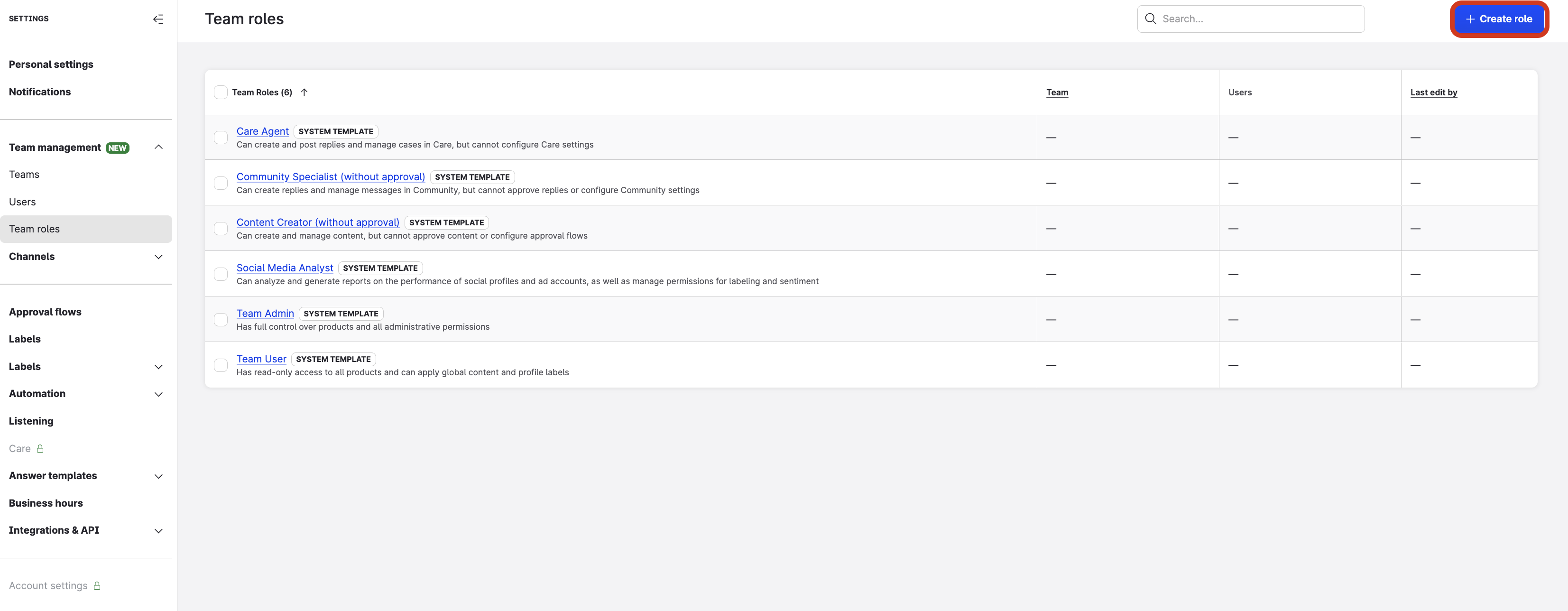
Go to Settings → Team management → Team roles and click + Create role.
-
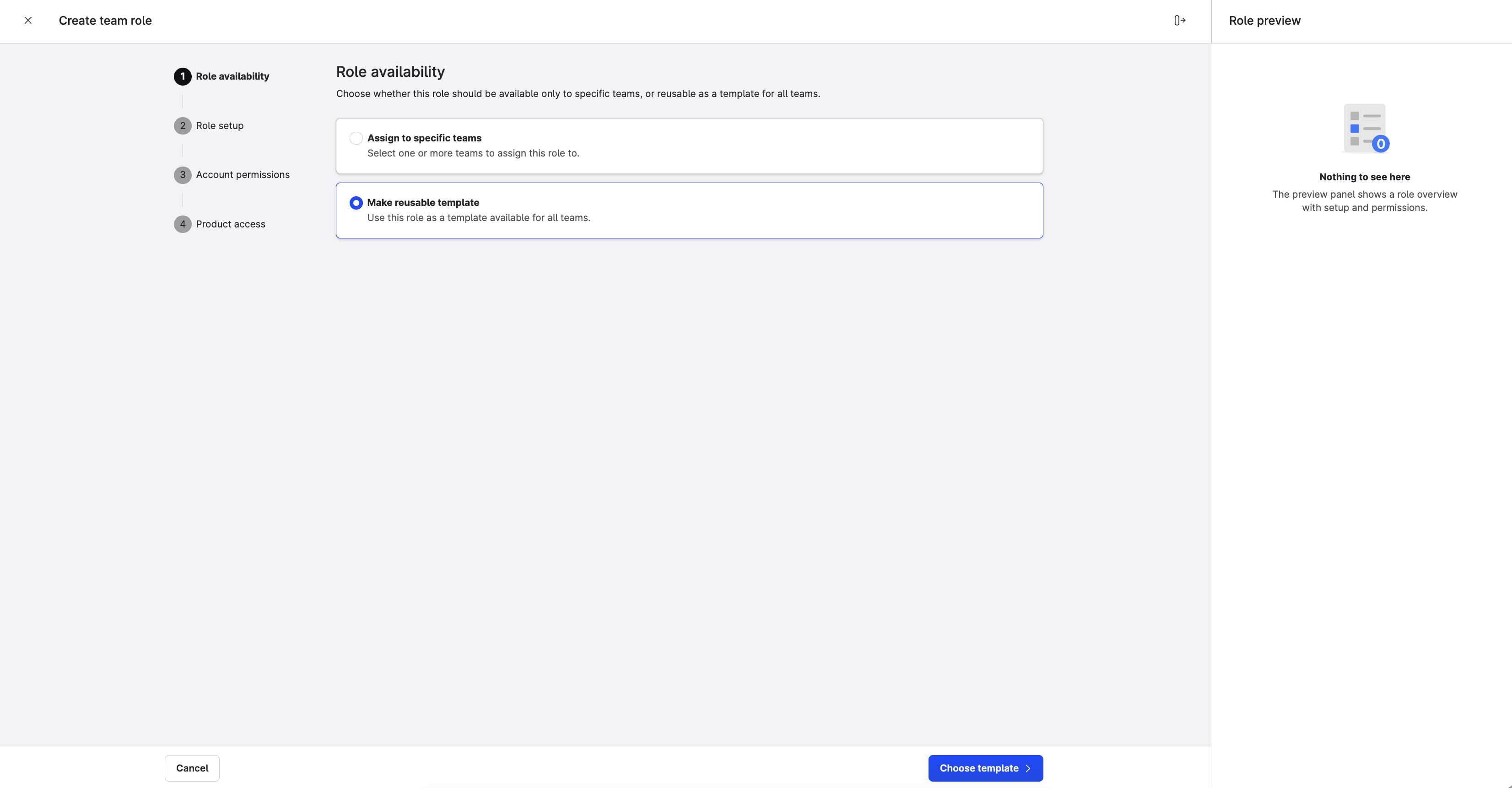
Select Make reusable template.
-
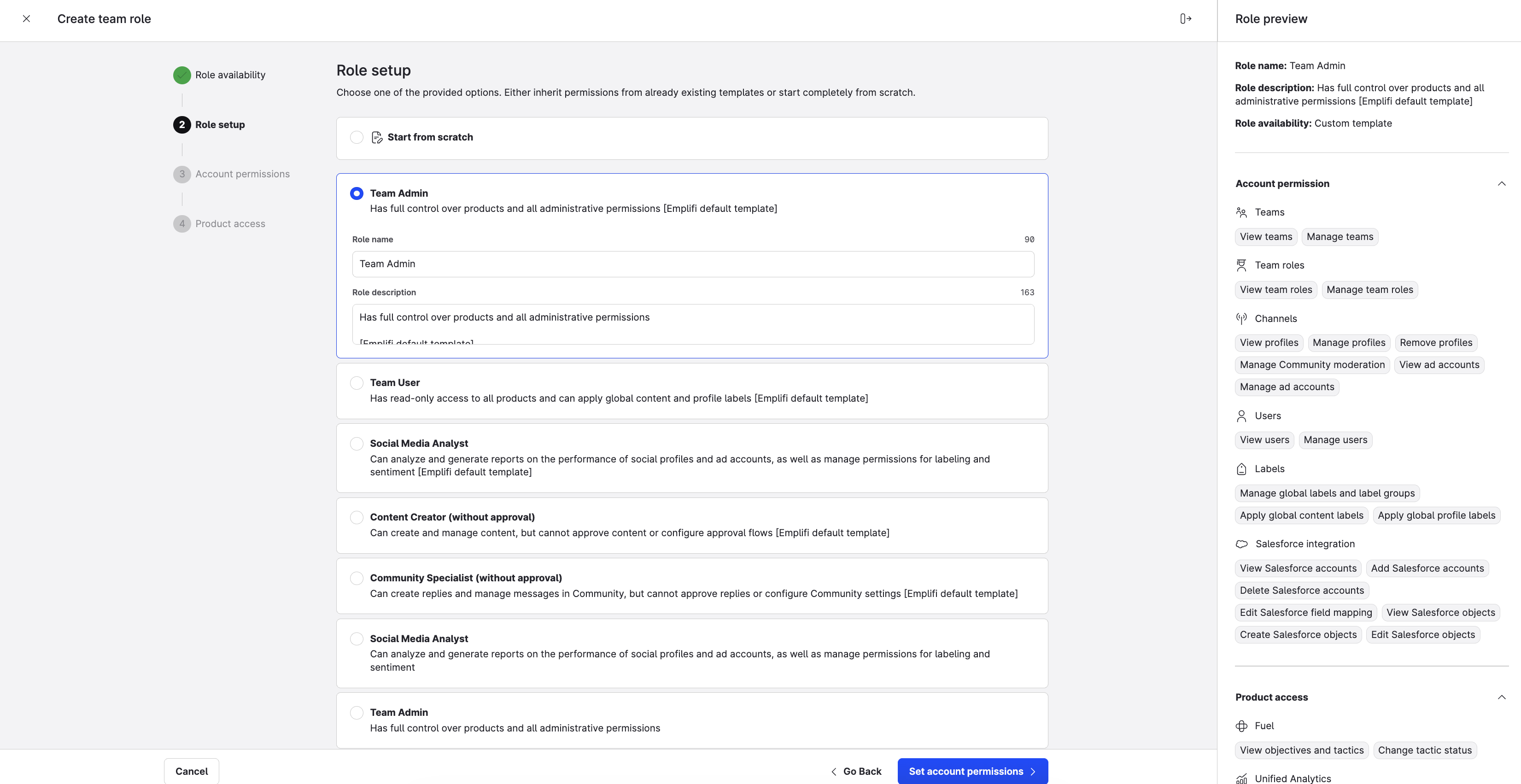
Click Choose template and select a pre-defined template or start from scratch.
-
Name the template, set account permissions, set product access, and click Create role.
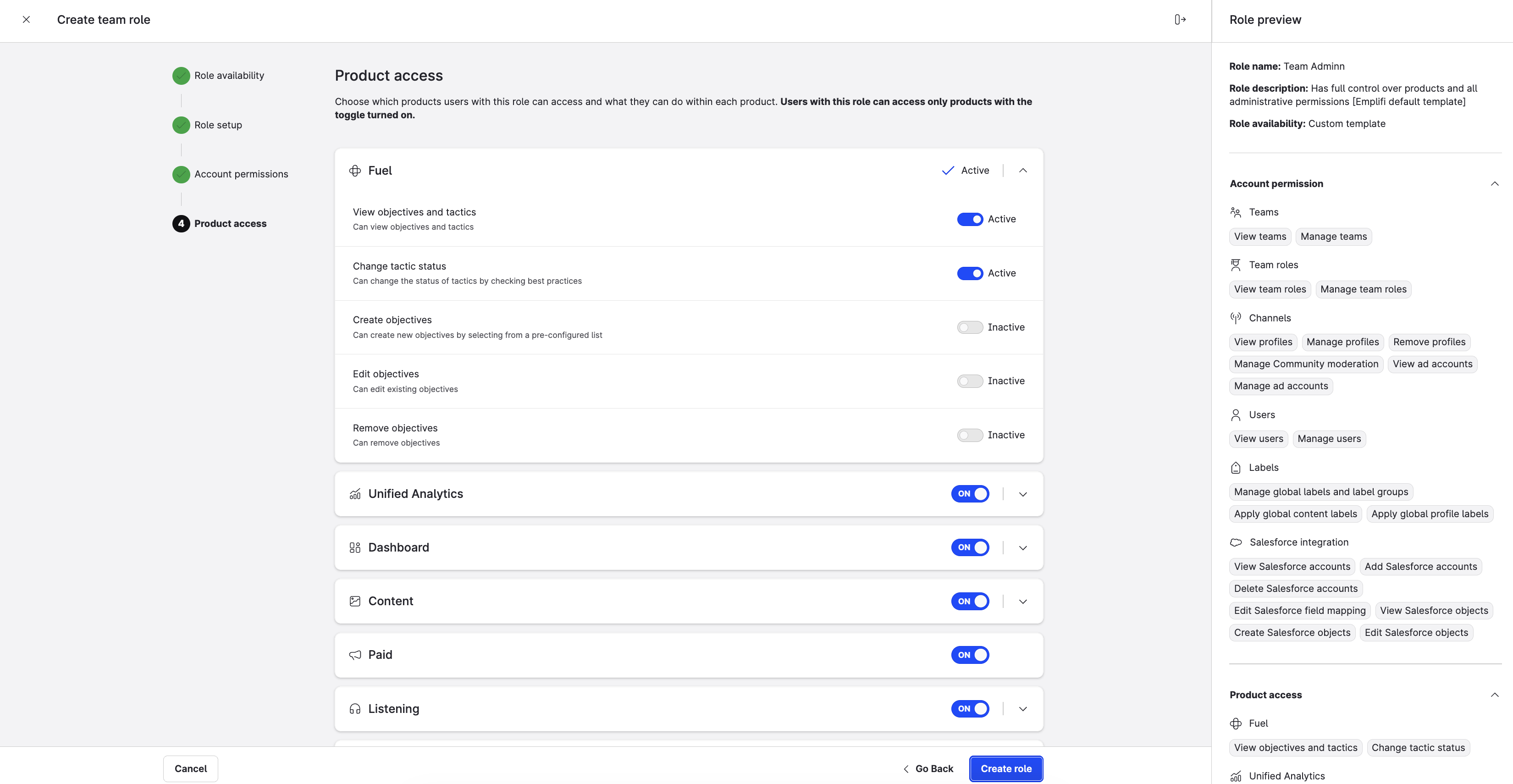
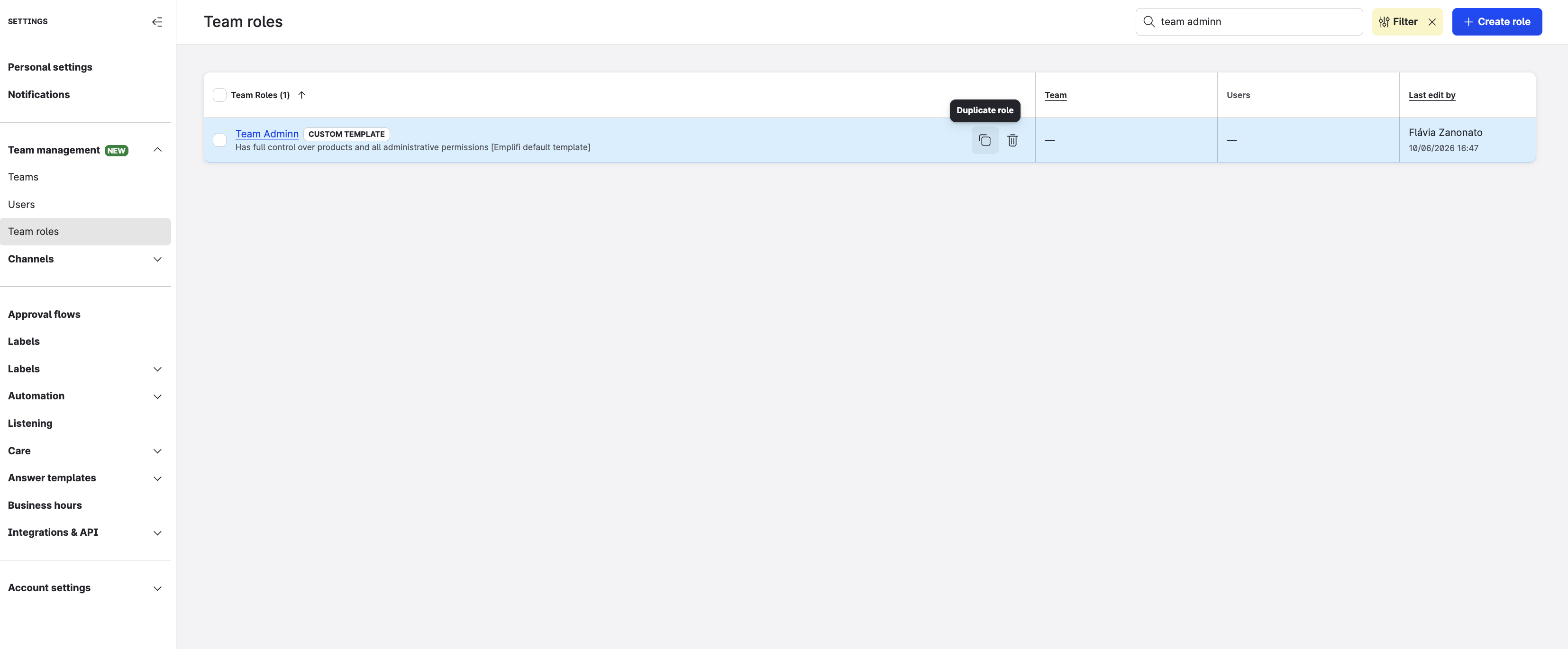
Phase 2: Duplicate the template to your teams
-
Find the template and hover over it. Click the Duplicate role icon.
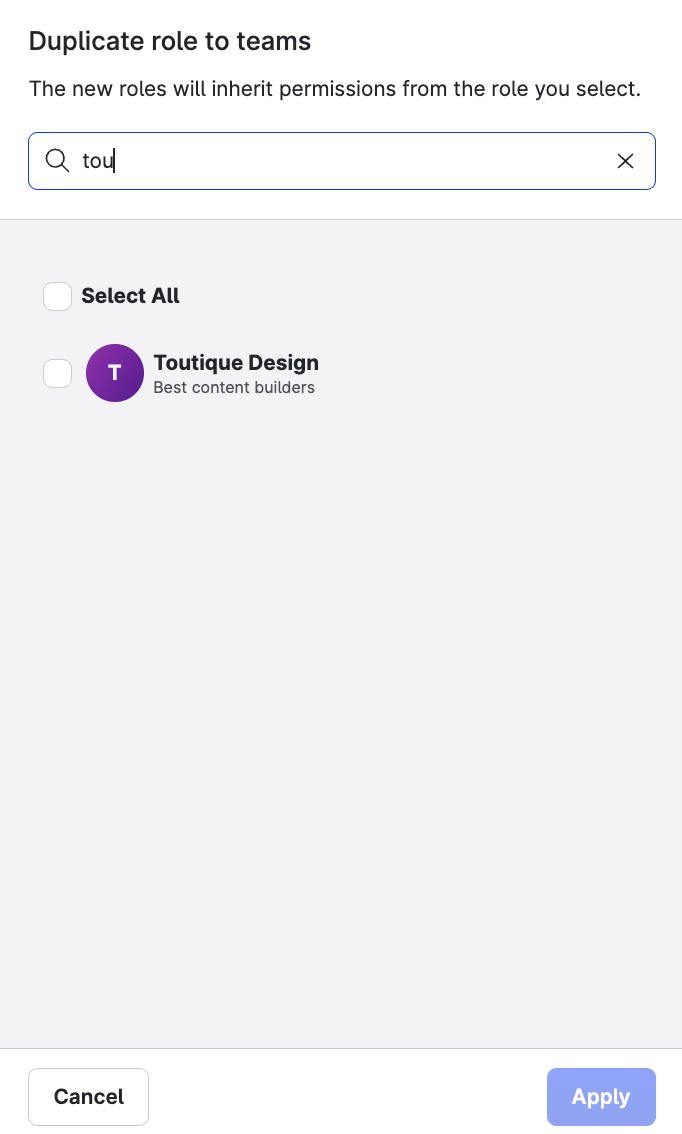
-
Select the teams and click Apply.
A “Team admin” role is created for each selected team, inheriting all permissions and product access settings from the custom template.
Add users to teams
-
Go to Settings → Team management → Teams, click a team, and click the Users tab.
-
Click + Assign users.
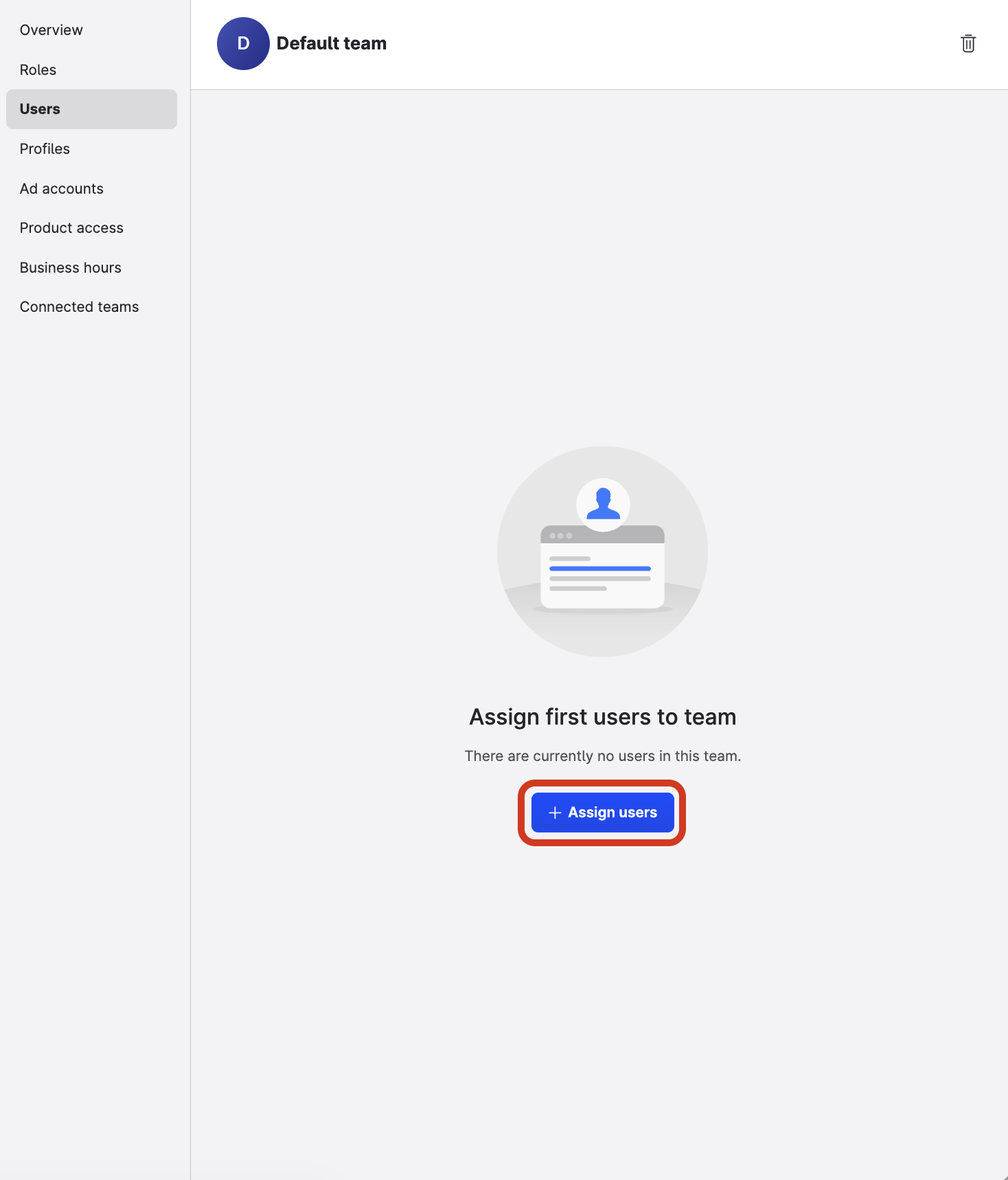
-
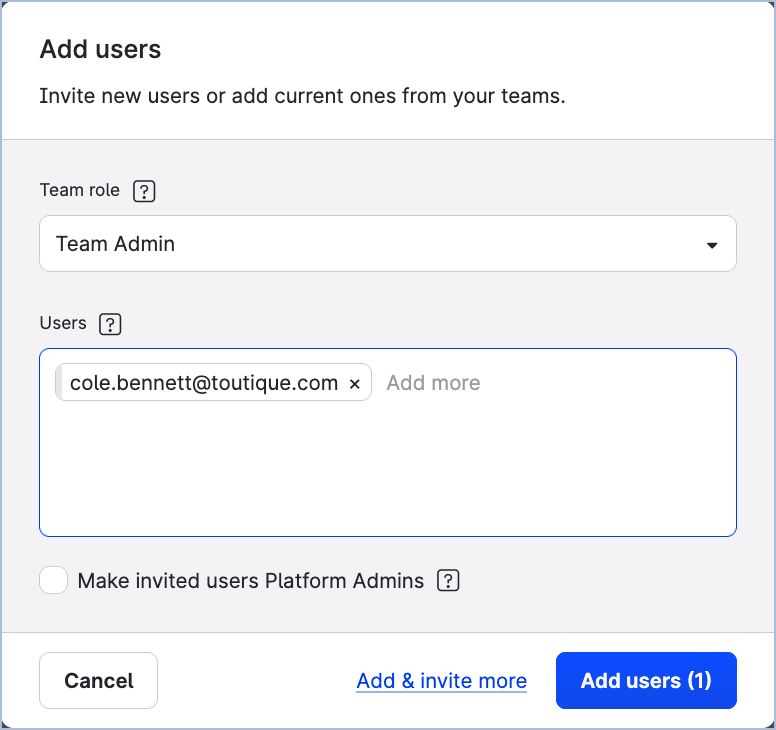
Select the team role, enter user emails, and click Add users. Repeat for each team.
Add a user to multiple teams at once
-
Go to Settings → Team management → Users and click the user.
-
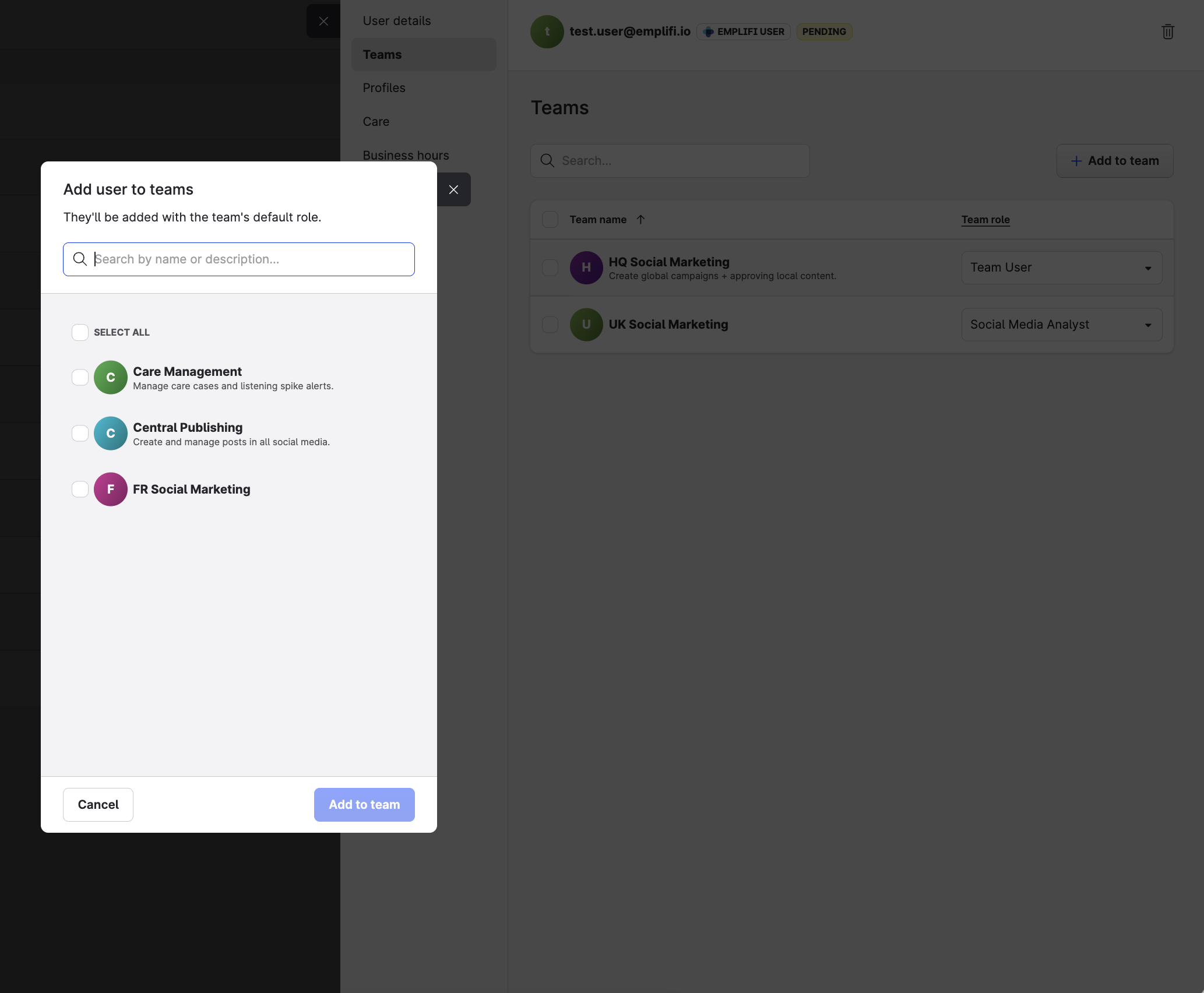
Click the Teams tab, then + Add to team.
-
Select all the teams, click Add to team, then update the team role for each team as needed.
Add resources to teams
Assign the profiles and ad accounts that already exist in your Emplifi account to the appropriate teams. Once added to a team, users in the team will have access to those resources according to their team roles.
To add a profile:
-
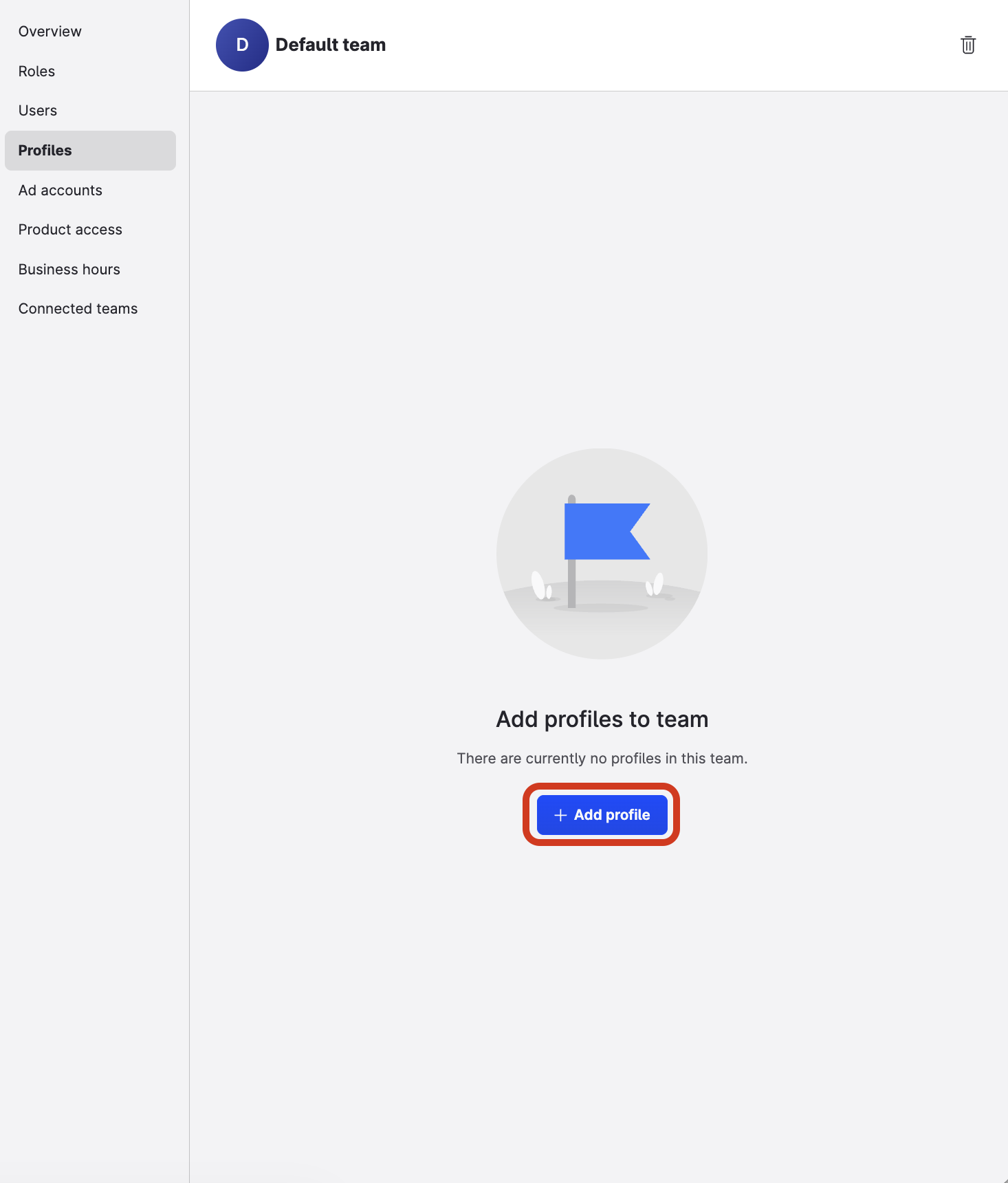
Go to Settings → Team management → Teams, click a team, and click the Profiles tab.
-
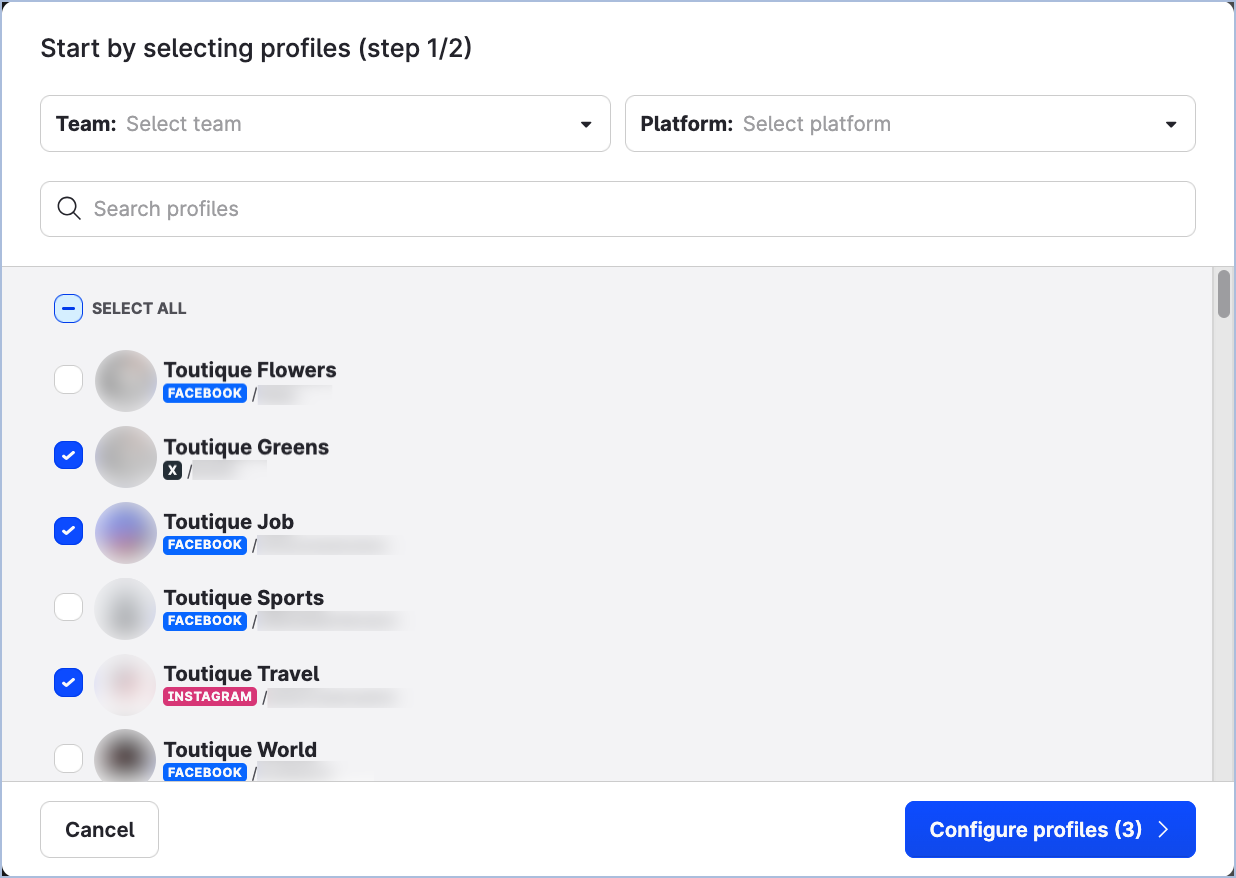
Click + Add profile, select profiles, and click Configure profiles.
You are prompted to choose the profile connections you want to allow team members to use.
-
Select the connections for each profile and click Complete configuration. Repeat for each team.
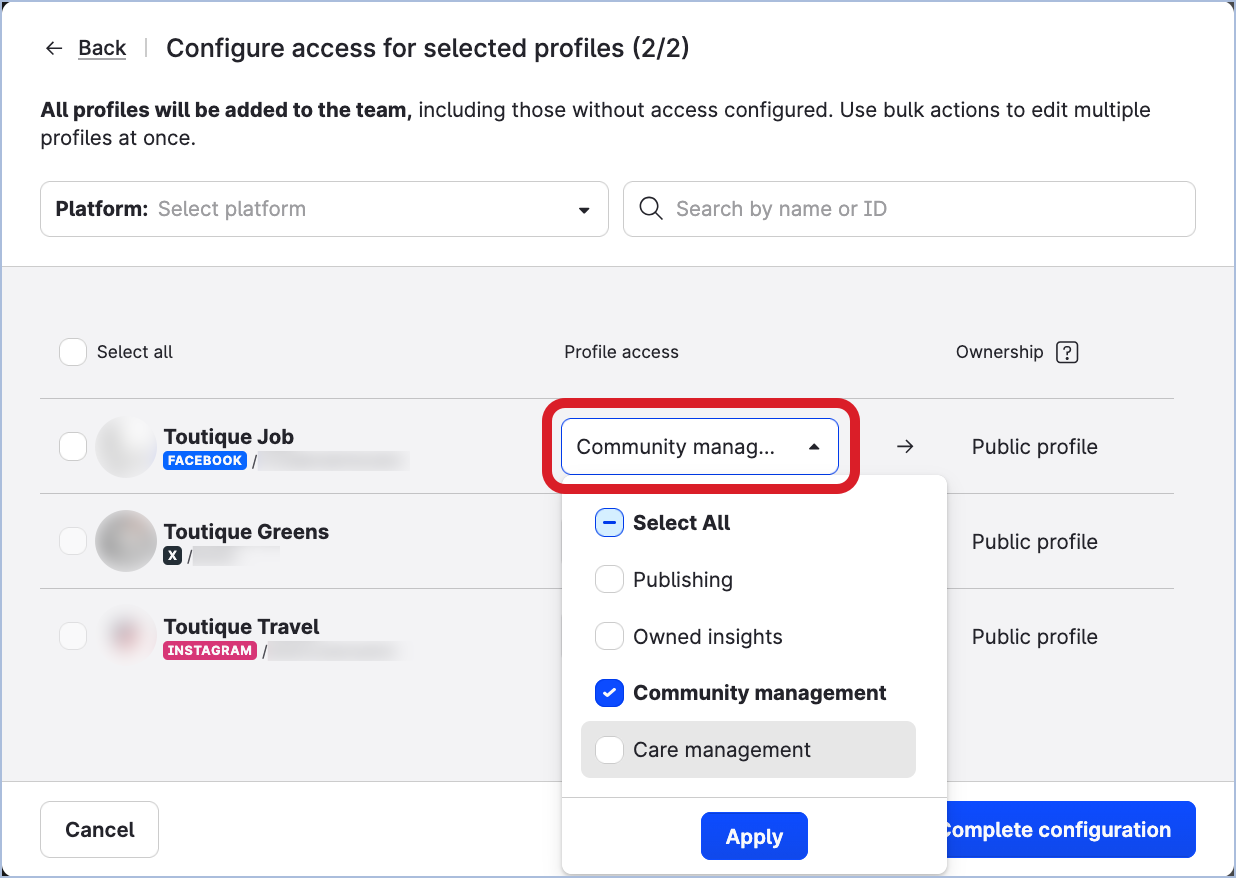
To add an ad account:
-
Go to Settings → Team management → Teams, click a team, and click the Ad accounts tab.
-
Click + Add account, select the ad accounts, and click Add accounts. Repeat for each team.
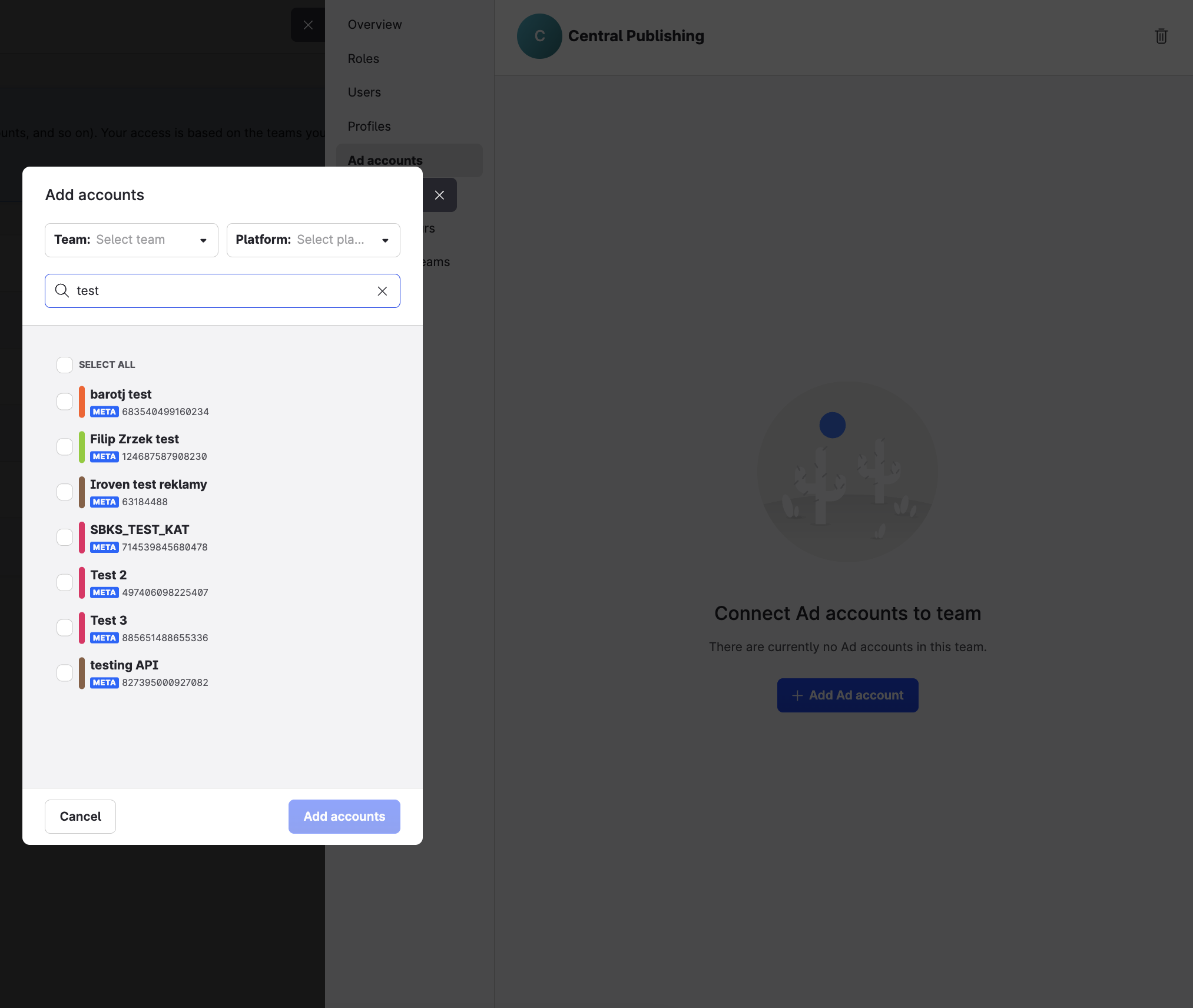
Add multiple teams to a resource at once
You can assign a profile or ad account to several teams directly from the Channels section.
For profiles:
-
Go to Settings → Channels and click the profile. Click the Teams tab, then + Add teams.
-
Select the teams, click Configure teams, and select the access level for each team.
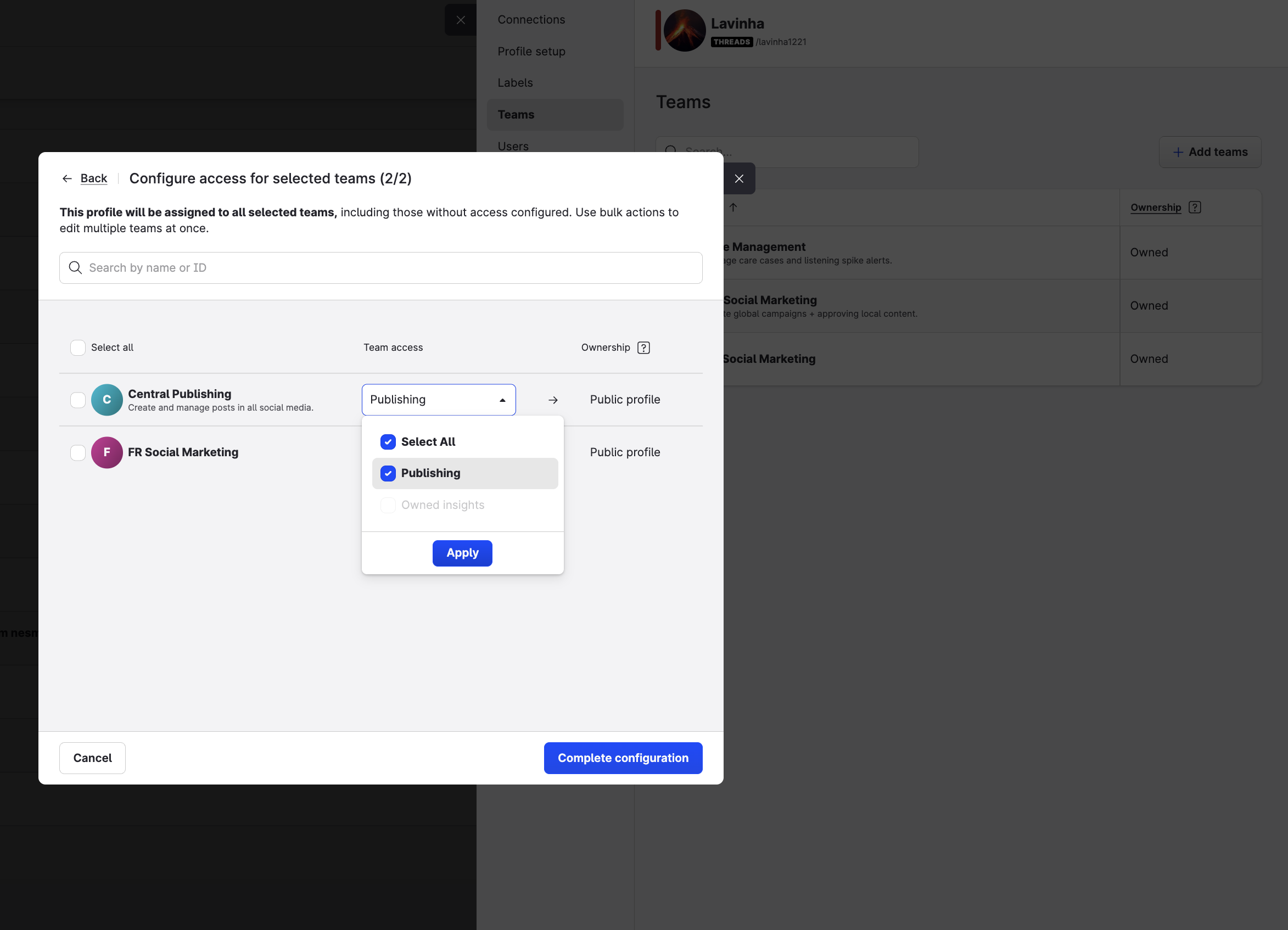
-
Click Complete configuration.
For ad accounts:
-
Go to Settings → Channels → Ad accounts and click the ad account. Click the Teams tab, then + Add teams.
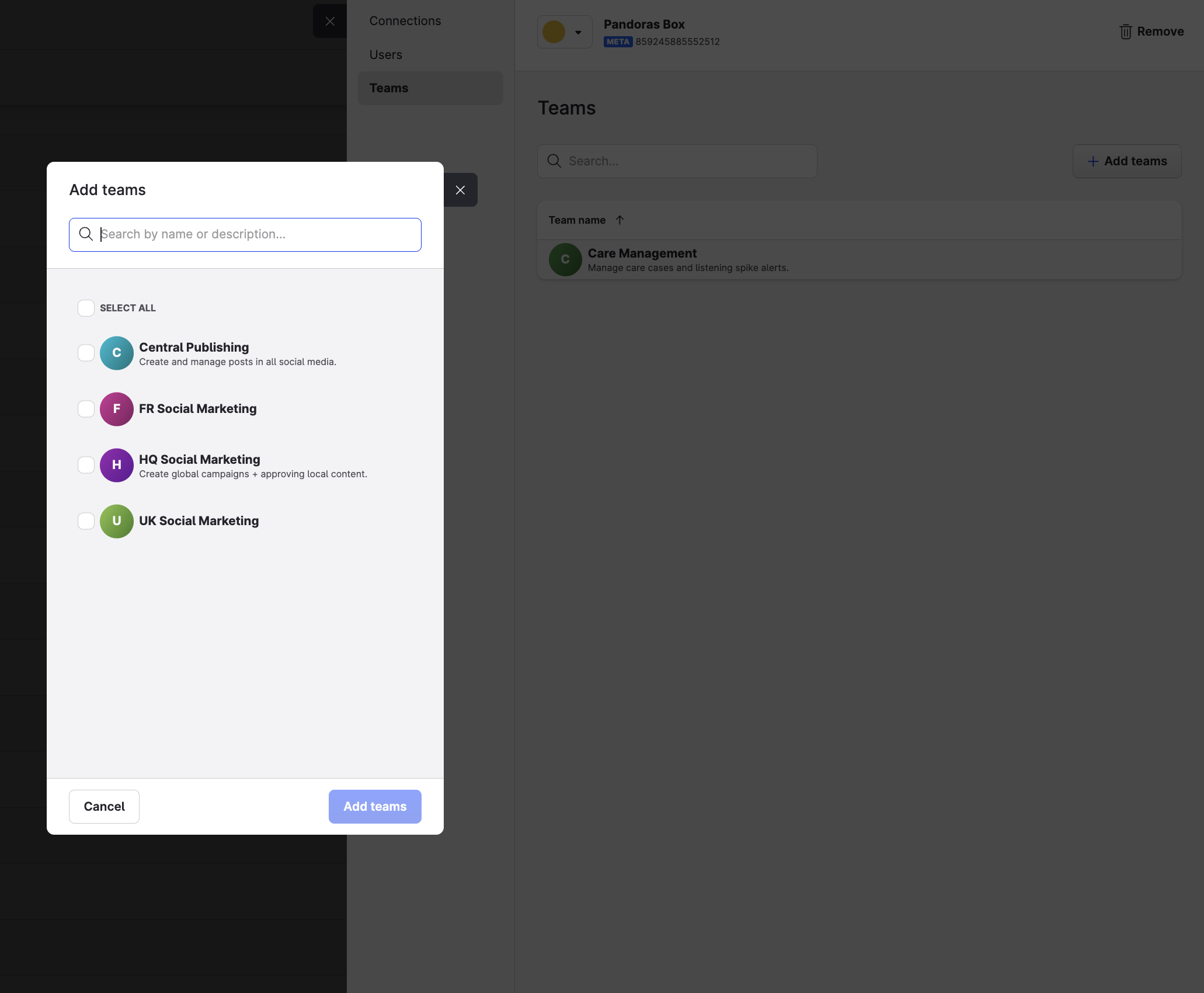
-
Select the teams and click Add teams.
Update feature-specific configurations
Some features in the Emplifi platform store configurations that reference user groups. If your account uses any of the following features, update their configuration to reference teams as part of your preview-state preparation. Failing to complete these updates before migration may break the affected workflows.
Do not remove existing user group assignments. User groups are part of your active configuration and must remain assigned until migration is complete. Instead, add the equivalent team assignments alongside them — both will coexist until migration is completed.
Features
-
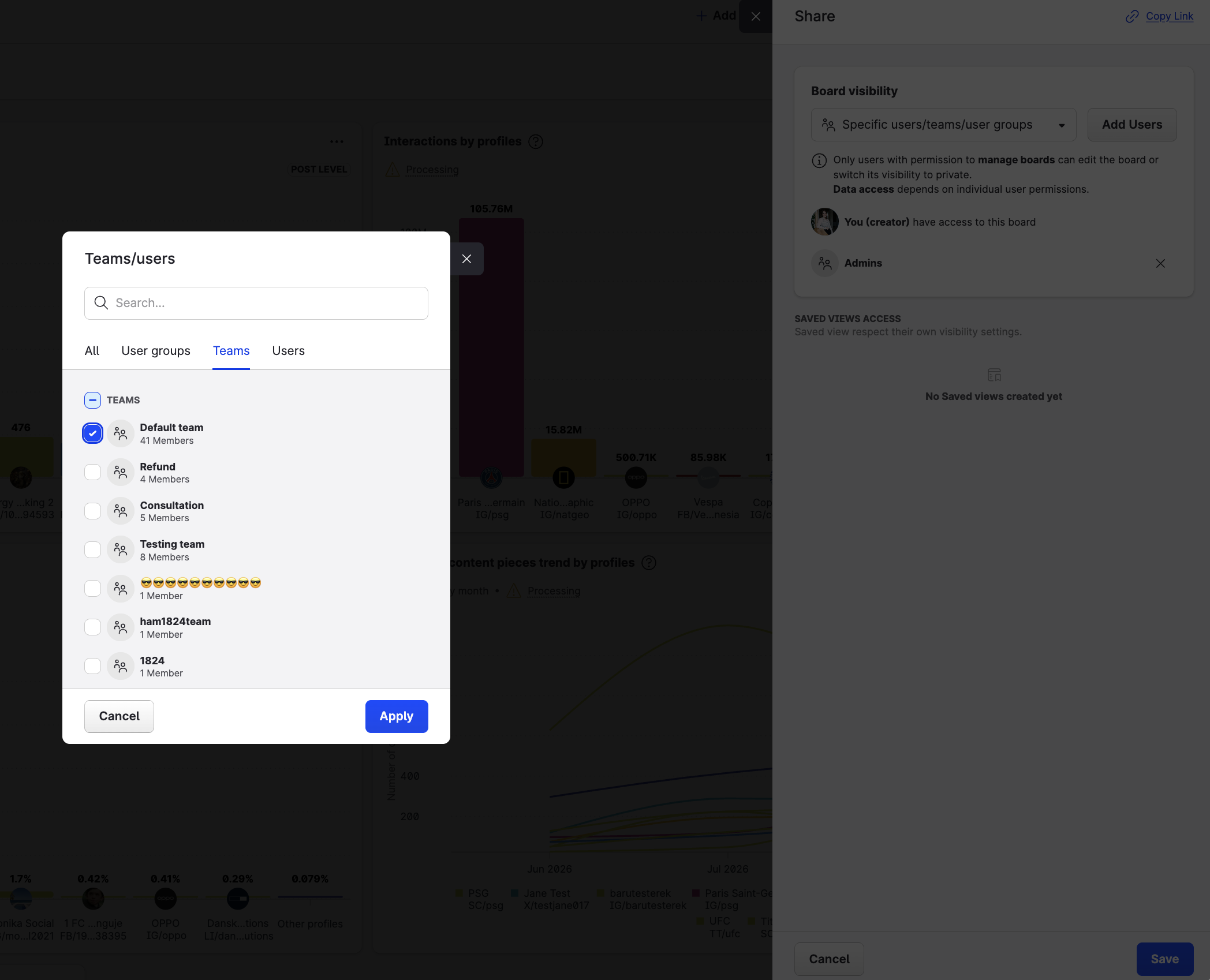
UA saved views and boards: Add Dynamic Teams assignment to all saved views and boards that currently have Dynamic Groups assigned.
-
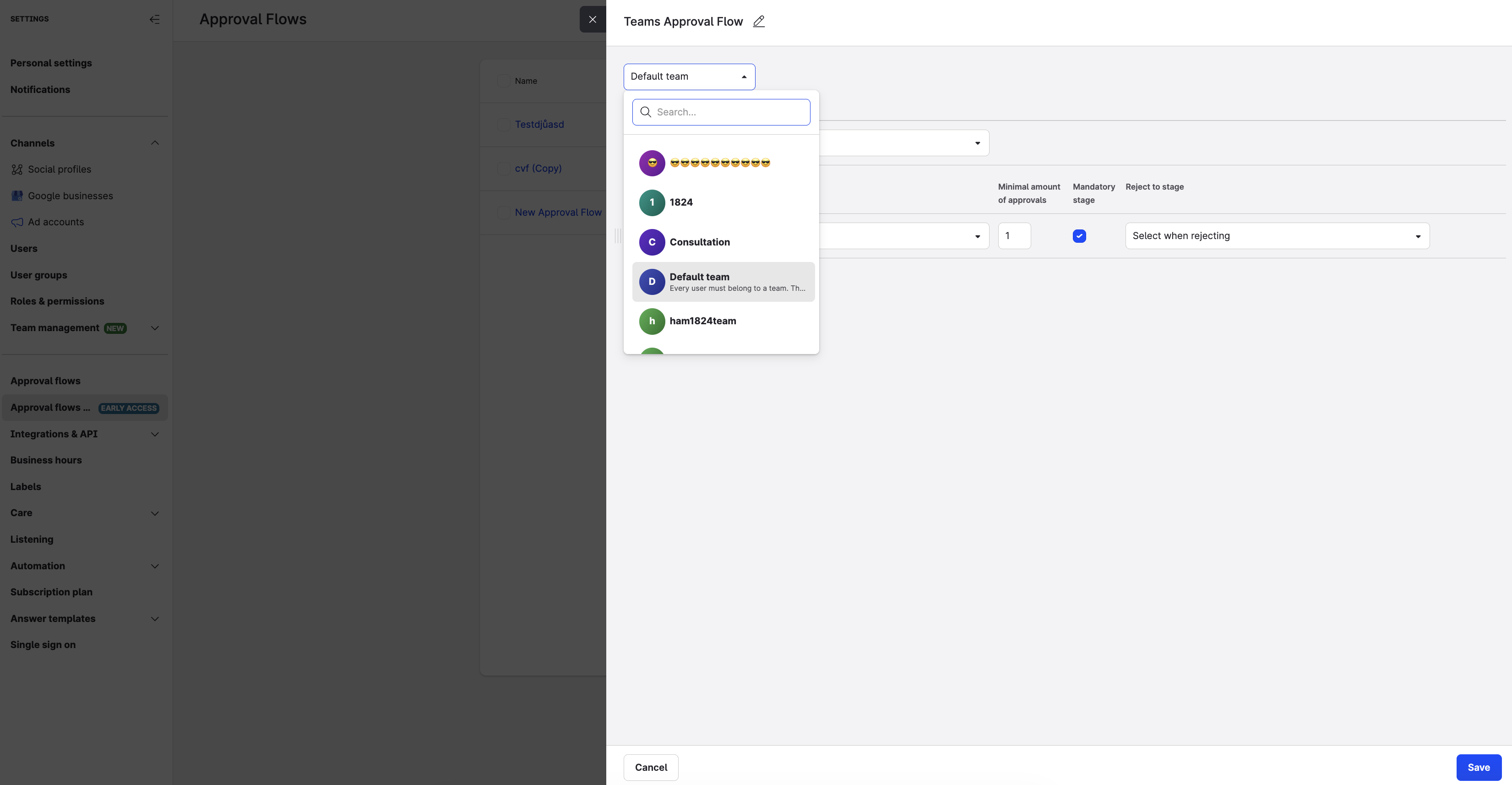
Approval flows: Create new approval flows linked to teams to reflect all account-level approval flows.
-
UA Care & Community widgets: Replace Groups filtering with Teams filtering in all Care and Community widgets that currently use Groups filtering.
-
Dashboard Community widgets: Replace Groups filtering with Teams filtering in all Community widgets in dashboards that currently use Groups filtering.
Ensure user team assignments are in place before updating Care and Community widget configurations. Unlike other configurations in this list, user group assignments are not carried over for these widgets — teams will be used as the filtering and data source automatically, even before migration is completed. If team assignments are not set up first, users may temporarily lose access to their filtered views.
-
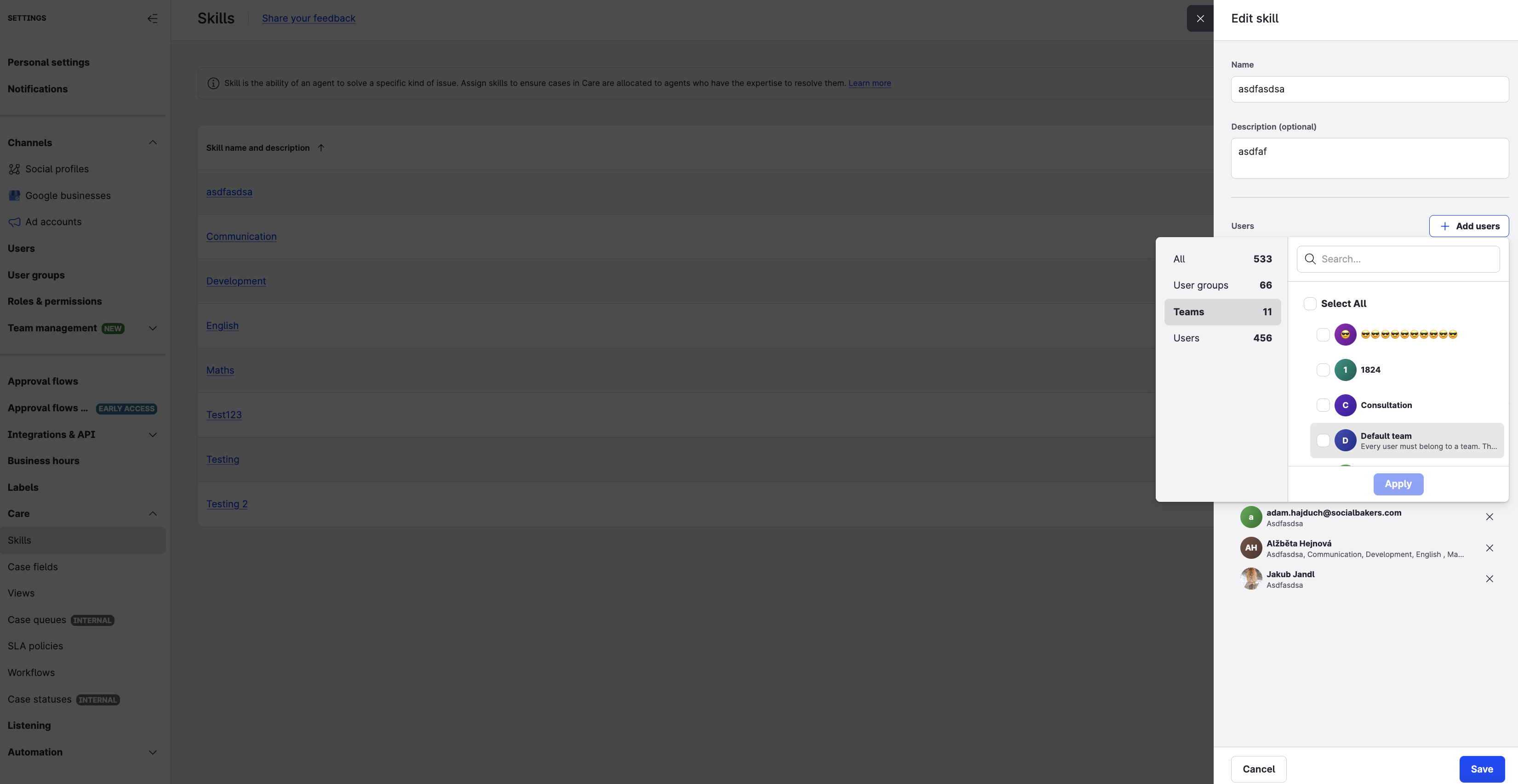
Care skills: Add Dynamic Teams assignment to all Care skills that currently have Dynamic Groups assigned.
-
Care views: Add Dynamic Teams assignment to all Care views that currently have Dynamic Groups assigned.
-
Case queues: Add Dynamic Teams assignment to all Case queues that currently have Dynamic Groups assigned.
-
Business hours: Add Dynamic Teams assignment to all Business hours that currently have Dynamic Groups assigned.
-
Answer template groups: Add Dynamic Teams assignment to all Answer template groups that currently have Dynamic Groups assigned.
-
Keyword lists: Add Dynamic Teams assignment to all Keyword lists that currently have Dynamic Groups or Global assignment.
-
Flow automations: Add Teams in triggers, conditions, and actions to all Flow automations that currently reference User Groups.
If none of the above features are in use in your account, you can skip this step.
To track what still needs attention, go to Settings → Team management → Teams and use the Export option in the migration banner. This downloads a full list of unassigned entities so you can work through them systematically.
Review your configuration
Before migrating, verify the following for each team:
-
Product access — Only the modules the team should access are enabled.
-
Team roles — The roles cover all required permission scopes.
-
Users — All users are added with the correct team role.
-
Resources — All social profiles, google businesses, and ad accounts are assigned with the appropriate access level.
If you find gaps or mismatches, update the configuration before migrating. Changes during the preview state do not affect live access.
After migration
When migration is complete, Teams becomes your active governance solution. The configuration prepared during the preview state takes effect immediately.
Your legacy account roles, profile roles, and user groups are no longer active. Access is now managed through teams, team roles, and resource assignments (See https://docs.emplifi.io/platform/latest/home/what-teams-changes-for-you).
With Teams fully active, your organization gains:
-
Faster user onboarding — new users are added to a team and immediately inherit the right access to all assigned profiles and ad accounts. No more individually assigning users to each resource.
-
Automatic access for future additions — any profile or ad account added to a team is instantly accessible to all current and future members of that team.
-
Delegated governance through Team Admins — regional managers, department supervisors, or agency leads can manage their own teams independently, without needing account-wide admin access.
-
Scoped resource access by default — each team works with its own assigned profiles, ad accounts, and configurations. Resources are not automatically shared across teams — any cross-team access is always an explicit decision, eliminating accidental data leakage and reducing the risk of misconfiguration.
-
Right-sized permissions — team roles give you precise control over what users can do, reducing the risk of over- or under-permissioning across your organization.
Migration cannot be reverted. However, your Teams configuration is fully editable after migration — teams, roles, users, and resources can all be updated at any time.
If users notice unexpected access changes after migration, contact your Customer Success Manager or Emplifi Support at support@emplifi.io. Most issues can be resolved by updating the Teams configuration without any impact to ongoing workflows.
Not sure Teams is right for your business?
Teams is designed to make access management simpler and more scalable for your organization, but we understand change can raise questions. If you'd like to learn more about what Teams means for your account before migrating, your Customer Success Manager is happy to schedule a call to walk you through it.
Reach out at any point during the process — we're here to help make the transition as smooth as possible.