
Summary: This article provides detailed instructions on managing teams, roles, users, profiles, and ad accounts within the Emplifi platform.
Keep your team organization up-to-date and relevant. Review the teams periodically and update them to make sure your setup still meets your business needs.
Teams
Create a team
To be able to create a team, you must be a platform admin (see Access to the Emplifi Platform).
The maximum number of teams that you can create depends on your plan. If you need more teams than your plan allows, contact your Customer Success Manager or Emplifi Support at support@emplifi.io.
If your plan allows only one team, you are going to work with the default team that already exists in your Emplifi account and has the “Team user” team role added (see Govern Access to Account Resources Using Teams).
Steps:
-
Go to Settings → Team management → Teams.
-
Click +Create team.
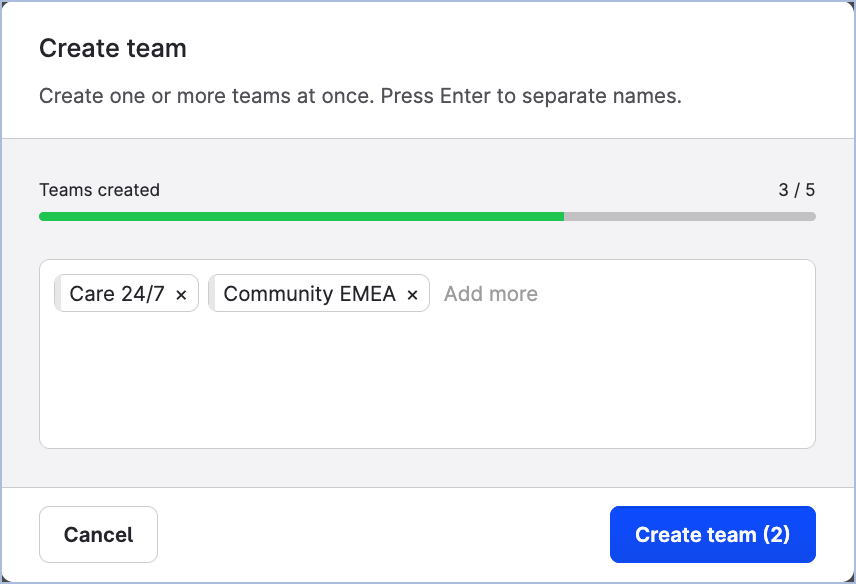
The dialog for specifying team details opens. -
Enter the name of the team.
To create multiple teams at once, enter the name of the first team to add, press Enter, enter the name of the second team, press Enter, and so on. You can also copy the team names from an external source (a CSV file where the team names are separated by commas, an Excel file, or a Google Sheets file) and paste them into the field.
-
Click Create team.
The team is created and added to the list of the teams in the alphabetical order. The team is created together with a default “Team user” team role already added to it. You can later review this default team role under Settings → Team management → Team roles. -
Click the newly created team.
The team panel slides out. -
Click Product access.
You can see all the modules of the Emplifi platform listed.
By default, all of them are enabled. This means that the users of the team, once added, will be able to access all the modules. -
Disable the modules that you do not want the users to access.
For example, if you want the members of this team to have access to only Publisher and Unified Analytics, leave only these two modules enabled and disable all the other modules.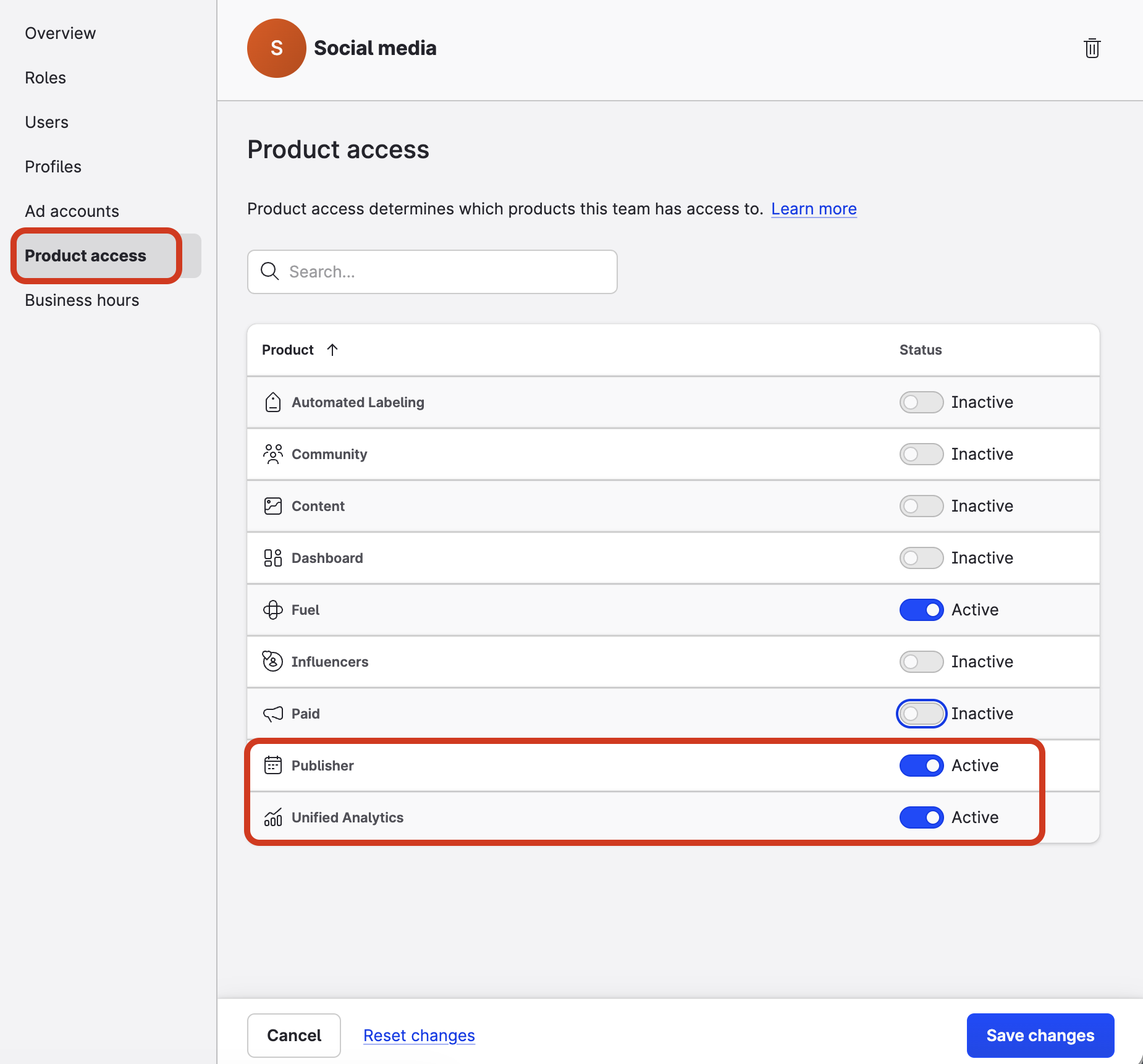
-
Once done, click Save changes.
The panel closes.
Update the name and description of a team
To be able to rename a team and update its description, you must be either a team admin of the team or a platform admin (see Access to the Emplifi Platform).
Renaming a team or changing its description does not affect the users or resources included in the team.
Steps:
-
Go to Settings → Team management → Teams.
-
Click the team that you want to rename or update the description of.
The team panel slides out. -
Rename the team and/or change its description.
The changes are applied and automatically saved as you make them. -
Once done, close the team panel.
Update product access in a team
To be able to update product access in a team (that is, modules of the Emplifi platform such as Publisher, Unified Analytics, Community, and so on), you must be either a team admin of the team or a platform admin (see Access to the Emplifi Platform).
Steps:
-
Go to Settings → Team management → Teams.
-
Click the team where you want to update the product access.
The team panel slides out. -
Click Product access.
-
Review the listed modules of the Emplifi platform. Enable those that you want the users in the team to access, and disable those that you do not want the users to access.
-
Once done, click Save changes.
The panel closes. The product access is updated.
Manage collaboration between teams
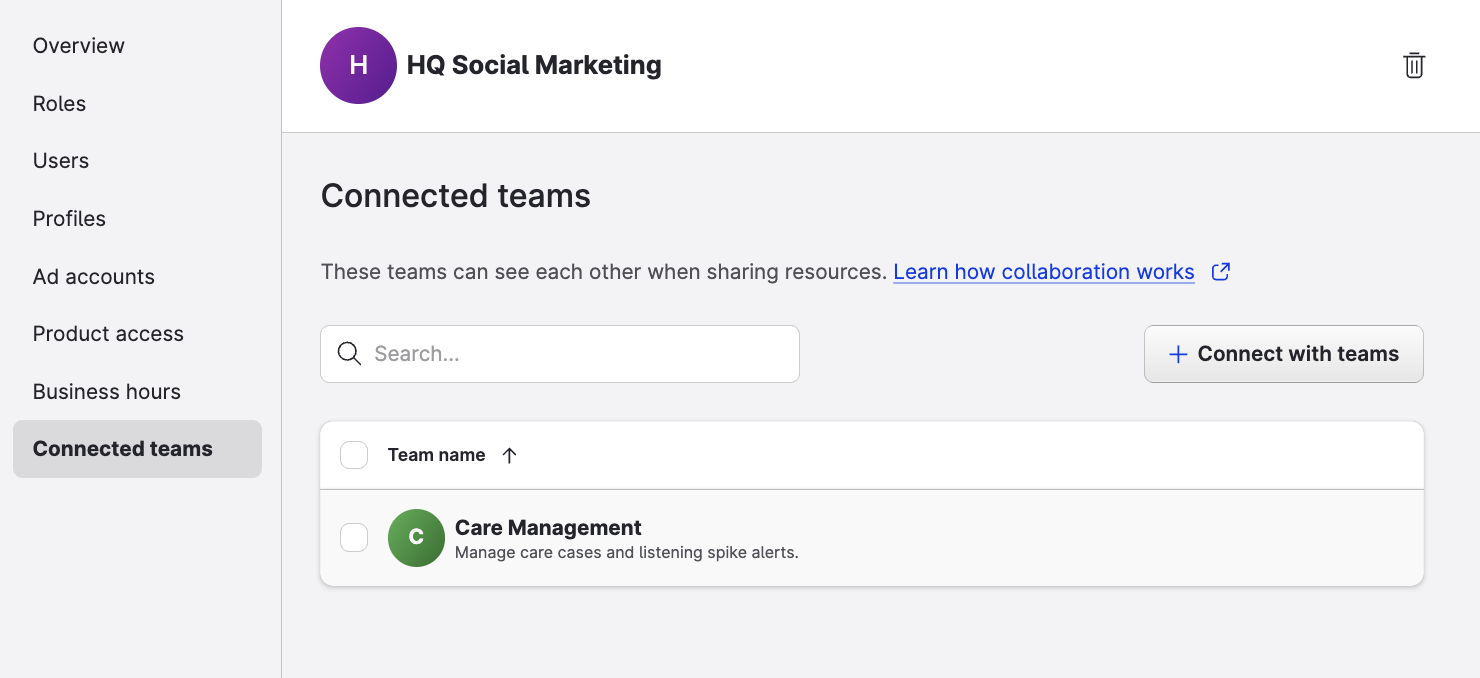
In restrictive accounts, Platform Admins can control which teams can collaborate with each other. By default, collaboration is disabled between all teams. You can explicitly enable it between selected teams to build the collaboration structure your organization needs.
When you enable collaboration between two teams, the relationship is bidirectional and is reflected in both teams' configurations.
Steps:
-
Go to Settings → Team management → Teams.
-
Click the team for which you want to manage collaboration.
-
Click the Connected teams tab.
-
Enable or disable collaboration with the relevant teams.
-
Save your changes.
Filter teams
Filter teams to display only those that include specific users and/or profiles.
Platform admins can see and filter all the teams in the Emplifi accounts. Platform users can see and filter only the teams that they are members of.
Steps:
-
Go to Settings → Team management → Teams.
-
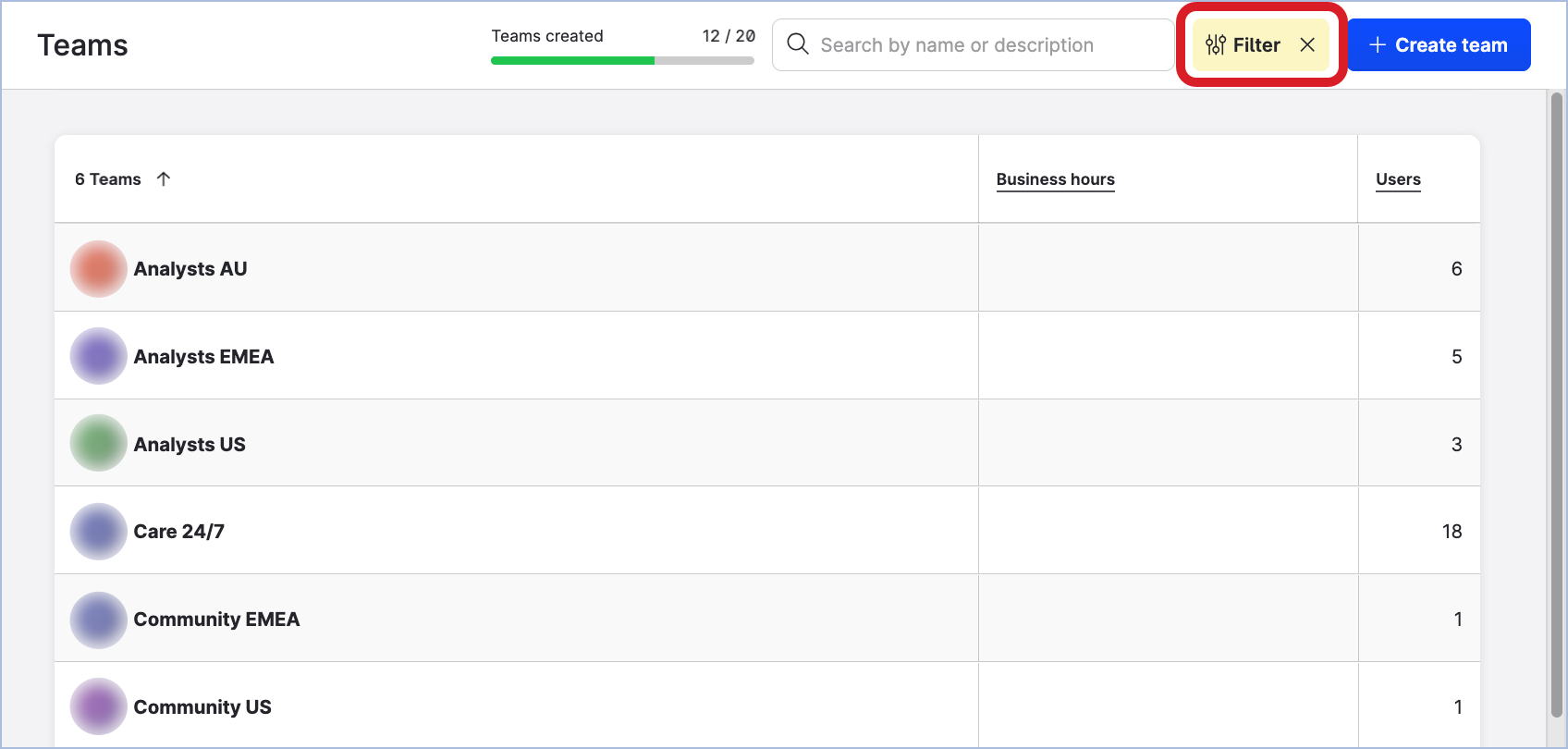
Click Filter on the top right.
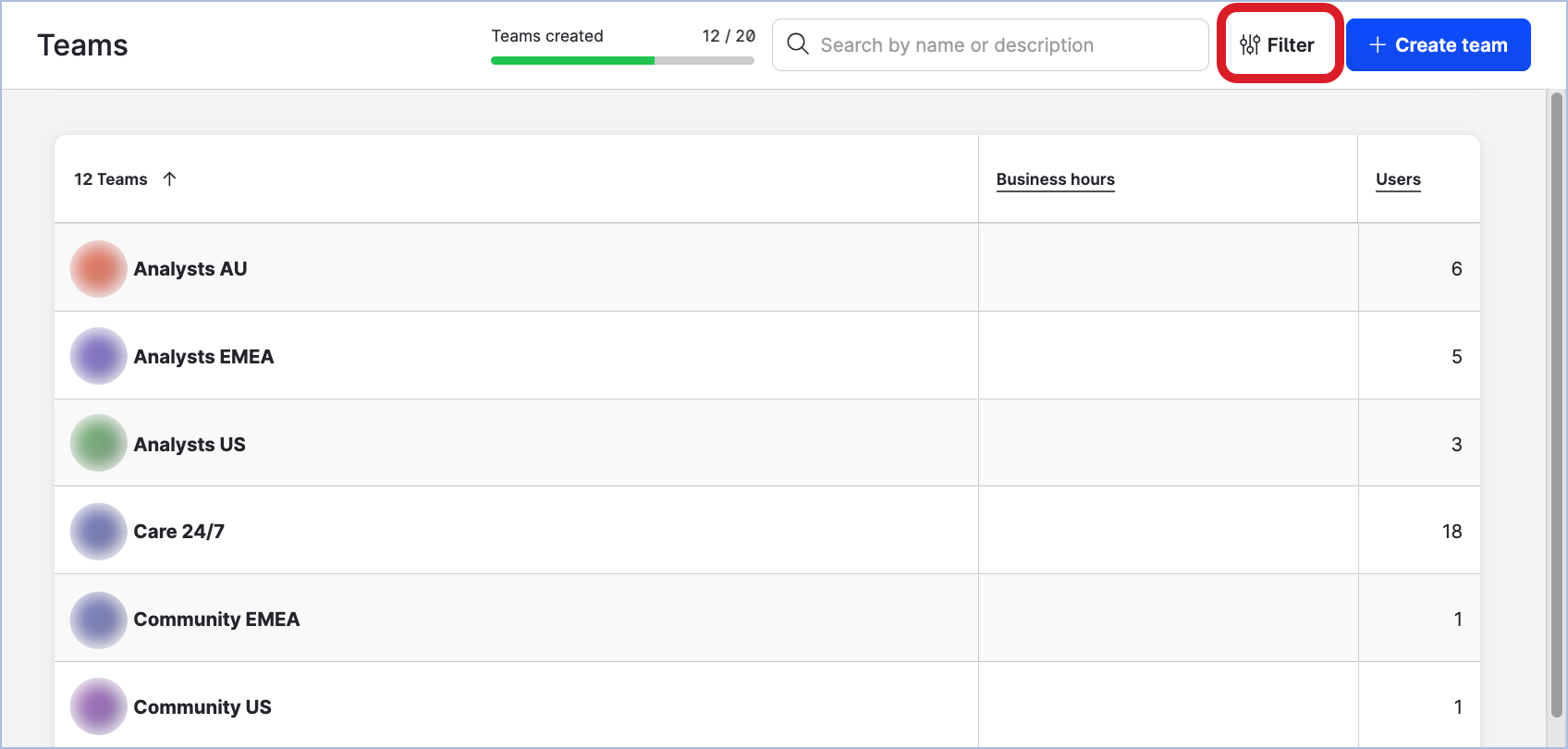
The filter panel opens.
-
In the dropdowns, select the users and/or profiles that should be included in the teams, and click Filter teams.
The teams with the specified users/profiles are listed.
To clear the filter and return to listing all the teams, click the cross icon next to Filter on the top right.
Delete a team
To be able to delete a team, you must be a platform admin (see Access to the Emplifi Platform).
Deleting a team is permanent.
Once a team is deleted, you cannot restore it.
Deleting a team does not delete the users or the resources included in the team from the Emplifi account.
Before deleting a team, learn what impact it may have on the following settings:
-
The users' access to the team resources
Once the team is deleted, the users that were the members of the team will lose access to the team resources.
If the deleted team was the only team a user was a member of, the user will be able to access only their personal settings in the whole Emplifi account (for more information about users not added to any team, see Access to the Emplifi Platform). -
Associated team roles
The team roles that were created for the team will be deleted. -
Shared saved views in the Unified Analytics module
The users that were members of the deleted team will no longer be able to see the shared saved views. -
Filtering/breakdowns for Community widgets in the Dashboard module
The teams selected as a filter or breakdown for Community widgets in the Dashboard module will no longer be selected. -
Filtering/breakdowns for Care and Community widgets in the Unified Analytics module
The teams selected as a filter or breakdown for Community and Care widgets in the Unified Analytics dynamic boards or Care preset boards will no longer be selected. -
Shared collections in the Content module
The users that were members of the deleted team will no longer be able to see the shared collections. -
Assigned approval flows
The approval flow assigned to the deleted team will no longer function as an approval flow. -
Assigned business hours
The business hours will be unassigned from all the team users. -
Assigned Care skills
The Care skills will be unassigned from all the team users. -
Assigned Care views
The Care views will be unassigned from all the team users. -
Shared answer template groups
The users that were members of the deleted team will no longer be able to see the shared answer template groups. -
Shared keyword lists
The users that were members of the deleted team will no longer be able to see the shared keyword lists. -
Triggers/conditions/actions in Flow automations
The triggers, conditions, and actions in Flow automations will no longer be connected with the deleted teams, and no longer function as an automation.
Steps:
-
Go to Settings → Team management → Teams.
-
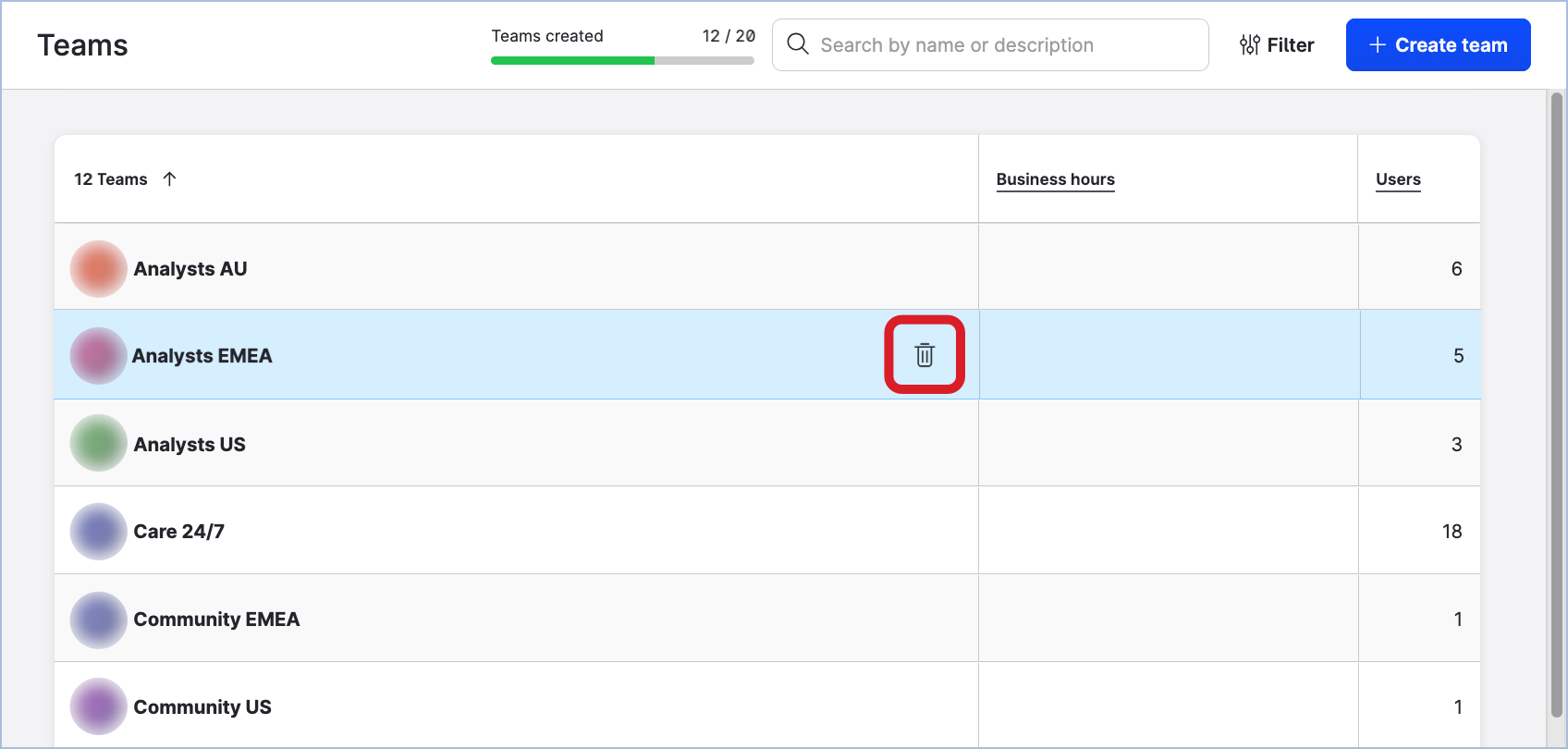
Hover over the team that you want to delete, and click the trash can icon that appears.
-
Confirm the deletion.
The team is deleted.
Team roles and templates
Create a team role
A team role is always tied to a specific team and can be used in this one team only. When you create a team role, you always have to specify what team you create this team role for.
Once you created a team role for a team, you can add users to the team and assign them this team role.
To be able to create a team role, you must be either a team admin of the team for which you want to create a team role or a platform admin (see Access to the Emplifi Platform). Platform admins can create team roles for any team in the Emplifi account. Team admins can create team roles only for the teams where they are team admins.
You can create as many team roles as you need.
Steps:
-
Go to Settings → Team management → Team roles.
The existing team roles and role templates are listed. -
Click Create role.
The team role panel slides out.
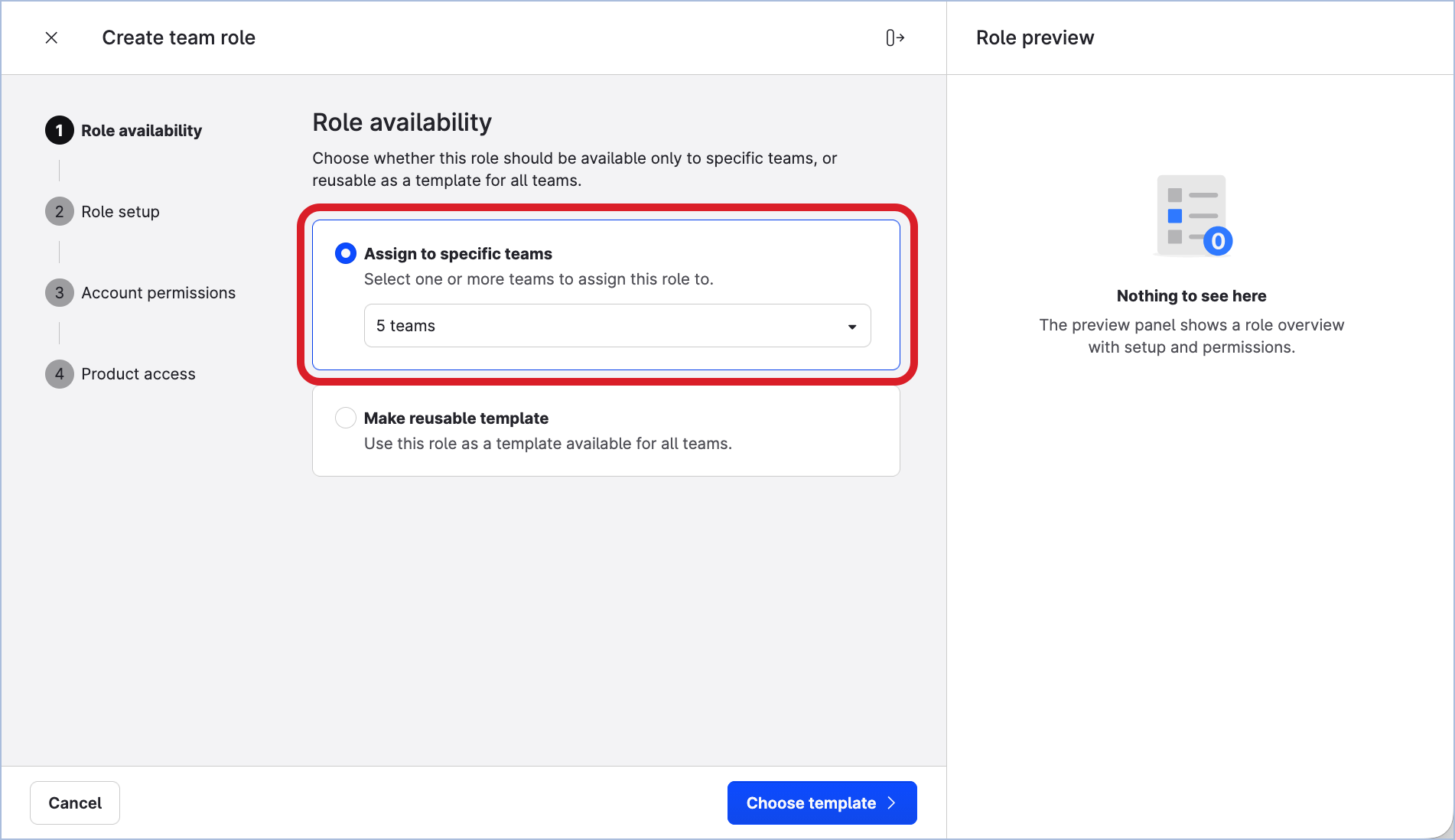
You are prompted to choose whether to create a team-specific role or a team role template. -
Leave the Assign to specific teams option selected. Then, click the dropdown and select the team for which you want to create a team role.
If you want to use this team role in the teams that you may create in the future, consider creating a custom role template which you will be able to reuse later in as many teams as you need (see “Create a team role template” further in this article).
-
Click Choose template.
You are prompted to choose whether to define role permissions manually from scratch or to use one of the system templates. -
Do one of the following:
-
If you want to create a fully custom team role without using any predefined template, leave the Start from scratch option selected.
-
If you want to start with a predefined template and them modify the role as needed, select one of the templates listed.
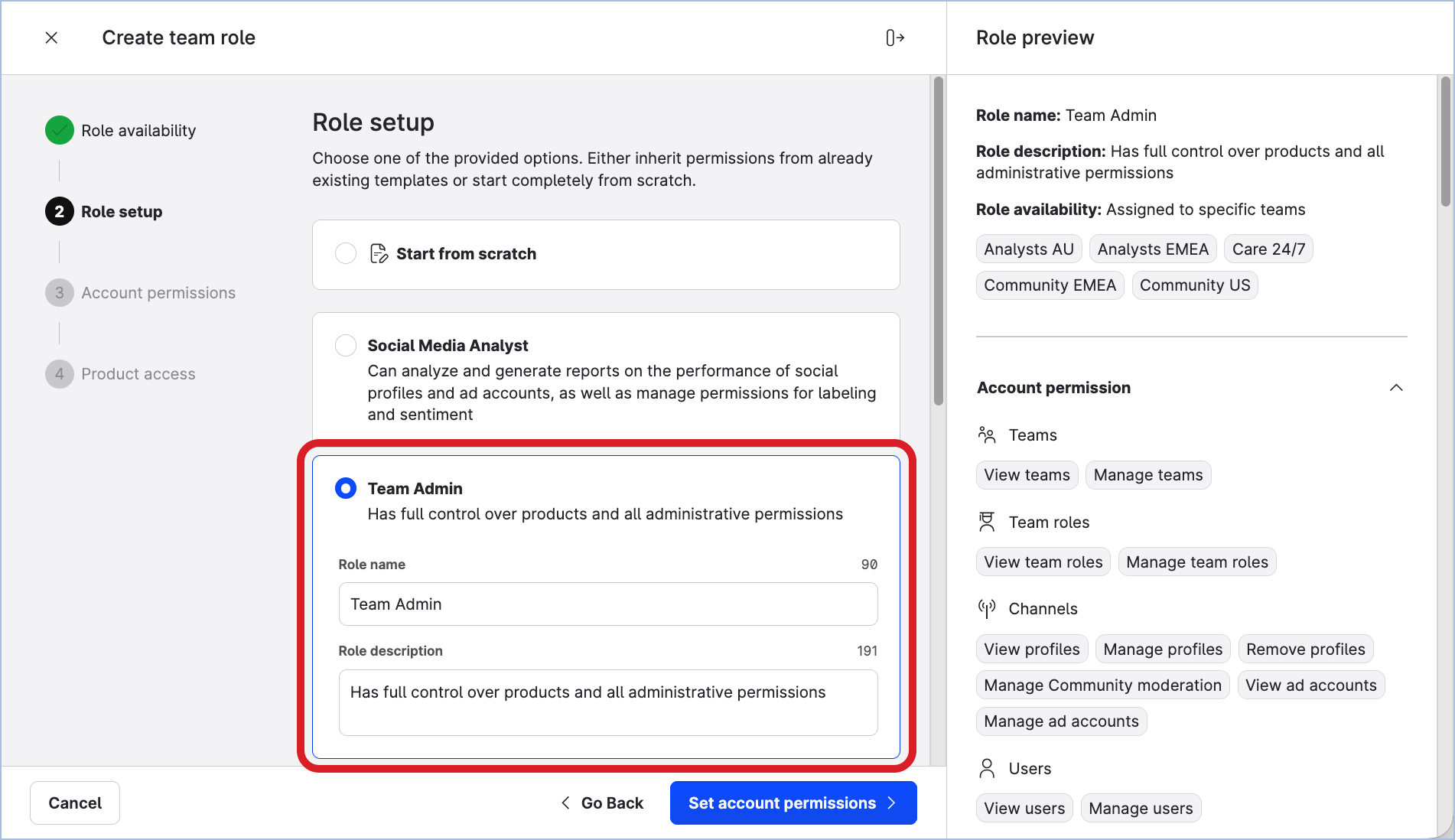
Notice the panel on the right: it is a preview of all the permissions that the team role is going to have.
-
-
In the Role name field, update the suggested name of the team role.
-
Click Set account permissions.
You are prompted to review the permissions.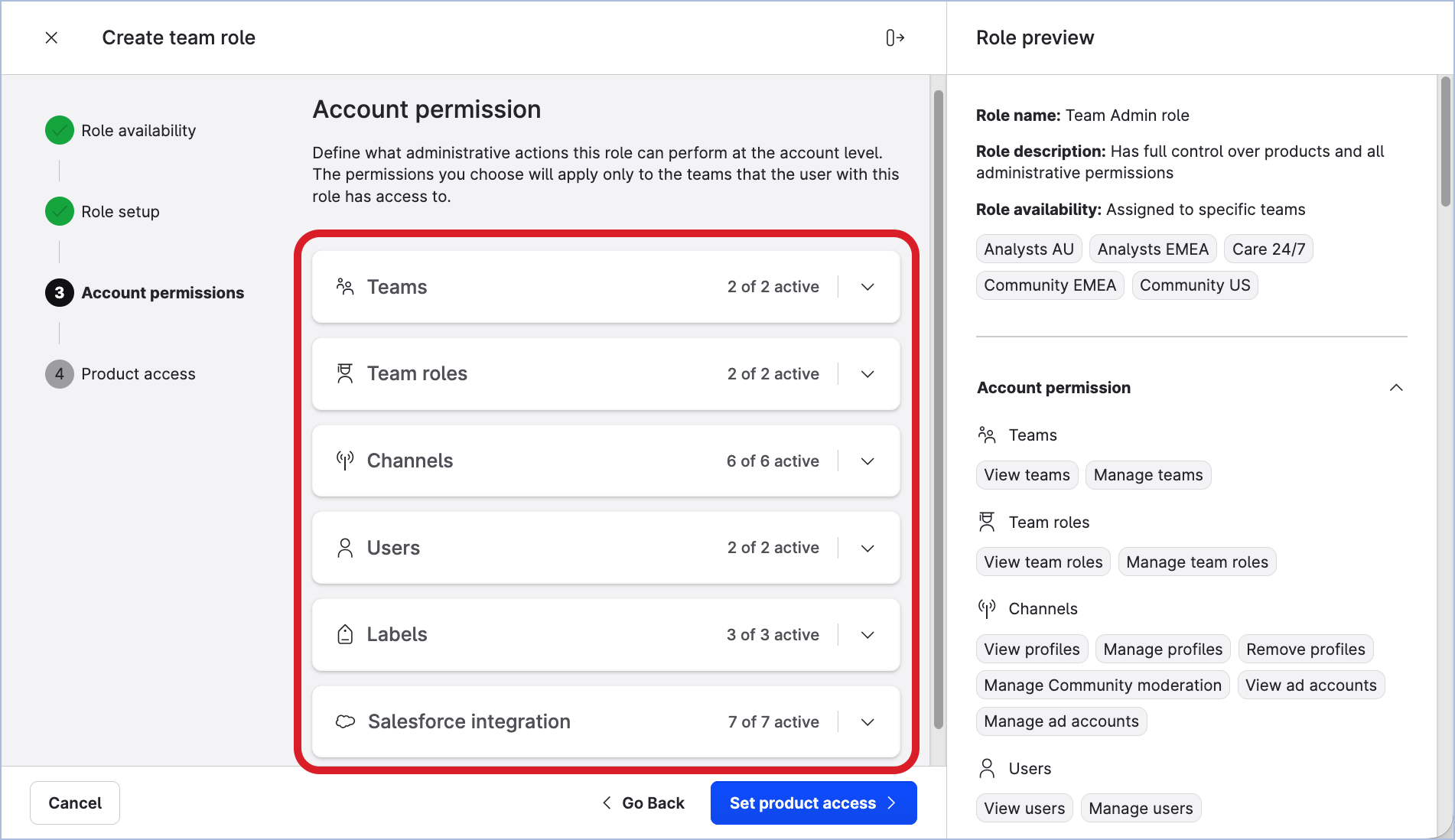
-
Expand each section, and enable and disable the individual permissions as needed.
Notice how the role preview panel on the right gets updated as you are changing the scope of the role. -
Once done, click Set product access.
You are prompted to review the modules of the Emplifi platform the team role allows access to and actions available in the modules. -
Expand each section, and enable and disable the individual modules and actions as needed.
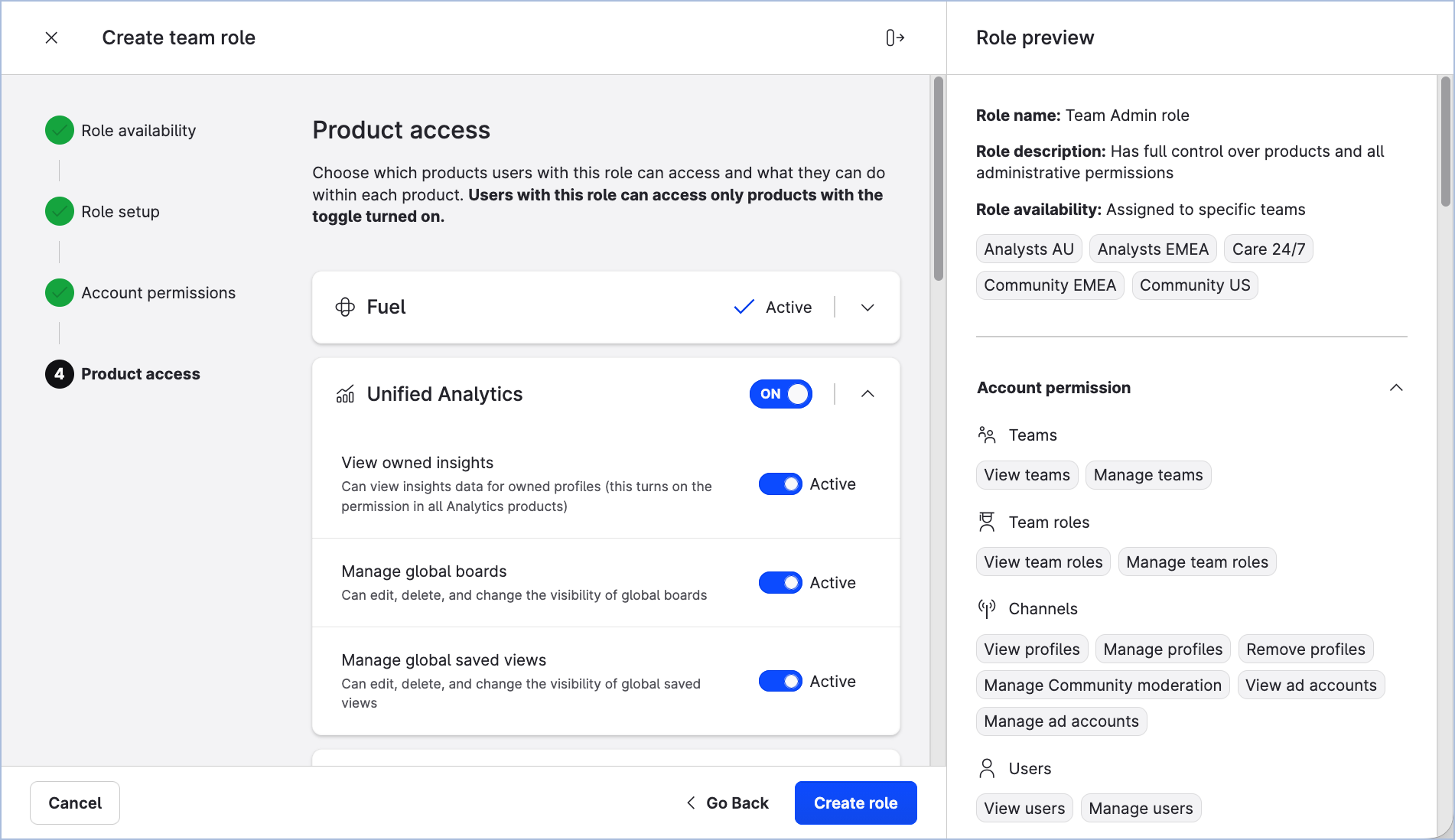
-
Once done, click Create role.
The team role panel closes. The team role is created.
If you selected multiple teams to create a team role for, multiple instances of the team role - one for each team that you selected - are created. The newly created team roles have the same name, but each of them belongs to its respective team.
Update a team role
To be able to update a team role, you must be either a team admin of the team that this team role belongs to or a platform admin (see Access to the Emplifi Platform). Platform admins can update any team role in the Emplifi account. Team admins can update only the team roles that belong to the teams where they are team admins.
Updates in a team role apply to all the users in the team who have this team role assigned.
Steps:
-
Go to Settings → Team management → Team roles.
The existing team roles and role templates are listed. -
Click the team role that you want to update.
The team role panel slides out. -
(Optional) Rename the team role and/or change its description.
The changes are applied and automatically saved as you make them. -
Click through the Account permissions and Product access tabs to review and update the actions the users with this role are allowed to perform in the Emplifi account and in the various modules of the Emplifi platform.
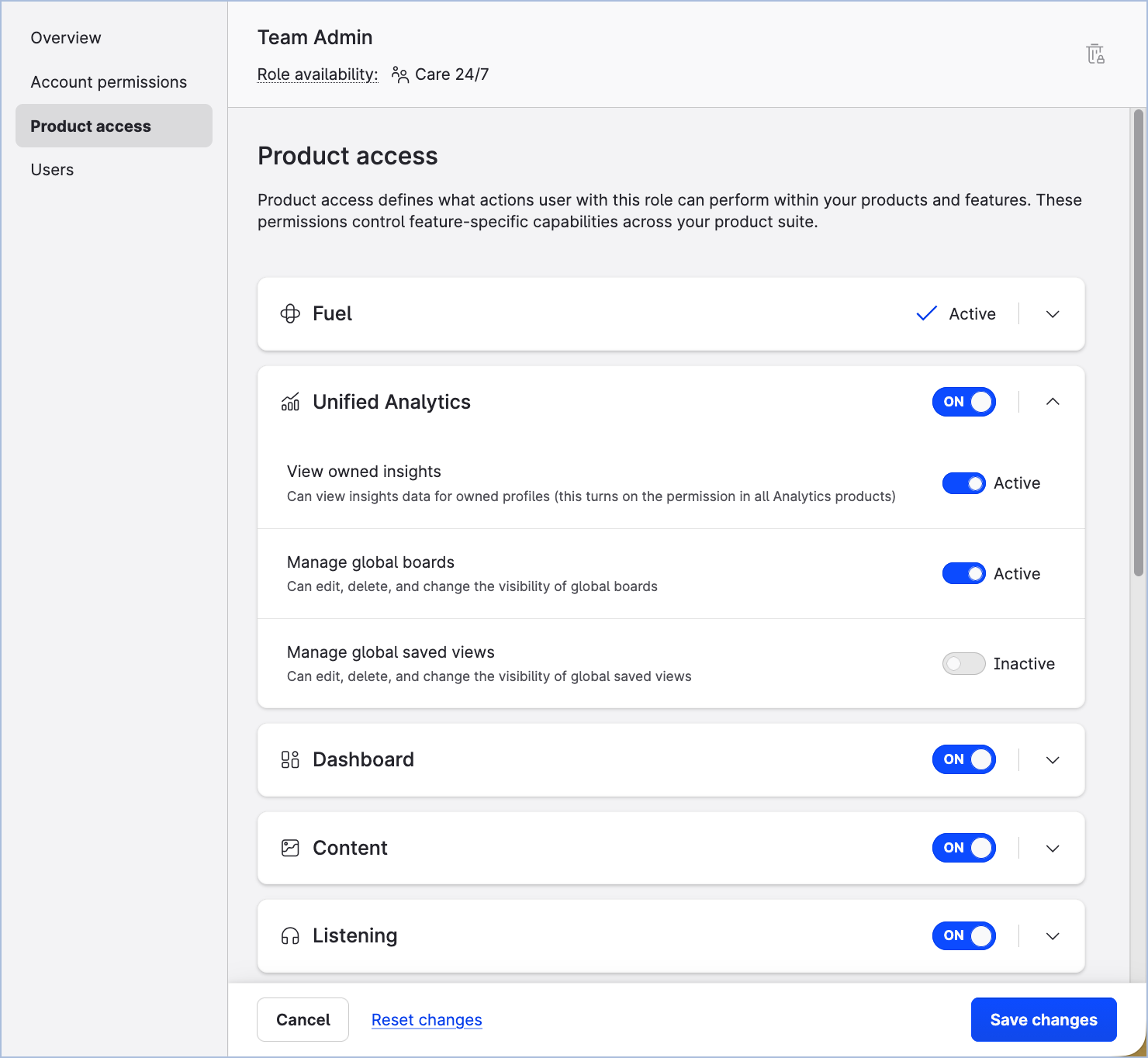
-
Once done, click Save changes.
-
Close the team role panel.
Change the default team role in a team
Each team has one default team role. The default team role is used when users are added to the team via bulk actions in the Users and Teams sections.
When a team is created, the Team user role is set as the default team role. You can change the default team role to any other team role that belongs to the team.
Changing the default team role does not change the team role of users who are already added to the team.
To be able to change the default team role in a team, you must be either a team admin of the team or a platform admin (see Access to the Emplifi Platform). Platform admins can change the default team role in any team in the Emplifi account. Team admins can change the default team role only in the teams where they are team admins.
Steps:
-
Go to Settings → Team management → Teams.
-
Click the team where you want to change the default team role.
The team panel slides out. -
Click the Roles tab.
-
Hover over the team role that you want to set as default, and click the Set as default icon.
The selected team role is now the new default team role for the team.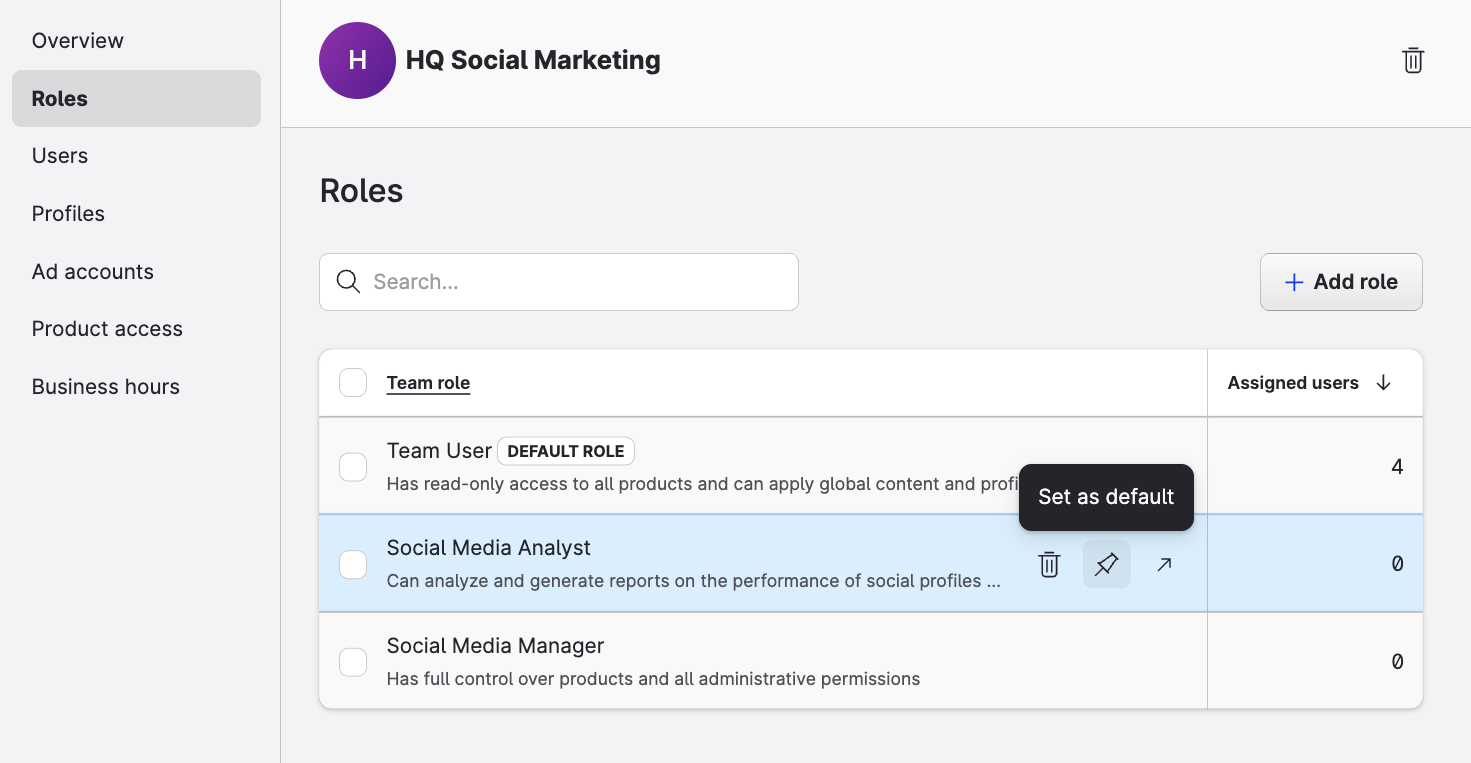
-
Close the team panel.
Duplicate a team role
To be able to duplicate a team role, you must be either a team admin of the team that this team role belongs to or a platform admin (see Access to the Emplifi Platform). Platform admins can update any team role in the Emplifi account. Team admins can update only the team roles that belong to the teams where they are team admins.
Steps:
-
Go to Settings → Team management → Team roles.
The existing team roles and role templates are listed. -
Hover over the team role that you want to duplicate, and click the duplicate icon that appears.
-
A modal opens where you can select the teams to which you want to duplicate the role.
-
After selecting the teams, confirm the duplication.
-
The modal closes, and the duplicated roles appear in the team roles list.
Delete a team role
To be able to delete a team role, you must be either a team admin of the team where this team role belongs or a platform admin (see Access to the Emplifi Platform). Platform admins can delete any team role in the Emplifi account. Team admins can delete only the team roles that belong to the teams where they are team admins.
You can delete only a team role that is not assigned to any user in the team.
-
You cannot delete a team role that is currently assigned to at least one user in the team. To be able to delete the team role, first change the users' team roles so that no user in the team has this team role assigned.
-
You cannot delete the default team role of a team.
Steps:
-
Go to Settings → Team management → Team roles.
The existing team roles and role templates are listed. -
(Optional) Filter the team roles to narrow down display only a subset of the team roles (for example, only the team roles belonging to a specific team; see "Filter team roles and role templates" further in this article).
-
Hover over the team role that you want to delete, and click the trash can icon that appears.
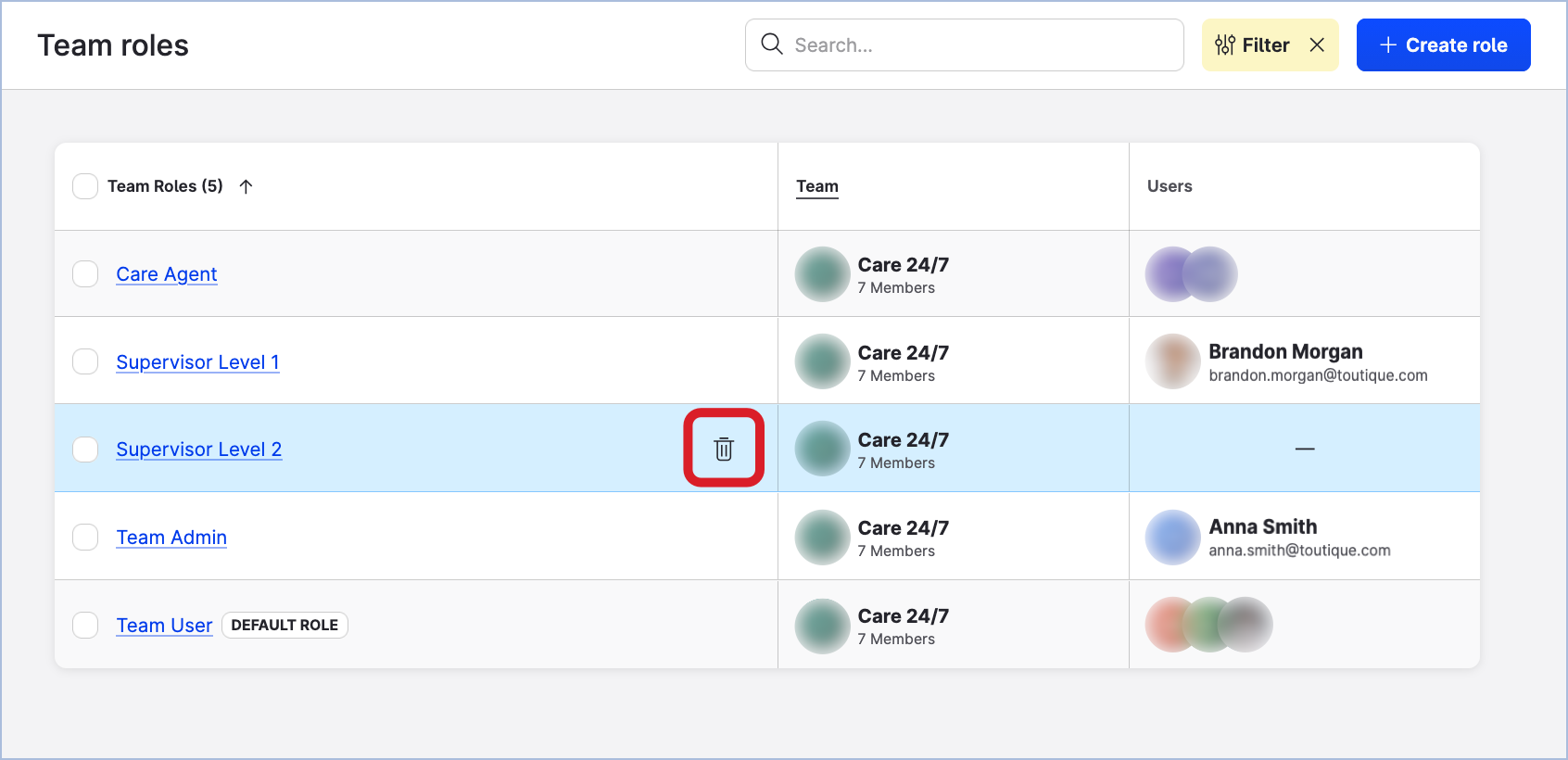
-
Confirm the deletion.
The team role is deleted.
Create a team role template
You can create your own custom role templates to extend the predefined templates provided by Emplifi or to define entirely new permission scopes tailored to your business needs.
To be able to create a team role template, you must be a platform admin (see Access to the Emplifi Platform).
You can create as many team role templates as you need.
Steps:
-
Go to Settings → Team management → Team roles.
The existing team roles and role templates are listed. -
Click Create role.
The team role panel slides out.
You are prompted to choose whether to create a team-specific role or a team role template. -
Select Make reusable template, then click Choose Template.
You are prompted to choose whether to define role template permissions manually from scratch or to use one of the system templates. -
Do one of the following:
-
If you want to create a fully custom role template without using any predefined template, leave the Start from scratch option selected.
-
If you want to start with a predefined template and them modify the role template as needed, select one of the templates listed.
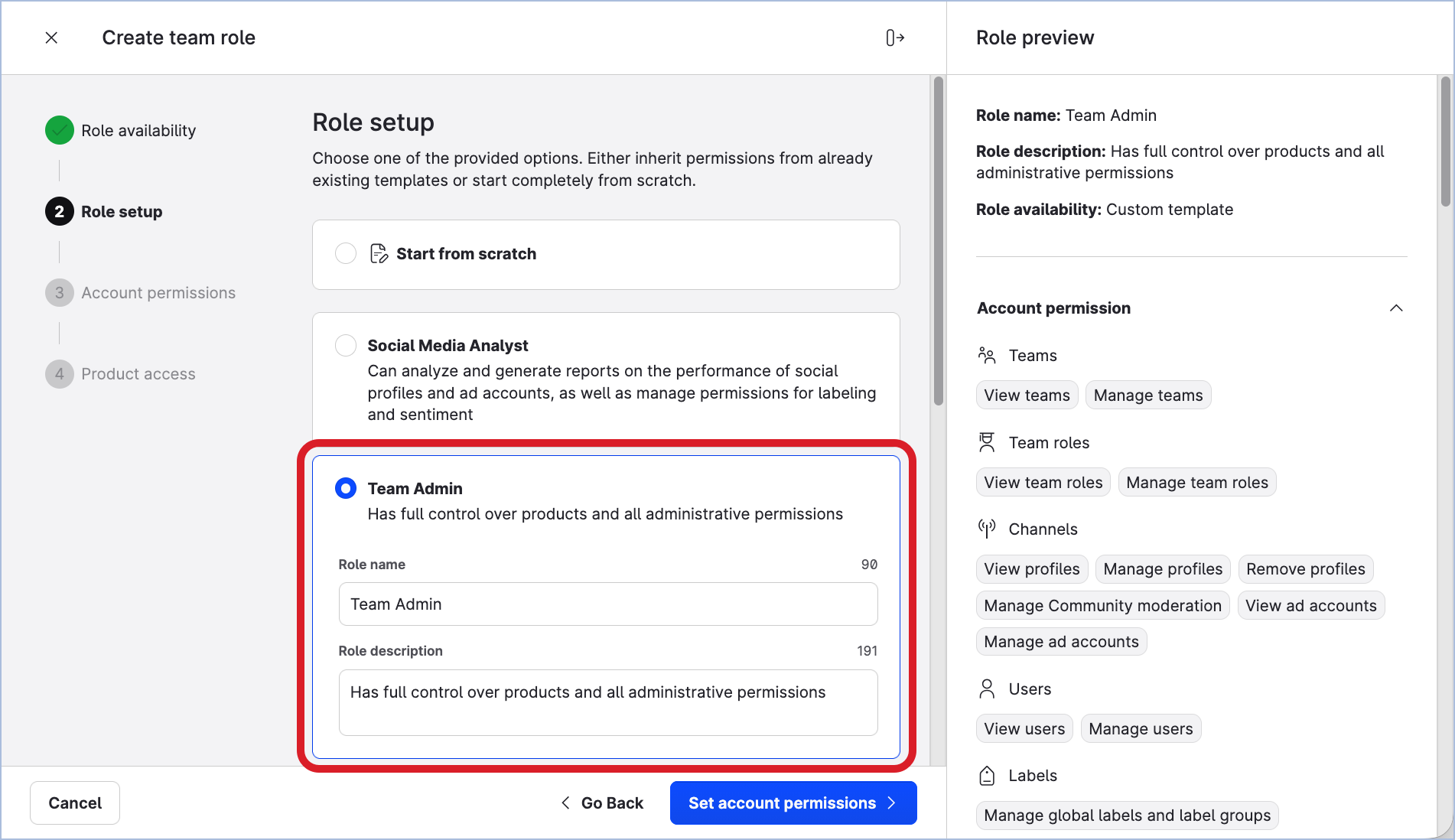
Notice the panel on the right: it is a preview of all the permissions that the team role is going to have.
-
-
In the Role name field, update the suggested name of the team role template.
-
Click Set account permissions.
You are prompted to review the permissions.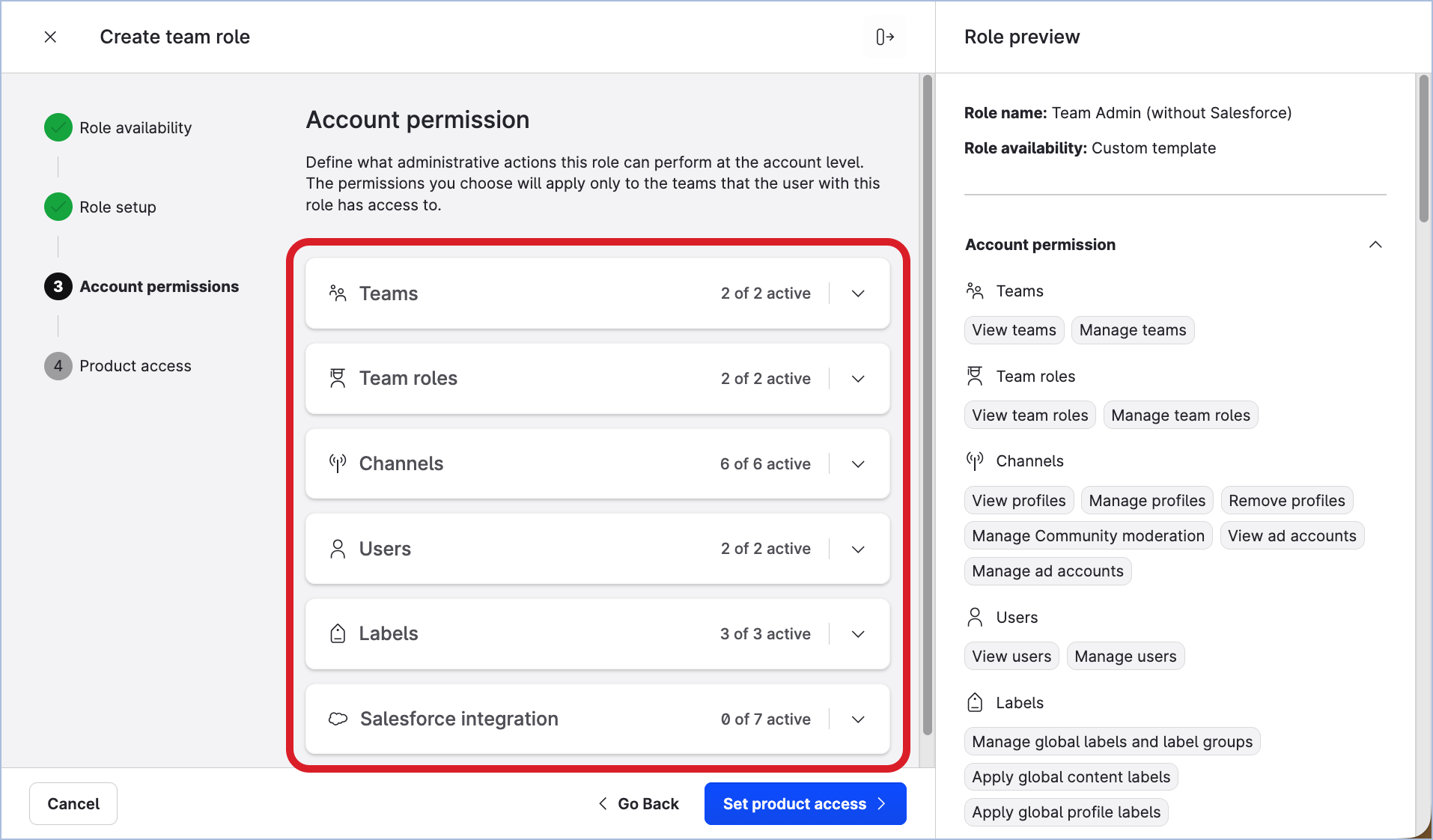
-
Expand each section, and enable and disable the individual permissions as needed.
Notice how the role preview panel on the right gets updated as you are changing the scope of the role template. -
Once done, click Set product access.
You are prompted to review the modules of the Emplifi platform the team role template allows access to and actions available in the modules. -
Expand each section, and enable and disable the individual modules and actions as needed.
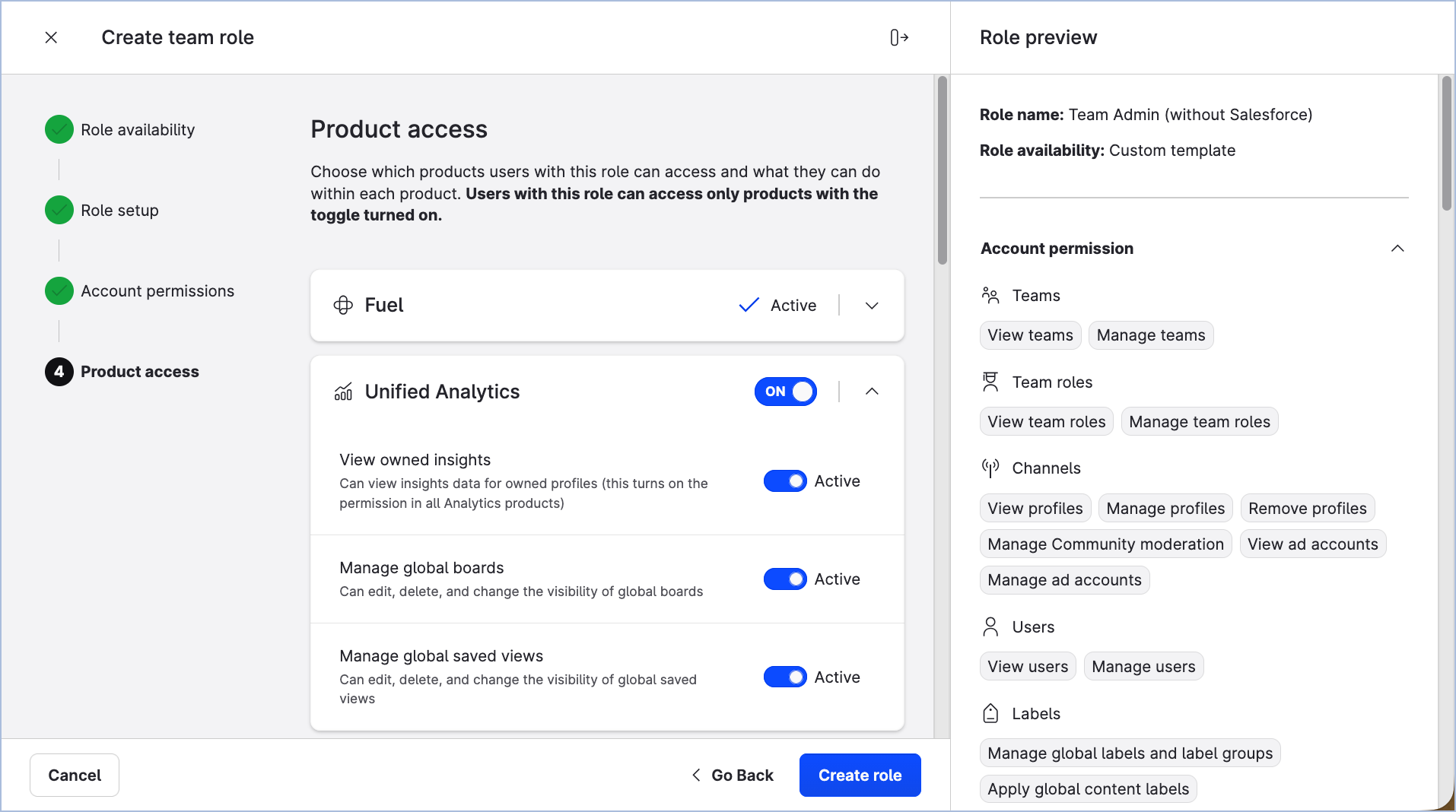
-
Once done, click Create role.
The team role panel closes. The team role template is created.
Update a team role template
To be able to update a team role template, you must be a platform admin (see Access to the Emplifi Platform).
Changes saved to a template that has child roles will prompt you to choose whether to propagate those changes to the connected child roles.
Steps:
-
Go to Settings → Team management → Team roles.
The existing team roles and role templates are listed. -
Click the team role template that you want to update.
The team role panel slides out. -
(Optional) Rename the team role template and/or change its description.
The changes are applied and automatically saved as you make them. -
Click through the Account permissions and Product access tabs to review and update the actions the users are allowed to perform in the Emplifi account and in the various modules of the Emplifi platform.
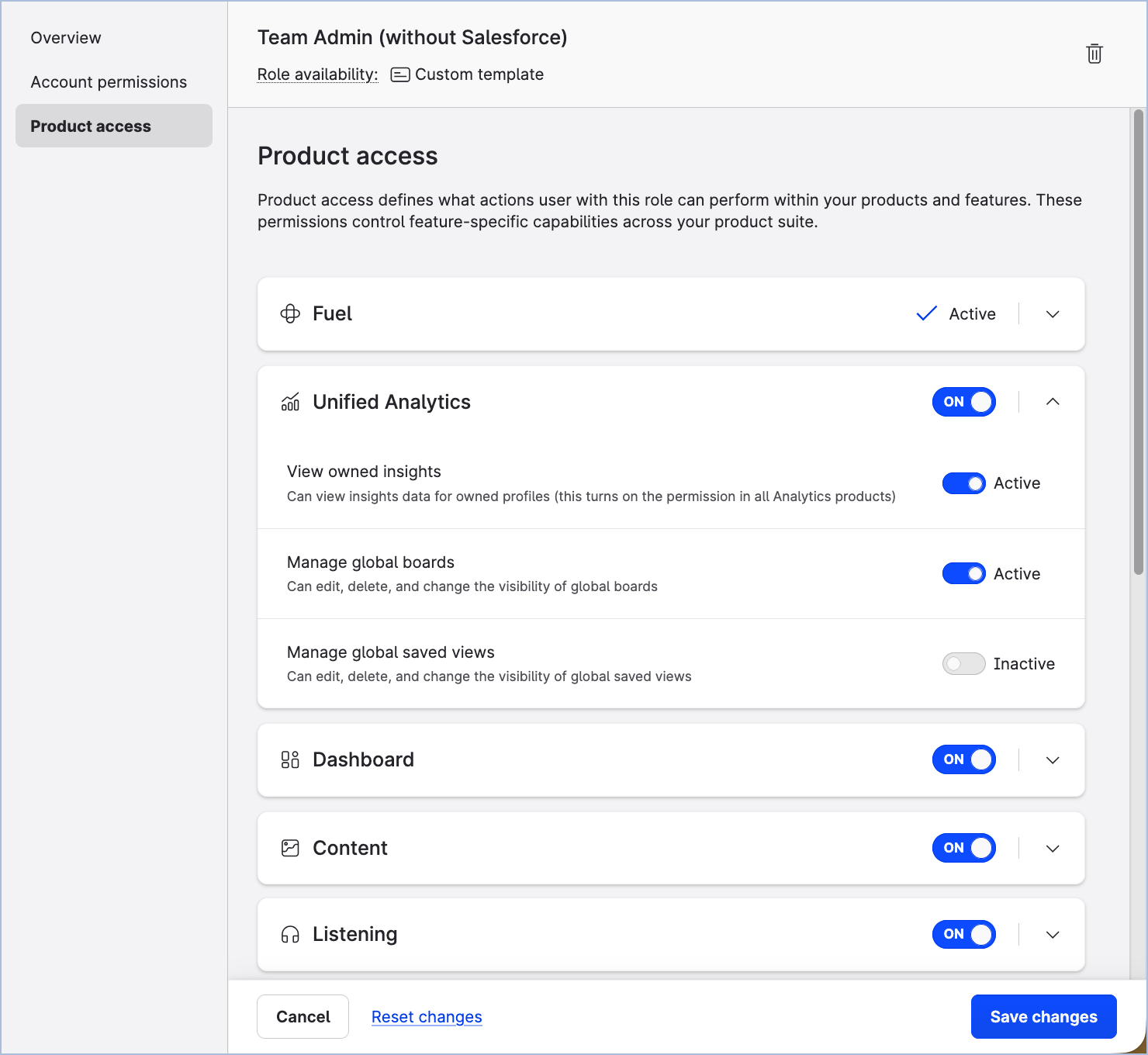
-
Once done, click Save changes.
-
Close the team role panel.
Sync template changes across child roles
Custom template roles can be used to propagate permission changes across multiple team roles.
If you are an admin and have created multiple team roles from a single custom template role, these roles maintain a parent–child relationship with the template. This connection allows you to propagate updates made to the parent template across all associated child roles.
When you save changes (as described in step 5 of the previous section) to a custom template role that has at least one child role, you are prompted to choose whether to propagate those changes to the connected child roles or apply them only to the template.
Only the specific changes made to the template are propagated. All other configurations in the child roles remain unchanged.
Find team roles created from a custom template
When you open a custom team role template, you can review which team roles were created from that template.
This is useful when you want to understand which roles may be affected before you update a custom template and apply the changes to related team roles.
To view related team roles:
-
Go to Settings > Teams.
-
Open the Team roles section.
-
Select a custom template role.
The team role panel slides out. -
In the team role panel, go to Related team roles.
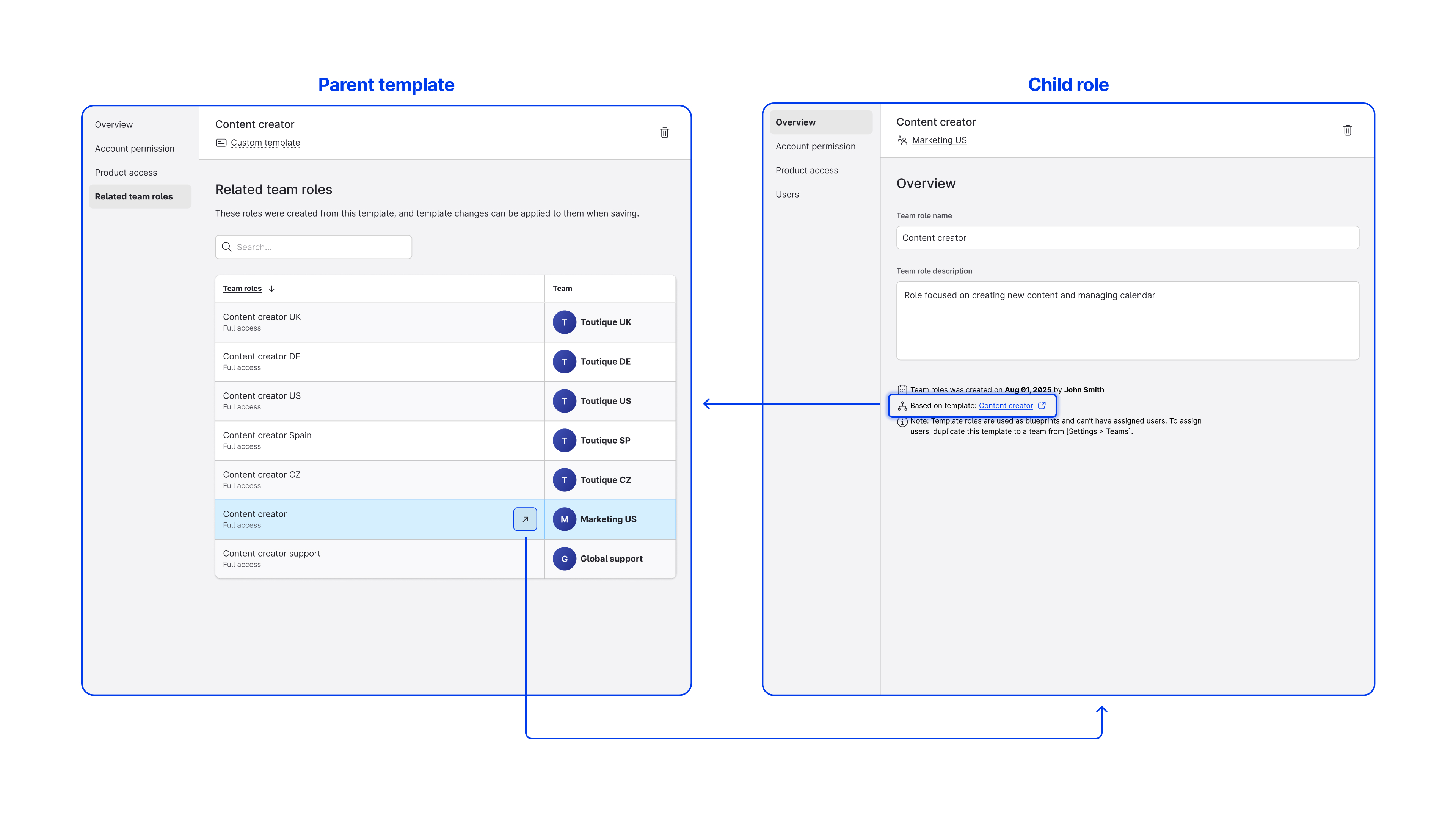
The Related team roles section lists all team roles that were created from the selected custom template. For each role, you can see the role name and the team where the role is used.
To open a related team role, hover over the team role you want to check, and click the open icon that appears. The selected team role opens in the team role panel, where you can review its permissions and the template it is based on.
Delete a team role template
To be able to delete a team role template, you must be a platform admin (see Access to the Emplifi Platform).
Deleting a team role template does not delete the team roles that have been created based on this role template earlier.
Steps:
-
Go to Settings → Team management → Team roles.
The existing team roles and role templates are listed. -
(Optional) Filter the team roles to display only the team role templates (see "Filter team roles and role templates" further in this article).
-
Hover over the team role template that you want to delete, and click the trash can icon that appears.
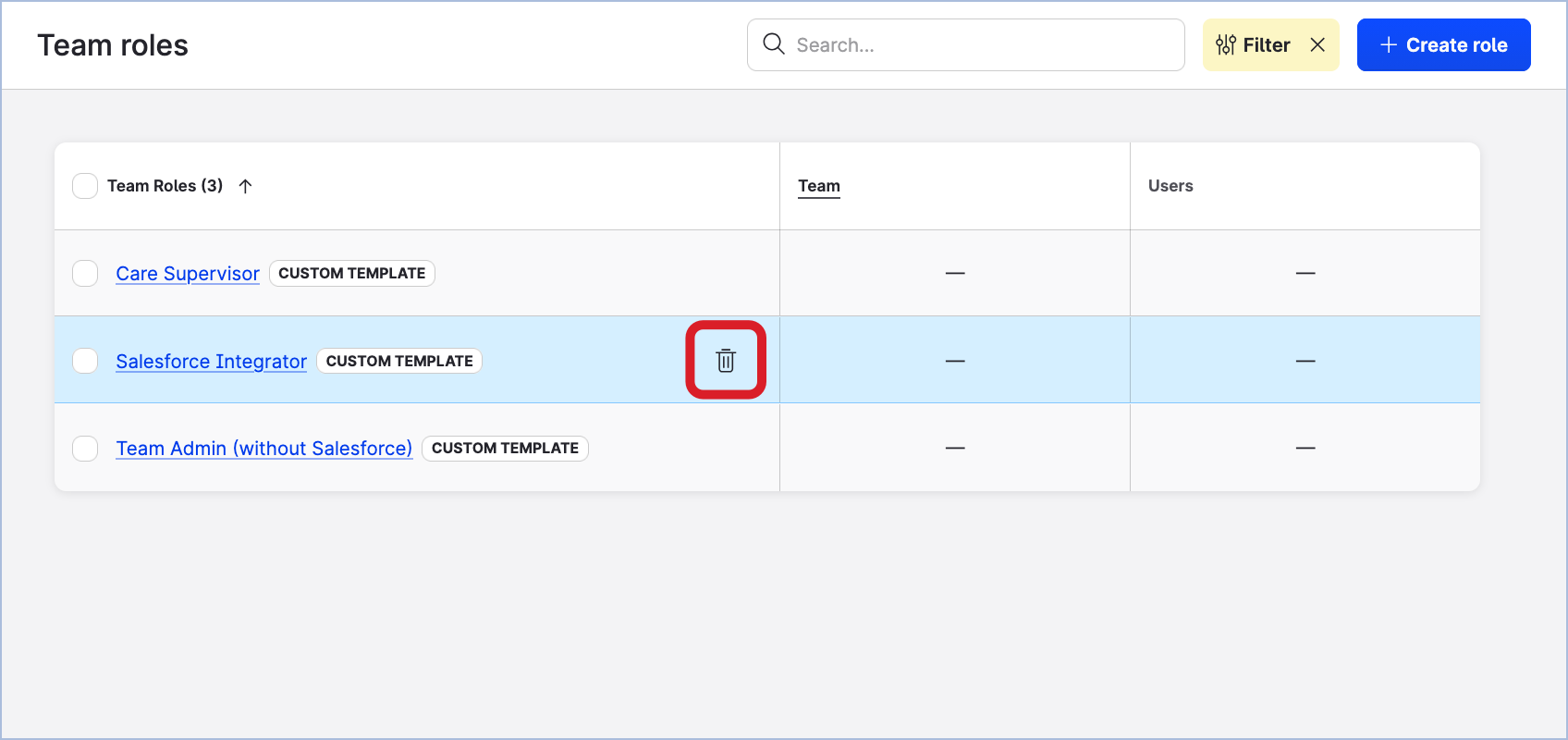
-
Confirm the deletion.
The team role is deleted.
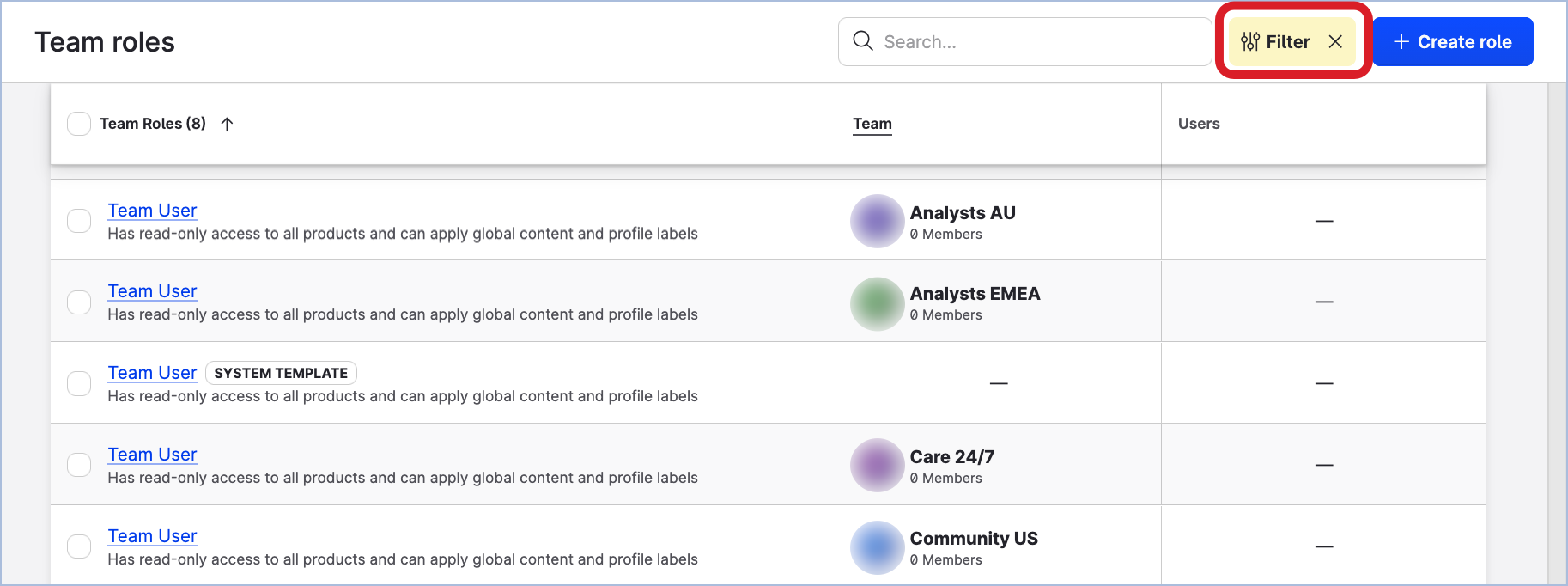
Filter team roles and role templates
Filter team roles and role templates to display only those of a certain type (team role or custom template), that belong to specific teams or are assigned to specific users.
Platform admins can see and filter all the team roles and role templates in the Emplifi accounts. Platform users can see and filter only the team roles that belong to the teams that they are a member of, as well as role templates.
Steps:
-
Go to Settings → Team management → Team roles.
-
Click Filter on the top right.
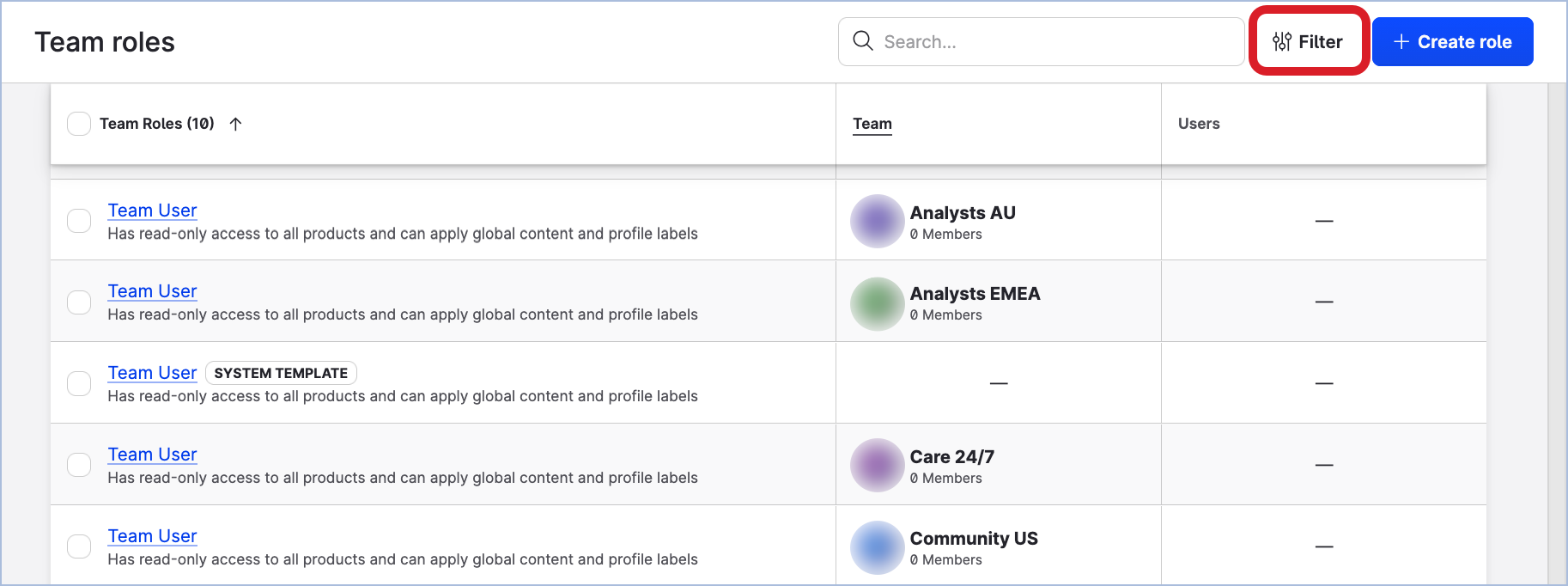
The filter panel opens.
-
In the dropdowns, select a role type (team role, system role template, custom role template), and/or the teams that the team roles belong to, and/or the users that the team roles are assigned to.
-
Click Filter team roles.
The team roles with the specified type/teams/users are listed.
To clear the filter and return to listing all the team roles, click the cross icon next to Filter on the top right.
Create a team role based on a team role template and add it to a team
To be able to create a team role based on a team role template and add it to a team, you must be either a team admin of the team that you want to add a team role to or a platform admin (see Access to the Emplifi Platform). Platform admins can create team roles and add them to any team in the Emplifi account. Team admins can create team roles and add them only to the teams where they are team admins.
You can add as many team roles to a team as you need.
Steps:
-
Go to Settings → Team management → Teams.
-
Click the team that you want to add a team role to.
The team panel slides out. -
Click the Roles tab.
-
Click Add roles.
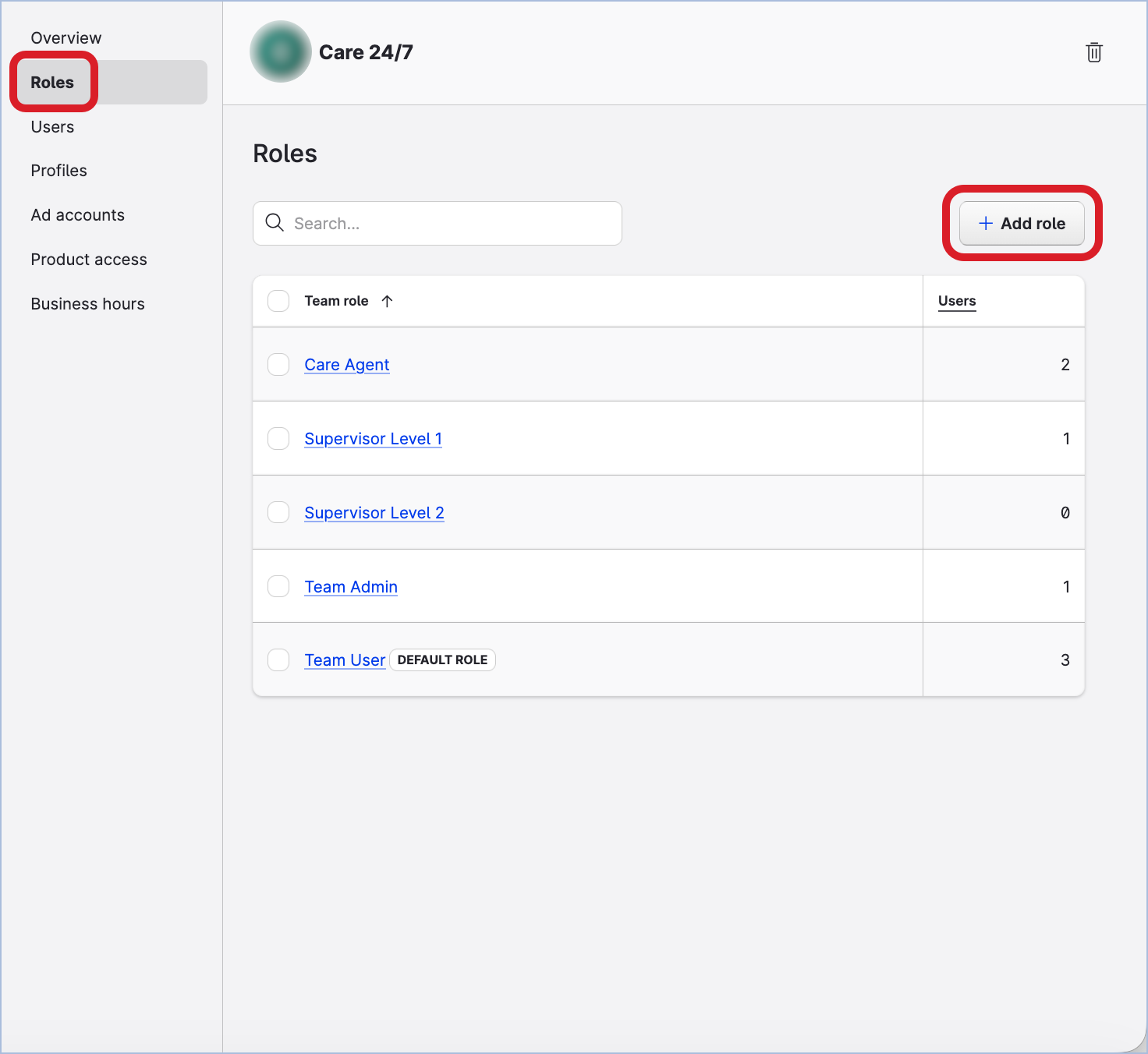
The dialog listing all the system templates and custom templates opens.
-
Select the role template that you want to use for creating a team role.
You can select multiple role templates. By doing this, you are going to create multiple team roles, one per team template, and add all of them to the team. -
Click Add roles.
The dialog closes. The team roles are created, one for each team role template that you selected, and added to the team.
The newly created team roles have the same name as the team role templates. You can later review the newly created team role sunder Settings → Team management → Team roles. -
Close the team role panel.
Remove a team role from a team
To be able to remove a team role from a team, you must be either a team admin of the team that you want to remove a team role from or a platform admin (see Access to the Emplifi Platform). Platform admins can remove team roles from any team in the Emplifi account. Team admins can remove team roles only from the teams where they are team admins.
Removing a team role from a team deletes the team role from the Emplifi account.
You can remove only a team role that is not assigned to any user in the team.
-
You cannot remove a team role that is currently assigned to at least one user in the team. To be able to remove the team role, first change the users' team roles so that no user in the team has this team role assigned.
-
You cannot remove the default team role of a team from the team.
Steps:
-
Go to Settings → Team management → Teams.
-
Click the team that you want to remove a team role from.
The team panel slides out. -
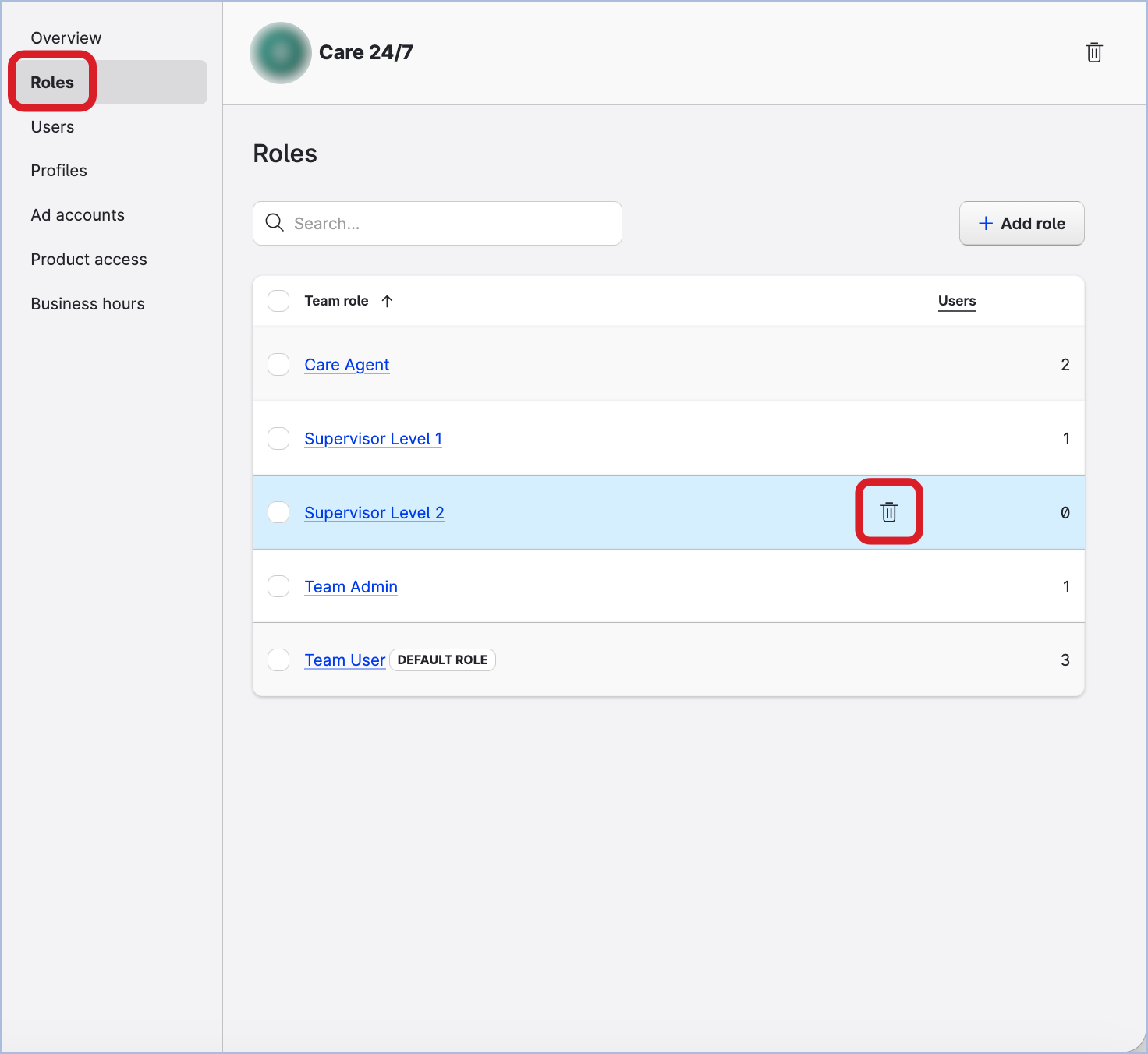
Click the Roles tab.
-
Hover over the team role that you want to delete, and click the trash can icon that appears.
-
Confirm the deletion.
The team role is removed from the team and permanently deleted from the account.
Users
Add a user to a team
To be able to add a user to a team, you must be either a team admin of the team that you want to add a user to or a platform admin (see Access to the Emplifi Platform). Platform admins can add users to any team in the Emplifi account. Team admins can add users only to the teams where they are team admins.
You can add as many users to a team as you need.
Before adding a user to a team, learn what impact it may have on the following settings:
-
The user’s access to the team resources
Once the user is added to the team, they will be granted access to all the team resources. The scope of the access will be determined by the team role that the user is assigned when being added to the team. -
Shared saved views in the Unified Analytics module
If you shared a saved view with the team (see Managing Saved Views with Teams), this saved view will be automatically shared with the newly added user. -
Filtering/breakdowns for Community widgets in the Dashboard module
Teams can be selected as a filter or breakdown for Community widgets in the Dashboard module. -
Filtering/breakdowns for Care and Community widgets in the Unified Analytics module
Teams can be selected as a filter or breakdown for Community and Care widgets in the Unified Analytics dynamic boards or Care preset boards. -
Shared collections in the Content module
If you shared a collection with the team (see Managing Saved Views with Teams), this collection will be automatically shared with the newly added user. -
Assigned approval flows
Approval flows are created at the team level and are based on the team roles and profiles assigned to that team. -
Assigned business hours
If the team has business hours assigned, the newly added user will automatically get these business hours assigned. Whether the newly assigned business hours will be set as the user’s active business hours depends on other teams that the user may be included in and their business hours. For more information, see “Users included in more than one team” in Assign Business Hours to Users. -
Assigned Care skills
If the team has Care skills assigned, the newly added user will automatically get these Care skills assigned. -
Assigned Care views
If the team has Care views assigned, the newly added user will automatically get these Care views assigned. -
Shared answer template groups
If you shared an answer template group with the team, this answer template group will be automatically shared with the newly added users. -
Shared keyword lists
If you shared a keyword list with the team, this keyword list will be automatically shared with the newly added users. -
Triggers/conditions/actions in Flow automations
Triggers, conditions, and actions in Flow automations can potentially be connected with specific teams.
Steps:
-
Go to Settings → Team management → Teams.
-
Click the team that you want to add a user to.
The team panel slides out. -
Click the Users tab.
-
Click Assign user.
The dialog for adding users to the team opens. -
In the Team role dropdown, select the team role that you want to assign to the user.
-
In the Users field, enter the emails of the users.
-
If you want to make the user a platform admin, select the checkbox Make invited users Platform Admins.
In most cases, the users should be added as platform users, not platform admins. For more information about the level of platform access, see Access to the Emplifi Platform.
At this point, the dialog should look similar to the following: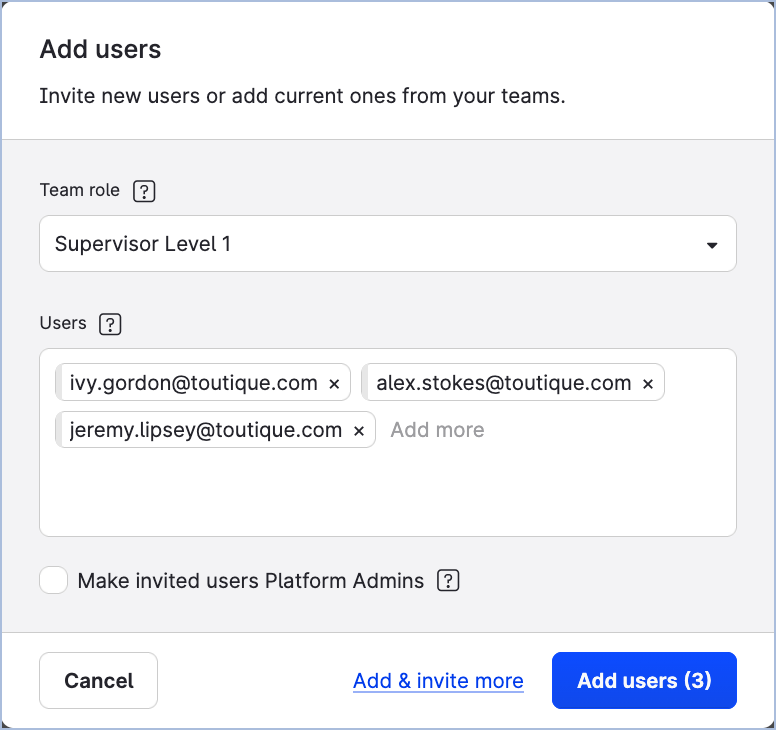
-
Click Add users.
-
If a user with the specified email already exists in the Emplifi account, they are added to the team.
-
If a user with the specified email does not exist in the Emplifi account, an invitation to the Emplifi account is sent to the email address that you specified.
The user is added to the account with the status ofPendingand at the same time is added to the team.
Once the user accepts the invitation and logs in, the status ofPendingwill be cleared.
-
Alternative: Add a user to multiple teams at once
If a user needs to be added to several teams, you can assign them to all the relevant teams at once from their user details panel, instead of repeating the team-by-team flow above.
Steps:
-
Go to Settings → Team management → Users.
-
Click the user you want to add to multiple teams.
The user details panel slides out. -
Click the Teams tab.
-
Click + Add to team.
The Add user to teams dialog opens, listing the teams the user is not yet a member of.
-
Select all the teams you want to add the user to, and click Add to team.
The user is added to all selected teams with the default team role. -
For each team listed, click the Team role dropdown and select the appropriate team role.
This is a quick way to onboard a new user across several teams at once.
Change a user’s team role in a team
To be able to change a user’s team role in a team, you must be either a team admin of the team that the user is added to or a platform admin (see Access to the Emplifi Platform). Platform admins can update a user’s team role in any team in the Emplifi account. Team admins can update a user's team role only in the teams where they are team admins.
Steps:
-
Go to Settings → Team management → Teams.
-
Click the team that the user whose team role you want to update is added to.
The team panel slides out. -
Click the Users tab.
-
In the Team role dropdown, select the new team role for the user.
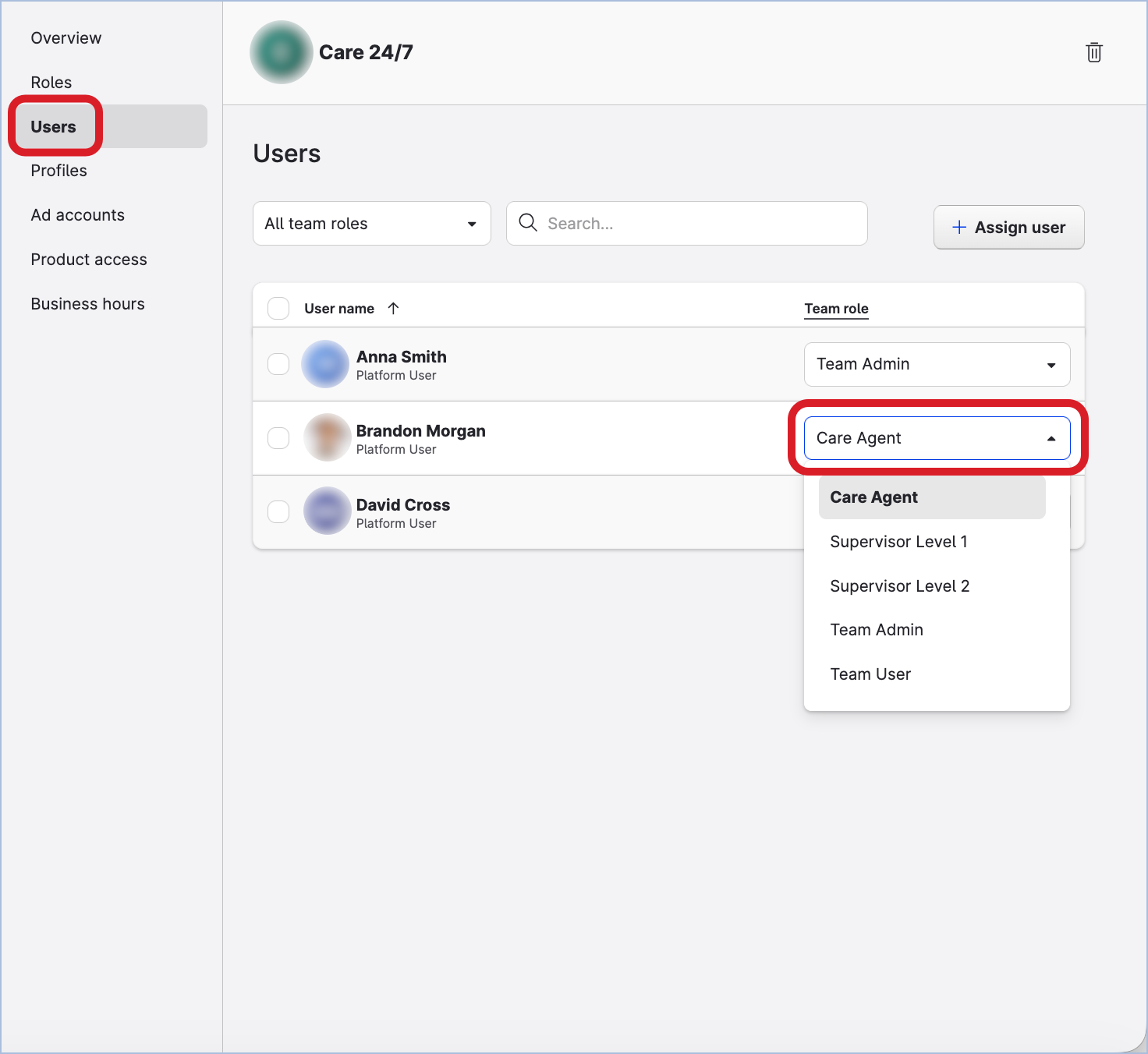
The new team role is assigned to the user.
Alternatively, you can change a user’s team role from the Users section under Settings → Team management.
Steps:
-
Go to Settings → Team management → Users.
-
Click the user whose team role in a team you want to change.
The user panel slides out. -
Click the Teams tab.
-
In the Team role dropdown, select the new team role for the team.
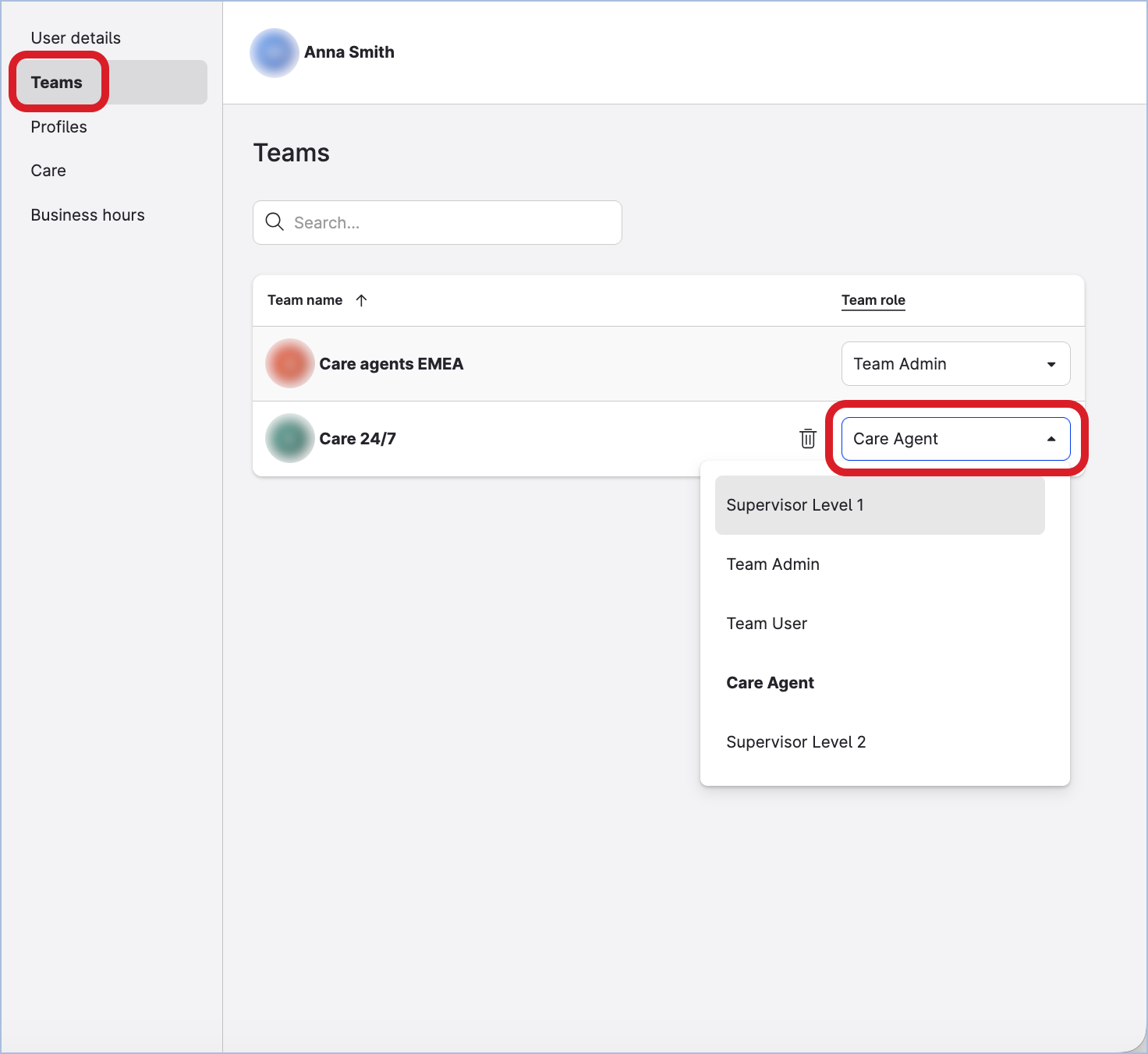
The new team role is assigned to the user.
Remove a user from a team
To be able to remove a user from a team, you must be either a team admin of the team that you want to remove a user from or a platform admin (see Access to the Emplifi Platform). Platform admins can remove users from any team in the Emplifi account. Team admins can remove users only from the teams where they are team admins.
Removing a user from a team does not delete the user from the Emplifi account.
Before removing a user from the team, learn what impact it may have on the following settings:
-
The users' access to the team resources
Once a user is removed from a team, they will lose access to the team resources.
If the team that the user was removed from was the only team the user was a member of, the user will be able to access only their personal settings in the whole Emplifi account (for more information about users not added to any team, see Access to the Emplifi Platform). -
Assigned team role
The team role that was assigned to the user will not be removed from the team. -
Shared saved views in the Unified Analytics module
The user will no longer be able to see the shared saved views. -
Filtering/breakdowns for Community widgets in the Dashboard module
The user will no longer be able to see the team as a filter or breakdown for Community widgets in the Dashboard module. -
Filtering/breakdowns for Care and Community widgets in the Unified Analytics module
The user will no longer be able to see the team as a filter or breakdown for Community and Care widgets in the Unified Analytics dynamic boards or Care preset boards. -
Shared collections in the Content module
The user will no longer be able to see the shared collections. -
Assigned approval flows
The user will no longer be able to be part of the approval flow assigned to the team. -
Assigned business hours
The business hours will be unassigned from the user. -
Assigned Care skills
The Care skills will be unassigned from the user. -
Assigned Care views
The Care views will be unassigned from the user. -
Shared answer template groups
The user will no longer be able to see the answer template groups. -
Shared keyword lists
The user will no longer be able to see the keyword lists.
Steps:
-
Go to Settings → Team management → Teams.
-
Click the team that you want to remove a user from.
The team panel slides out. -
Click the Users tab.
-
Hover over the user that you want to remove from the team, and click the trash can icon that appears.
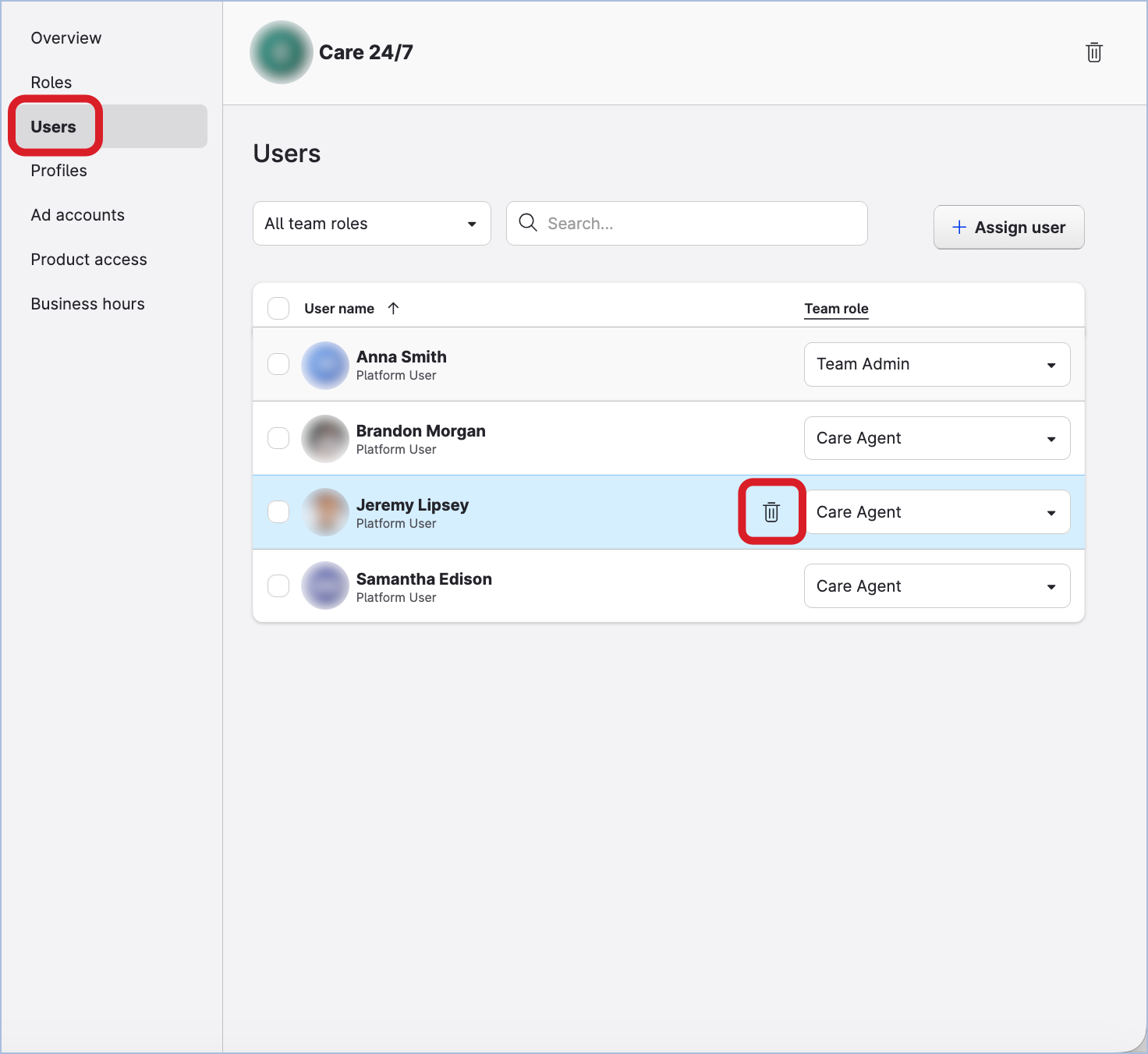
-
Confirm the deletion.
The user is removed from the team.
Alternatively, you can remove a user from a team from the Users section under Settings → Team management.
Steps:
-
Go to Settings → Team management → Users.
-
Click the user that you want to remove from a team.
The user panel slides out. -
Click the Teams tab.
-
Hover over the team that you want to remove the user from, and click the trash can icon that appears.
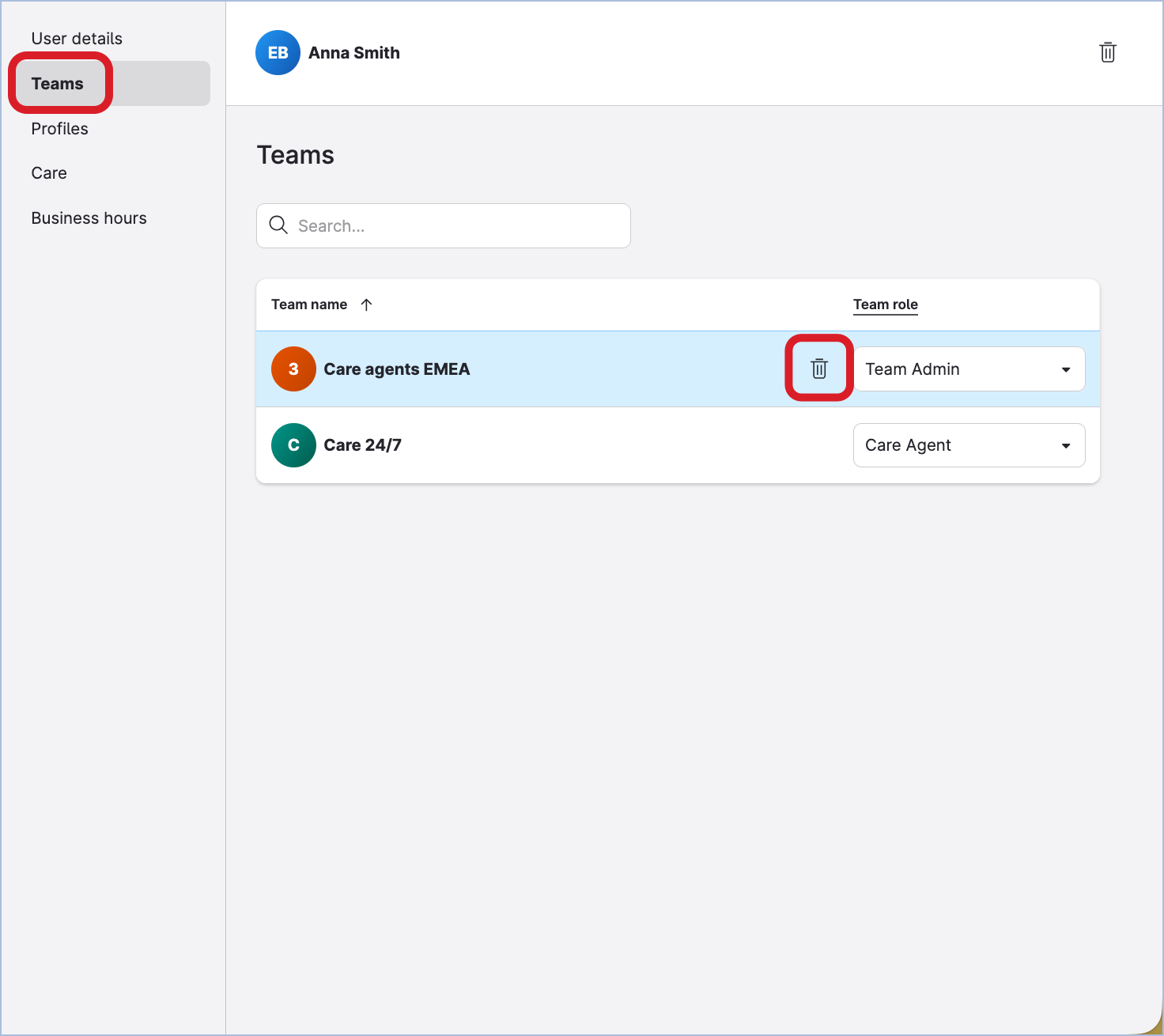
-
Confirm the deletion.
The user is removed from the team.
Find out what teams a user is a member of
Platform admins can see all the users in the Emplifi account. Platform users can see only the users added to the teams that they are a member of.
Steps:
-
Go to Settings → Team management → Users.
-
Click the user.
The user panel slides out. -
Click the Teams tab.
The teams that the user is added to are listed together with the user’s team roles in these teams.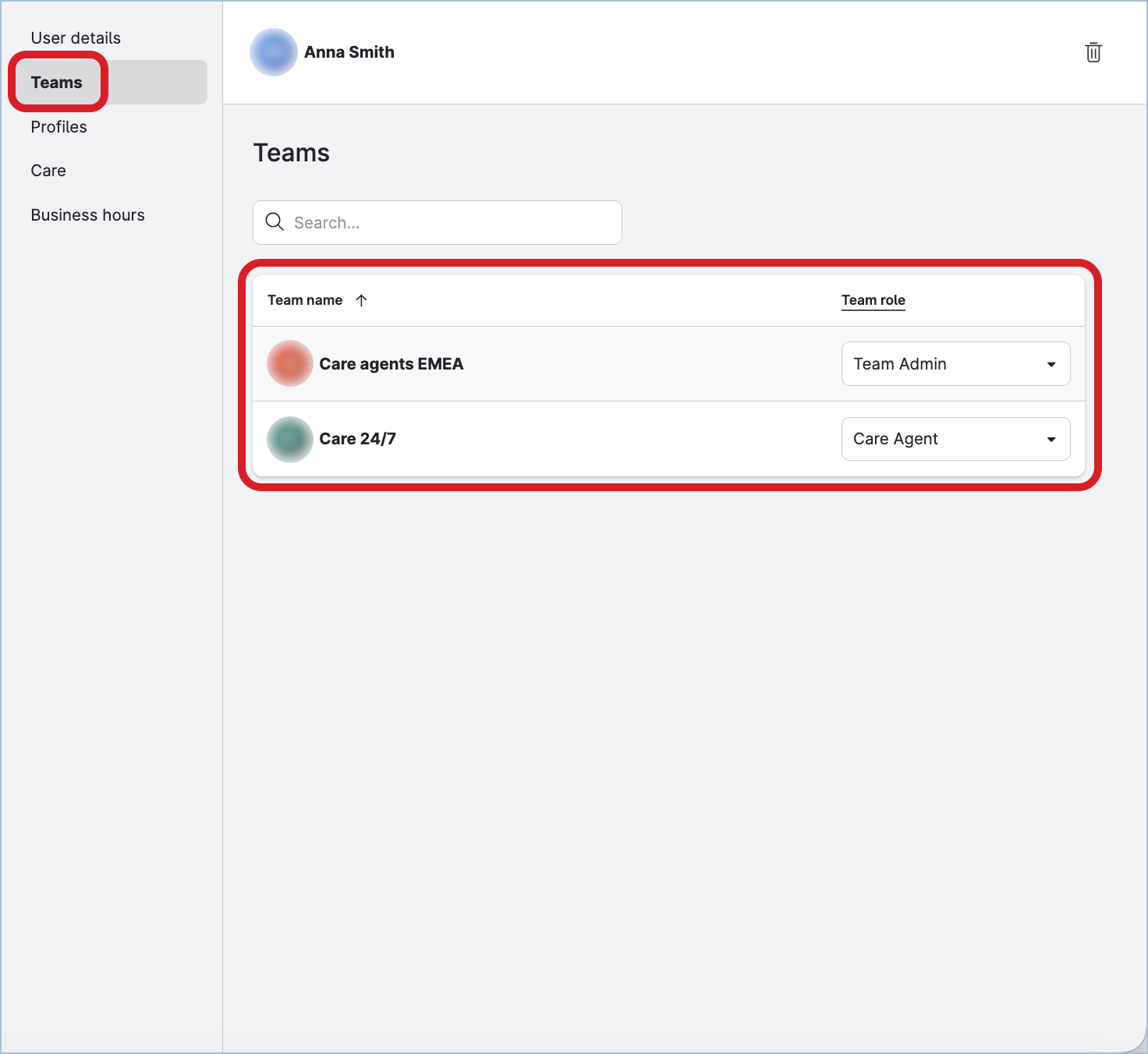
Find out what permissions a user has for each profile based on their team assignment
Platform admins can see all the users in the Emplifi account. Platform users can see only the users added to the teams that they are a member of.
Steps:
-
Go to Settings → Team management → Users.
-
Click the user.
The user panel slides out. -
Click the Profiles tab.
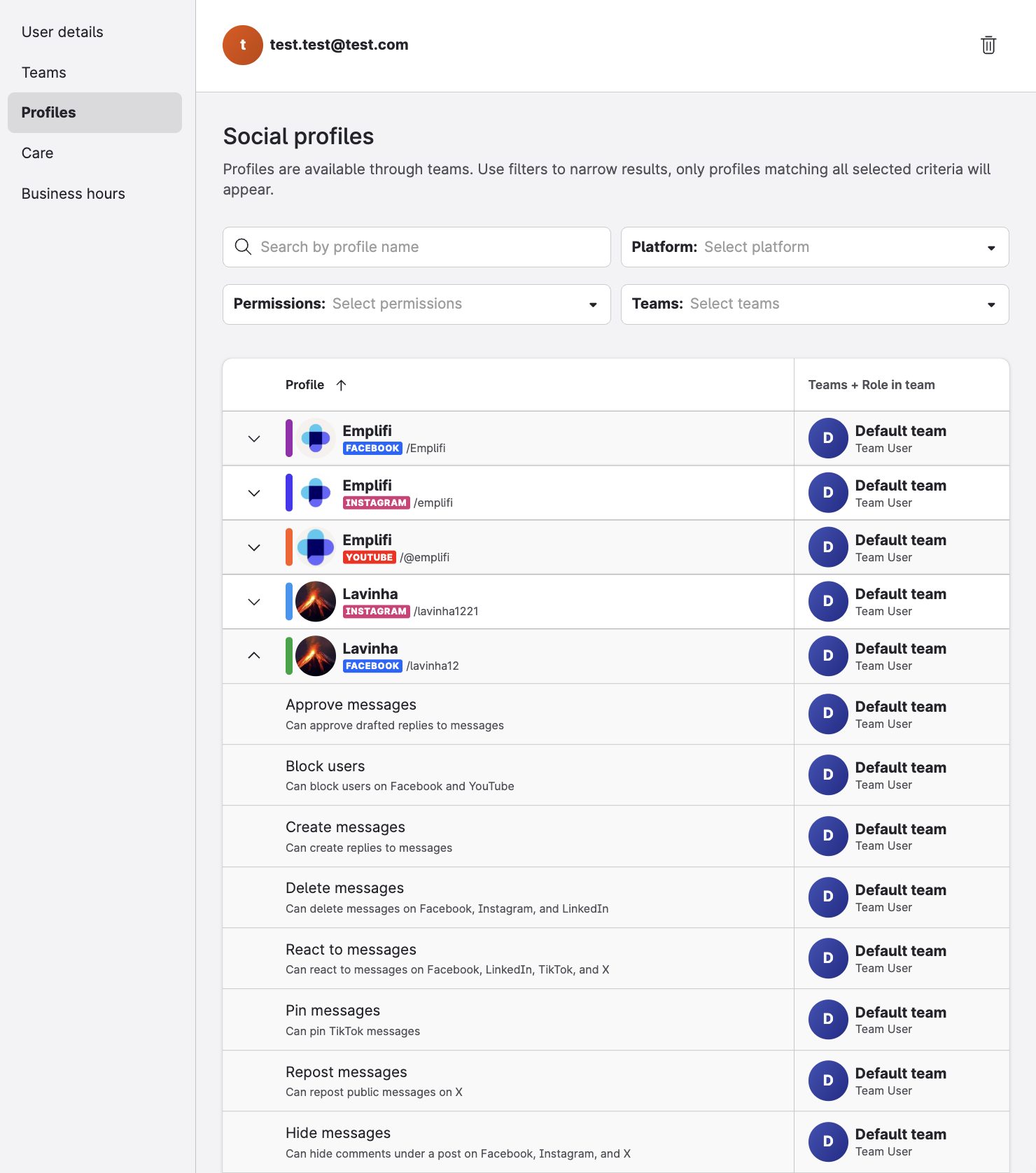
The profiles the user has access to are listed along with the specific teams and team roles granting that access. -
Click on the arrow to the left of the profile’s name to expand its detailed permissions.
Public profiles list no granular permissions, as they do not support additional connected permissions in the system.
-
Optional step: If an access change is required, switch to the Teams tab to change a user's team role or remove them from a team.
Searching and filtering options are available in the Profiles tab to help locate specific assets quickly.
Resources
Add a profile to a team
To be able to add a profile to a team, you must be either a team admin of the team that you want to add a profile to or a platform admin (see Access to the Emplifi Platform). Platform admins can add profiles to any team in the Emplifi account. Team admins can add profiles only to the teams where they are team admins.
You can add as many profiles to a team as you need.
Once a profile is added to a team, all the users in the team will be granted access to the profile. The scope of the access to the profile will be determined by each user’s team role.
Before you can add a profile to a team, make sure that the profile already exists in the Emplifi account (see Connecting and Managing Profiles).
If the profile does not yet exist in the Emplifi account, you can add it to the account and to the team at the same time (see Connecting and Managing Profiles). Be aware that only platform admins can add profiles to the Emplifi account.
Different profile connections in different teams
When adding an owned profile to a team, you can choose what profile connection you want to allow the users in the team to utilize. For more information about profile connections, see Check and Establish Connections of Owned Profiles.
For example, you can add a profile to one team and allow the team members to use its Publishing connection because they are going to be publishing content on social media. You can add the same profile to a different team and allow the Insights connection there because the team members will need to analyze and report on private insight data from this profile.
You even have the option to not allow any profile connection, and the team members will be working with this profile as if it was public.
Steps:
-
Go to Settings → Team management → Teams.
-
Click the team that you want to add a profile to.
The team panel slides out. -
Click the Profiles tab.
-
Click Add profile.
The dialog for adding profiles to the team opens. You can see all the profiles that exist in your Emplifi account. Both owned and public profiles are listed. -
Select one or more profiles that you want to add to the team, and click Configure profiles.
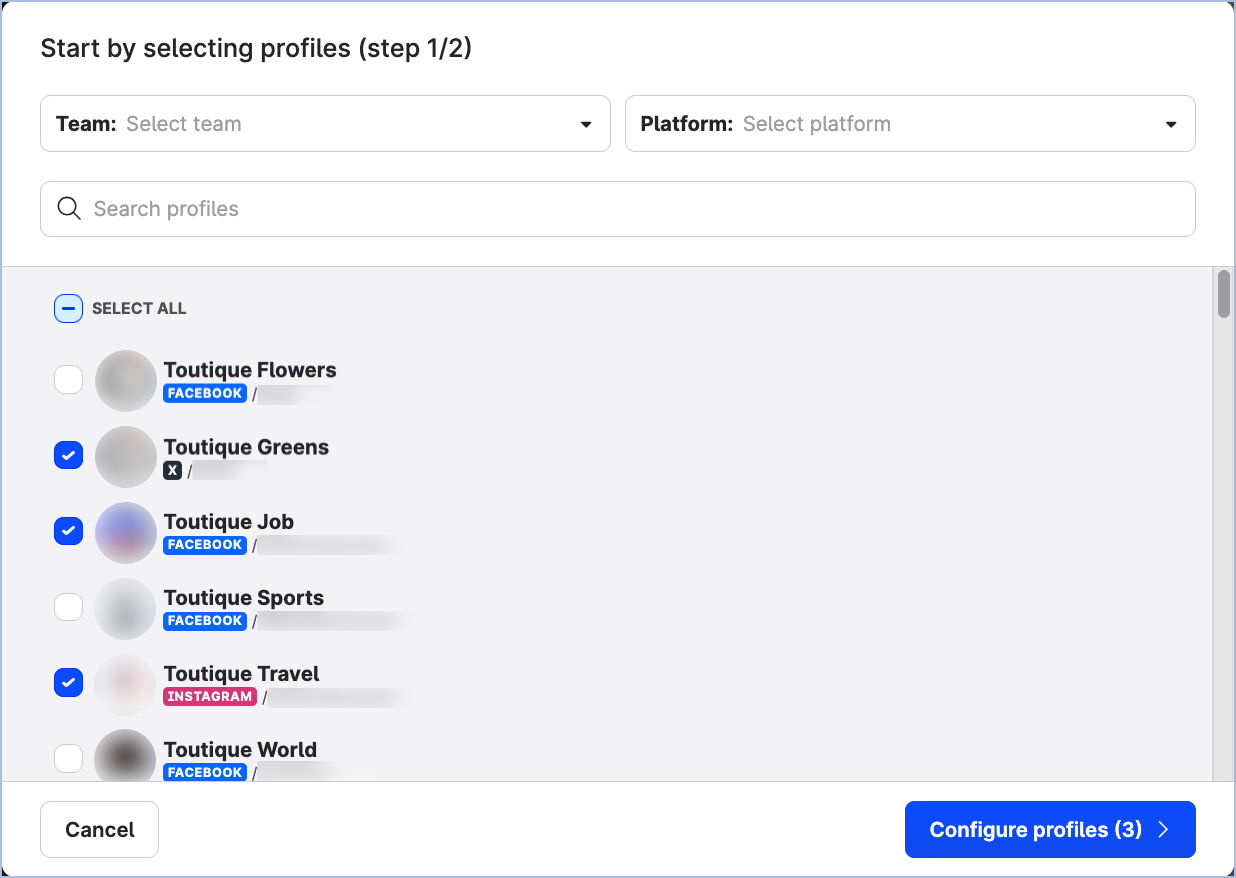
You are prompted to choose the profile connections you want to allow the users in the team to utilize.
-
For each profile, select the connections that the team members will be able to use.
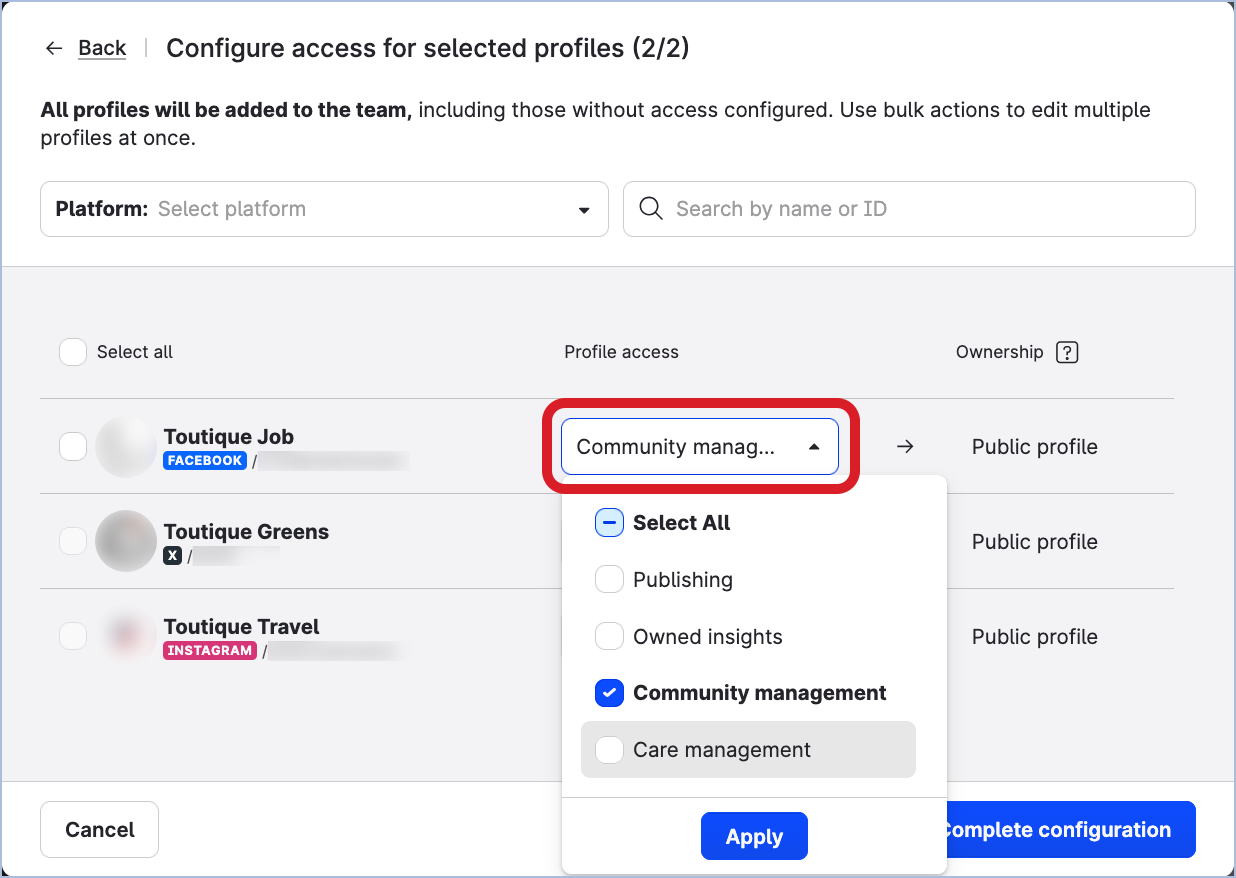
-
To add an owned profile as public, do not select any connection for the profile.
-
You cannot select any connection for public profiles.
-
-
Click Complete configuration.
The profiles are added to the team.
The users in the team are granted access to the profiles according to their team roles.
Alternative: Add multiple teams to a profile or Google Business profile
Instead of adding a profile to a team from Team management, you can assign one or more teams to a profile directly from its side panel in Channels. This is especially useful when onboarding a newly connected profile that several teams need to work with.
Steps:
-
Go to Settings → Channels, and then:
-
For profiles connected to social media platforms, click Social profiles.
-
For profiles connected to Google Business, click Google businesses.
-
-
Click the profile that you want to assign to teams.
The profile panel slides out. -
Click the Teams tab.
-
Click + Add teams.
The dialog for selecting teams opens. -
Search for the teams by name, or select Select All, and click Configure teams.
-
For each selected team, select the access level you want to grant: Publishing, Owned insights, Community management, or Care management.
Use the bulk action to apply the same access level to multiple teams at once.
-
Click Complete configuration.
The profile is assigned to all selected teams, and team members are granted access to the profile according to their team roles.
Remove a profile from a team
To be able to remove a profile from a team, you must be either a team admin of the team that you want to remove a profile from or a platform admin (see Access to the Emplifi Platform). Platform admins can remove profiles from any team in the Emplifi account. Team admins can remove profiles only from the teams where they are team admins.
Removing a profile from a team does not delete the profile from the Emplifi account.
Once a profile is removed from a team, all the users in the team will lose access to the profile. If the team that the profile was removed from was the only team the profile belonged to, the profile will become inaccessible in any module of the Emplifi platform (for example, cannot be selected in Publisher for publishing content, cannot be used to reply in Community, and so on).
Steps:
-
Go to Settings → Team management → Teams.
-
Click the team that you want to remove a profile from.
The team panel slides out. -
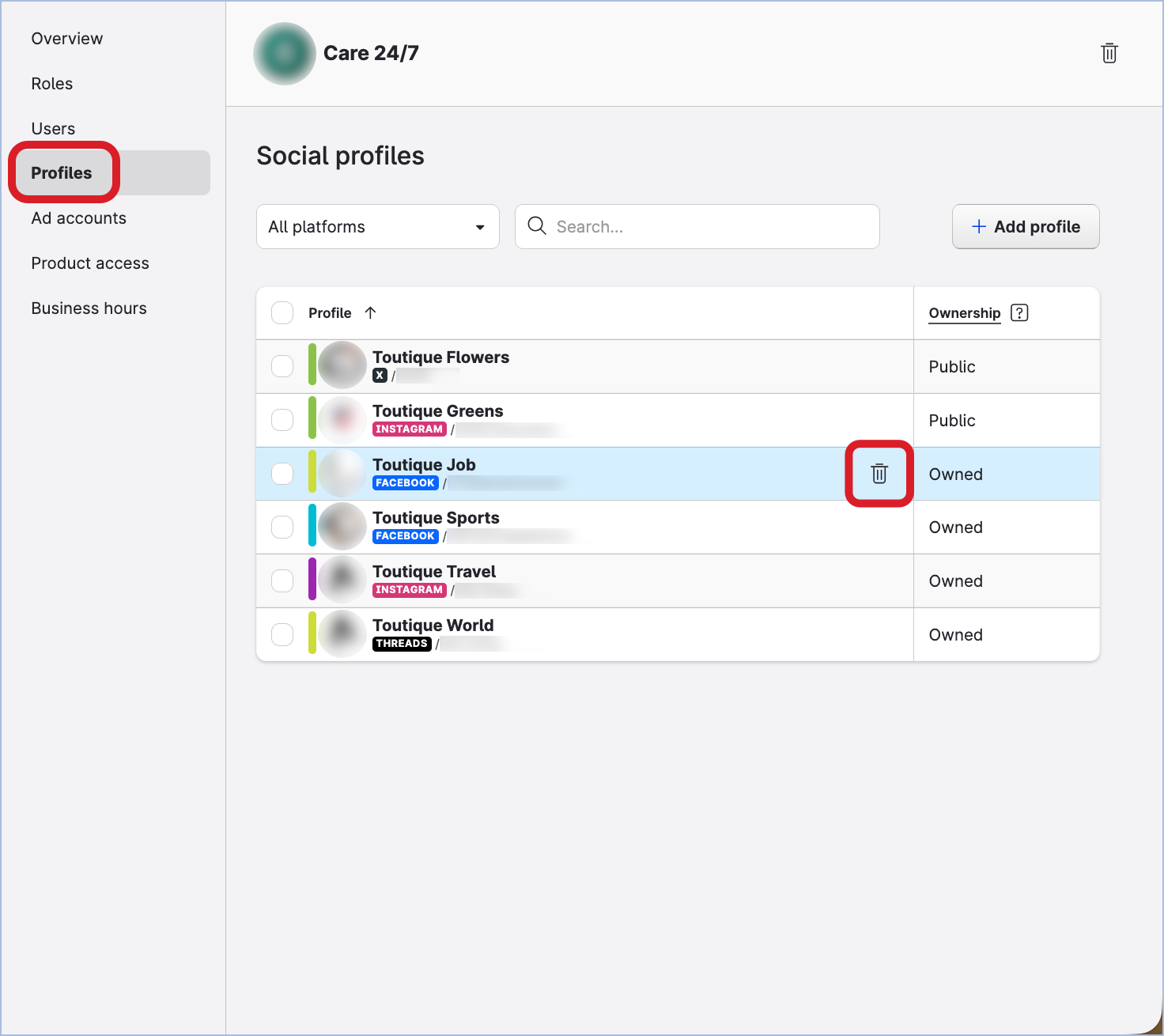
Click the Profiles tab.
-
Hover over the profile that you want to remove from the team, and click the trash can icon that appears.
-
Confirm the deletion.
The profile is removed from the team.
Alternatively, you can remove a profile from a team from the Channels section under Settings.
Steps:
-
Go to Settings -> Channels, and then:
-
For profiles connected to accounts on social media platforms (such as Facebook, Instagram, LinkedIn, and so on), click Social profiles.
-
For profiles connected to accounts on review platforms (such as Google Business), click Google businesses.
-
-
Click the profile that you want to remove from a team.
The profile panel slides out. -
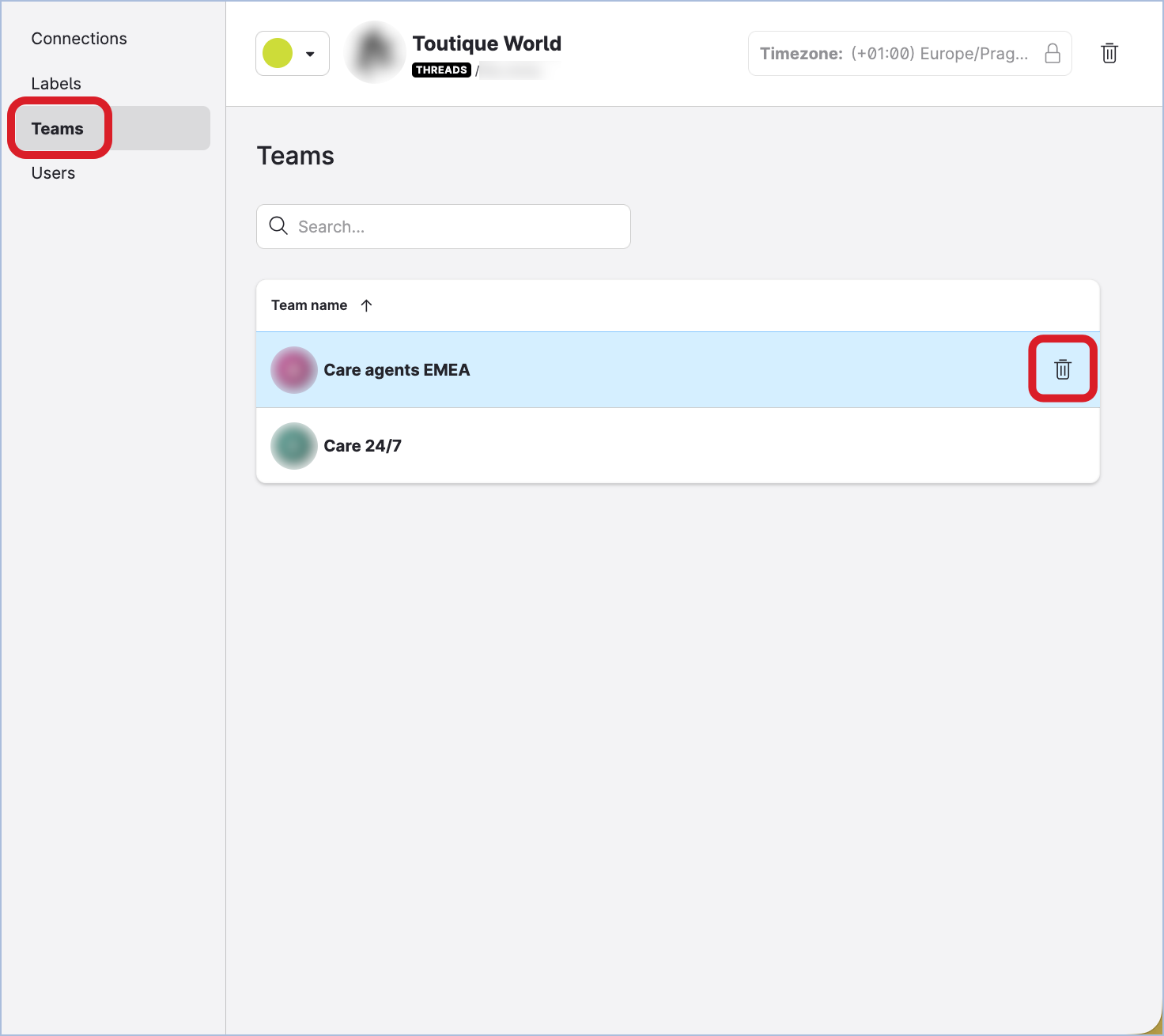
Click the Teams tab.
-
Hover over the team that you want to remove the profile from, and click the trash can icon that appears.
-
Confirm the deletion.
The profile is removed from the team.
Add an ad account to a team
To be able to add an ad account to a team, you must be either a team admin of the team that you want to add an ad account to or a platform admin (see Access to the Emplifi Platform). Platform admins can add ad accounts to any team in the Emplifi account. Team admins can add ad accounts only to the teams where they are team admins.
You can add as many ad accounts to a team as you need.
Once an ad account is added to a team, all the users in the team will be granted access to the ad account. The scope of the access to the ad account will be determined by each user’s team role.
Before you can add an ad account to a team, make sure that the ad account already exists in the Emplifi account (see Connecting and Managing Ad Accounts).
If the ad account does not yet exist in the Emplifi account, you can add it to the account and to the team at the same time (see Connecting and Managing Ad Accounts). Be aware that only platform admins can add ad accounts to the Emplifi account.
Steps:
-
Go to Settings → Team management → Teams.
-
Click the team that you want to add an ad account to.
The team panel slides out. -
Click the Ad accounts tab.
-
Click Add account.
The dialog for adding ad accounts to the team opens. You can see all the ad accounts that exist in your Emplifi account. -
Select the ad accounts that you want to add to the team, and click Add accounts.
The ad accounts are added to the team.
The users in the team are granted access to the ad accounts according to their team roles.
Alternative: Add multiple teams to an ad account
Instead of adding an ad account to a team from Team management, you can assign one or more teams to an ad account directly from its side panel in Channels.
Steps:
-
Go to Settings → Channels → Ad accounts.
-
Click the ad account that you want to assign to teams.
The ad account panel slides out. -
Click the Teams tab.
-
Click + Add teams.
The dialog for selecting teams opens.
-
Search for the teams by name, or select the teams you want, and click Add teams.
The ad account is assigned to the selected teams, and team members are granted access to the ad account according to their team roles.
Remove an ad account from a team
To be able to remove an ad account from a team, you must be either a team admin of the team that you want to remove an ad account from or a platform admin (see Access to the Emplifi Platform). Platform admins can remove ad accounts from any team in the Emplifi account. Team admins can remove ad accounts only from the teams where they are team admins.
Removing an ad account from a team does not delete the ad account from the Emplifi account.
Once an ad account is removed from a team, all the users in the team will lose access to the ad account. If the team that the ad account was removed from was the only team the ad account belonged to, the ad account will become inaccessible in any module of the Emplifi platform.
Steps:
-
Go to Settings → Team management → Teams.
-
Click the team that you want to remove an ad account from.
The team panel slides out. -
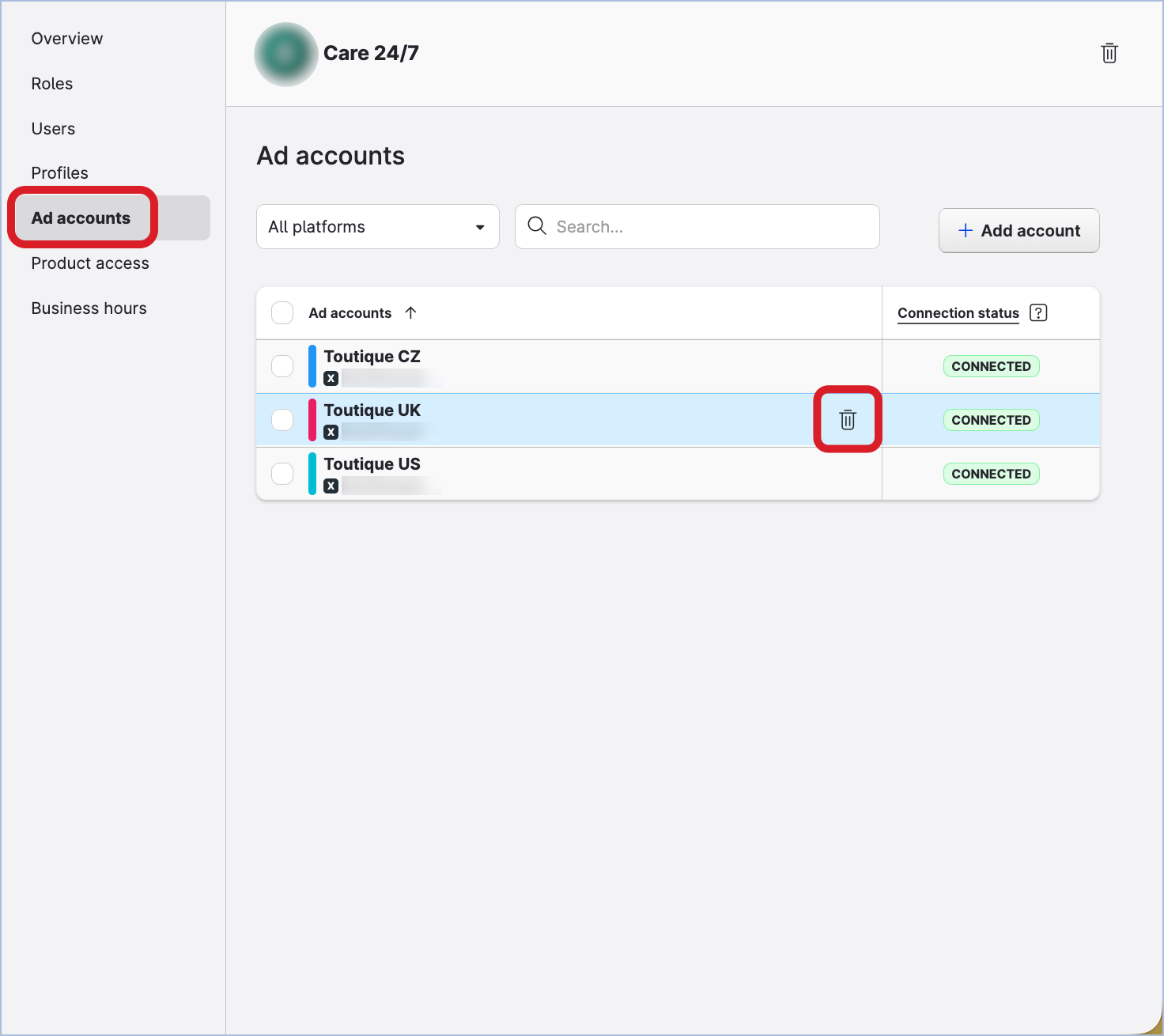
Click the Ad accounts tab.
-
Hover over the ad account that you want to remove from the team, and click the trash can icon that appears.
-
Confirm the deletion.
The ad account is removed from the team.
Alternatively, you can remove an ad account from a team from the Channels section under Settings.
Steps:
-
Go to Settings -> Channels → Ad accounts.
-
Click the ad account that you want to remove from a team.
The ad account panel slides out. -
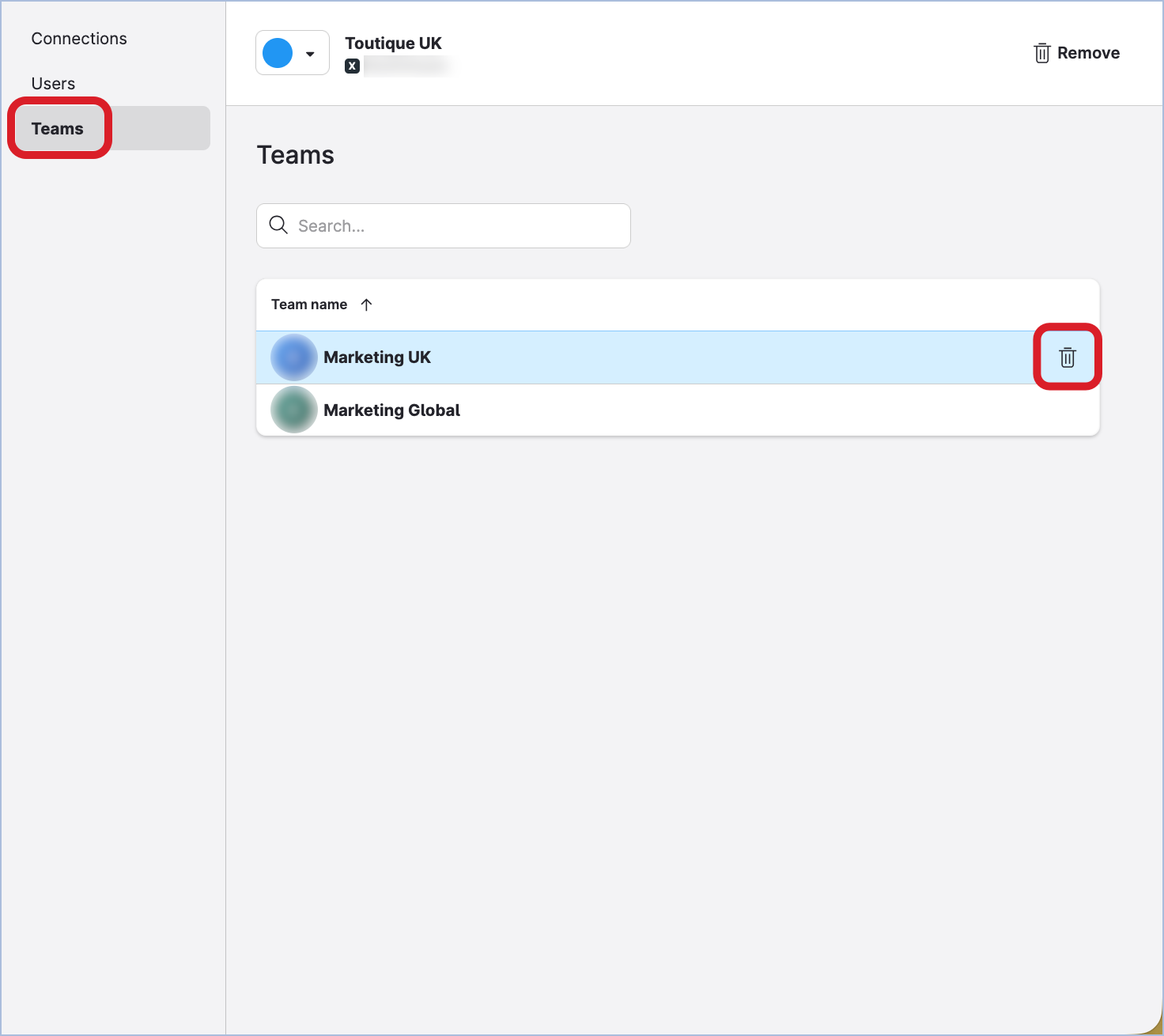
Click the Teams tab.
-
Hover over the team that you want to remove the ad account from, and click the trash can icon that appears.
-
Confirm the deletion.
The ad account is removed from the team.
Find out what teams a profile/ad account is added to
Platform admins can see all the profiles/ad accounts in the Emplifi account. Platform users can see only the profile/ad accounts added to the teams that they are a member of.
Steps:
-
Go to Settings -> Channels, and then:
-
For profiles connected to accounts on social media platforms (such as Facebook, Instagram, LinkedIn, and so on), click Social profiles.
-
For profiles connected to accounts on review platforms (such as Google Business), click Google businesses.
-
For ad accounts, click Ad accounts.
-
-
Click the profile/ad account.
The panel slides out. -
Click the Teams tab.
The teams that the profile/ad account is added to are listed.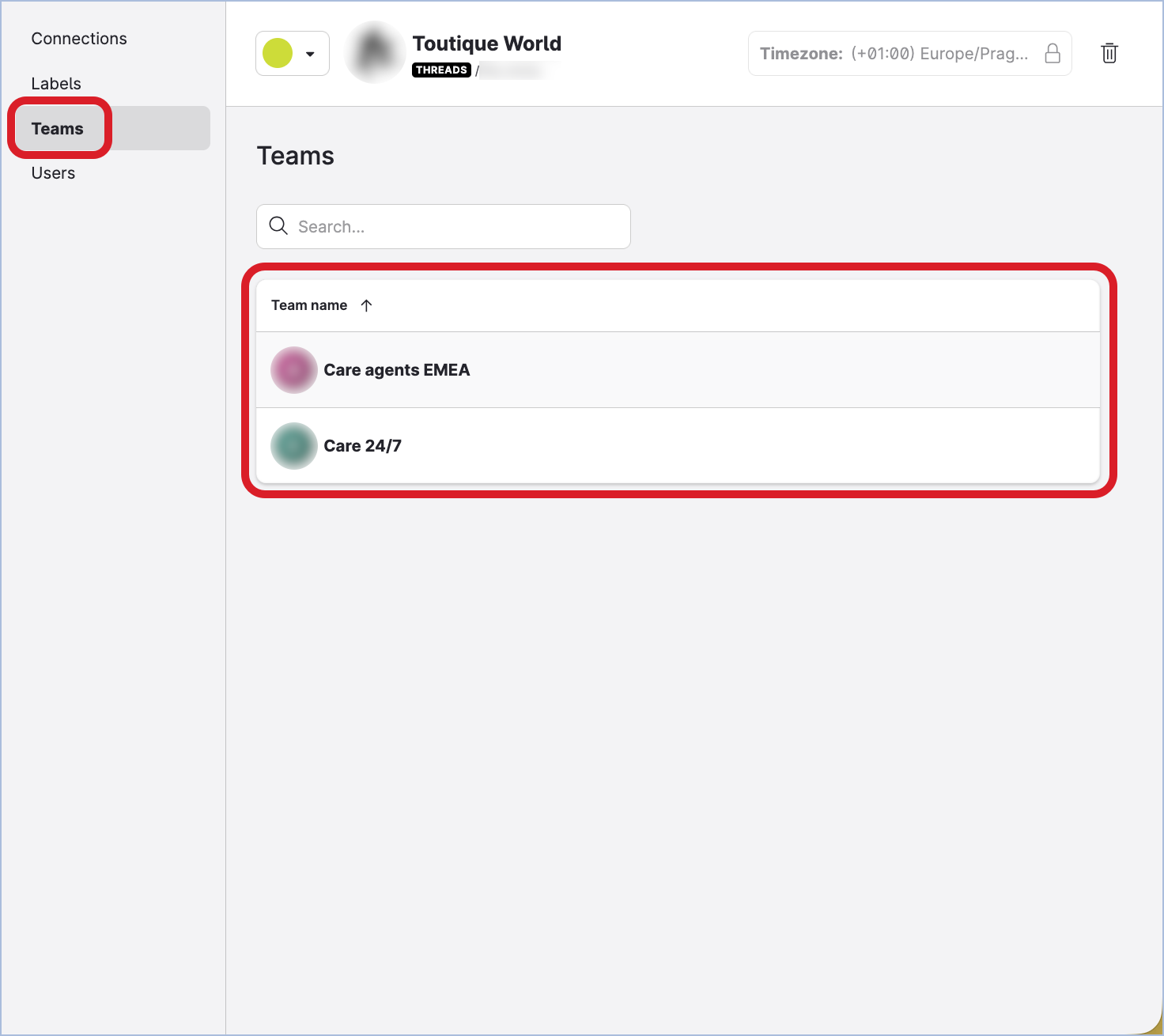
Business hours
Assign business hours to a team
See Assign Business Hours to Users with Teams.