
On July 9, 2026, visibility of cases in Care changed to be driven by profile permissions. The same concept of permissions that already controls who can publish to a social profile now also controls who can see and manage cases originating from that profile.
What changed and what stayed the same
Profile permissions have always been part of Emplifi. If a user does not have publishing permission for a given profile, they cannot publish to it. That logic did not change.
What changed is that the same concept now extends to Care case visibility: a user without a proper permission for a profile no longer sees cases originating from that profile.
Until July 9, 2026, case visibility was not tied to profile permissions. Any user who had access to Care could see cases from all profiles in the account, regardless of their profile permission setup. Case Views provided a soft filter, but they could be bypassed, particularly when Care is accessed through 3rd party API integrations.
As of July 9, 2026, profile permissions became the primary access layer to Care cases. The result is a consistent model: profile permissions now govern both what users can publish to a profile and which cases from that profile they can see in Care.
Who was affected
This change was most significant for organizations that:
-
Manage multiple brands or regions within one Emplifi account, and
-
Had configured Supervisor users without explicitly defining their relevant profiles.
Users, who had profile role purely for (Care) reporting purposes might lost their ability to see case data in Care reporting after the release. The reporting boards are still available, but no data will appear because Care reporting requires both an account-level permission (Access Care reporting) and a profile role with the Care toggle enabled.
For organizations where all Care users already had publishing permissions for all profiles, no action was required — the experience remained unchanged.
Verify your profile permission setup
If you have not yet reviewed your profile permissions, do so now to ensure your users have the correct access. The steps depend on which governance model your account uses.
Not sure which model you're on? Check whether Team management appears in your Settings. If it does, you're on Teams. If you see Roles & permissions instead, you're on the Legacy governance model.
If your account uses Teams
In Teams, profile access in Care is derived from the profiles assigned as resources to each user's team — the same resources that already govern access in other modules.
To verify your setup:
-
Go to Settings > Team management.
-
Open each team that includes Care users.
-
Verify that all relevant social profiles are assigned as resources to that team with the Care management access level.
If a profile is missing from a team's resources, users in that team do not see cases from that profile.
For more information about Teams, see Govern Access to Account Resources Using Teams.
If your account uses the Legacy governance model
In the Legacy governance model, profile permissions are configured in Create Care-specific Account Roles and Profile Roles (Legacy Governance Model) | Profile roles .
To verify your setup:
-
Go to Settings > Users.
-
Open each Care user who should have access to Care cases.
-
Verify that they have a profile role with the Care toggle enabled, assigned to each social profile they should see in Care.
-
Profile roles are listed in Settings > Roles & permissions > Profile Roles.
On July 9, 2026, a new Care toggle was added to the profile role configuration and automatically activated for all users who had a Community-activated profile role assigned to a profile. This means existing Community-based profile access was automatically carried over to Care — no reconfiguration was required.
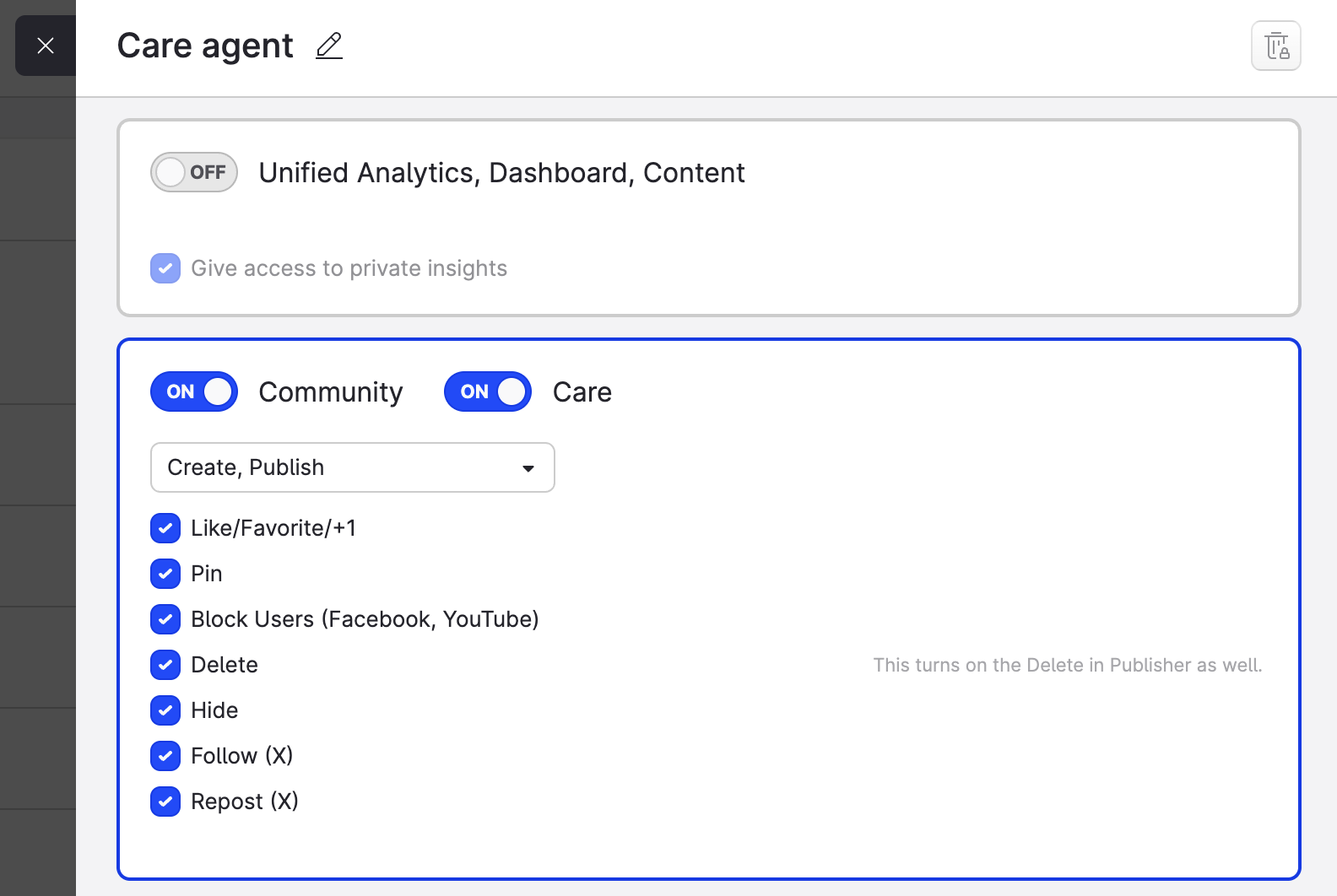
Note: If a user already had Community permissions configured in a profile role and linked to a profile, those were reused for the Care section — no reconfiguration from scratch was needed.
What happened if you did nothing before July 9
For most users, the transition was seamless. If profile permissions were already set up correctly for Community management (which is used for Care too), Care followed the same boundaries automatically.
The group most likely to have noticed a change were users with a Supervisor role who previously had unrestricted visibility across all cases regardless of profile permissions. Their Care views now reflect their profile permission setup. If they should retain broad access, ensure the relevant profiles are included in their team resources (Teams) or profile roles (Legacy governance model).
A note on Case Views
If your organization was using Case Views primarily to separate cases by brand or region, you may find that profile permissions now handle that separation automatically, and those views can be simplified or removed. Case Views remain available as a secondary layer for more granular sorting by language, topic, SLA, or priority.
Questions or concerns
If you are unsure how this change affects your specific setup, reach out to your Emplifi representative or contact https://support.emplifi.io/.