
This article describes the setup for accounts that use Teams governance model in Emplifi. If your account uses the legacy governance model with account roles, see Create Care-specific Account Roles and Profile Roles (Legacy Governance Model). To learn more about Teams, see Govern Access to Account Resources Using Teams .
Before your organization can start handling cases and escalations in Care, you must set up team roles that include Care permissions, and add the relevant profiles to the teams where your Care users work.
For the team roles that handle Care, choose from the following scenarios:
-
Create a team role from the Care agent system template.
-
Create a unique Care-specific team role from scratch.
-
Add Care permissions to an existing custom team role.
After you create the team roles, add the social media profiles to the teams to give the Care users access to the cases coming from those profiles.
To create and assign team roles, you must be either a platform admin or a team admin in the team where you want to create the role. For more information, see Govern Access to Account Resources Using Teams .
Team roles
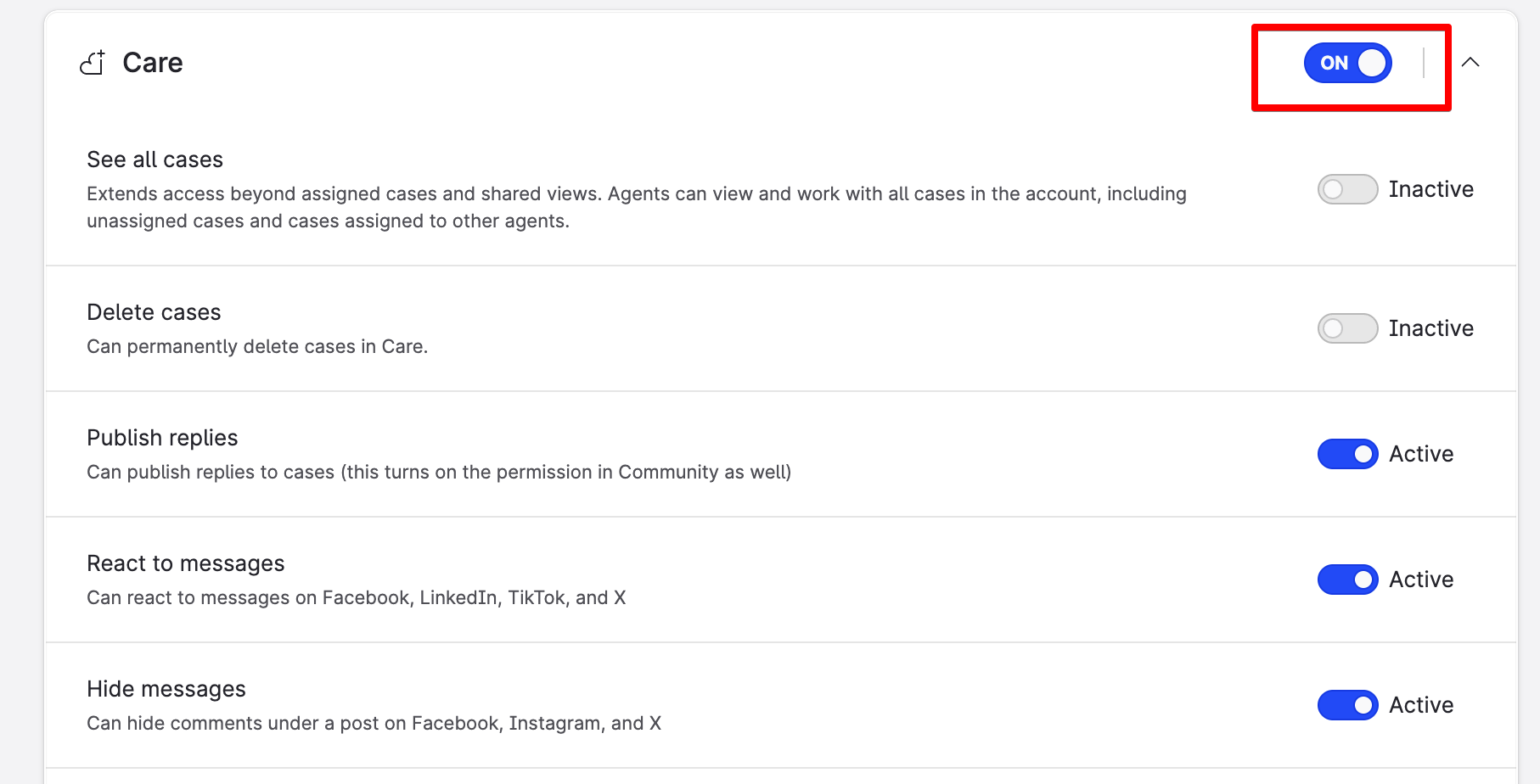
A Care user's level of access to cases is defined by a set of granular Care permissions in the Product access section of their team role. Each permission is an independent checkbox. For the full list of permissions and what each one grants, see Set up Care permissions .
The minimum permission a user needs to work with cases is Access care (which means turning on the main Care switch). Without Access care, the user cannot open Care in the team.
Team roles are team-specific. A team role you create for one team can only be used in that team. To reuse the same role design across multiple teams, create a custom role template (see Update and Maintain Teams ).
Create a team role from the Care agent system template
This is the recommended scenario when you want a standard Care setup for a team.
The Care agent system template is a predefined blueprint that has all the typical Care permissions enabled.
Steps:
-
Go to Settings > Team management > Team roles.
The system templates and the existing team roles are listed. -
Click Create role.
The team role panel slides out. You are prompted to choose whether to create a team-specific role or a team role template. -
Leave Assign to specific teams selected. In the dropdown, select the team (or teams) where the Care users will work.
To reuse this role design in teams you may create later, create a custom role template instead. See Update and Maintain Teams.
-
Click Choose template.
You are prompted to choose whether to define permissions from scratch or to use a system template.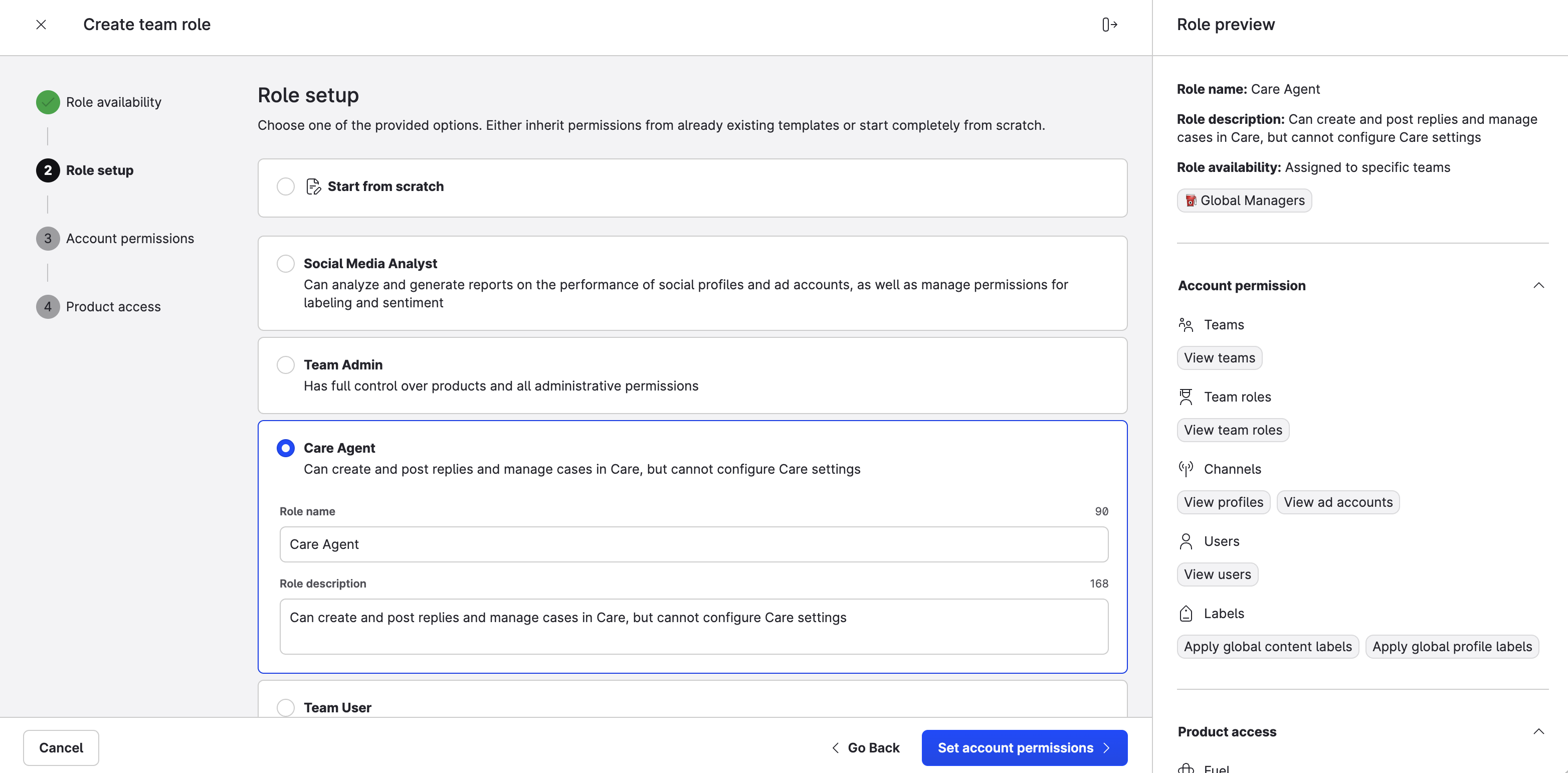
-
Select Care agent.
The role preview panel on the right shows all the permissions the team role is going to have. -
Click Set account permissions.
You are prompted to review the account-level permissions (which control administrative actions across the whole account). For a standard Care setup, you can leave the default selections. -
Click Set product access.
You are prompted to review the Emplifi modules and the permissions in each module. Expand the Care section to see the Care permissions enabled in the template.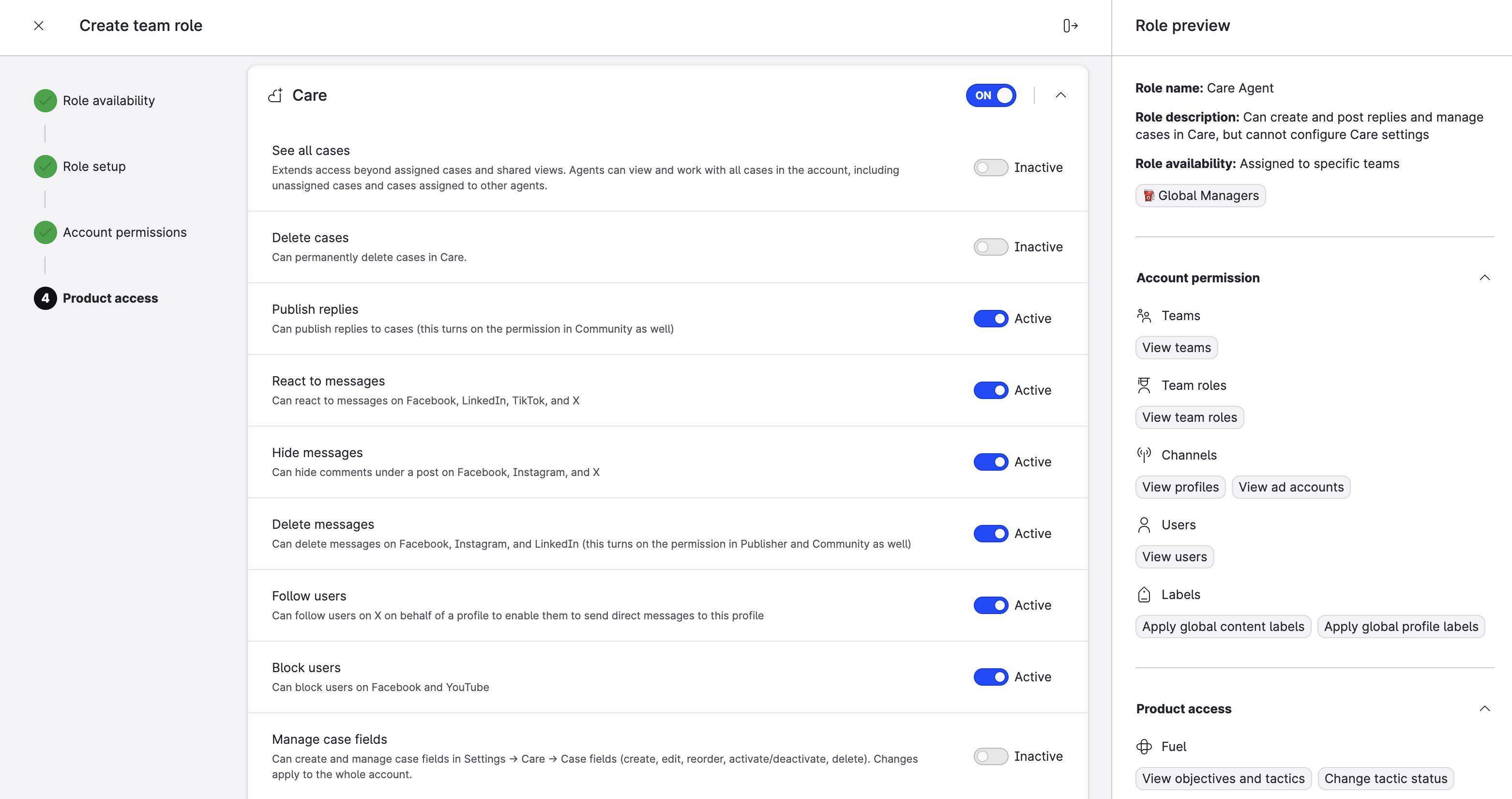
-
Adjust the Care permissions if needed. For ideas on what to combine for common Care jobs, see "Build a role for a specific Care job" in Set up Care permissions .
-
Click Create role.
The team role is created in each team you selected. Each team gets its own copy of the role. -
Add Care users to the team with this team role, as described in "Add users to the teams" in Govern Access to Account Resources Using Teams .
Create a unique Care-specific team role from scratch
In this scenario, you want full control over which Care permissions the team role has — for example, to create a team lead with broader visibility, or a reporting-only user.
Steps:
-
Go to Settings > Team management > Team roles.
-
Click Create role.
The team role panel slides out. -
Leave Assign to specific teams selected. In the dropdown, select the team (or teams) where the Care users will work.
-
Click Choose template.
-
Select Start from scratch, and enter a name for the role (for example, "Care team lead" or "Care reporting").
-
Click Set account permissions.
Review and adjust the account-level permissions. For Care-only roles, you typically do not need to enable any account-level permissions. -
Click Set product access.
Expand the Care section, and turn on the Care permissions that the role should have.
At minimum, turn on the main Care switch so that users with this role can open Care.
For ideas on what to combine for common Care jobs, see "Build a role for a specific Care job" in Set up Care permissions .
-
Optionally, expand the other module sections (Community, Publisher, and so on) and turn on the permissions the team role needs in those modules.
-
Click Create role.
The team role is created in each team you selected. -
Add users to the team with this team role, as described in "Add users to the teams" in Govern Access to Account Resources Using Teams .
Add Care permissions to an existing custom team role
In this scenario, you already have a team role for a different purpose, and you want to expand it to include Care access.
Steps:
-
Go to Settings > Team management > Team roles.
-
Click the team role that you want to add Care permissions to.
The role panel slides out. -
Go to the Product access section, and expand Care.
-
Turn on the Care permissions that the role should have. At minimum, turn on the main Care switch (Access care permission).
-
Click Save changes.
The team role is updated. The change takes effect immediately: users with this team role gain access to Care at the level you set up.
The Access Care reporting permission is located in the Unified Analytics and Dashboard sections of a role, not in the Care section. To give a user access to Care reporting without Care module access, enable the permission there.
Profile access in Teams
Unlike the legacy governance model, Teams accounts do not use profile roles. Care users can only see and manage cases from profiles that are added to their team as a resource with the Care management access level. There is no separate profile role to assign.
To give Care users access to cases from a profile:
-
Make sure the profile is added to the team where the Care users work with the Care management access level. For more information, see "Add resources to the teams" in Govern Access to Account Resources Using Teams .
-
Make sure the team has Care enabled in Product access (see Govern Access to Account Resources Using Teams ).
-
Make sure the user is in the team with a team role that has Care permissions enabled.
Once these three conditions are met, the user can see and manage cases from that profile, based on the Care permissions in their team role.
To allow Care users to reply to customers and interact with the case conversation on a profile, the profile must also have the Publishing connection enabled. For more information, see "Add resources to the teams" in Govern Access to Account Resources Using Teams.
If a profile is removed from a team's resources, users in that team immediately lose access to all cases from that profile, including historical cases.
Dealing with users who lose access to Care
When you remove a user from a team or remove Care from a team's product access, the user will remain assigned to the cases and custom views:
-
Users who no longer have any team with Care access appear in Care as
Deleted users. -
Users who lost access to Care are highlighted.