
How To Set Up Advanced Approval Flows
If your organization already uses Approval Flows, you know the core promise: no post goes live without the green light from the right people. Advanced Approval Flows build on that foundation for organizations whose governance doesn't fit a single, linear process — global brands where HQ approves master content and local markets adapt it, or teams where legal review is needed for some posts but not for others.
Everything you know about approval flows still applies: sequential stages, multi-signature approvals, rejecting a post back to an earlier stage with a reason, notifications, and the full audit trail all work exactly as before. This article covers only what Advanced Approval Flows add on top:
-
Approval flow Draft type — flows that end in an Approved Draft ready for reuse, instead of a published post.
-
Multiple approval flows per profile — with the right flow attached automatically, based on who created the content.
-
Conditional stages — stages that switch on automatically when a specific label is on the content.
Availability: Advanced Approval Flows are available for accounts using Teams and AdvancedApprovalEngine business toggle enabled. To create or edit approval flows you must be an Account Admin or have a custom account role with the "Manage Approval flows" permission.
Approval Flow Types: Post and Draft
Until now, every approval flow ended the same way: once the content passed all stages, it was published. But what about content that should be approved without ever being published — a master template that HQ signs off on, which local teams then adapt for their own markets?
That's what the new flow type is for. When creating an approval flow, you now choose what "approved" means for it:
-
Post — today's behavior. Content that passes all stages is published as scheduled.
-
Draft — content that passes all stages becomes an Approved Draft. It is not published — it's formally approved and ready to be reused.
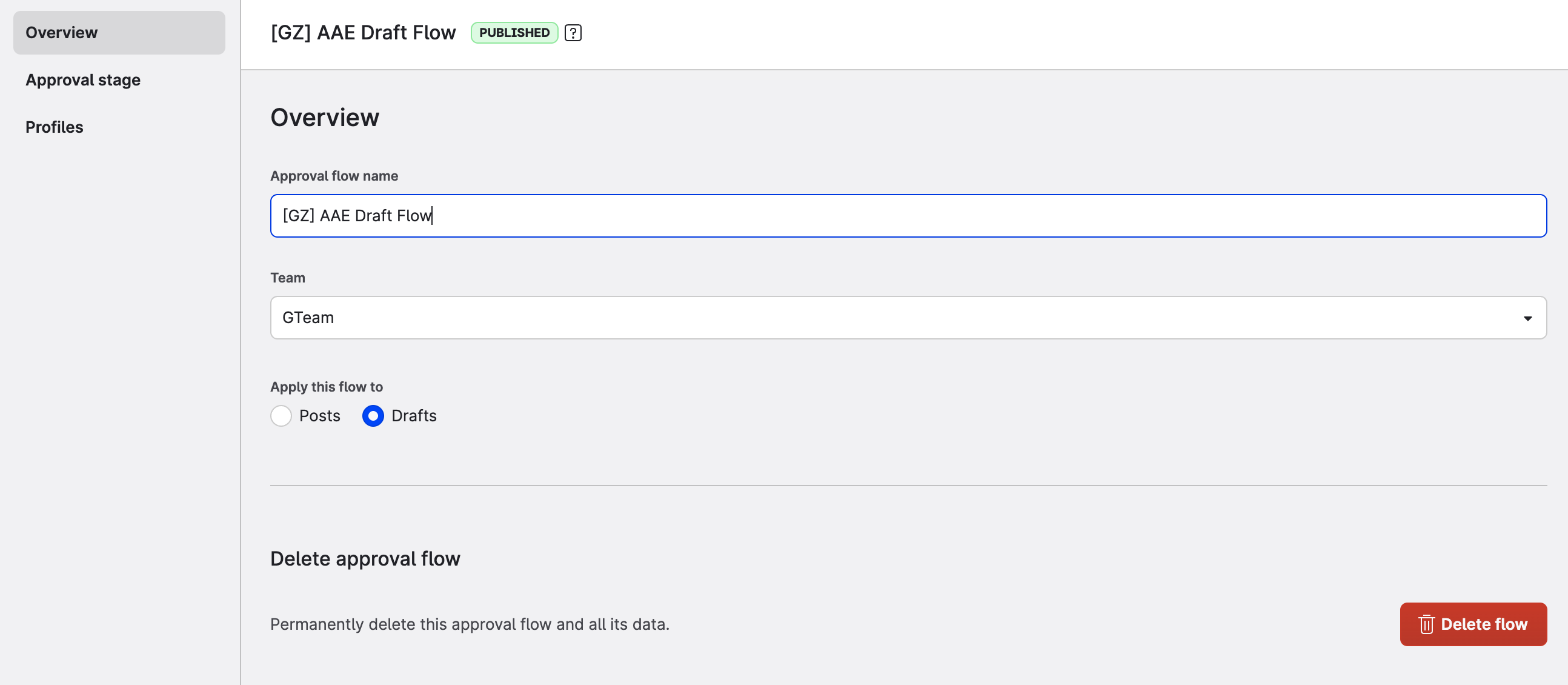
An Approved Draft:
-
appears in your existing Drafts feed (use the filter to find approved drafts quickly),
-
is read-only — it can no longer be edited, scheduled, or published, by anyone,
-
can be duplicated — and that's exactly how it's meant to be used.
The duplicate is an ordinary new post. It does not inherit the parent's approval — when a local team adapts it and sends it out, it goes through its own approval flow before publishing. That's deliberate: it guarantees nothing reaches your audience just because "HQ already approved the original."
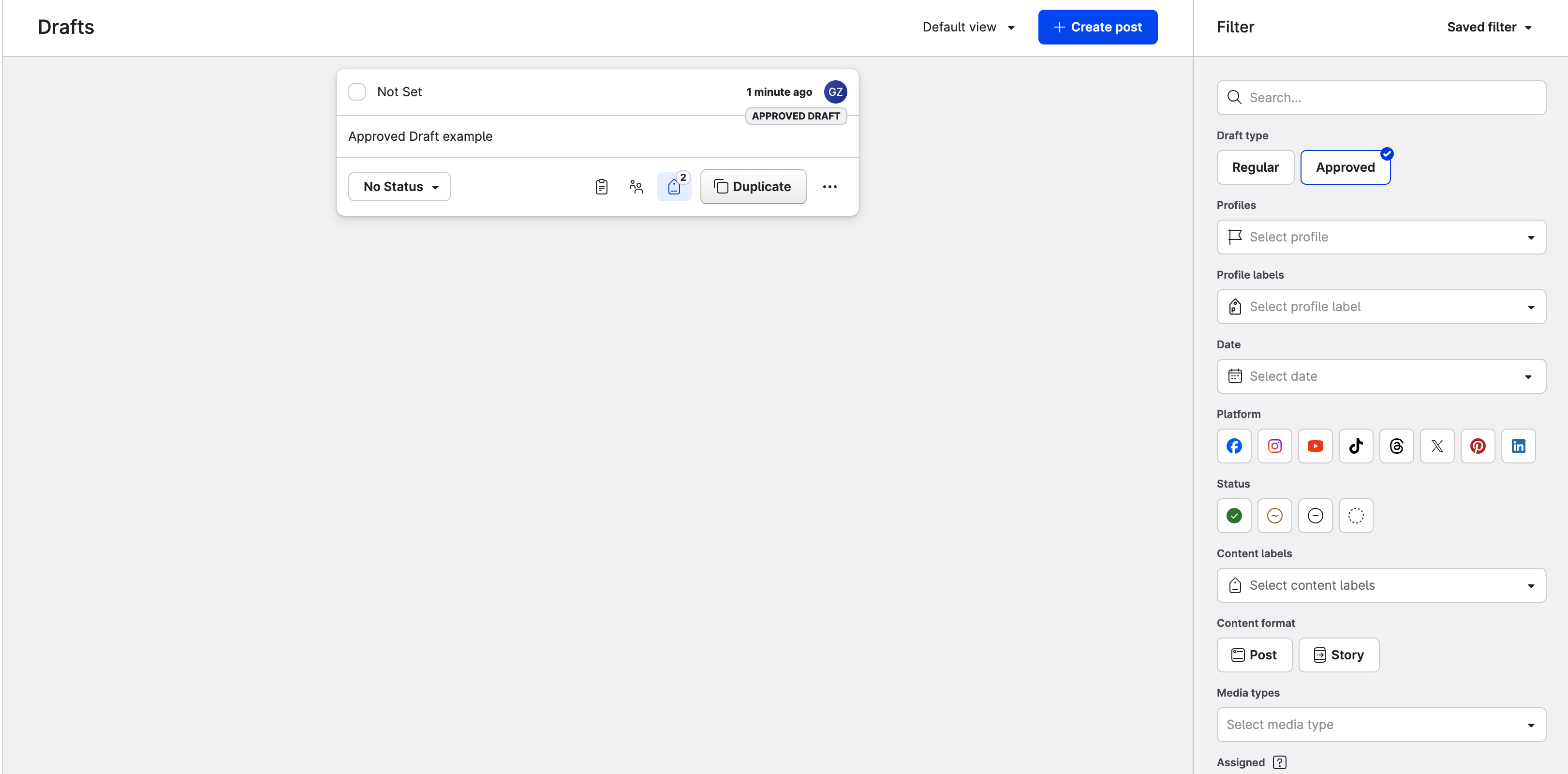
Multiple Approval Flows per Profile
Previously, one profile could have at most one approval flow — a real constraint for organizations where several teams with different processes publish to the same profiles. Now the same profile can be covered by several approval flows, and here's the best part: the content creator never has to pick one.
When content is sent for approval, the right flow is attached automatically based on three things:
-
the type of the content (post or draft),
-
the team role of the person who created it,
-
the profile(s) the content targets.
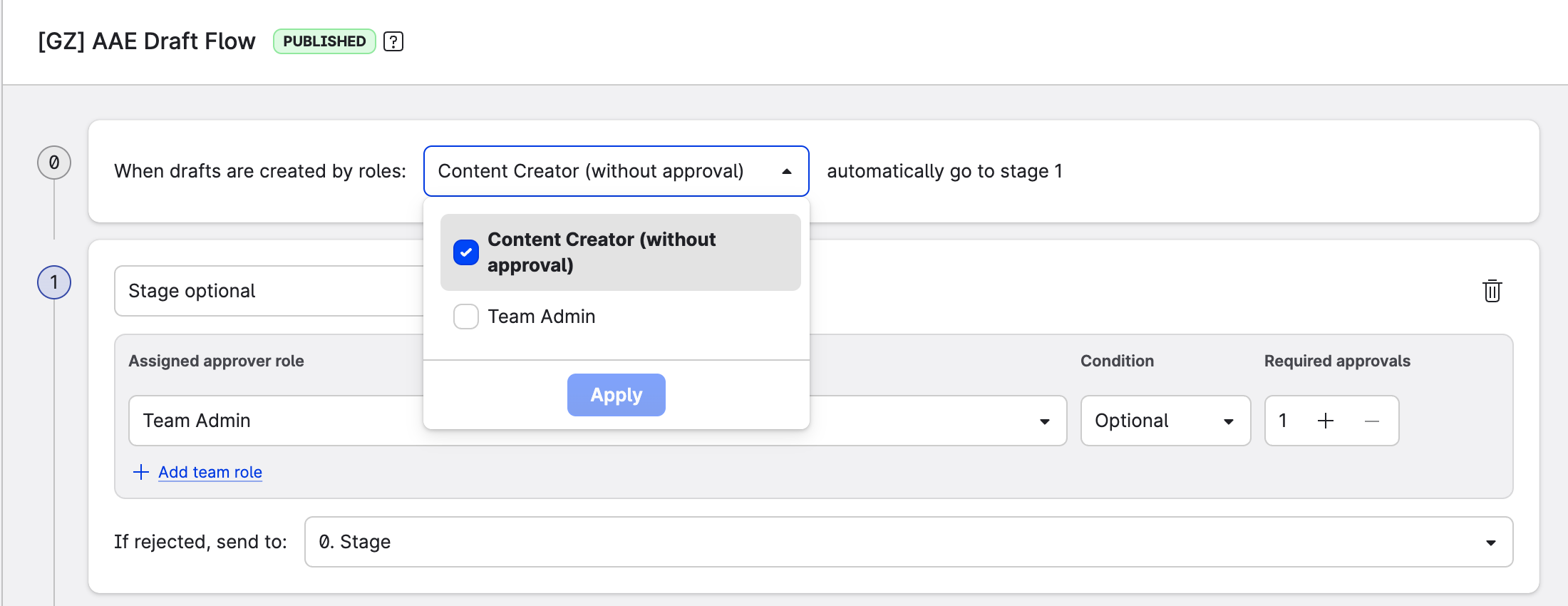
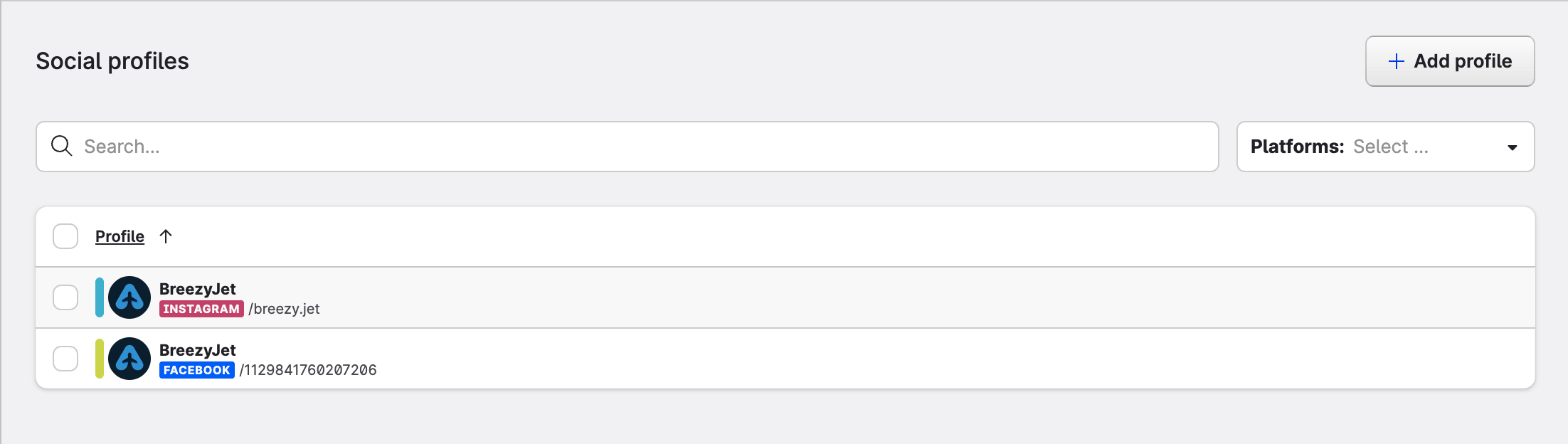
So when you create a flow, along with its stages you now define whose content it governs: the author's team role and the profiles it covers. Note the distinction — the author team role on the flow determines whose content enters it; the team roles configured inside each stage still determine who approves, just like today.
A few rules keep this predictable:
-
No ambiguity. Within a team, no two live flows can share the same combination of type, author team role, and profile — an overlapping flow can't be published (it stays saved as Unpublished; see Creating a Flow below), so among the flows that can actually trigger there is always exactly one right answer.
-
One niche case to be aware of: if a person is a content creator in several teams, and a post targets a profile covered by a matching flow in more than one of them, the flows can collide across teams. Even then the system never guesses — the send is blocked with an explanation, and the fix is to adjust the overlapping flows (or the person's roles) so only one applies.
-
-
The flow is sticky. Once content enters a flow, editing it — the text, the labels, anything — never moves it to a different flow mid-approval.
-
No matching flow, for a post? The post simply follows the normal publish path, exactly as it would today with no approval flow set up. Not every piece of content needs governance, and that's a valid configuration — not an error.
-
No matching flow, for a draft? Then it can't be sent for approval, because there's no draft flow to approve it into. The fix is to create or widen a draft-type flow.
Conditional Stages
Some stages are only relevant for some content. A post mentioning pricing might need legal review; a routine community post doesn't. Until now, the only options were "the stage always runs" or "the author remembers to tick the optional stage."
Conditional stages make this automatic. When configuring a stage, you can bind it to a content label. At the moment content is sent for approval, the stage runs if that label is on the content — and is skipped if it isn't. The remaining stages simply close ranks in their original order. Nobody ticks anything.
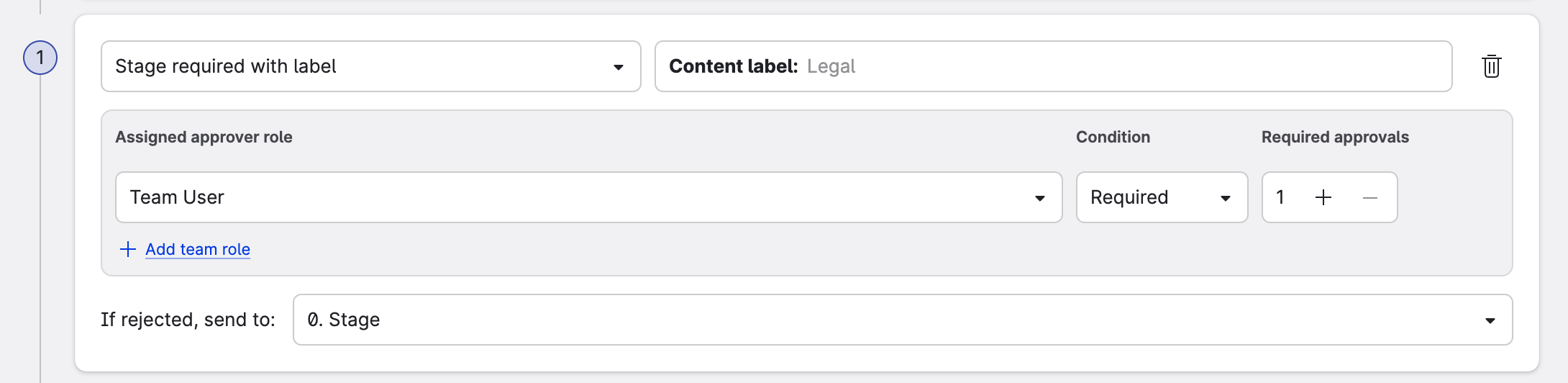
Example — a flow set up as Manager → PR (if "PR" label) → Legal (if "Legal" label):
|
Labels on the content |
Stages that actually run |
|---|---|
|
(none) |
Manager |
|
Legal |
Manager → Legal |
|
PR + Legal |
Manager → PR → Legal |
This works especially well if labels already flow onto your content automatically — for example, when posts are duplicated from labeled templates. The signal "this needs legal review" is already there, so the process reads it instead of asking anyone to remember it.
Good to know when configuring conditional stages:
-
Each conditional stage is bound to one label. The same label can be bound to several stages.
-
Content cannot be sent for approval if no stages were activated. For example a flow set up as PR (if "PR" label) → Legal (if "Legal" label) will disable Send for Approval action if no respective labels will be present on the content, so content can never pass through with zero review regardless of its labels.
-
The set of stages is decided once, when the content is sent for approval. Adding or removing labels while the content is mid-approval doesn't change its path — labels are only re-read if the content is rejected back to the very start.
-
Conditional stages are validated as strictly as regular ones: the stage's team role must have enough approvers, so a stage can never activate and then stall with nobody able to approve it.
-
Conditional stages and the existing optional stages coexist and are different things: optional stages are ticked on by the author per post; conditional stages activate automatically from labels.
Creating a Flow: the Editor and the Unpublished State
Advanced Approval Flows come with a redesigned flow editor. If you've configured approval flows before, you'll find your way around quickly — the building blocks are the same — but one new concept is worth understanding before you start: the Unpublished state.
While you're creating a flow, your work is always saved — even when the configuration isn't valid yet. Say you're setting up a new flow and add a profile that's already covered by a conflicting flow. Previously you'd have had to quit without saving, fix the conflict, and redo the whole setup. Now the flow is simply saved as Unpublished:
-
everything you configured is kept — nothing is lost,
-
the flow is inert — it cannot be triggered, and no content will be routed into it,
-
the editor shows the validation errors standing between the flow and publication.
Fix the errors — in our example, remove the conflicting profile from one of the two flows — and save again. A save with no validation errors publishes the flow: it's live and starts picking up matching content. Publishing is one-way — once a flow is published, it never goes back to Unpublished.
So an in-progress or misconfigured flow can never accidentally govern content, and a valid flow, once live, can't silently drop out of service.
Use Case: A Global Brand with Local Markets
Let's make it concrete with Aurora Motors, a car brand with a central brand team at HQ and local marketing teams in each market.
The goal: HQ produces master campaign content that must be formally approved before markets can use it — but must never be published as-is. Each market adapts the master for its audience, and the adapted post must pass local approval before it goes live. Posts carrying the "Legal" label additionally need the legal team's sign-off.
The setup:
-
A draft-type flow for HQ. The brand team creates a flow with type Draft, author team role HQ Content Creator, stages Brand Manager → Brand Director. Master content approved here becomes an Approved Draft — approved, visible to every market, and unpublishable.
-
A post-type flow per market. The German market gets a flow with type Post, author team role Local Content Creator, covering the German profiles, with stages Local Manager → Legal (if "Legal" label). Other markets get their own equivalents.
The flow in action:
-
HQ creates the master campaign content and sends it for approval. Their team role resolves it to the HQ draft flow — automatically, no picker.
-
Brand Manager and Brand Director approve. The content becomes an Approved Draft.
-
The German team finds it in the Drafts feed and duplicates it. The copy is a brand-new post with no approval attached.
-
They adapt the copy for the German market. Because it mentions financing terms, it carries the "Legal" label (inherited from the master's labels during duplication).
-
They send it for approval. Their team role and profiles resolve it to the German post flow, and the "Legal" label activates the legal stage: Local Manager → Legal.
-
Both stages approve, and the post publishes in the German market.
Central control over the master, local accountability for everything that actually goes out — and no way to skip local review by pointing at HQ's approval.
Advanced Approval Flows: Automatic, Predictable, Safe
The theme running through all three capabilities is the same: the process adapts to the content, not the other way around. Creators create — the right flow attaches itself, the right stages activate themselves, and approved master content can be reused without ever being publishable by accident. Less to remember for your teams, and stronger guarantees for your brand.