
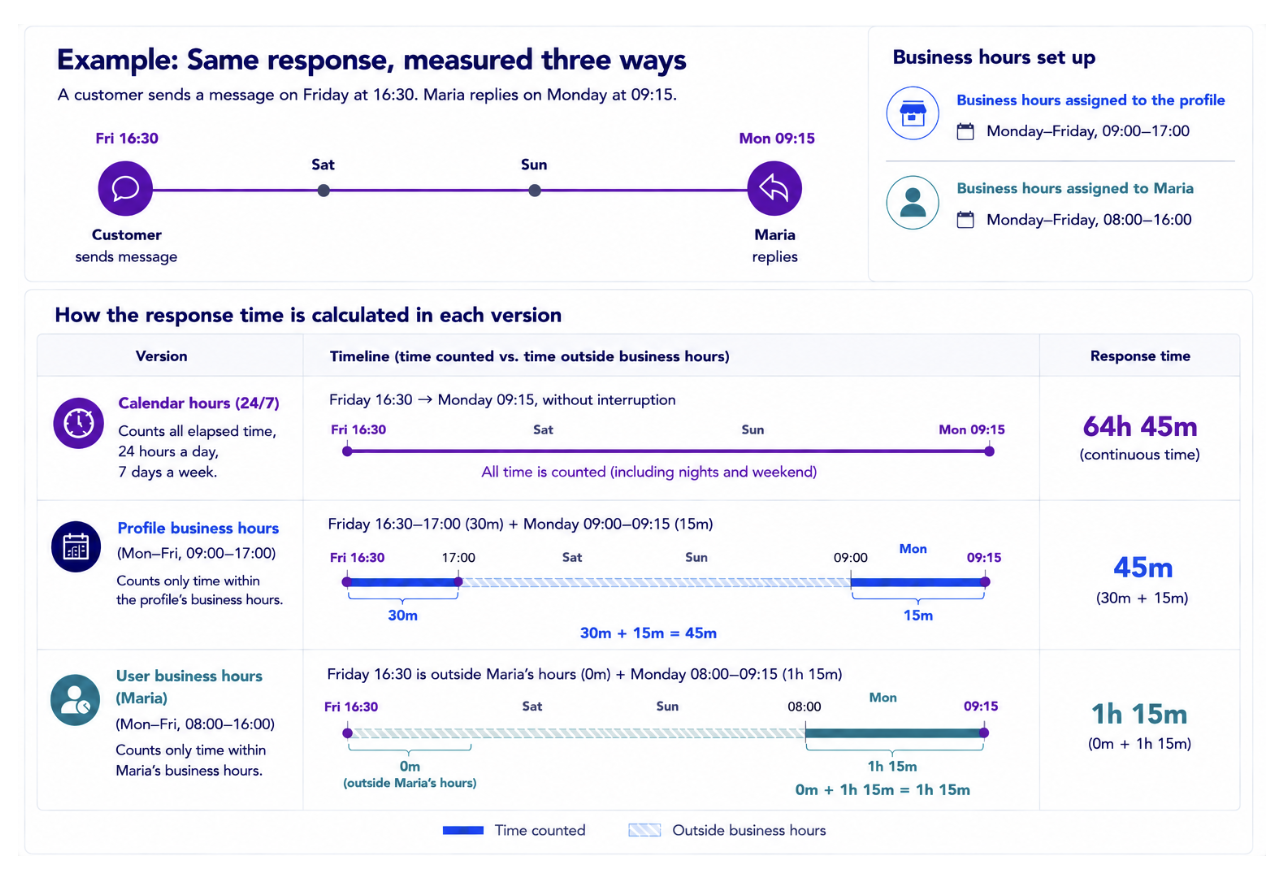
Time-based Care metrics answer the question "how long did this take?" — but the answer depends on which hours you count. A message that arrives on Friday evening and is answered first thing on Monday took nearly three days in calendar time, yet only a few minutes of working time.
Emplifi records both perspectives. Every time-based Care metric is calculated in three versions, and you choose which version you want to see when you analyze a board. For how to create business hours and assign them, see:
The three versions of time metric according to Business Hours
Whenever something happens in a Care case — an agent sends a reply, a case is resolved, a case is assigned — the related time metric is calculated and stored in three versions at the same time:
|
Version |
What it counts |
|---|---|
|
Calendar hours (24/7) |
The full elapsed time, with nothing excluded. This is what your customer experienced. |
|
Profile business hours |
Only the time falling within the business hours assigned to the social profile that the case is linked to. |
|
User business hours |
Only the time falling within the business hours of the relevant Care agent. |
All three versions exist for every case at all times. Switching between them on a board does not recalculate anything — it displays a value that has been already calculated for a case.
Choose the right version
|
Select this version |
When you want to |
|---|---|
|
Calendar hours (24/7) |
Report the true customer experience, or measure against a commitment expressed in calendar time |
|
Profile business hours |
Measure performance against the availability you advertise on a channel or in a market |
|
User business hours |
Assess agent and team performance fairly, without counting hours nobody was scheduled to work |
Many teams track the calendar hours version for customer-facing commitments and the business hours versions for coaching and capacity planning.
Frequently asked questions
1. Where do I switch between the three versions?
In Unified Analytics, the selection is available in three places:
-
Care → Agents performance → Agent efficiency
-
Care → Case management → Case processing
-
Dynamic boards → custom widgets
Select one of the three options, and the time-based metrics are shown in that version.
2. Does switching the business hours version change my data?
No. All three versions are calculated when the event happens and stored together. Switching only determines which of the stored values is displayed.
3. If I filter a board by profile, does it start using profile business hours? Or if I filter by user group, does the metric use that group's schedule?
No. Filtering and the operational hours selection are independent. A filter decides which cases are included; the operational hours selection decides how the time for those cases is measured. Neither one changes the other.
4. Why is a Business Hours value the same as the Calendar hours (24/7) value?
The most likely reason is that the relevant business hours are not assigned, so that version fell back to calendar hours. Check the Business hours tab on the profile, and the business hours assigned to the agent.
5. I just assigned business hours, but last month's numbers did not change. Why?
Business hours are not applied retrospectively. Past data is never recalculated, so the change affects only what happens from now on.
6. Which agent counts as "the relevant agent" for “Agent business hours” version?
The user business hours version follows the meaning of each metric, so the clock always runs against the schedule of the agent who was actually responsible for that stretch of time. This mirrors the data attribution of the metric (see Care Metrics Reference for Unified Analytics ). One case can therefore be measured against two different agents' schedules — one agent's hours for the response, another agent's hours for the resolution — if the case was replied and resolved by different agents.
7. What happens when business hours are not set?
If the relevant business hours do not exist, that version of the metric falls back to calendar hours (24/7). Nothing is left empty and no data is lost.
-
If a profile has no business hours assigned, its profile business hours value equals the calendar hours value.
-
If an agent has no business hours assigned, their agent business hours value equals the calendar hours value.