
On June 24, 2026, the Care module moved from the fixed Agent and Supervisor roles to a set of independent, granular permissions. The change gives you more flexibility — for example, you can build a "team lead" role that can manage views and case fields without full administrative access, or restrict junior agents from deleting cases. This article explains what changed, how existing roles were migrated, and the one behavior change introduced with the release.
What changed
On June 24, two things changed in the user interface:
-
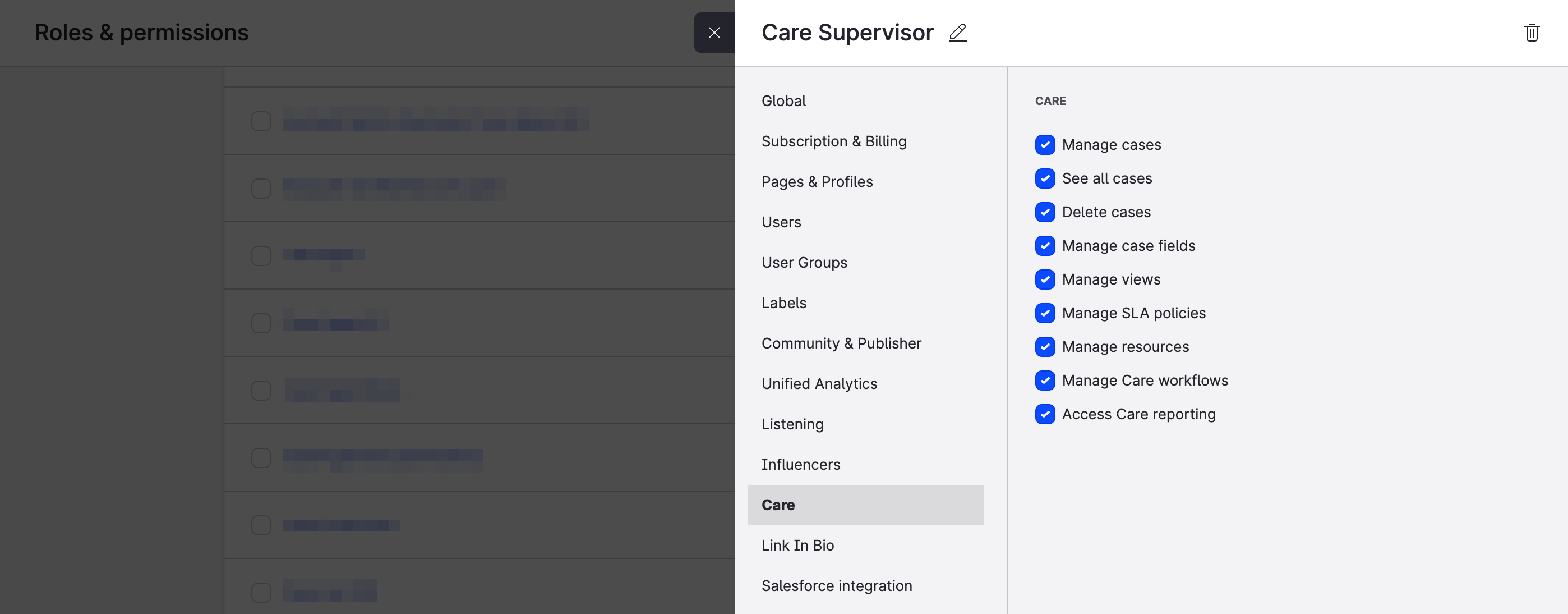
The single dropdown for Care access — with the values No access, Agent, and Supervisor — was replaced by a set of permission checkboxes. Each checkbox grants a specific capability, and you can combine them in any way that fits your team.
-
The Agent and Supervisor labels were removed from user lists and selectors across the Care module and Care settings.
You did not need to recreate any roles. Every role with Care access was migrated automatically, as described below.
How your existing roles were migrated
Each existing role was mapped to the equivalent set of granular permissions. The mapping was designed so that day-to-day work continues without interruption.
|
Previous Care access |
Permissions enabled after migration |
|---|---|
|
No access |
None — the user keeps no access to Care |
|
Agent |
Manage cases, Delete cases, Access Care reporting |
|
Supervisor |
Manage cases, See all cases, Delete cases, Manage case fields, Manage views, Manage SLA policies, Manage resources, Manage Care workflows, Access Care reporting |
The one behavior change introduced with this release
For most users, the migration was invisible. Supervisors kept all their capabilities, and Agents kept their ability to work on, resolve, and delete the cases they were already handling.
There is one intentional difference for users who previously had Agent access:
Agents now see the Spam view. Until June 24, the fixed Spam view was hidden for Agents and visible only to Supervisors. After the release, the Spam view is visible to every user who has access to Care.
For accounts using Teams
These changes apply across both governance models in Emplifi — accounts that use Account roles and accounts that use Teams.
If your account uses Teams, your existing Care Agent and Care Supervisor system templates were updated to the equivalent set of granular permissions. The team roles you created from these templates kept the same scope of access. The Spam view visibility change described above applies in both governance models.
For more information about Teams, see https://docs.emplifi.io/platform/latest/home/team-access .
What you can now do
The new permission model unlocks role designs that were not possible before. A few examples:
-
A team lead who can manage views and case fields without full settings access. Combine Manage cases, See all cases, Manage views, and Manage case fields.
-
A junior agent focused on safe onboarding. Remove Delete cases from the migrated Agent permissions so the user can handle standard day-to-day workflows while restricting destructive actions.
-
A senior agent with broader visibility. Add See all cases to the migrated Agent permissions so the user can pick up unassigned cases or help out across the team.
For step-by-step instructions on creating and editing roles, see https://docs.emplifi.io/platform/latest/home/create-care-specific-account-and-profile-roles .
Frequently asked questions
Did I lose access to any case data?
No. The migration only changed how user permissions are organized. Cases, views, case fields, SLA policies, workflows, and resources were not modified.
Did I need to recreate any roles?
No. Every existing role with Care access was migrated automatically on June 24.
Can my Agents still delete cases?
Yes. The ability to delete cases was preserved for migrated Agents. You can now adjust this for individual roles by turning the Delete cases permission on or off.
Need help?
If you have questions about the change or want to discuss the best permission setup for your team, contact your Customer Success Manager or Emplifi Support.