
Team roles let you control who can create, manage, and apply global labels and label groups. This article applies to accounts that use the Teams governance model in Emplifi. If your account uses the legacy governance model with account roles, see Set Up Label Permissions Using Account Roles (Legacy Governance Model). To learn more about Teams, see Govern Access to Account Resources Using Teams.
You set who can see a private or shared label on the label itself. For that, see Set Up Labels.
Before you begin: To change the label permissions of a team role, you must be either a platform admin or a team admin in the team that the role belongs to.
Default label permissions
-
All users can create, apply, and remove their own private labels, see global labels, and share their private labels with specific users.
-
Platform admins can add and delete content, group labels, and profile labels in the account, edit all shared labels and label groups, and set up and manage all automated labeling rules. For more information, see Access to the Emplifi Platform.
Label permissions in team roles
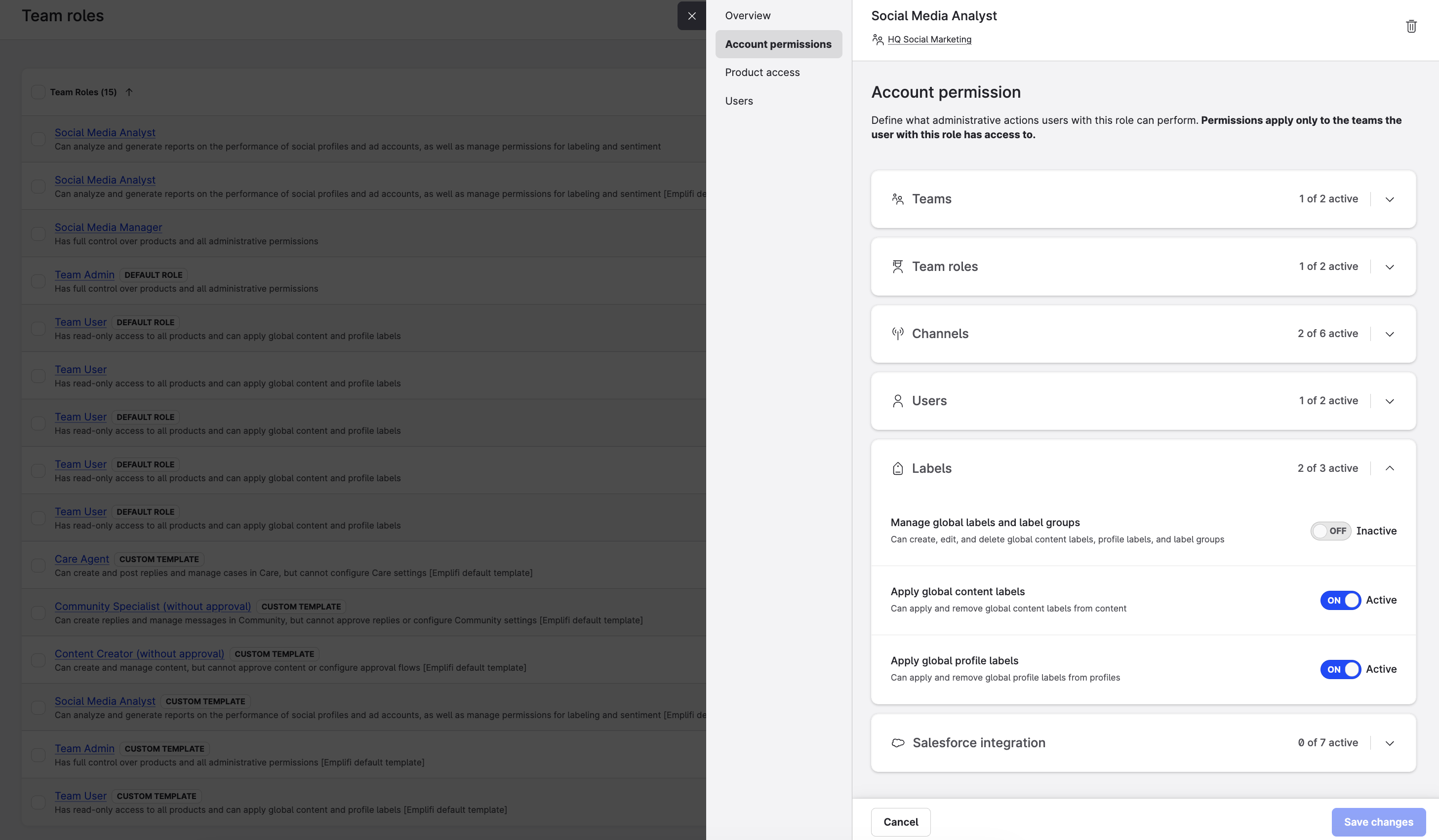
Each team role has a Labels section in its account permissions:
|
Permission |
What it allows |
|---|---|
|
Manage global labels and label groups |
Create, edit, and delete global content labels, profile labels, and label groups. |
|
Apply global content labels |
Apply and remove global content labels from content. |
|
Apply global profile labels |
Apply and remove global profile labels from profiles. |
These permissions apply to global labels. You configure the permissions for labels shared with users in the settings of each label. See Set Up Labels.
Global labels are visible to everyone in the account. Turn on Manage global labels and label groups only for roles that need to control account-wide labels, such as team admins and label managers.
Change the label permissions of a team role
-
Navigate to Settings > Team management > Team roles.
The system templates and the existing team roles are listed. -
Click the team role.
The role panel slides out. -
Click Account permissions.
-
Expand Labels.
The header shows how many of the label permissions are active. -
Turn the permissions on or off as needed.
-
Click Save changes.
The change takes effect immediately for the users with this team role.
Team roles are team-specific. To use the same label permissions in several teams, create a custom role template. For more information, see Update and Maintain Teams.
Automated labeling rules
You set who can create and manage automated labeling rules in the Product access section of the team role, not in Labels:
-
Navigate to Settings > Team management > Team roles.
-
Click the team role.
-
Click Product access.
-
Make sure Automated Labeling is turned on, and expand it.
-
Turn on Manage automated labeling rules.
This permission allows users to create, edit, and delete automated labeling rules. -
Click Save changes.
In Teams accounts, you see all automated labeling rules in the account, but you can manage only the rules that you created. Platform admins can manage all rules. For more information about rules, see Automate Labeling with Rules and How to Integrate Advanced Permissions with Rule-Based Labeling.