
Account roles let you control who can create, manage, and edit global labels and label groups, and who can edit labels that other users shared. This article applies to accounts that use the legacy governance model with account roles. If your account uses Teams, see Set Up Label Permissions Using Team Roles. To check which model your account uses, see User Roles and Permissions.
You set who can see a private or shared label on the label itself. For that, see Set Up Labels.
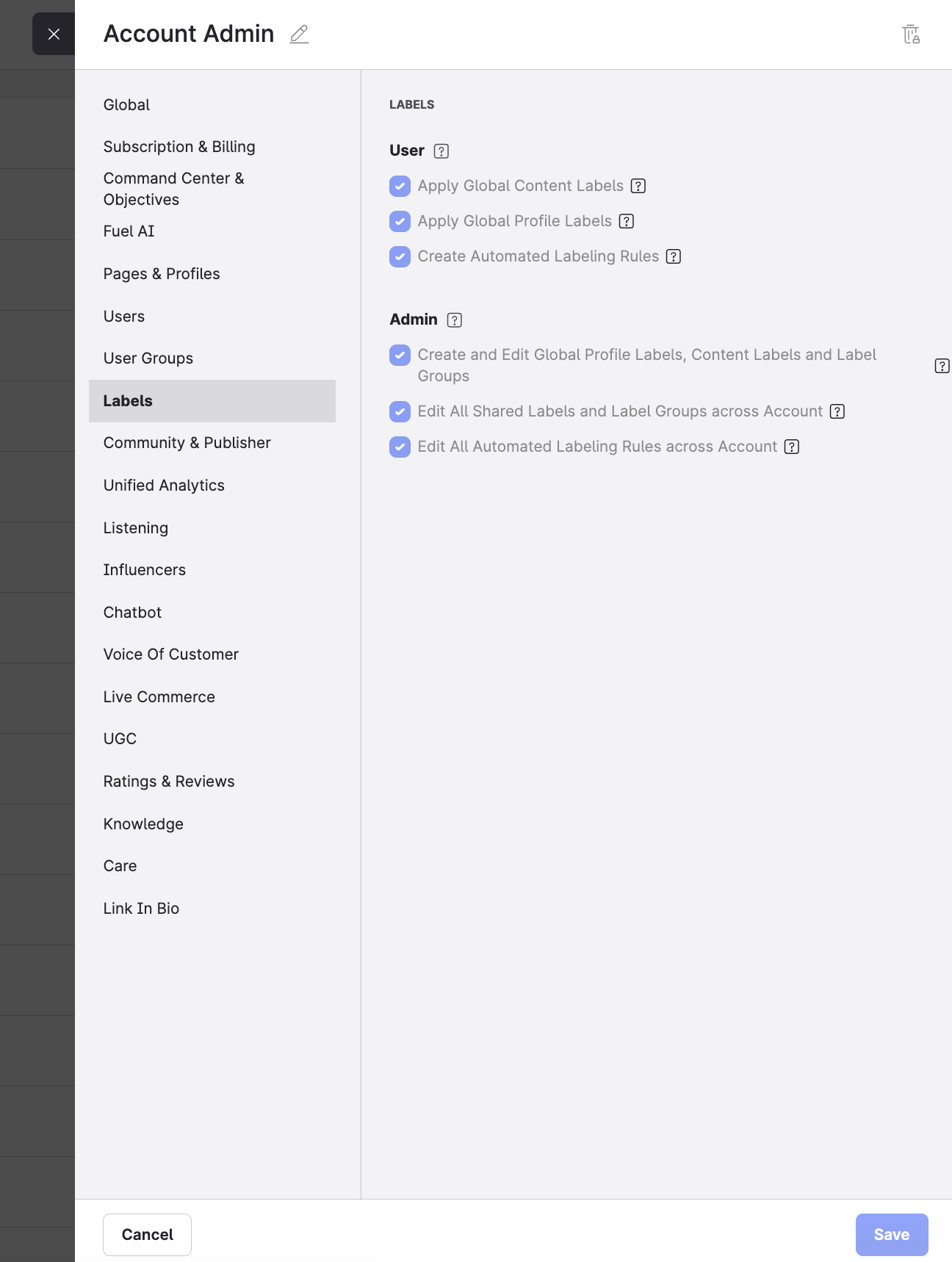
Before you begin: To change account roles, you must be an Account Admin or have a role with Manage Roles & Permissions selected.
Default label permissions
All users can:
-
Create, apply, and remove their own private labels.
-
See global labels across the account.
-
Share their private labels with specific users. The label is then no longer private and is accessible only by the users they choose.
Users with the Account Admin account role (see Account Roles) can also:
-
Edit shared labels and label groups of other users.
-
Edit global labels and label groups.
-
Edit all automated labeling rules.
Label permissions in account roles
An account role has a Labels section with these permissions. All of them are turned on by default for Account Admins.
|
Permission |
What it allows |
|---|---|
|
Create and Edit Global Profile Labels, Content Labels, and Label Groups |
Create and edit global labels and label groups. |
|
Edit All Shared Labels and Label Groups |
Edit labels and label groups that other users shared. |
|
Edit All Automated Labeling Rules Across Account |
Edit all automated labeling rules, not only your own. |
Global labels are visible to everyone in the account. Grant Create and Edit Global Profile Labels, Content Labels, and Label Groups only to roles that need to control account-wide labels.
Change the label permissions of an account role
-
Navigate to Settings > Roles & permissions > Account roles.
-
Click the account role you want to change, or create a new one.
The account role panel opens. -
Find the Labels section.
-
Select or clear the label permission checkboxes as needed.
-
Click Save.
-
Assign the role to the users who need it:
-
Navigate to Settings > Users.
-
Click the user.
-
In Account role, select the role.
-
The new permissions take effect when you assign the role to the user.