
The new Listening Hub is the redesigned home for Listening in the Emplifi platform. It brings everything you need to set up and run listening in one place: an overview of what's happening across your queries, the query builder, query sets, and spike alerts.
Listening lets you monitor digital conversations and understand what customers are saying about brands, products, and industries. To start listening, you set up a keyword-based query that monitors (listens to) digital content. The results of queries are called listening mentions.
You can:
-
Monitor your queries, spikes, and trending topics on the Home page
-
Create and manage queries, query sets, and spike alerts
-
Analyze mentions in the Unified Analytics and Content modules
-
Respond to mentions in Community (if Use Community to manage listening mentions is turned on for the query)
Navigate the Listening Hub
The left menu contains the following items:
|
Menu item |
What you find there |
|---|---|
|
Home |
An overview of your queries, spikes, trending topics, and AI-generated highlights |
|
Queries |
A list of all your listening queries |
|
Query sets |
A list of your query sets |
|
Spike alerts |
A list of your spike alerts |
|
Explore in Content |
Opens your listening mentions from this week in the Content module, newest first |
|
Explore in Analytics |
Opens the Listening aggregated overview board in Unified Analytics for the last 7 days |
To get more space, you can collapse the menu with the Hide the menu button.
Mention limit counter
On the Queries, Query sets, and Spike alerts pages, the header shows how many mentions you've collected out of your Yearly mention limit (or Trial mention limit for trial accounts).
If your account reaches the mention limit, a banner appears at the top of the page and all your queries are suspended. Data collection renews at the beginning of the next billing period. To get more mentions sooner, click request more mentions in the banner, and your account manager will contact you.
Home
Home is your listening dashboard. It shows the most important information at a glance and lets you jump straight to the right action.
To create a new query from Home, click + Create query in the header.
Status tiles
Three tiles at the top of the page summarize the state of your Listening:

-
Running queries – The number of queries that are currently collecting mentions (including queries processing historical data).
-
Spike alerts status – The state of your spike alerts:
-
Not set up – You don't have any spike alerts yet.
-
N spikes in last 24h – Your alerts detected spikes in the last 24 hours.
-
No spikes in last 24h – Your alerts are running and nothing unusual has happened.
-
No active alerts – You have spike alerts, but none of them is running.
-
-
Yearly mention limit (or Trial mention limit) – The number of mentions you've collected out of your limit. The icon changes to a warning once you reach 80% of the limit. Hover over the tile to see the number of spent and available mentions and when your limit renews (or when your trial ends).
Spike alerts to review
This section shows the spike alerts that were triggered in the last 24 hours. Each card shows the alert name and when the latest spike was detected.
-
Click Analyze spike to open the mentions that triggered the alert in the Content module.
-
Click Dismiss to hide a spike you've already reviewed. Dismissed spikes are remembered in your browser.
-
If more than six alerts were triggered, click Show all N alerts to see all of them.
When you've dismissed all spikes, you'll see You've reviewed all spikes from the last 24 hours.
If you haven't set up any spike alerts yet, the section invites you to create one. Click Create spike alert to start.

If your spike alerts didn't detect anything in the last 24 hours, or if none of your alerts is running, the section is hidden. The Spike alerts status tile shows No spikes in last 24h or No active alerts.
Trending in [country]
This section shows yesterday's most discussed topics on X in the selected country. Each topic card includes a short summary and the related keywords.
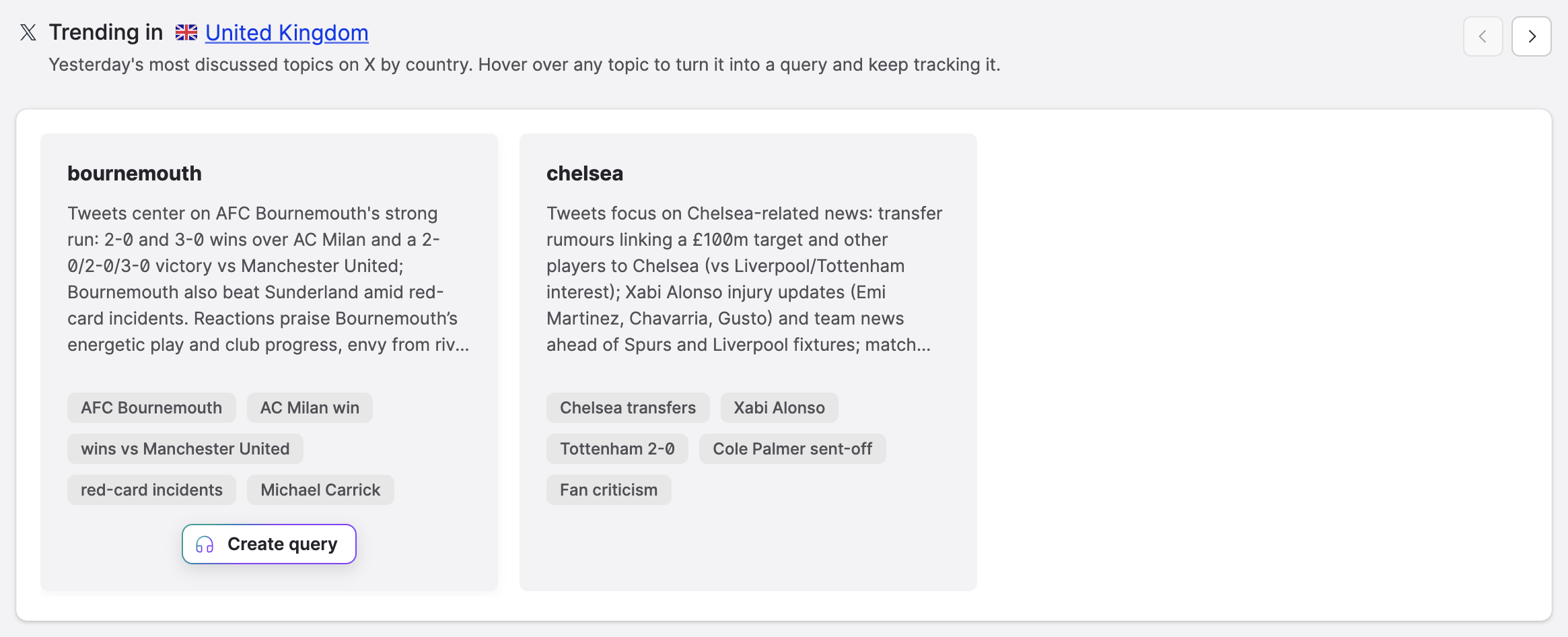
To track a trending topic:
-
Select a country from the drop-down list next to the heading (the default is United States).
-
Browse the topics using the arrows.
-
On the topic you're interested in, click Create query.
The query builder opens, prefilled with the topic's keywords and the country filter. The query is named after the topic and the country code, for example, Topic name - US. Review the query and save it.
If you've already created a query from the topic, the button opens that query instead.
Highlights for query
This section shows AI-generated summaries of what's being discussed in your mentions over the last 7 days. The highlights are grouped into themes, and each theme comes with up to three example posts.
To see highlights:
-
Click the data source picker next to the heading.
-
Choose Listening queries or Listening query sets.
-
Select one or more queries or query sets.
-
Click Apply.
Generating highlights can take up to a few minutes. Your selection is remembered for the next time you visit Home.
To track a theme in more detail, click Create query on its card. A copy of the first selected query opens in the query builder with the theme's keywords added.
Need a longer period or filters by sentiment, platform, or language? Click Open in Analytics in the section description.
If the selected source doesn't have enough mentions, you'll see Not enough mentions to generate highlights. Pick a source with more activity.
Running queries
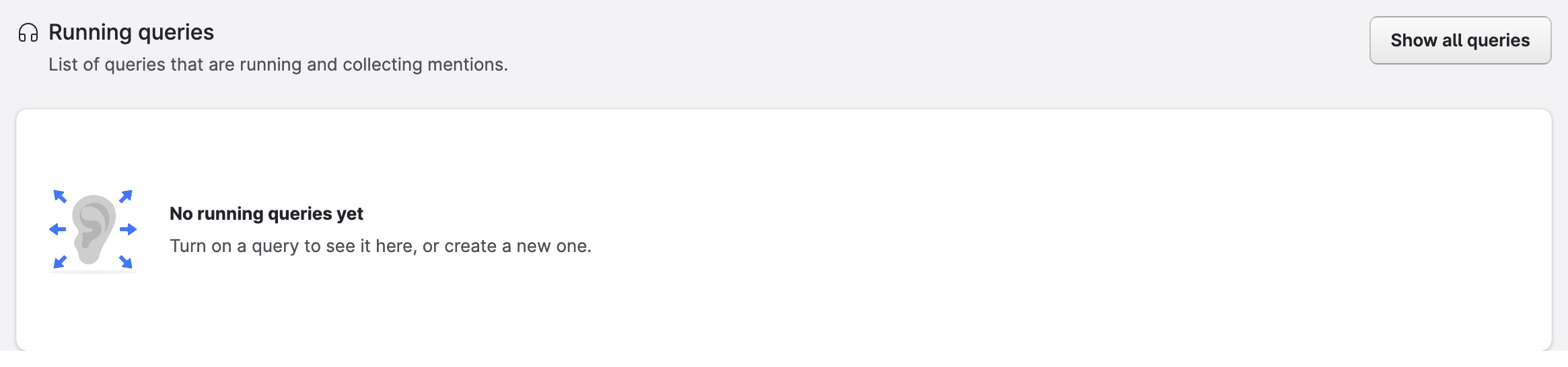
This section lists the queries that are currently running and collecting mentions, sorted by the number of mentions. Click Show all queries to go to the Queries page. You can work with the queries in the same way as on the Queries page (see Manage your queries).
Create a listening query
A query defines what content Emplifi collects for you, which sources it monitors, and for what period.
To create a query, click Create query on the Queries page or + Create query on Home. The query builder opens in full screen.
The query builder has three parts:
-
Header – The query name and the Save button.
-
Center column – Collapsible sections where you define the query: General, Keywords, Range & sources, and Advanced settings.
-
Right panel – The Preview and Rules & operators tabs.
To create a query:
-
Type the query name in the header (up to 100 characters).
-
In General, choose the date range and the query sets.
-
In Keywords, add the keywords you want to monitor.
-
In Range & sources, choose what content and data sources to monitor.
-
In Advanced settings, adjust the optional settings.
-
(Optional) In the Preview tab, click Generate to check the estimated results.
-
Click Save.
The query starts collecting data immediately, or on the scheduled date.
To close the query builder, click the X button or press Esc. If you have unsaved changes, you'll be asked whether you want to leave without saving.
If your query contains errors, you'll see the message Your query has validation errors. Click Show errors to jump to the first error.
General
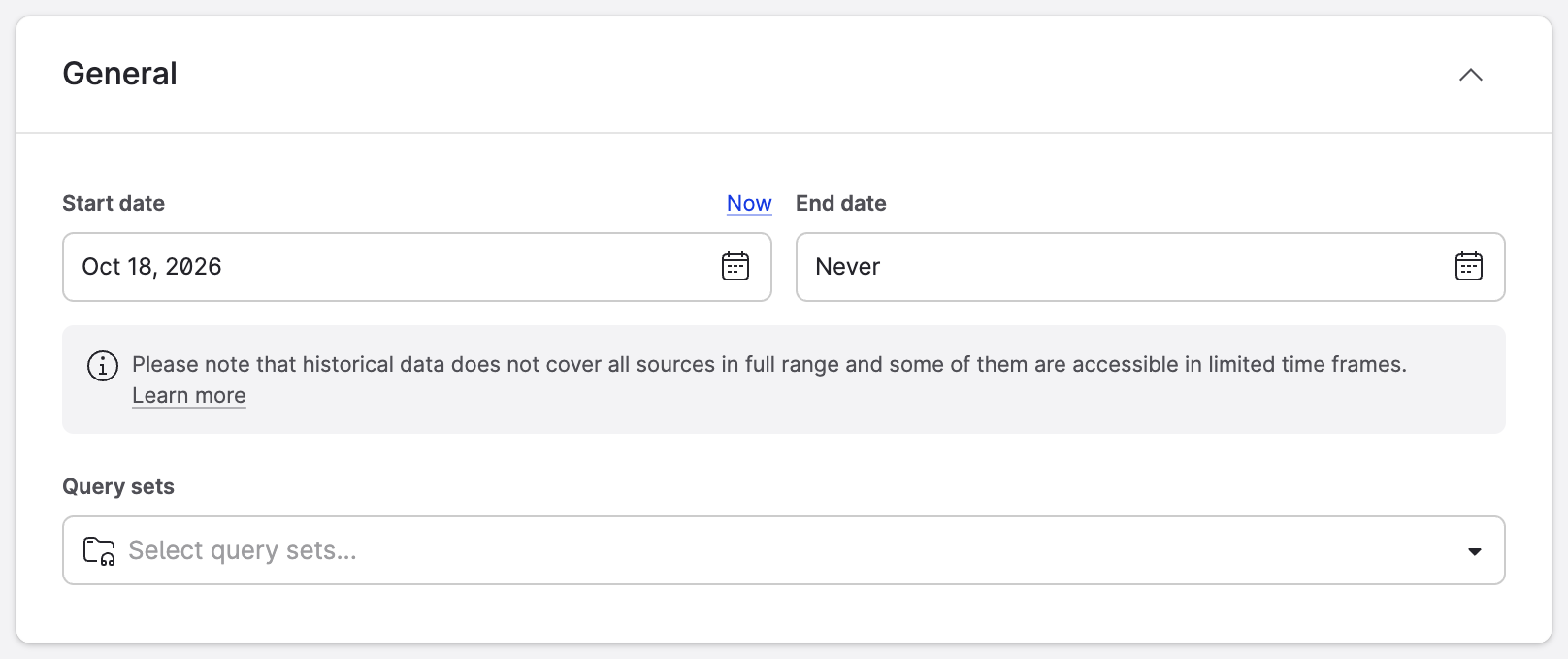
Date range
By default, the start date is set to 7 days ago and the end date to Never. To start collecting from the current moment instead, click Now. You can let the query run for a limited time, or schedule the start and end for specific days in the future, for example, for a short campaign.
Historical data
You can set the start date in the past to collect historical data from up to 365 days ago. By default, the query collects data from the last 7 days.
Historical data is not available in full range for all sources. Some sources are accessible only for limited time frames (see Downloading and Processing Listening Data).
Historical mentions are deducted from your current billing period. With a broad query, you can reach your mention limit almost immediately. If collecting the history would use up your whole limit, Emplifi warns you before saving. You can then cancel, request more mentions, or click Run anyway.
Query sets
Select the query sets the query should belong to. You can assign one query to multiple query sets (see Query sets).
Keywords
Keywords are the basic part of your query. They define which listening mentions you collect from social media and the web.
Add keywords
To add a keyword, type it into the field and press Enter.
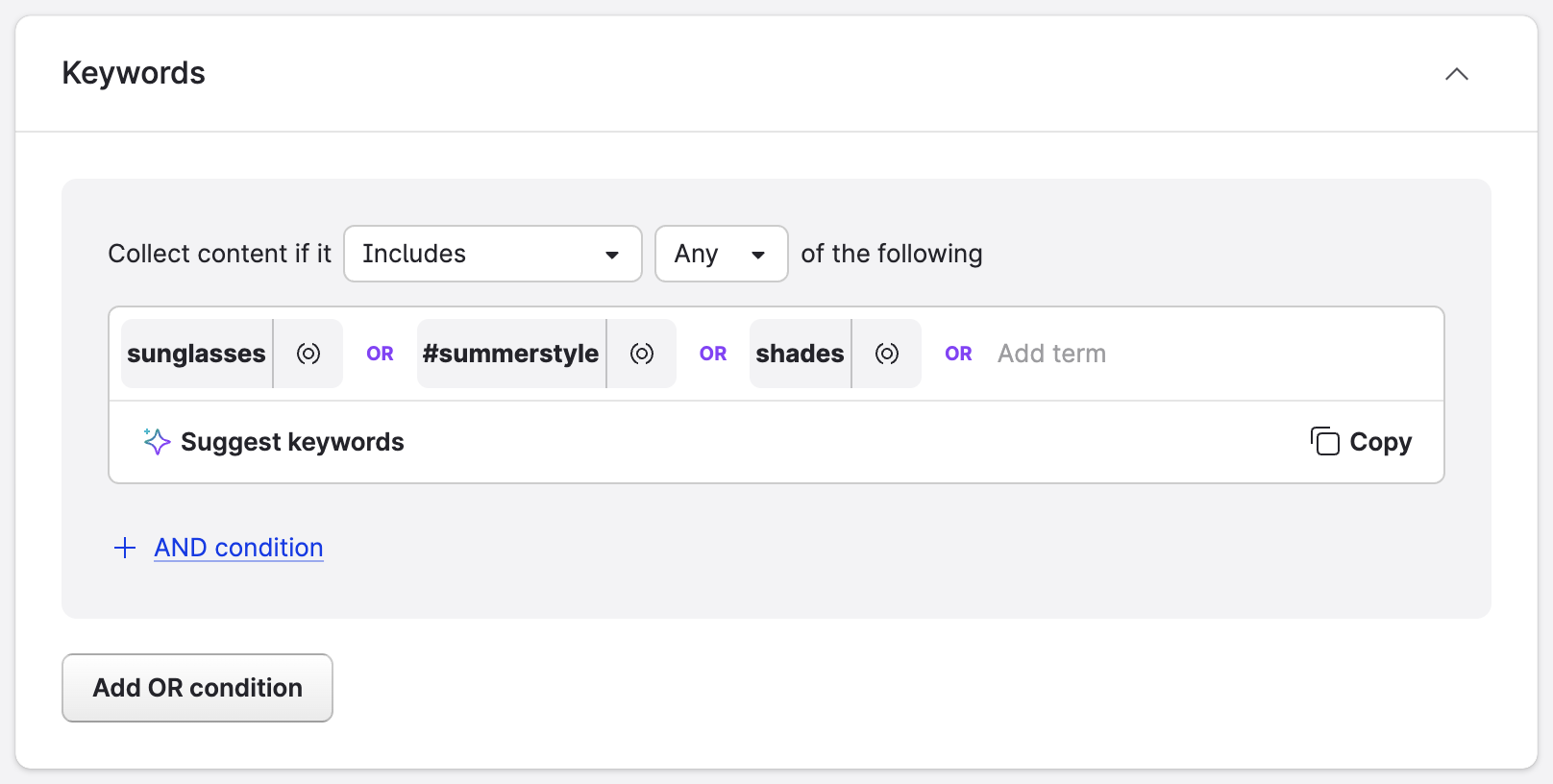
A keyword can be:
-
A plain-text word or a combination of words
-
A #hashtag
-
An @mention
When entering keywords, consider the following:
-
Keywords are not case-sensitive. sunglasses and SUNGLASSES are treated as the same keyword.
-
Diacritic marks are taken into account. kampaň and kampan are treated as two different keywords.
-
To search for an exact phrase, put it in quotation marks, for example, "customer support".
-
Empty keywords and single-character keywords can't be used.
To copy all keywords of a condition, click Copy.
Build conditions
Each condition reads as a sentence:
Collect content if it [Includes / Doesn't include] [Any / All] of the following [keywords]
-
Includes – The keywords must be present in the content.
-
Doesn't include – The keywords can't be present in the content.
-
Any – At least one of the keywords must match (OR).
-
All – All of the keywords must match (AND).
To combine conditions:
-
Click + AND condition to add a condition that must also be met.
-
Click Add OR condition to add an alternative group of conditions.
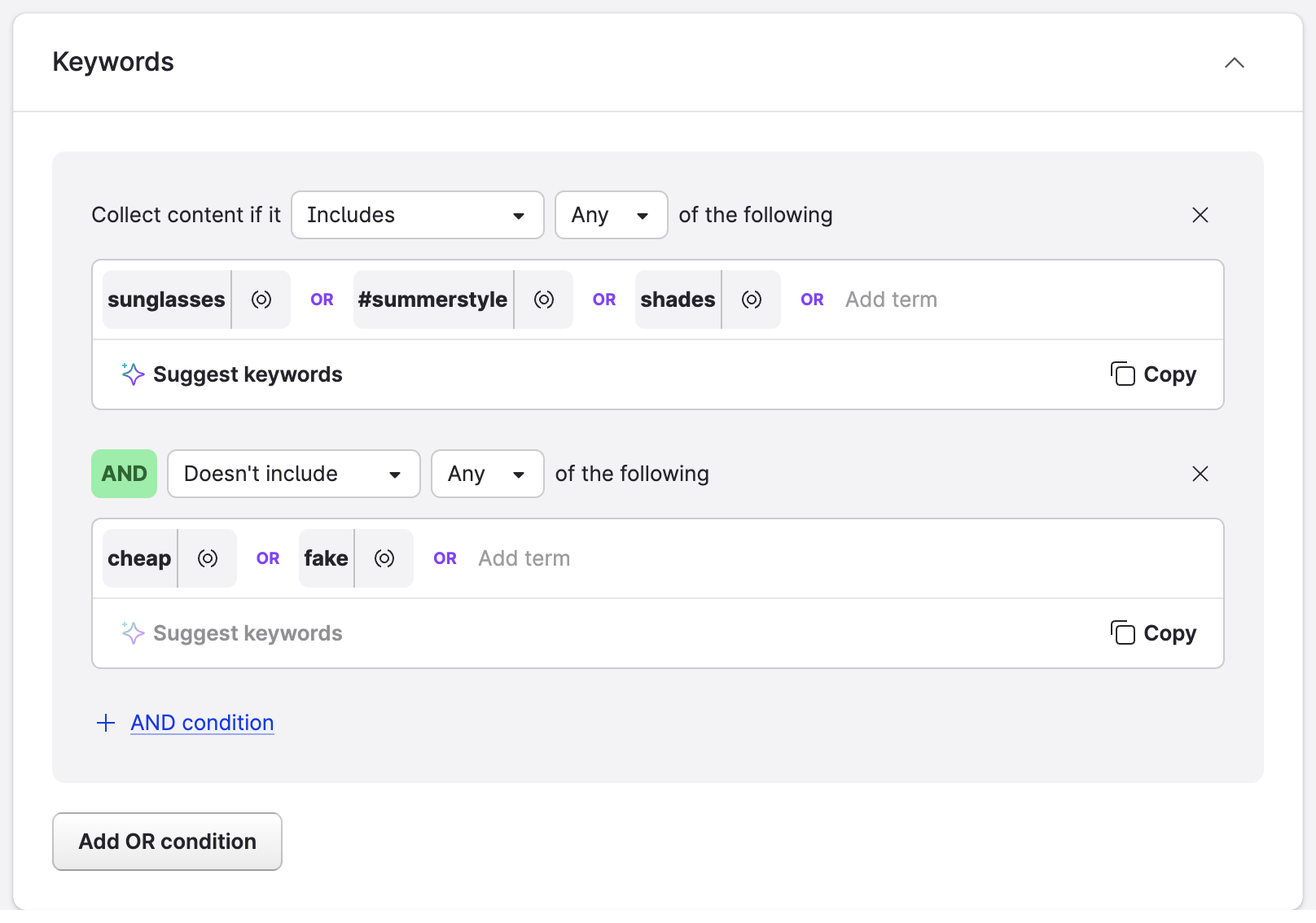
For example, the following condition collects mentions of sunglasses, #summerstyle, or shades, but only if they don't contain cheap or fake:
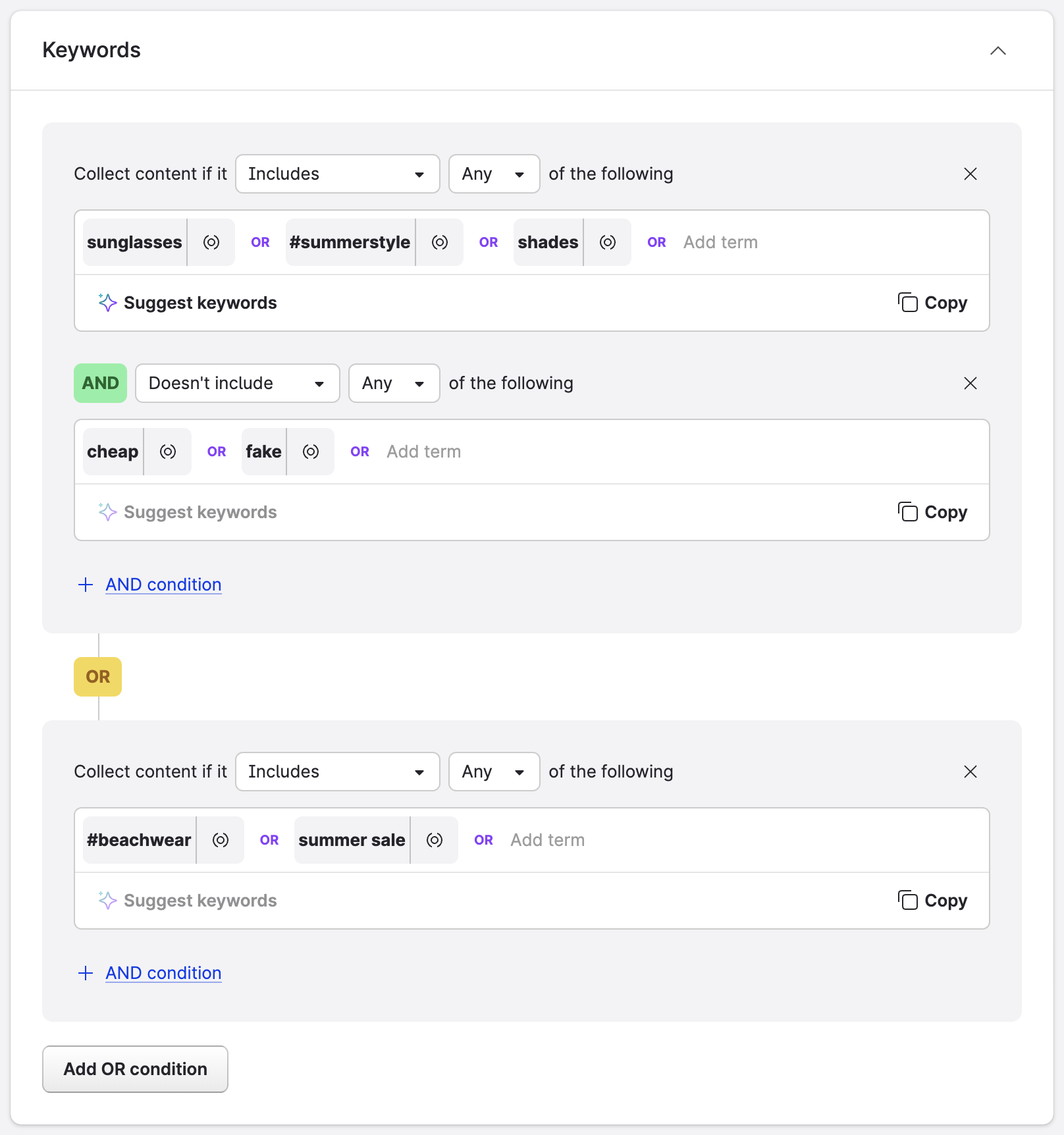
With an OR condition, the query also collects mentions that match the second group, here #beachwear or summer sale:
Each query must contain at least one "include" condition. Queries consisting only of "doesn't include" conditions are not supported.
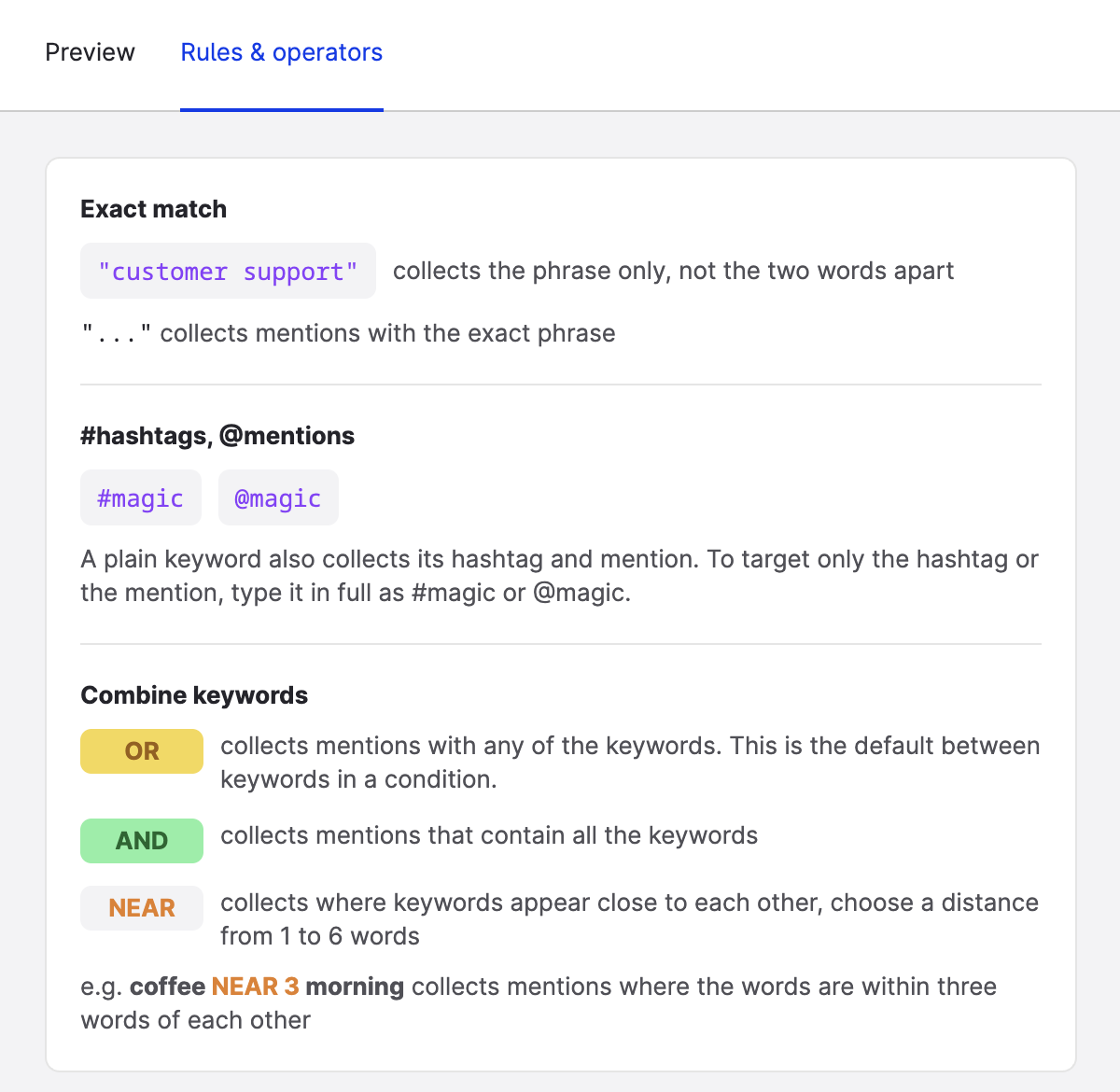
For an overview of all operators, open the Rules & operators tab in the right panel.
NEAR operator
To make your query more specific, use the NEAR operator. NEAR is a proximity operator: it requires a term to be found within a certain number of words from the keyword. If the term is found within the specified distance, the mention is included in the results.
For example, if you use the keyword cat and you're interested only in domestic animals, you can set up the condition as follows:
cat NEAR(3) domestic OR animal
The mention A cat is a domestic animal. is included in the results, because domestic is two words away from cat. The mention Computerized Axial Tomography is often called CAT. is not included.
To add a NEAR operator:
-
Click the proximity icon ((o)) next to the keyword.
-
Type the term and press Enter.
-
Click NEAR on the chip, choose the maximum number of words between the terms (1 to 6), and click Apply.
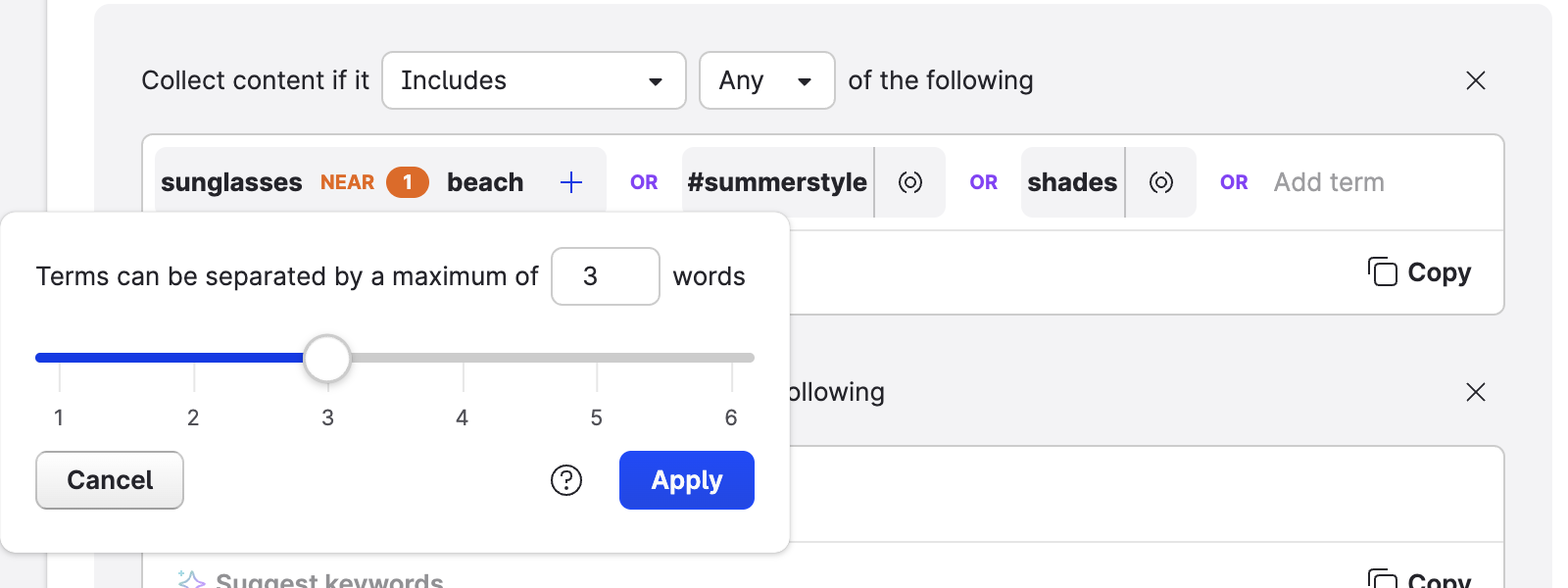
The keyword chip then shows the operator and the distance:

When using NEAR, consider the following:
-
You can only use one-word terms with the NEAR operator.
-
A NEAR operator counts as two keywords toward the query limit.
-
If the Web is one of your data sources, you can use up to five NEAR operators in one query.
Suggest keywords with AI
When you've added at least three keywords, click Suggest keywords. Emplifi suggests related terms based on your keywords and adds them to the condition.
-
To get more suggestions, click Suggest more. Your existing keywords stay.
-
To remove the AI-generated keywords, click Clear AI keywords. Your original keywords stay.
Range & sources
Range
Choose how broadly you want to listen:
-
Wide range listening – The widest range possible of social media and web content. Wide range listening combines multiple internal and external data sources that give you access to billions of social media posts and web articles.
-
Specific social profiles – Listen only to the content of specific social media profiles that you choose.
Country and language filters
With wide range listening, you can narrow down the collected content by country and language:
-
Select Country filter or Language filter.
-
Choose Listen only to to collect content only from the selected countries or languages, or Exclude to skip them.
-
Select the countries or languages.
TikTok and Reddit content and Instagram hashtag mentions can't be filtered by country.
Data sources
Turn on the data sources you want to monitor. At least one data source must be on.
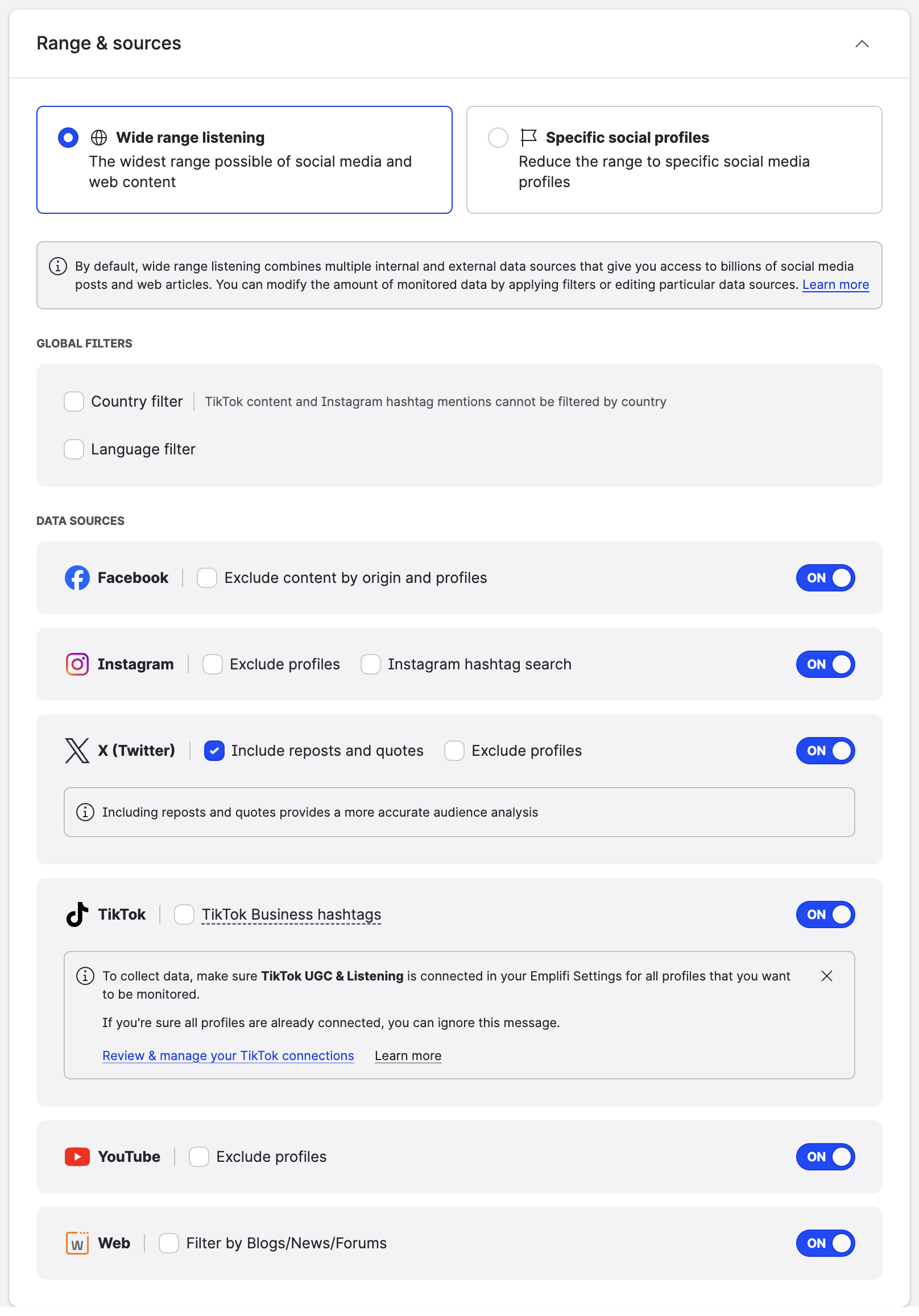
|
Data source |
Wide range listening |
Specific social profiles |
|---|---|---|
|
|
Exclude content from specific pages: all content, brand's content, or user-generated content |
Listen to specific pages: all content, brand's content, or user-generated content |
|
|
Exclude profiles; Instagram hashtag search |
Listen to specific profiles |
|
X (Twitter) |
Include reposts and quotes; exclude profiles |
Listen to specific profiles; include reposts and quotes |
|
YouTube |
Exclude profiles |
Listen to specific profiles |
|
TikTok |
TikTok Business hashtags |
Not available |
|
Web |
Filter by blogs, news, or forums |
Not available |
|
|
Exclude specific subreddits |
Listen to specific subreddits |
Reddit as a data source is available as an add-on. To have it enabled for your Emplifi account, contact your Customer Success Manager or Emplifi Support at support@emplifi.io.
When you choose profiles, you can pick from your own profiles or search for public profiles on the platform. Click Apply to confirm your selection.
Some sources need extra attention:
-
Instagram hashtag search gives you access to Instagram's public content tagged with a given hashtag. Your account can monitor up to 100 unique hashtags across all queries. Country filters can't be applied to hashtag mentions.
-
TikTok – To collect data, make sure TikTok UGC & Listening is connected in your Emplifi Settings for all profiles that you want to monitor. Click Review & manage your TikTok connections to check it.
-
Reddit – Emplifi monitors all of Reddit except the subreddits you exclude. Broad queries may generate a high volume of mentions.
Learn more about the data sources in Listening Data Sources and Covered Content.
Advanced settings
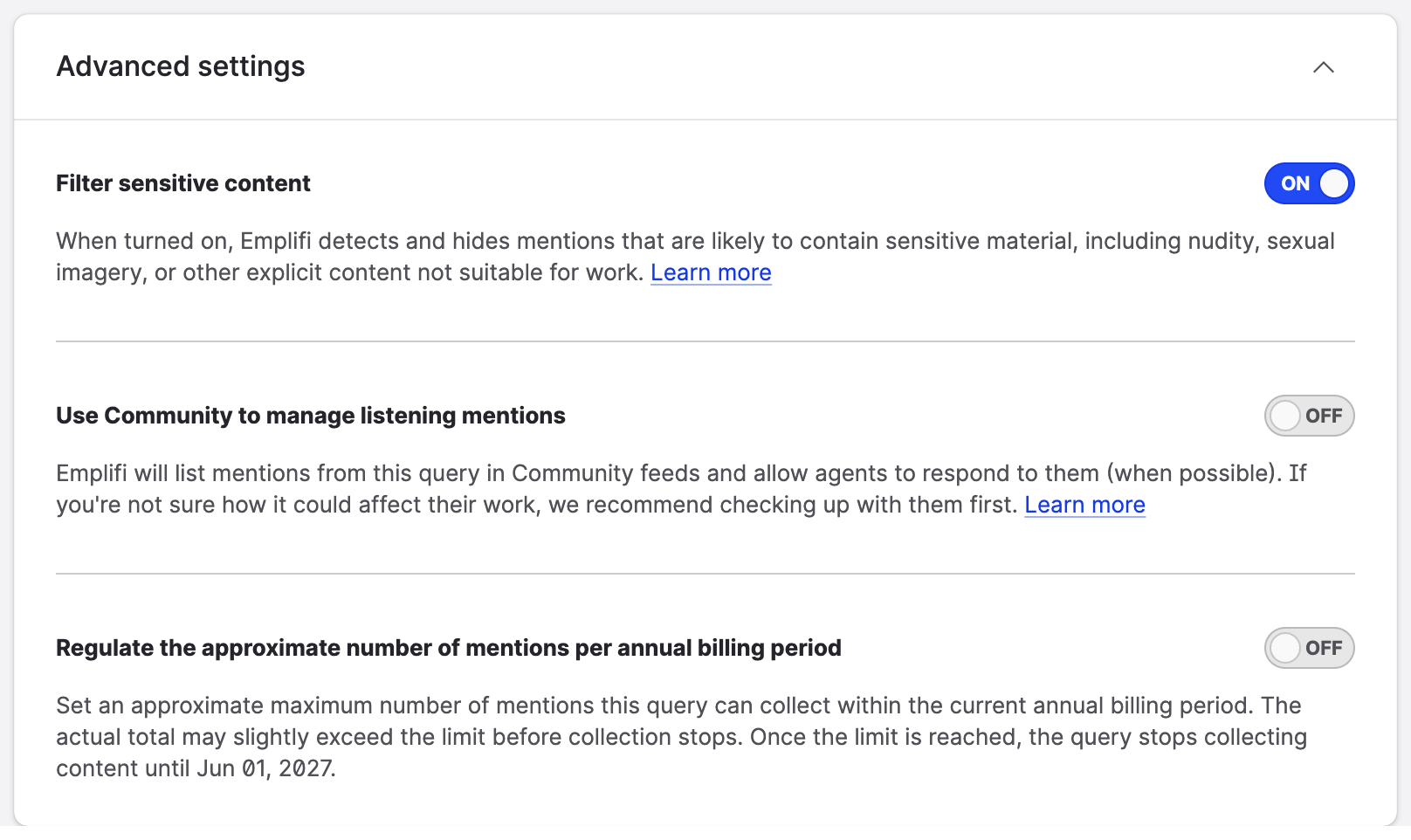
|
Setting |
Description |
|---|---|
|
Filter sensitive content |
Emplifi detects and hides mentions that are likely to contain sensitive material, such as nudity, sexual imagery, or other explicit content. |
|
Use Community to manage listening mentions |
Lists the query mentions in Community feeds and allows agents to respond to them (when possible). If you're not sure how it could affect your colleagues' work, check with them first. |
|
Regulate the approximate number of mentions per annual billing period |
Sets an approximate maximum number of mentions the query can collect in the current billing period (at least 500). Once the limit is reached, the query stops collecting content until the next billing period. The actual total may slightly exceed the limit. |
All queries in your account share the mention limit of your Listening package. Regulating a broad query helps you avoid reaching the limit and having all your queries suspended.
Preview your query
Before you save the query, you can check what results to expect. In the Preview tab, click Generate.
The preview shows:
-
Estimated number of mentions for the last 30 days and the daily average, based on data from the past 30 days
-
The number of historical mentions to collect for the selected date range
-
How the query affects your mention limit
-
Sample posts
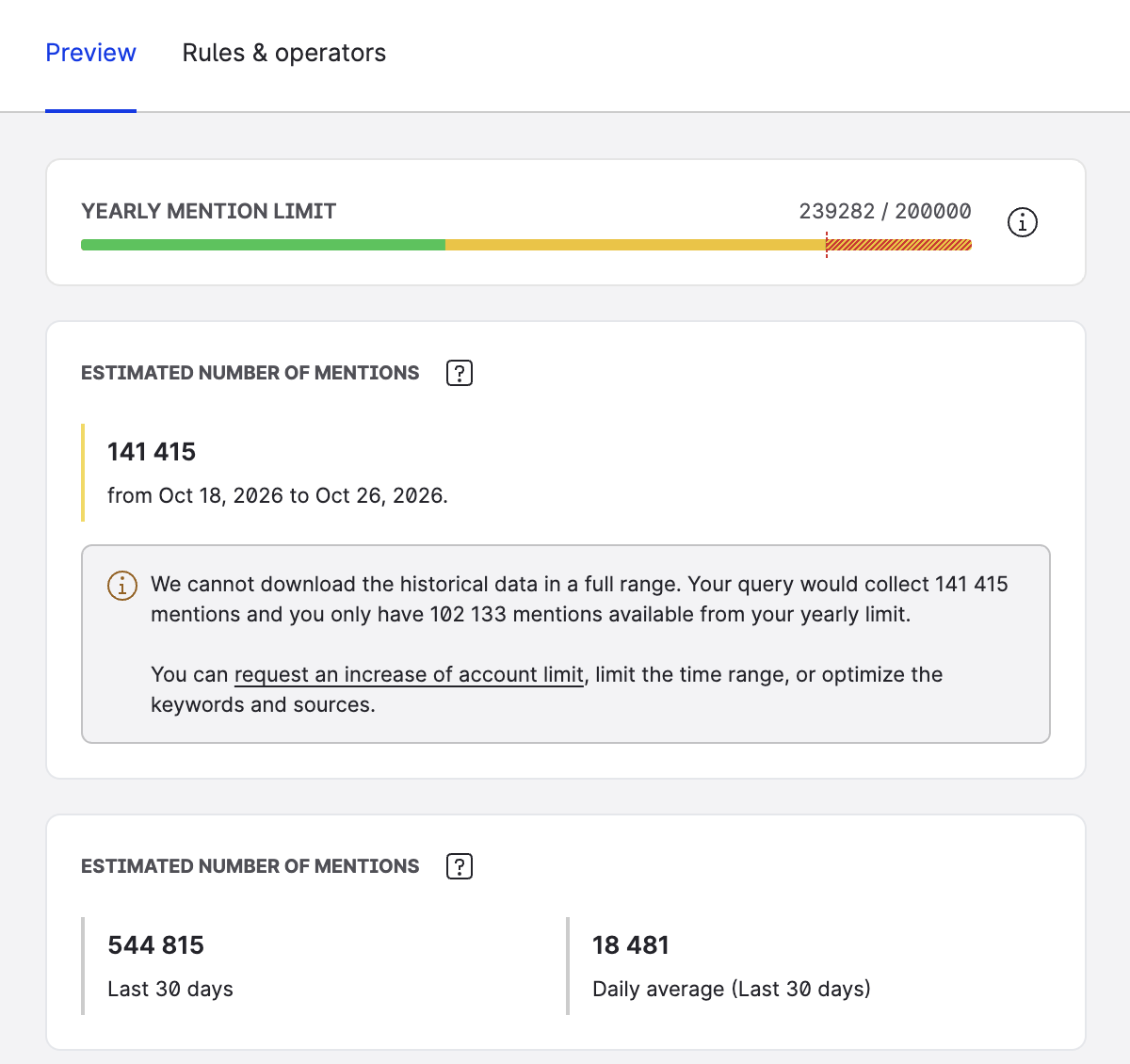
When you change the query, the preview shows Preview is out of date. Click Update to refresh it.
The preview shows estimated results. The actual collected data may vary.
Maximum length of a query
Some data sources have technical limits on query length. The length includes the whole query: keywords, operators, conditions, and filters (profiles, countries, and languages).
-
X (Twitter) – Up to 4,096 characters
-
Web – Up to 3,900 characters
-
Facebook, Instagram, Reddit, TikTok, YouTube – No limit
Emplifi calculates the query length for you. If you exceed a limit, an error appears next to the section title with the current length and the limit, for example, Reduce keywords or filters to meet X's character limit. Simplify the query, or split it into multiple queries.
Edit a listening query
To edit a query, click it in the list. The query opens in the query builder.
The changes you make apply only to the listening mentions collected from now on. They aren't applied to the mentions the query has already collected.
If you want to re-download the already collected mentions to match the new query conditions, duplicate the query, edit it as needed, and set the start date and the end date to cover the previous period. Depending on the query data sources, you can re-download the data from up to one year ago.
You can't edit a query while it's processing historical data. To edit it, wait until processing ends, or click Stop collecting historical mentions. The historical data that has already been collected remains available.
Manage your queries
The Queries page lists all your queries. For each query, you can see:
-
The query name and the query sets it belongs to
-
The author
-
Mentions this billing period – The number of mentions the query collected in the current billing period. The number may differ from analytics, because it includes manually removed mentions.
-
The query status
To find a query, type its name into the search field.
Query actions
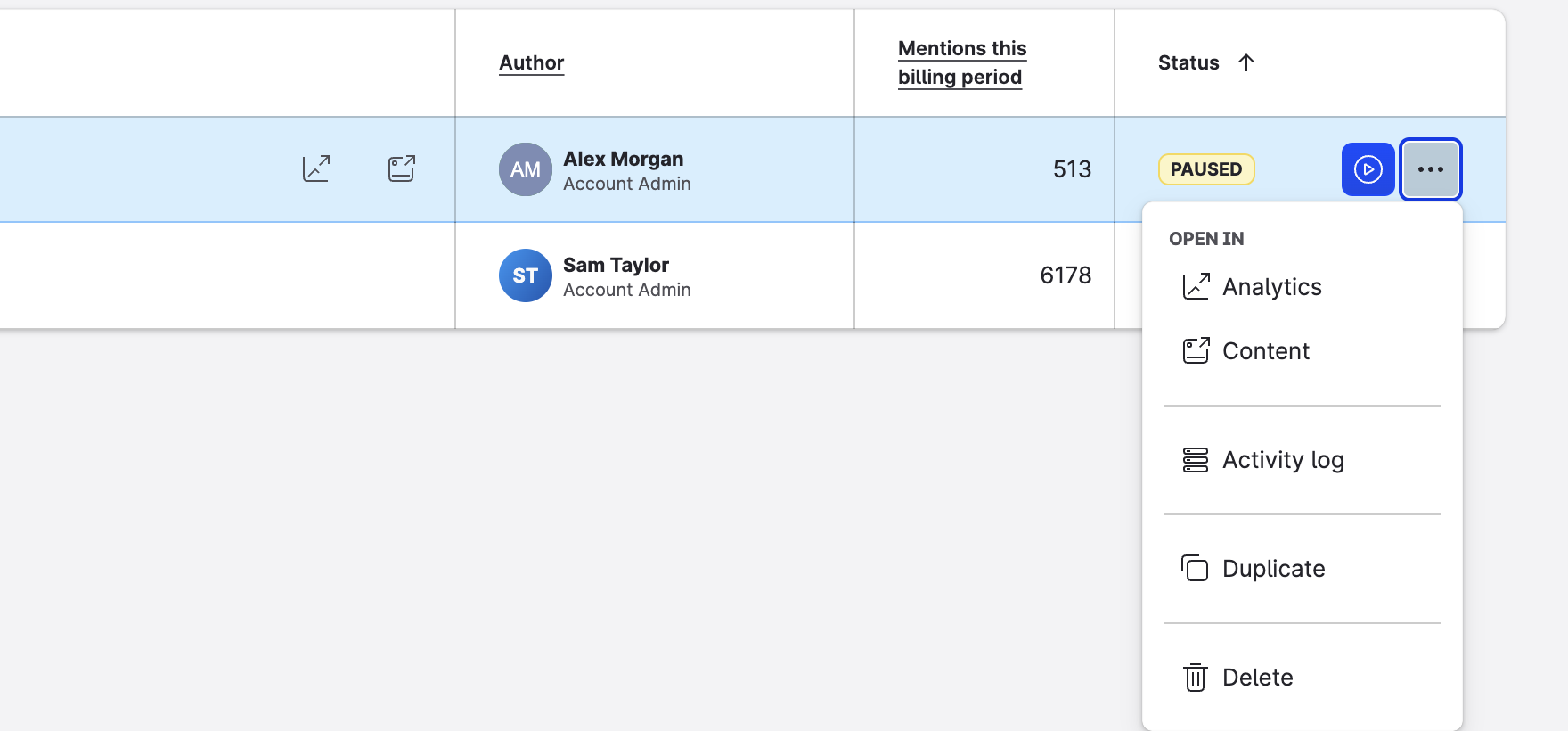
|
Action |
How to do it |
|---|---|
|
Edit the query |
Click the query row |
|
Analyze mentions in Unified Analytics |
Click the Analyze icon, or select Open in > Analytics from the row menu |
|
Open mentions in Content |
Click the Open in Content icon, or select Open in > Content from the row menu |
|
Pause or run the query |
Click the pause/run button next to the status |
|
See the history of changes |
Select Activity log from the row menu |
|
Duplicate the query |
Select Duplicate from the row menu. The copy is named [query name] - copy. |
|
Delete the query |
Select Delete from the row menu, or select multiple queries and click Delete in the bulk action bar |
When you pause a query, a Pause query? confirmation dialog appears. After you confirm, the query stops collecting new mentions until you run it again. The mentions collected so far stay available.
When you delete a query, all its collected mentions are deleted as well, and you can't use the query anywhere else in Emplifi. Reports connected to the query may not work as expected. If any spike alerts use the query, they become inactive.
Activity log
The activity log shows who changed the query, when, and what changed: for example, keywords, sources, dates, filters, or status changes.
Query statuses
There are two basic types of queries: active and inactive. Your account limit only counts active queries.
Active queries
-
Running – The query is collecting listening mentions.
-
Processing – The query is processing historical data. You can't edit the query during processing, but you can stop it.
-
Scheduled – The query will start collecting listening mentions on the scheduled date.
-
Regulated – The query reached the maximum number of mentions you set for it. It starts collecting content again at the beginning of the next billing period.
-
Suspended – Your account reached its mention limit. The query starts collecting data again when the limit renews.
Inactive queries
-
Paused – The query was paused and isn't collecting any listening mentions.
-
Done – The query reached its end date and isn't collecting any listening mentions.
Hover over a status to see more details.
Maximum number of queries and mentions
The maximum number of queries and mentions depends on your account settings.
-
Queries – Your package limits the number of active queries (running or scheduled) and the total number of queries. If you reach a limit, the Create query and Duplicate buttons are disabled. Hover over them to see the limit.
-
Mentions – Your account has a yearly mention limit (or a trial limit). If you reach it, all your queries are suspended until the limit renews.
To increase your limits, contact your Customer Success Manager.
Query sets
Query sets let you organize your queries into a logical structure. You can group queries by interests, competitors, markets, and more. You can add one query to as many query sets as you want and analyze whole query sets.
Create a query set
-
Go to Query sets.
-
Click Create query set.
-
Name the query set (up to 100 characters). The name must be unique.
-
Click Select queries and choose the queries to include.
-
Click Save.
You can also add a query to query sets directly in the query builder, in the General section.
Manage query sets
-
To edit a query set, click Edit in its row.
-
To analyze the query set in Unified Analytics or open its mentions in Content, click the Analyze or Open in Content icon.
-
To delete a query set, click the Remove query set icon, or select multiple query sets and click Delete.
Deleting a query set doesn't delete its queries. They stay available on the Queries page. Reports connected to the query set may not work as expected.
Spike alerts
Spike alerts watch your queries and notify you about unusual increases in mention volume. Use them to catch PR crises or viral content early.
Create a spike alert
-
Go to Spike alerts.
-
Click Create spike alert. A side panel opens with a three-step wizard.
-
In Source & Condition:
-
Name the alert.
-
Under Data Source, select one or more queries, or one query set. Choosing a query set selects all its queries.
-
(Optional) Under Keyword filter, focus on content containing Any, All, or None of the keywords you add.
-
Under Sentiment filter, choose All sentiment, Positive only, or Negative only.
-
-
Click Next.
-
In Alert Sensitivity, choose when the alert is triggered:
-
Smart detection – Based on your data, the algorithm calculates the normal number of mentions per hour and alerts you on a Slight increase, High increase, or Extreme increase.
-
Mentions per hour exceeding – Alerts you when the number of mentions per hour exceeds the number you set.
-
All mentions – Sends hourly notifications summing up all mentions.
-
-
Click Next.
-
In Notifications:
-
Choose the Notification frequency: Every hour (as long as the spike lasts) or Only once (when the spike is detected). With Mentions per hour exceeding, this choice is hidden and notifications are sent hourly.
-
Click Add user and select the users to notify. You're added to the notified users automatically.
-
For each user, choose whether to notify them In product, In email, or both.
-
-
Click Finish.
Smart detection needs at least 48 hours of data for accurate calculations. Until then, the preview chart shows sample data.
Manage spike alerts
The Spike alerts page lists all your alerts, with the number of detected spikes, the users to be notified, and the status.
-
To find an alert, search by name, or filter alerts by users to notify, queries, or query sets.
-
To edit an alert, click its row. The alert opens in a side panel with the Overview and Notifications tabs. Click Apply to save your changes.
-
To pause or run an alert, click the button next to its status.
-
To analyze the mentions of an alert, click Open in Content or Analyze (opens the Crisis management board in Unified Analytics).
-
To delete an alert, select Delete from the row menu, or select multiple alerts and click Delete.
Spike alert statuses
-
Running – The alert is watching its queries.
-
Paused – The alert was paused.
-
On hold – The alert can't run right now, for example, because its query or query set is paused, finished, or has reached the mentions limit. Hover over the status to see the reason.
-
Invalid – The alert can't run, because its queries or query set have been deleted, or all its queries are paused or over the limit.
Learn more in Crisis Management and Spike Alerts in Listening.
When does the data collection start?
The query starts collecting data on the start date you choose: immediately (if the start date is Now) or on the scheduled date.
Depending on the query sources, mentions are available in the Unified Analytics and Content modules in less than an hour. In Community, data is usually available almost immediately, but it can take up to a few minutes.
Learn more in Downloading and Processing Listening Data.
Who can work with Listening
What you can see and do in the Listening Hub depends on your permissions.
To manage queries, query sets, and spike alerts (create and edit them), you need an account role with the Manage Query sets and Queries permission (Account Admin, or a custom account role with this permission in the Listening section; see Account Roles).
If you don't have the permission, you can't open Listening. Instead, you see the Listening teaser page.