
Use the Schedule feature to automatically activate and deactivate a flow within a defined time window. You can set a start date, an end date, or both — all fields are optional.
Overview
Scheduling is useful when you want a flow to run only during a specific campaign period, a seasonal promotion, or any other time-bound event. Instead of manually activating and deactivating the flow, you define the window in advance and the system handles it for you.
-
If you set only a Start date, the flow activates automatically at that time and remains active until you deactivate it manually.
-
If you set only an End date, the flow deactivates automatically at that time.
-
If you set both, the flow activates at the start date and deactivates at the end date.
Set a schedule
-
Open the flow in the flow canvas.
-
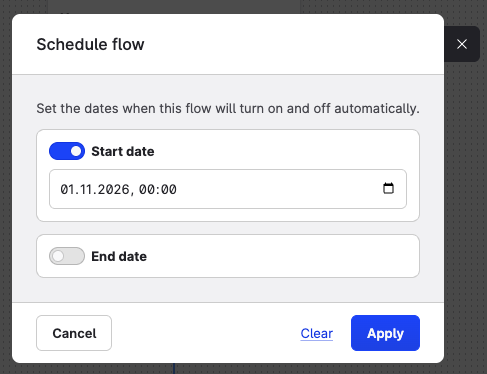
Click Schedule in the top toolbar. The Schedule flow dialog opens.
-
To set a start date, enable the Start date toggle and select a date and time.
-
To set an end date, enable the End date toggle and select a date and time.
-
Click Apply.
-
Click Save (or Finish update) in the canvas to save the flow with the schedule.
Dates are displayed in your account timezone.
Scheduled flow status
A flow with a future start date appears with the Scheduled status in the flow list. The flow is not yet active — it will activate automatically when the start time is reached.
Once the start date passes, the flow moves to Active status and begins processing. When the end date is reached, the flow deactivates automatically.
Changes triggered by the schedule are recorded in the audit log with the description: Due to workflow schedule.
Edit or clear a schedule
-
To change the schedule, open the flow canvas, click Schedule, update the dates, and click Apply. Save the flow to apply the changes.
-
To remove the schedule entirely, open the Schedule flow dialog and click Clear, then save the flow.
You can edit the start date of a flow that is already active.
Important notes
-
Both the start date and end date are optional.
-
Dates must be in the future at the time you set them. The end date must be later than the start date.
-
Schedule dates can be set up to one month in the future.
-
Manually activating or deactivating a flow does not clear its end date. The flow will still deactivate automatically when the end date is reached.
-
Duplicating a flow does not copy the schedule. The duplicated flow has no schedule set.
-
A flow must be structurally valid before a schedule can be saved.