
A keyword list is a predefined set of words and their mutual relationships that can be used as a condition for Flow Automations.
Keyword lists can be used with the following flow types:
-
Community messages
-
Care cases
-
Care messages
You can add up to 4 Keyword list or Full-text conditions per a branch in a flow.
In this article, you will learn how to create a keyword list and set up necessary permissions.
Set up Keyword list permissions
Before you set up a keyword list, we advise you to consider who in your organization should have permissions to create or see individual lists.
Changes to a keyword list that is used in an active flow will have an immediate effect on how the messages and cases are processed. Ensure that this is reflected in your permission setup.
Emplifi account admins can create, see, and edit any keyword list.
Furthermore, admins can restrict access to specific keyword lists to specific user groups.
Consider the following setup:
There is one account admin and there are two user groups in your account and they contain the specified users.
-
Germany group - User X
-
France group - User Y
|
Account admins can |
|
|
User X can |
Create, see, edit keyword lists restricted to Germany user group |
|
User Y can |
Create, see, edit keyword lists restricted to France user group |
Scenario:
-
The account admin creates a keyword list Umlaut and chooses to assign visibility to Germany and France user groups.
-
User Y creates a keyword list Liaison and can ONLY assign visibility to the France user group
Implications:
|
|
Umlaut |
Liaison |
|
Account admins can |
see and edit |
see and edit |
|
X (Germany) can |
see and edit |
|
|
Y (France) can |
see and edit |
see and edit |
Create a Keyword list
Keyword list is a part of the Automation section of the Settings.
Before you create your lists, consider the following:
-
Group paste
When pasting keywords from different documents or application, separate the keywords with a comma and space, then paste them into the input. If you need to copy keywords from a spreadsheet, then each cell would be one keyword. -
Emojis
Task Automation supports emojis. You can paste any emoji from Unicode standard, and we support all skin tones. -
Wildcard Characters
The asterisk (*) and question mark (?) wildcard characters act as a placeholder for characters in your keywords. They can be interpreted as a number of literal characters or an empty string. Wildcard characters can only be used at the end of a keyword that is a single word. They cannot be used in phrases. (For example,laugh*works, butlaugh* hardorhard laugh*does not work)-
Question mark
?
Takes the place of a single character at the end of the keyword. For example: Laugh? will resolve Laughs, but it will not resolve as Laugh or Laughter. -
Asterisk
*
Takes the place of any number of characters at the end of the keyword, including no characters. For example: Laugh* will resolve Laugh, Laughs, Laughter, and Laughing.
-
Steps:
-
Go to Settings, click Automation, then click Keyword list.
-
Click Add keyword list.
The side panel opens.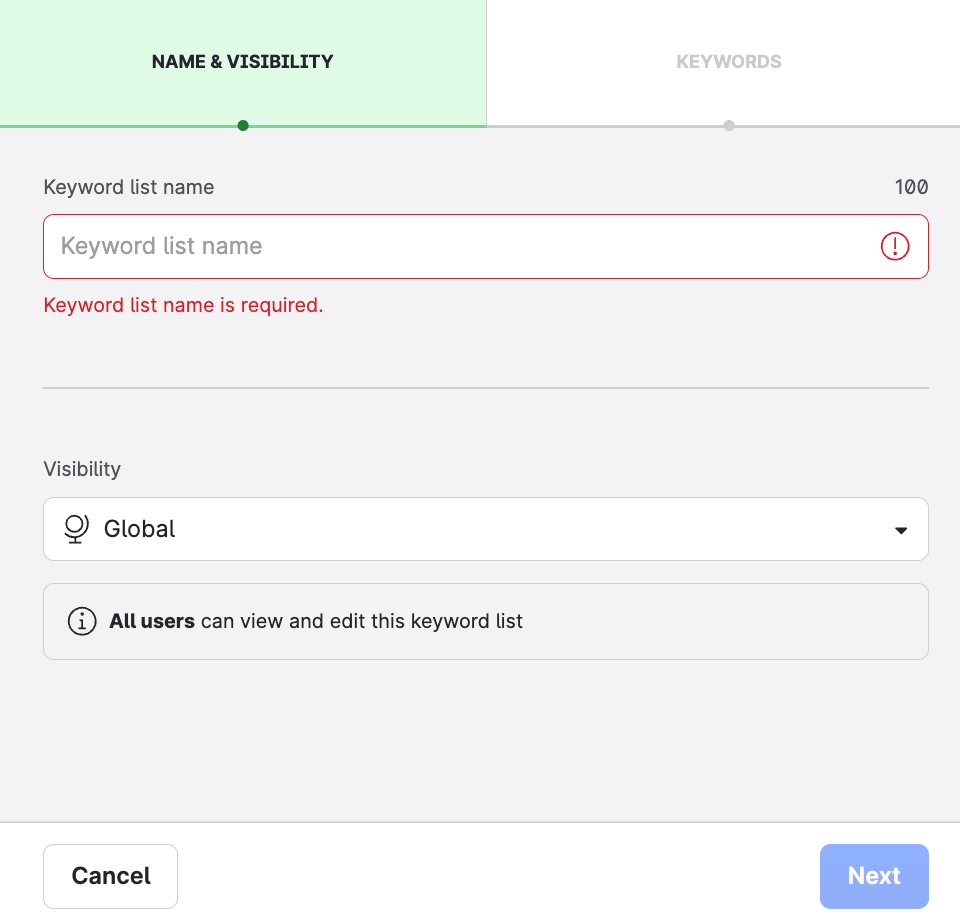
-
Name your keyword list.
-
Select one of the visibility options:
-
Global
-
Specific user group
Click Add user group to specify the visibility.
-
-
Click Next.
-
Enter the keywords and any conditions.
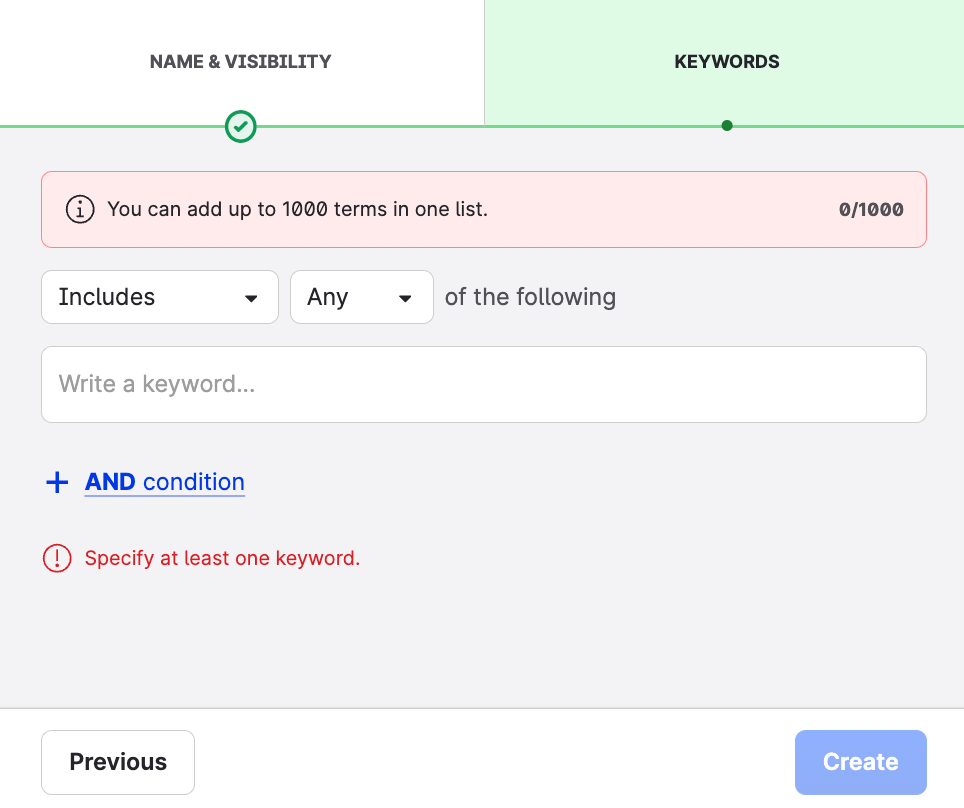
-
Click Create.