
Note: This page describes the full version of Fuel AI, which is an add-on to your Emplifi package. If you have Fuel AI Lite, which every customer has by default, you can ask how-to questions and summarize Unified Analytics widgets and boards, but not carry out the tasks on this page. To find out about adding Fuel AI, contact your account manager. See Fuel AI Lite.
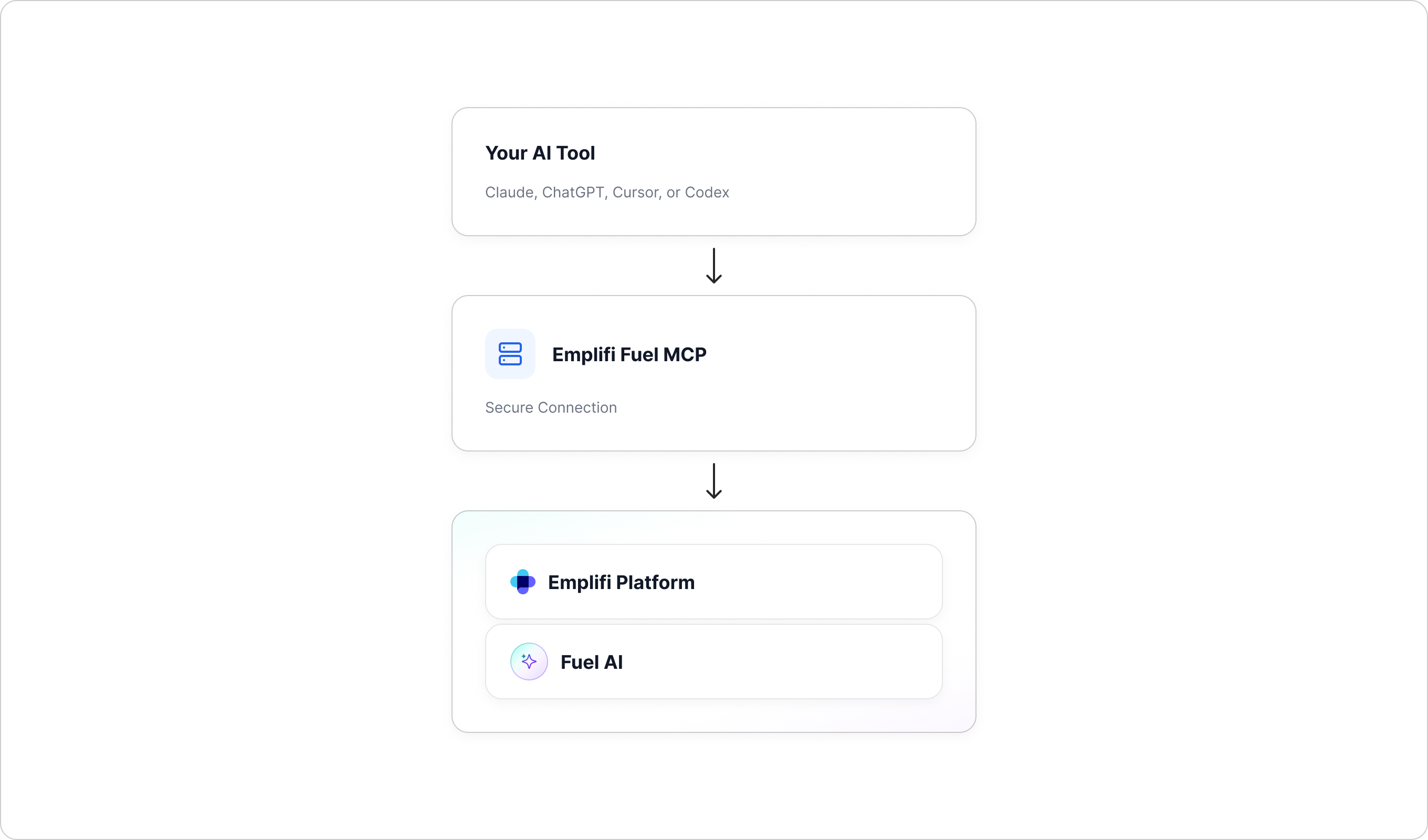
If your team already works in an AI tool such as Claude, ChatGPT, Cursor, or Codex, you can connect it to your Emplifi account. Once connected, your AI tool can use Fuel AI to look up and analyze your Emplifi data and carry out Emplifi actions on your behalf. You stay inside the tool you already use.
Note: Connecting your own AI tool is available to selected customers while it is being rolled out. If you'd like access, contact your account manager.
What is MCP?
MCP stands for Model Context Protocol. It's an open standard that gives AI tools a safe, agreed way to connect to other software, in the same way that a USB port gives any device an agreed way to plug into a computer. An AI tool that supports MCP can connect to any service that offers an MCP server, and most AI tools now do.
Emplifi provides an MCP server for Fuel AI, called Emplifi Fuel. Emplifi hosts and manages it, so there's nothing for you to install on a server. You point your AI tool at the Emplifi Fuel server address, sign in with your Emplifi account, and your AI tool can start working with Emplifi.
The same Fuel AI, in a different place
Connecting your AI tool doesn't give you a different or smaller version of Fuel AI. It's the same agent you reach from the chat panel in Emplifi, with the same actions, the same permissions, and the same safety checks. The only difference is where you type.
That means your AI tool can do the same things you can do with Fuel AI in Emplifi. It can retrieve and analyze your data, and carry out actions such as creating boards, labels, Listening topics, or drafts. See What you can ask Fuel AI to do for the full list.
Your AI tool always acts as you. It has exactly the same permissions you have in Emplifi, no more and no less. Anything that creates, changes, or deletes something still needs your approval, and every action is recorded against your user.
|
Tip: For most organizations the answer is both. People who work in Emplifi all day use the chat panel. Data, insights, and operations teams who live in their own AI tools connect those tools to Emplifi. Nobody has to switch. |
Before you begin
Make sure you have the following:
-
Fuel AI switched on for your Emplifi account, and the AI tool connection switched on for your user by your Emplifi administrator. See Manage who can use Fuel AI.
-
An AI tool that supports MCP. Claude, ChatGPT, Cursor, Codex, Microsoft Copilot and Claude Code all do, and most other MCP-compatible tools should work too.
-
Permission to add connectors in your AI tool. On Claude Team and Enterprise plans, an organization owner needs to add the connector first. See the Claude section below.
There's nothing to install. You connect by giving your AI tool the Emplifi Fuel server address and signing in.
Connection details
Whichever AI tool you use, these are the details you'll need:
|
Setting |
Value |
|
Server name |
Emplifi Fuel |
|
Server address |
|
|
Connection type |
Streamable HTTP |
|
Note: There is no one-click install from the Claude or ChatGPT marketplaces yet. For now you connect by pasting the server address. A marketplace connector is planned for a later release. |
Connect your AI tool
Claude (web or desktop)
How you add the connector depends on your Claude plan.
Team and Enterprise plans
An organization owner adds the connector once for everyone:
-
Go to Organization settings → Connectors.
-
Click Add, hover over Custom, and select Web.
-
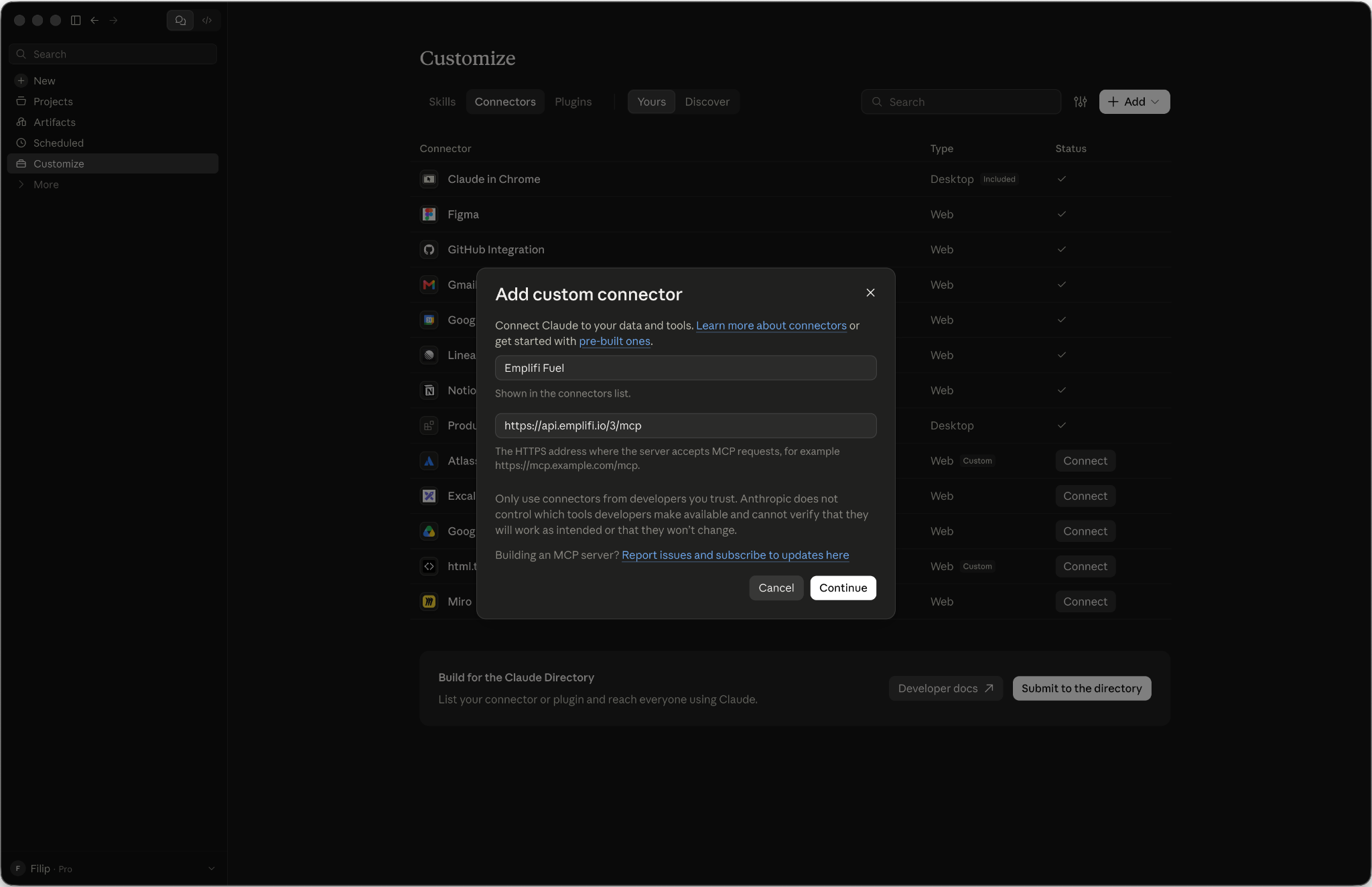
Enter https://api.emplifi.io/3/mcp and click Add.
Each member then connects:
-
Go to Customize → Connectors.
-
Find Emplifi Fuel in the list and click Connect.
-
Sign in when prompted. See Sign in to Emplifi below.
Pro and Max plans
-
Go to Customize → Connectors.
-
Click + and select Add custom connector.
-
Enter https://api.emplifi.io/3/mcp and click Add.
-
Sign in when prompted. See Sign in to Emplifi below.
|
Tip: After adding the connector, turn it on in a chat by clicking + in the message box and selecting it under Connectors. |
Cursor
-
Go to Preferences → Cursor Settings → Tools & MCPs.
-
Click + New MCP Server to open the configuration file (mcp.json).
-
Add the following and save the file:
|
{
|
-
Sign in when prompted. See Sign in to Emplifi below.
Codex
-
Go to Settings → Plugins → MCPs.
-
Click + Add Server and select Streamable HTTP.
-
Enter the name Emplifi Fuel and the URL https://api.emplifi.io/3/mcp.
-
Click Save, then sign in when prompted. See Sign in to Emplifi below.
Microsoft Copilot
Microsoft uses the name Copilot for several products, and only one of them connects to MCP servers:
|
Product |
Can it connect to Fuel AI? |
|---|---|
|
Microsoft Copilot Studio |
Yes. This is where you build agents for your organization, and it supports MCP servers. Connect Fuel AI here. |
|
Microsoft 365 Copilot (the Copilot in Teams, Word, and Outlook) |
Not directly. Build an agent in Copilot Studio with Fuel AI connected, then publish that agent to Microsoft 365 Copilot. |
|
The Copilot app (consumer Copilot on the web or your phone) |
No. It doesn’t support custom MCP servers. |
You’ll need a Copilot Studio license and the right to create agents and tools in your environment. Your Microsoft administrator controls both.
To connect Fuel AI to a Copilot Studio agent:
-
Open your agent in Copilot Studio and go to the Tools page.
-
Select Add a tool, then New tool, then Model Context Protocol.
-
Enter the server details:
-
Server name:
Emplifi Fuel -
Server description: a short description, for example “Works with Emplifi social media data, analytics, Listening, Care, and Community, and carries out Emplifi actions.” The agent uses this description to decide when to call Fuel AI, so make it clear.
-
Server URL:
https://api.emplifi.io/3/mcp
-
-
For the authentication type, select OAuth 2.0, then Dynamic discovery. Emplifi Fuel registers itself with Copilot Studio automatically, so you don’t need to enter any client IDs, secrets, or URLs.
-
Select Create, then Next.
-
On Add tool, select Create a new connection and sign in with your Emplifi account. See Sign in to Emplifi below.
-
Select Add to agent.
Each person who uses the agent signs in to Emplifi with their own account the first time the agent calls Fuel AI, so the agent always acts with that person’s Emplifi permissions.
Note: Copilot Studio reaches MCP servers through Power Platform connectors. If your organization has a data policy that restricts custom connectors, your Microsoft administrator needs to allow the Emplifi Fuel connector before it will work.
Claude Code (command line)
Run the following command in your terminal, then complete the sign-in when prompted:
|
claude mcp add Emplifi_Fuel --scope user --transport http https://api.emplifi.io/3/mcp |
Other AI tools
Point your tool at the Streamable HTTP address https://api.emplifi.io/3/mcp and sign in. Any MCP-compatible tool should connect.
Sign in to Emplifi
You sign in once in your browser. There are no API keys to create or store.
-
A browser window opens, or your AI tool shows you a sign-in link.
-
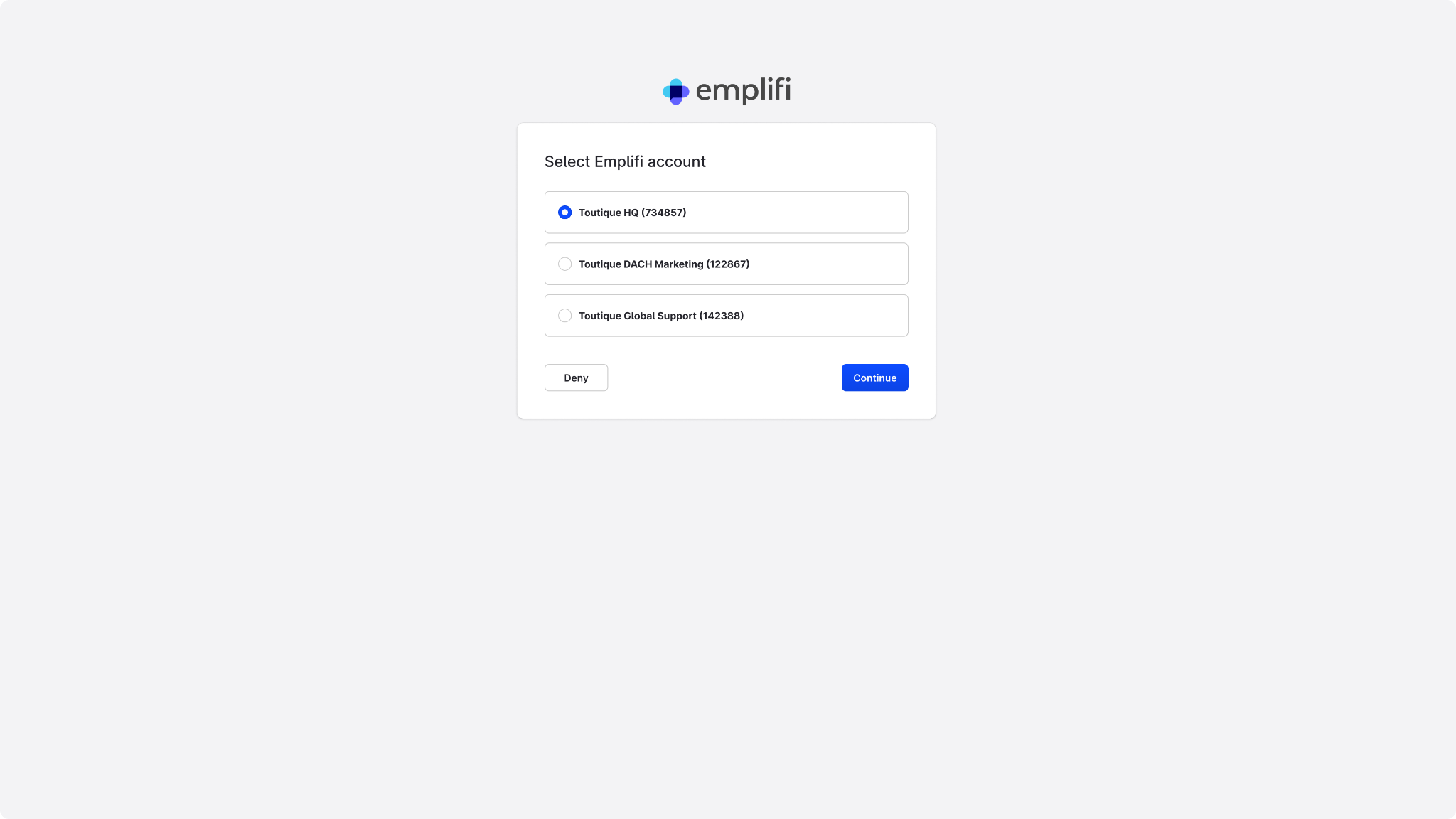
If your login has access to more than one Emplifi account with Fuel AI, choose the account you want to connect.
-
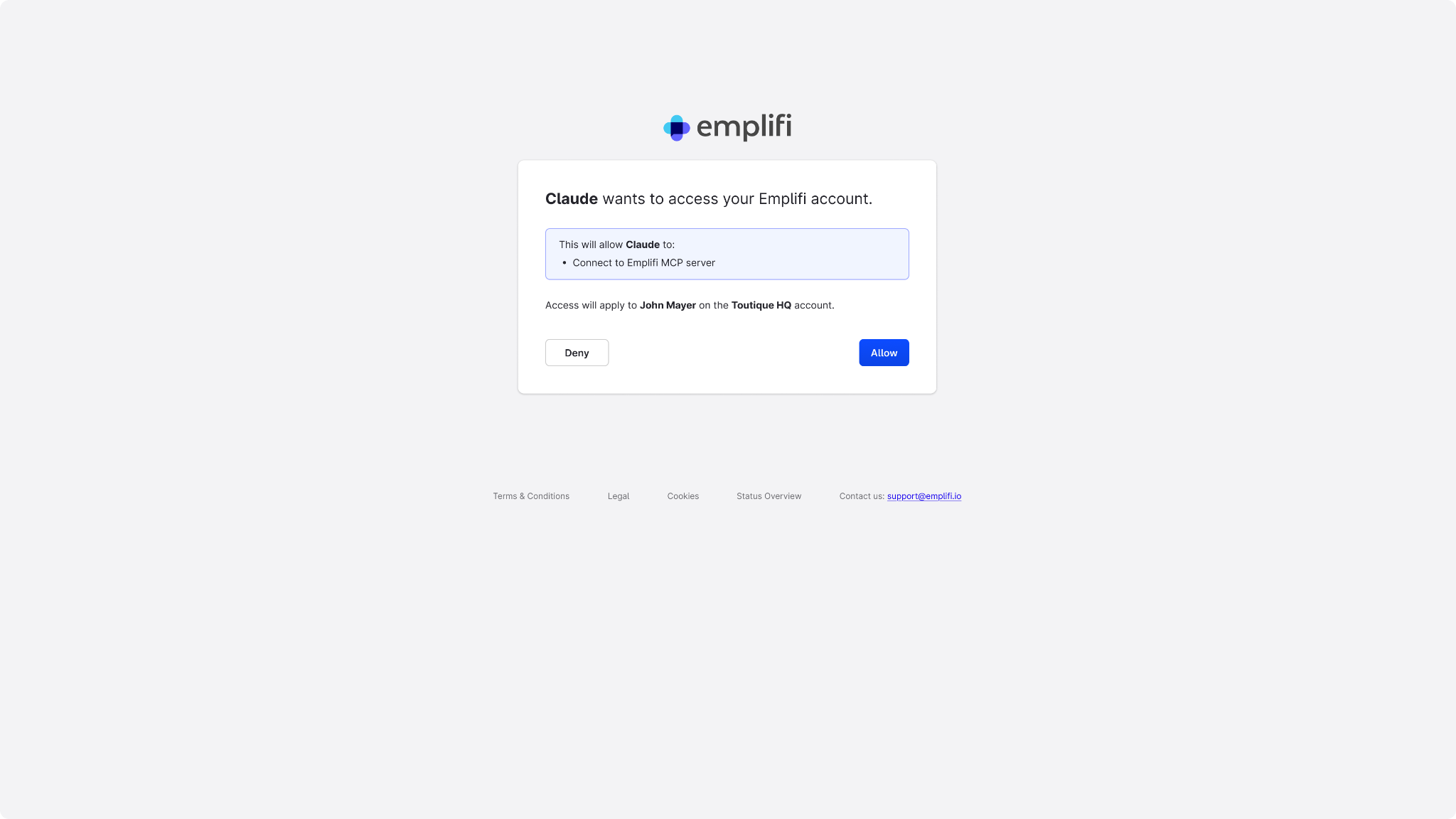
Review the consent screen. It shows exactly which Emplifi account and user the connection applies to.
-
Click Approve. Your AI tool is now connected and stays connected until you remove it.
Security and access
-
No API keys. Sign-in uses OAuth 2.0 in your browser, the same standard used for Emplifi's public API. The only thing your AI tool stores is the public server address.
-
Limited permission. The connection lets your AI tool act as you, and nothing more. There is no standing credential that can be used without you.
-
Account-scoped and visible. You choose which Emplifi account to connect, and the consent screen names the exact account and user before you approve.
-
Recorded. Every action your AI tool takes through Emplifi is recorded against your user.
-
Nothing sensitive on your computer. Any settings your AI tool keeps hold only the public server address. Your sign-in is managed by your AI tool, and removing the connector removes it.
Troubleshooting
|
Problem |
What to do |
|
Add custom connector is greyed out, or you see "Ask an organization owner to add this for your team" |
You're on a Claude Team or Enterprise plan, where only an owner can add a connector. Ask your Claude owner to add Emplifi Fuel in Organization settings → Connectors. It then appears under Customize → Connectors for you to connect. |
|
Your organization doesn't allow custom connectors at all |
Your AI tool's administrator controls this setting. Ask them to allow the Emplifi Fuel connector, or contact your Emplifi account team to discuss options. |
|
You don't see Emplifi to sign in to, or access is denied |
Your Emplifi account may not have Fuel AI switched on, your user may not have the AI tool connection enabled, or you picked the wrong account. Ask your Emplifi administrator to check your access, and choose the right account on the selection screen. |
|
Sign-in, registration, or discovery errors |
Check the address is exactly https://api.emplifi.io/3/mcp with no trailing slash. Remove the connector, add it again, and sign in again. |
|
The connection dropped or stopped responding |
Disconnect and reconnect the server from your AI tool's MCP settings. This is a routine reset and doesn't affect your Emplifi data or your sign-in. |
|
You need to sign in as a different Emplifi user or account |
Remove the Emplifi Fuel connector from your AI tool, add it again, and choose the right account when you sign in. |
|
Copilot Studio won’t let you add the server, or the connection is blocked |
Your organization’s Power Platform data policy may restrict custom connectors. Ask your Microsoft administrator to allow the Emplifi Fuel connector, or check that your environment permits new tools. |
Get help
If you're still stuck, contact your Emplifi account team or Emplifi Support. Tell them which AI tool you're using, which step you reached, and the exact text of any error message.