
Objectives are where you view, create, and manage all your strategic objectives. In order to complete your objectives, you must follow (complete) the tactics defined for the objective you want to accomplish.
Starting from the Platform navigation bar, your objectives can be found in two places:
-
Command Center
Displays a list of the top strategic objectives and most frequently completed tactics for your organization, as well as the progress of the objective. Clicking an objective opens the detailed view for that objective.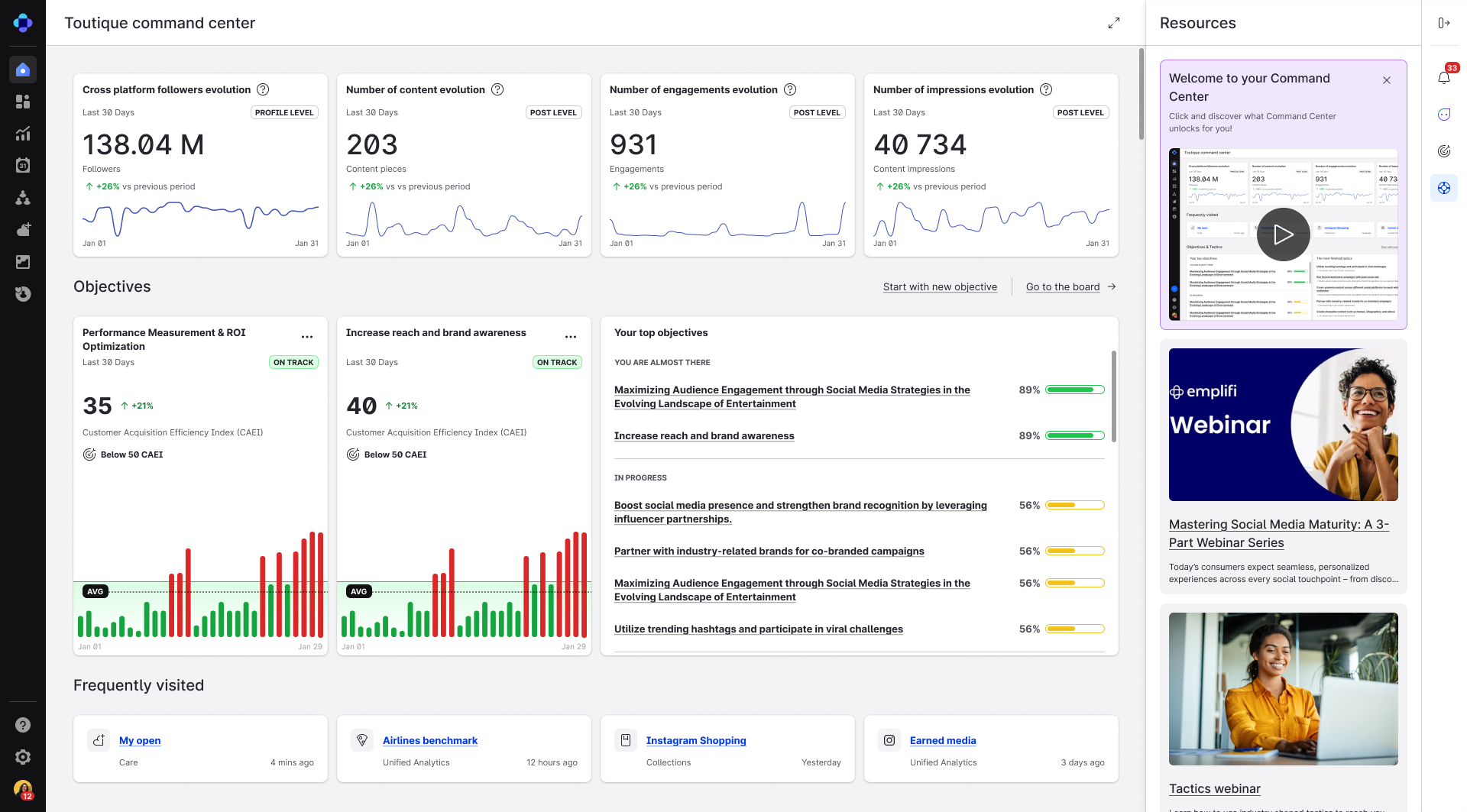
-
Unified Analytics → Objectives
Displays cards containing all of the completed and in-progress objectives for your organization. Clicking an objective opens the detailed view for that objective.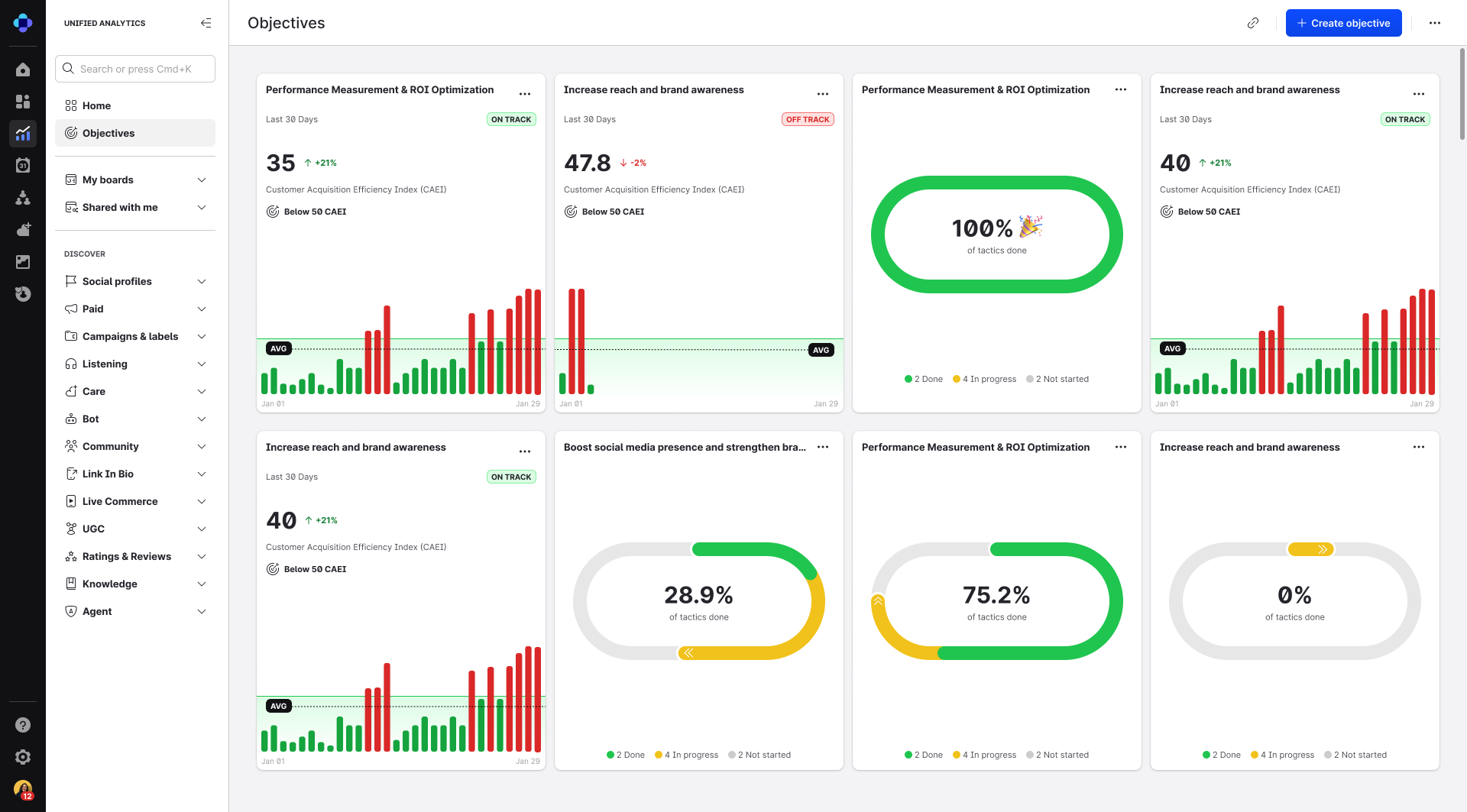
Each card shows the following information:
-
Objective name
-
Progress measurement (% of tactics completed, or metric progress if configured for a given objective)
-
Breakdown of tactics (Done / In progress / Not started)
-
Create a new objective
Objectives are created using predefined templates. Each template comes preloaded with the following content:
-
A measurable, predefined Objective Metric (*available for certain objectives only)
-
Predefined Tactics and Best Practices
Steps:
-
From Command Center, click Start with new objective.
You can also go to Unified Analytics → Objectives and click Create Objective.
-
Select the Objective template you want to use to create your objective.
-
(Optional) Name your objective. By default, this field is populated with the name of the template.
-
(Optional) In the Description field, add any internal notes or additional context for the objective.
-
If your objective has an Objective Metric, search for and select the individual profiles you want to use as Data sources, and click Apply.
You can also Select All for bulk selection of profiles. Only profiles that match your filter conditions (Search/Platform) are selected.
-
Define your Objective goal. The available options for the objective goal depend on which metric the objective is tracking.
⚠️ Only numeric values are allowed for the objective goal. -
Click Create objective to finalize and activate the objective.
Edit an objective
After you create an objective, only the Name, Description, Data sources, and Objective goal can be changed. There are three locations from which you can edit an objective:
-
Unified Analytics → Objectives
Choose an objective card and click More options (…) -> Edit. -
Objective details
After opening the objective details:-
Click Edit in the Objective details section.
-
Click More options (…) -> Edit.
-
Delete an objective
You can delete an objective from the details page for that objective. Click More options (…) → Delete.
Objective details page
The details page for an objective shows all the information you need to complete your objective. You can open the details page for an objective by clicking on the objective wherever it appears within the Platform.
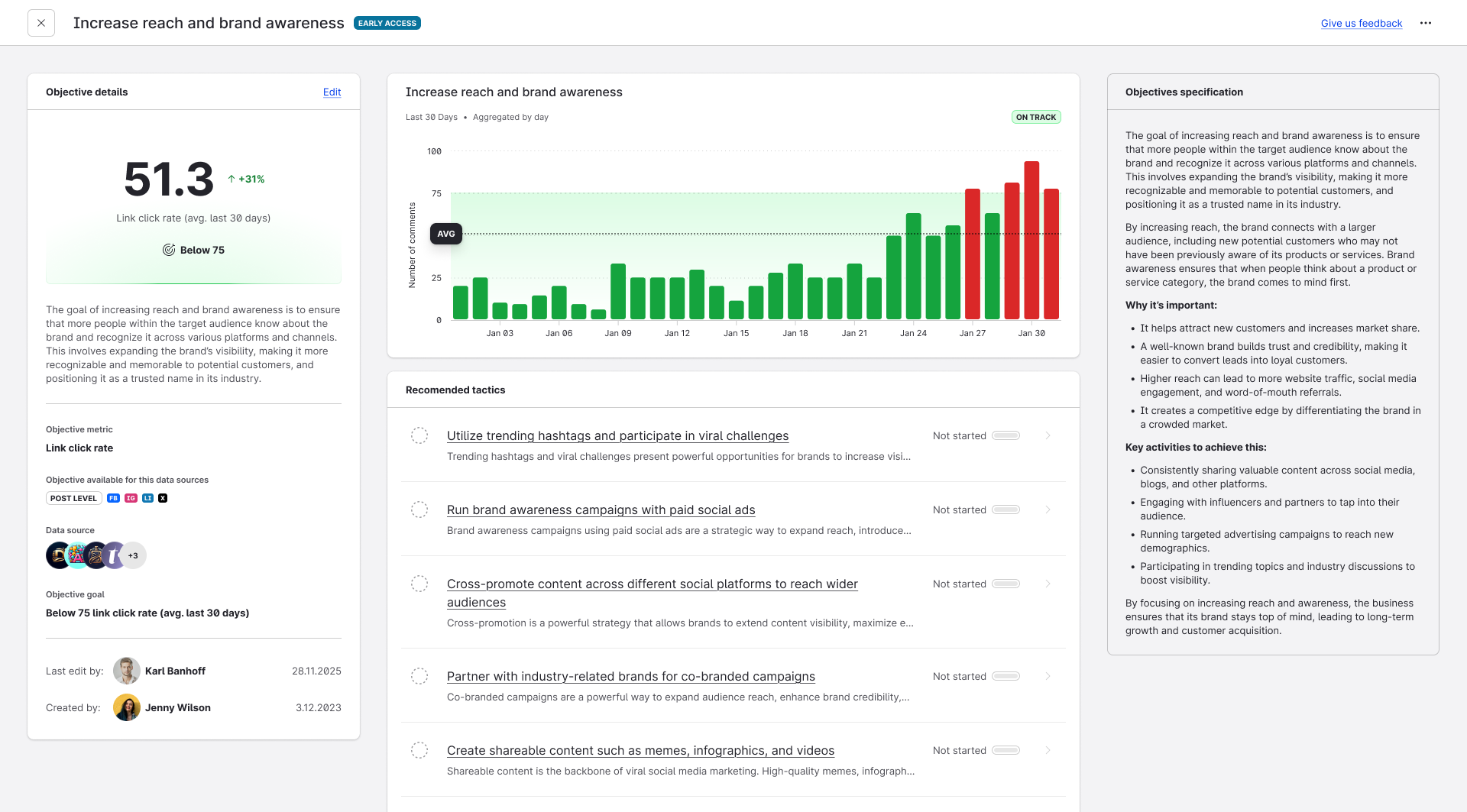
The following table describes the layout of the objective details page:
|
Section |
Description |
|---|---|
|
Objective Details |
Displays your description of the objective, the current metric value, performance trend, and objective goal condition (e.g., “Above 10,000 Content Impressions”). |
|
Performance Graph |
Shows metric data over time (last 30 days). Aggregated by day or post, depending on metric type. |
|
Objective Specification |
Narrative explanation of the objective’s purpose and strategic context. |
|
Recommended Tactics |
Lists all of the tactics linked to this objective and their progress indicator. Clicking a tactic opens a side panel with the full tactic definition and actionable guidance. |
Viewing and executing tactics
Emplifi Fuel visually tracks the completion of each tactic to give you a a clear sense of progress towards finishing your objective goals.
When you click a tactic, a side panel opens with the full tactic definition and steps to help you accomplish the tactic.
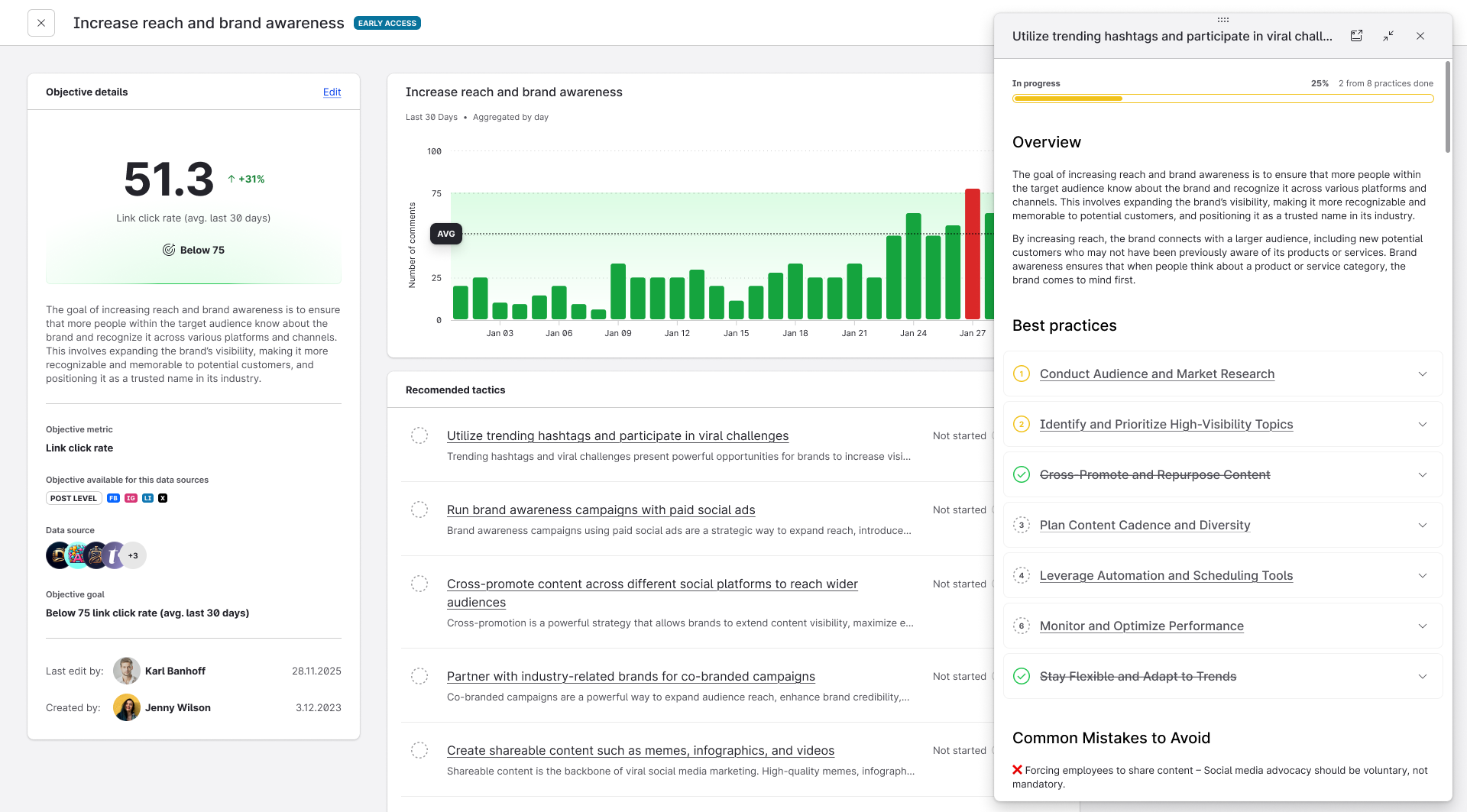
The following table describes the layout of the tactics side panel:
|
Section |
Description |
|---|---|
|
Overview |
Explains why the tactic matters, what outcomes it drives, and what to focus on. |
|
Best Practices |
Collapsible sections containing actionable tasks for users to follow. Each Best Practice includes:
|
|
Common Mistakes |
Lists typical mistakes to avoid when executing the tactic. |