
Preview State for Accounts Migrating to Teams
Summary: This article explains what happens when your account is in the Teams migration preview state and what admins can configure before Teams becomes the active governance solution.
This article applies only to customers who are migrating to Teams.

If you have any questions, contact your Customer Success Manager or Emplifi Support at support@emplifi.io.
What does migration to Teams mean
Migrating to Teams means that your account will move from the legacy governance system to the Teams governance solution (see Govern Access to Account Resources Using Teams).
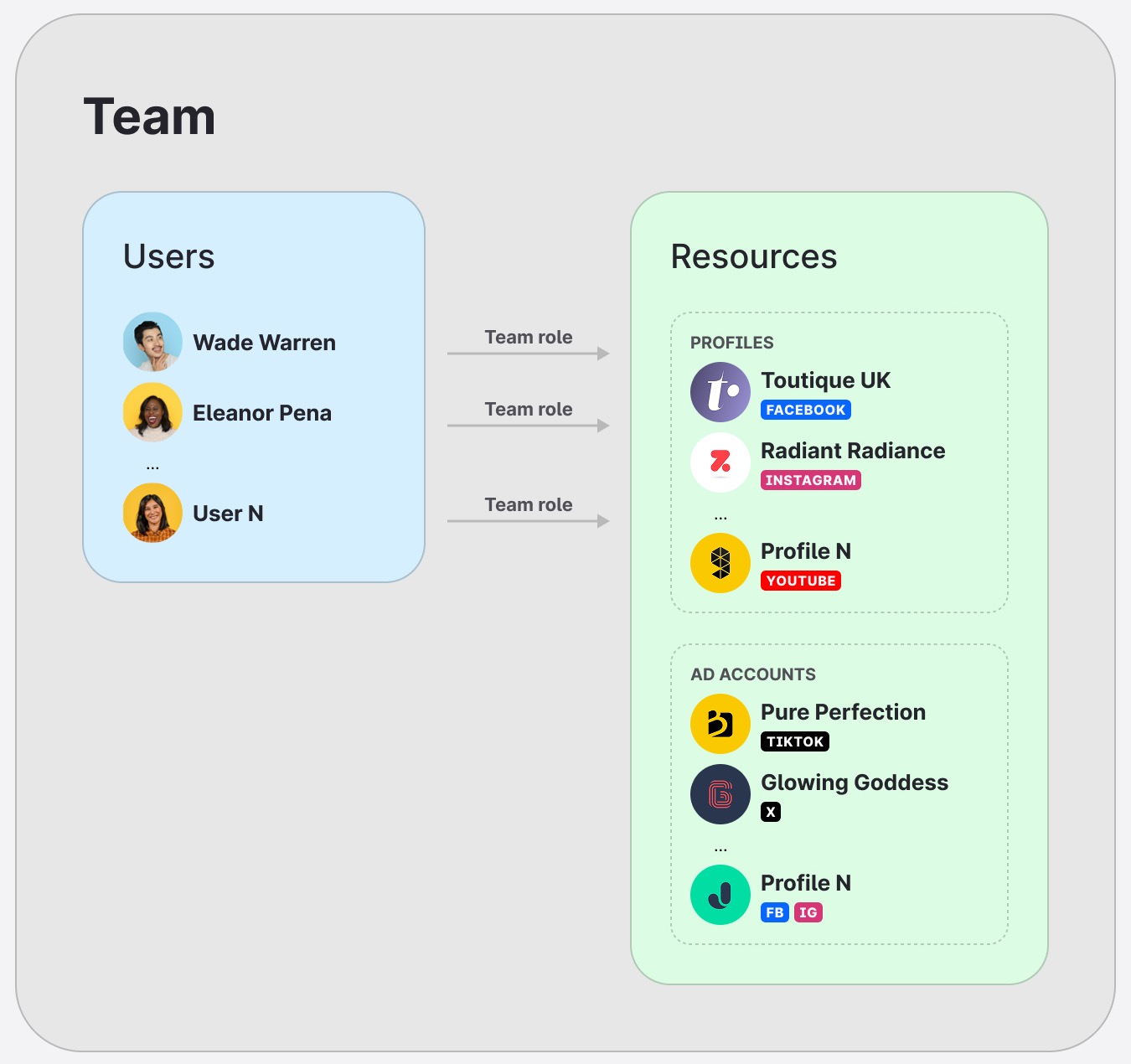
In the legacy system, access is managed through account roles, profile roles, and user groups. After migration, access is managed through teams, product access, team roles, users assigned to teams, and resources assigned to teams.
Teams becomes the main way to define who has access to what in your account. This makes it easier to manage access across users, teams, brands, regions, departments, or other parts of your organization.
The migration itself is handled by Emplifi. You do not need to start, run, or complete the migration manually in the platform.

Your responsibility during the preview state is to prepare and review your Teams configuration. When the configuration is ready, confirm with your Customer Success Manager that your account is ready to migrate. After your confirmation, Emplifi completes the migration on your behalf.
No disruption to your regular workflows is expected during the migration. The migration is completed by Emplifi, and no action is required from you to perform the migration itself.
What is the preview state
The preview state gives admins time to prepare their Teams configuration before Teams becomes active in the account.
During this period, admins can set up the future team-based governance structure without changing the existing account setup or interrupting regular workflows.
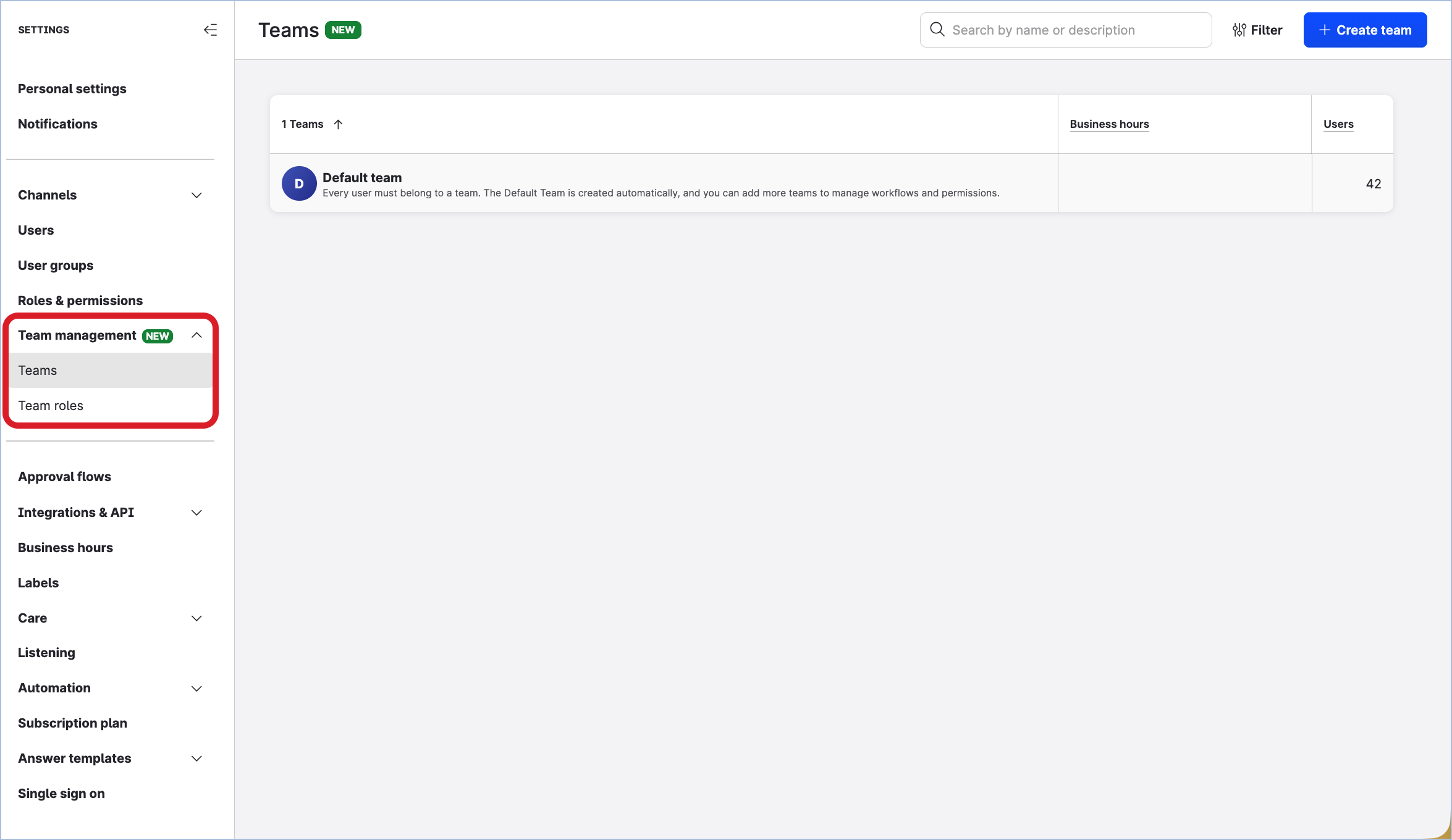
Changes made in Team management during the preview state do not affect current user access, permissions, visibility, or workflows until the account is migrated.
Until the migration is completed, the legacy governance system remains the active system for access and permissions (see User Roles and Permissions).
Governance systems available during the preview state
During the preview state, admins can see both governance systems:
Governance system | Status during the preview state |
Legacy governance system | Active. Account roles, profile roles, and user groups continue to control access in the account. |
Team management | Available for preparation. Admins can configure the future Teams setup, but it does not affect the active account setup yet. |
What continues to work during the preview state
Until your account is migrated, the legacy governance system continues to work as before.
This means that admins can continue to view and manage the existing configuration, including:
account roles (see Account Roles)
profile roles (see Profile Roles)
user groups (see Organize Users into User Groups)
Regular workflows that depend on the existing governance setup continue to work as before until the migration is completed.
What admins can prepare in Team management
During the preview state, admins can use Team management to prepare the Teams configuration that should take effect after migration (see Update and Maintain Teams).
Admins can prepare the following:
create teams
define product access for teams
define collaboration between teams
create team roles
assign users to teams and team roles
assign profiles to teams and define profile access
The configuration created in Team management is saved as the future Teams setup. It does not affect the current account setup until the account is migrated.
What happens when the account is migrated
When the account is migrated, Teams becomes the active governance solution.
At that point, the Teams configuration prepared during the preview state takes effect. Access is then managed through teams, product access, team roles, users assigned to teams, and profiles assigned to teams.
Need help?
If you have questions about your migration or need help preparing your Teams configuration, contact your Customer Success Manager or Emplifi Support at support@emplifi.io.