
Once you have added the language variants, the Bot will automatically analyze the new variants, matching them against the default language of your Bot in order to provide automatic translation suggestions.
It may take between 10-30 seconds for the tool to finish translating. Once it has, you’ll see the interface populated with copy awaiting review for the new languages.
Reviewing Translations
To continue with reviewing translations, ensure you have:
-
Completed your default language Bot configuration (added flows, intents, response groups, etc). Adding languages should be the last configuration step before testing or publishing to production.
-
Added the necessary language variants as detailed in Adding Language Variants.
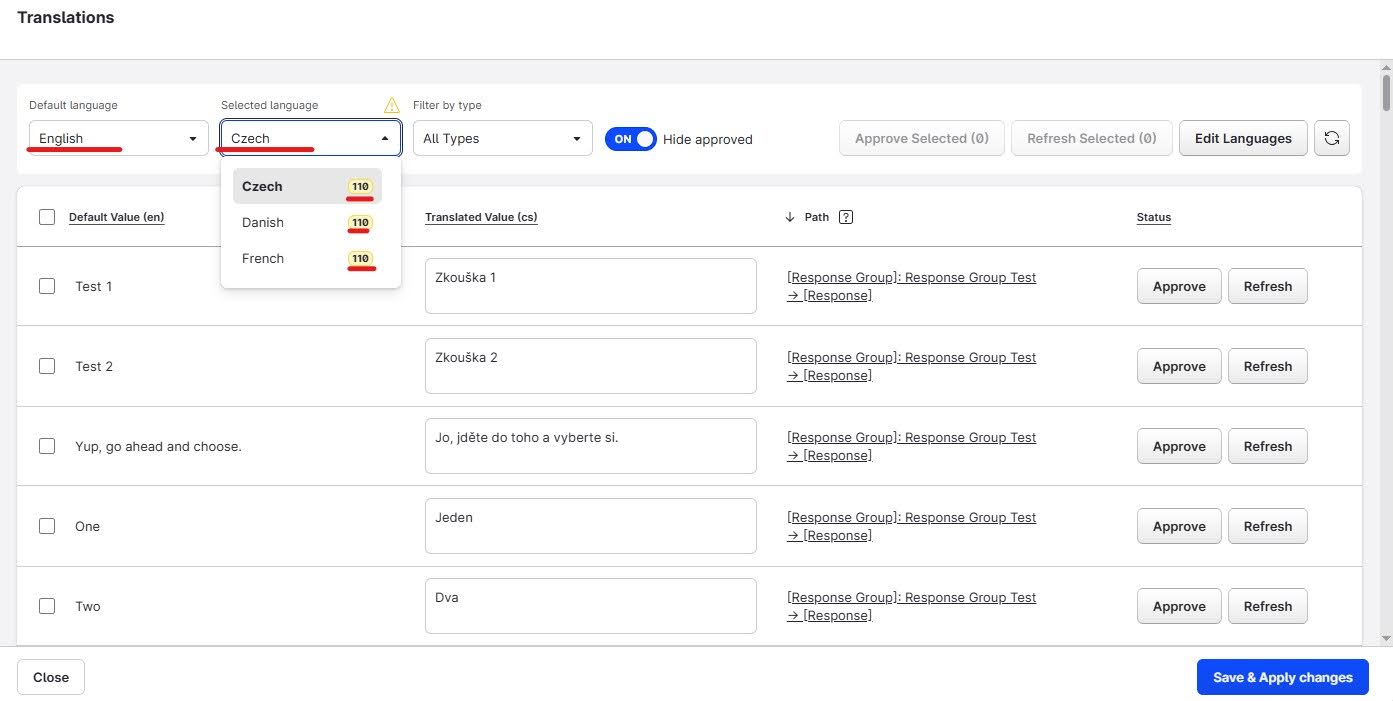
In the top-left corner of the translation interface, you will see your default language and selected language variant (you may have to click to display the full list of languages you just added).
Each language in the dropdown will display a yellow numerical value next to it (only when there are translations to be reviewed). This denotes how many items require translation review. If you click a language from the list, it will display the translated languages in the Translated Value column.
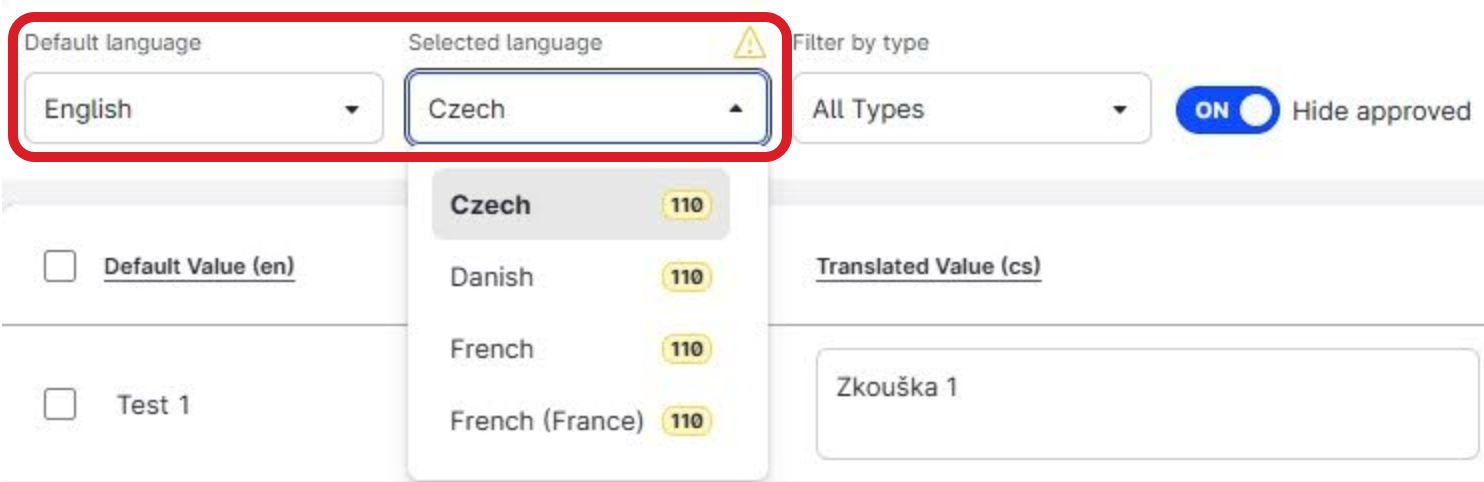
Once you have added additional language variants to your Bot and have the translations interface open, you can begin reviewing your translated content.
We recommend setting time aside to review and approve translations in one sitting, rather than attempting to iteratively approve translations in smaller time increments.
Additionally, you may find it easier to add one language at a time and review/approve that content in full, before you add another language variant. This will make it easier to review languages in your Bot and shorten the time required to approve translated content in one session.
To review the translations:
-
Open the Translations V2 interface and choose the variant language you wish to translate first.
-
Use the interface's filtering capabilities to allow you to prioritize which items you review first (e.g. Flows or Intents). Alternatively, you can manually scroll through the full list of content.
-
Review each item from the list and either:
-
Tick the box next to the item in the list and click Approve to approve the suggested translation. This will remove it from the to-do list and decrease the number of outstanding review items.
-
Overwrite the suggested translation with your own wording, then tick the box next to the item in the list and click Approve to approve the item, which will add it to your Bot. You can use the Path tool to assist you here, in order to gain more context about an item of content.
-
-
Repeat steps 2-3 as necessary. You can multi-select items for bulk approval if you are satisfied with their suggested translations.
-
Click Save and Apply changes to record your approved translations.
-
If you have no more translations to be reviewed, the once yellow Translations button on the main interface will be displayed in grey. If you still have language translations to approve, the button will be yellow (you may have other variants to review).
While using the Translations V2 interface, the Save and Apply changes option will be shown on the interface screen. Be aware that when you click this button, any automatically generated translations currently under review will be saved and added to your Bot variants. The items that still require review and approval will still be available when you reopen the interface and any approved items will be recorded as such.
The system is designed to provide an automatic translation for any existing Bot copy. Be careful when enabling Translation V2 on any existing Bots that may already have previous translations manually applied to them in the past. The V2 interface will overwrite any legacy translations with the new values.