
Language Translations V2 is divided into two separate sections with their own header menus. These will be referred to as the main interface header and the secondary interface header. The contents and functions of each menu are explained below.
To effectively use Language Translations V2, we recommend familiarizing yourself with the below functions and definitions.
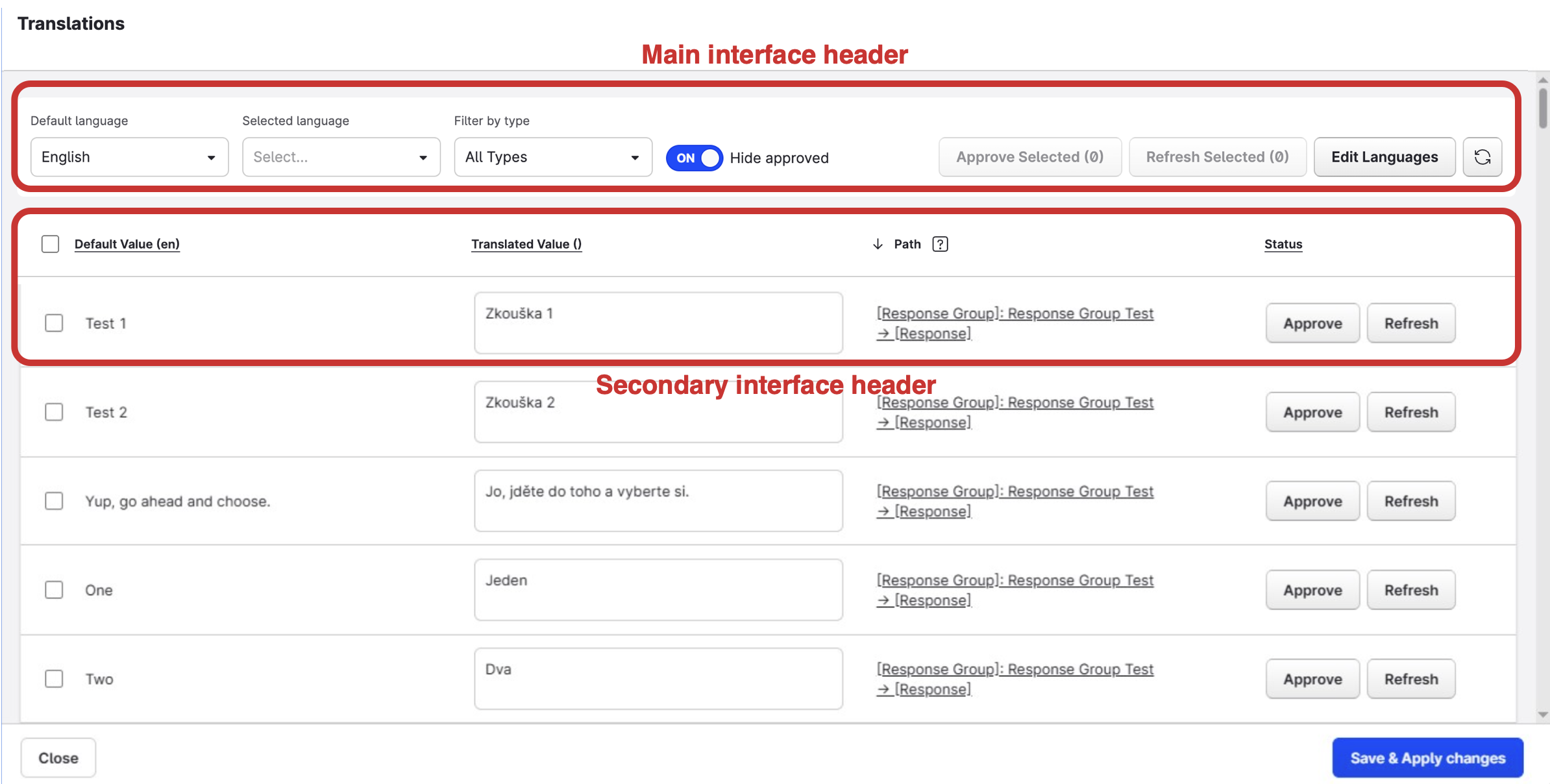
The Main Interface Header

A) The default language denotes the currently configured primary language for your chatbot. You can change your default language using the drop-down menu.
Changing your default language can cause significant consequences for your Bot translation efforts. Ensure you practice caution when adjusting this field.
B) Your selected language denotes the currently selected language that you are translating to (Default language -> Selected language). The drop-down menu allows you to switch between each translation variant currently added to your Bot. Each available language indicates how many items still require translation via a yellow box with a number inside it.
C) The filter by type option allows you to select which items in your Bot you wish to view for translation first (e.g. prioritizing node/flow copy for translation first). By default, your Bot content is displayed in alphabetical order. Choosing one of these filters may make your task easier to manage.
You can choose from: Conversation flows, Intents, Data types, Response groups, Routing rules, and Settings.
D) The hide approved toggle allows you to hide any already approved translations from the list. When enabled, it hides an item as soon as the translation has been approved. When disabled, the item stays visible in the list display even when approved.
E) The approve selected option allows you to choose multiple translated items within the list and bulk approve their translations.
F) The refresh selected option regenerates the original automatic translation for the items you have selected. If you have attempted to enter a manual translation and instead decide to refer back to the automatic translation, this button allows you to restore the original version.
G) Edit languages allows you to enable or disable languages within your Bot. Ticking or unticking a language adds or removes the language from your Bot, respectively.
H) The refresh translations button regenerates the original automatic translation suggested by the interface, but as a bulk action for all translations within the list display. Use this with caution, as this will overwrite any manual translations you may have added that are pending approval during your session.
The Secondary Interference Header

The secondary interface header, located just below the main interface header, displays the table columns and basic controls:
A) The default value displays the default text currently configured within your Bot’s primary language variant. This is the language used as a basis for providing automatic translations into the destination language.
The values in this column cannot be edited or overwritten from this interface. Changes to the primary Bot in terms of copy or structure need to be made within the authoring interface.
B) The translated value displays the automatically generated translation provided by the interface, aligned to the language currently selected in the “selected language” drop-down. You can either use the automatically provided translation or free-type or copy and paste text into the text box.
C) The path provides context for what the content being translated is and where it is located in the Bot interface. If you click on the path link (underneath Path), a new browser tab will open, showing you exactly where in the item is located. If you click on Path, you can change the display order of items in the translation table.
The content will only be shown in the default language of the Bot. Any changes you make to the original copy will require you to click the “refresh” button in order for the changes to be reflected in the translation interface.
D) The approve and refresh buttons allow you to either approve or refresh a translation on an individual basis. For example, if you have added a manual translation and decide you want to revert to the original automatically provided translation. Or, if you have made changes to the original copy in another browser tab via the path tool.
To add language variants, refer to the following article: Adding Language Variants